

Introduction
In this article, we will learn how we can create a clock in React applications.
You can check my previous articles in which we discussed ReactJS and its basic components from the below-mentioned links.
Prerequisites
- Basic knowledge of React.js
- Visual Studio Code IDE
Create ReactJS project
Let's first create a React application using the following command.
- npx create-react-app matform
>Open the newly created project in Visual Studio code and Install react clock library by using the following command:
- npm install react-clock
- npm install --save react react-live-clock
- npm install --save bootstrap
- import 'bootstrap/dist/css/bootstrap.min.css';
>Now go to src folder and create a new component 'ClockDemo.js' and add the following code in this component.
- import React, { Component } from 'react'
- import Clock from 'react-clock';
- import './ClockDemo.css';
- export class ClockDemo extends Component {
- state = {
- date: new Date(),
- }
- componentDidMount() {
- setInterval(
- () => this.setState({ date: new Date() }),
- 3000
- );
- }
- render() {
- return (
- <div className="container">
- <div class="row" className="hdr">
- <div class="col-sm-12 btn btn-info">
- How To Show a Clock in ReactJS
- </div>
- </div>
- <div className="clk">
- <Clock
- value={this.state.date}
- />
- </div>
- </div>
- )
- }
- }
- export default ClockDemo
Now create a css file named clockdemo.css and the following css in this file
- .clk
- {
- padding-left: 450px;
- margin-top: 20px;
- }
- import React from 'react';
- import logo from './logo.svg';
- import './App.css';
- import ClockDemo from './ClockDemo';
- function App() {
- return (
- <div className="App">
- <ClockDemo/>
- </div>
- );
- }
- export default App;
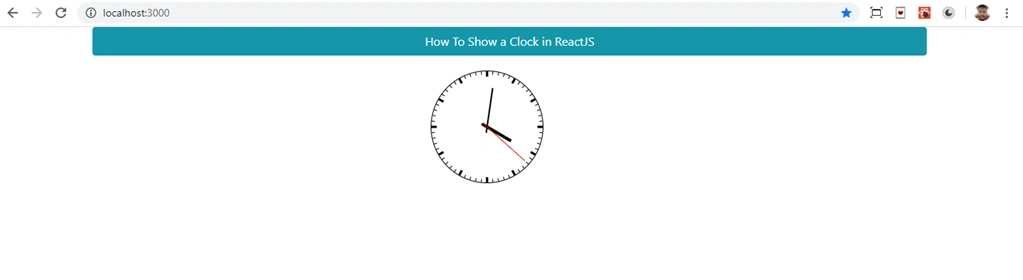
Now create a new component '>ClockLiveDemo.js' and add the following code in this component
- import React, { Component } from 'react'
- import Clock from 'react-live-clock';
- import './ClockDemo.css';
- export class ClockLiveDemo extends Component {
- render() {
- return (
- <div>
- <div className="container">
- <div class="row" className="hdr">
- <div class="col-sm-12 btn btn-info">
- How To Show a Clock in ReactJS
- </div>
- </div>
- <div className="clk">
- <Clock format={'HH:mm:ss'} ticking={true} />
- </div>
- </div>
- </div>
- )
- }
- }
- export default ClockLiveDemo
Add the following css in lockdemo.css file
- .clk
- {
- padding-left: 450px;
- margin-top: 20px;
- }
- .time1
- {
- font-size: 40px;
- }
Now open app.js file and add the following code.
- import React from 'react';
- import logo from './logo.svg';
- import './App.css';
- import ClockLiveDemo from './ClockLiveDemo';
- function App() {
- return (
- <div className="App">
- <ClockLiveDemo/>
- </div>
- );
- }
- export default App;
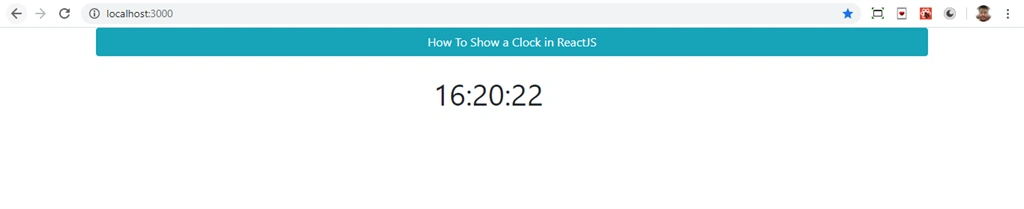
Summary
In this article, we learned how to create a clock in React applications.
Join the conversation! Your thoughts help the community grow.