
Welcome to an article on “How to create columns in a list using REST API in SharePoint Online and Office 365” where we will see the steps of creating an app using Napa Tool which will help us to create a column in a list using REST API.
- Open the “NAPA” Office 365 Development Tools through your SharePoint store.
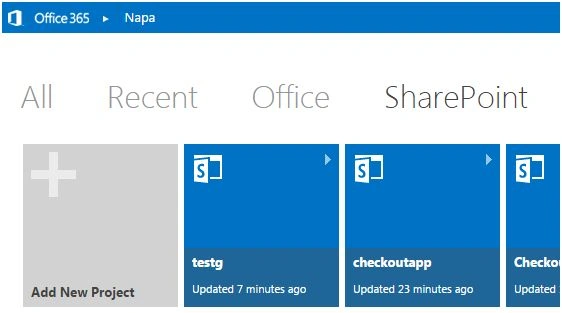
- Click on Add New Project.
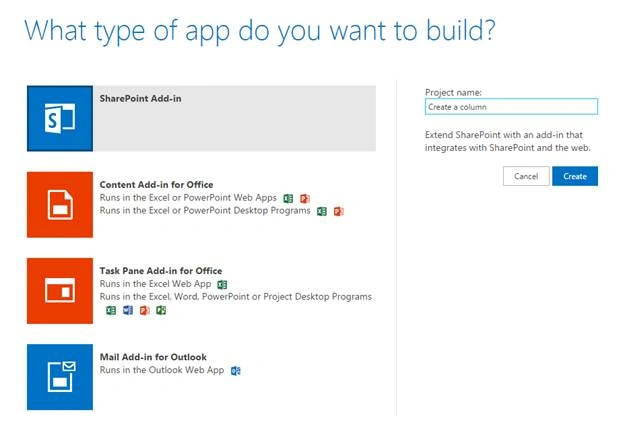
- It will ask you, what type of app do you want to build?
- Select SharePoint Add-in and provide a name to your app and click on Create.
- You will see the screen below on the app,
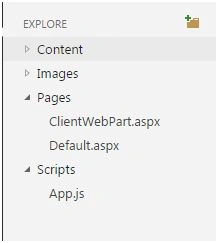
- Click on Default.aspx and paste the code below under the,Code:
- “<asp:ContentContentPlaceHolderID="PlaceHolderMain" runat="server">”.
Now on the navigation click on the App.js file and paste the code below removing the previous code completely.- <div>
- <p>
- <b>Create List Column</b>
- <br />
- <input type="text" id="createcolumnname" />
- <button id="createcolumn">Create Column</button>
- </p>
- </div>
Code:- 'use strict';
- var hostweblink;
- var applink;
- // get the links on app load
- $(document).ready(function()
- {
- hostweblink = decodeURIComponent(
- getQueryStringParameter("SPHostUrl"));
- applink = decodeURIComponent(
- getQueryStringParameter("SPAppWebUrl"));
- //Define click event
- $("#createcolumn").click(function(event) {
- createcolumn();
- event.preventDefault();
- });
- var scriptlink = hostweblink + "/_layouts/15/";
- $.getScript(scriptlink + "SP.RequestExecutor.js");
- });
- //get the data and clear it in a function
- function getQueryStringParameter(paramvalue)
- {
- var paramval = document.URL.split("?")[1].split("&");
- for (var i = 0; i < paramval.length; i = i + 1)
- {
- var paramval1 = paramval[i].split("=");
- if (paramval1[0] == paramvalue) return paramval1[1];
- }
- }
- // Create a column in a list
- function createcolumn()
- {
- var columnname = document.getElementById("createcolumnname").value;
- var play;
- play = new SP.RequestExecutor(applink);
- //DevData is the name of my list where I want to create a column
- play.executeAsync({
- url: applink + "/_api/SP.AppContextSite(@target)/web/Lists/getbytitle('DevData')/fields?@target='" + hostweblink + "'",
- method: "POST",
- body: "{ '__metadata': { 'type': 'SP.Field' }, 'FieldTypeKind': 2, 'Title':'" + columnname + "'}",
- headers:
- {
- "content-type": "application/json; odata=verbose",
- },
- success: createListcolumnsuccessful,
- error: createListcolumnfailure
- });
- }
- // Success Handler
- function createListcolumnsuccessful(data)
- {
- alert("Column Created Successfully")
- }
- // Error Handler
- function createListcolumnfailure(data, errorCode, errorMessage)
- {
- alert("Column coud not be created, view the error: " + errorMessage);
- }
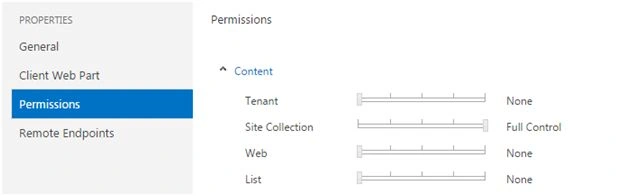
- Click on the settings icon on the tool on the left.

- Under the properties, select Permissions and provide full control to the app on the Site Collection level.
- Click on the deploy button on the left and run the project.
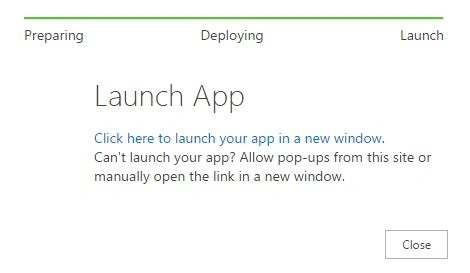
- Click on the launch button.
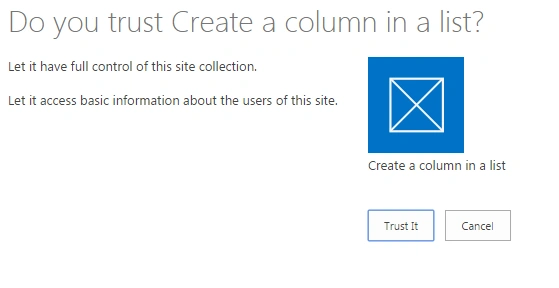
- Accept the trust and click on ‘Trust It’.
- Your app will be deployed and open for you as per the following screenshot:
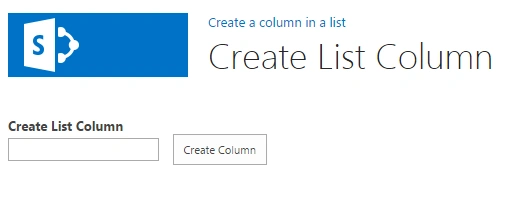
- Provide the name of the column you want to create and click on ‘Create Column’ button.
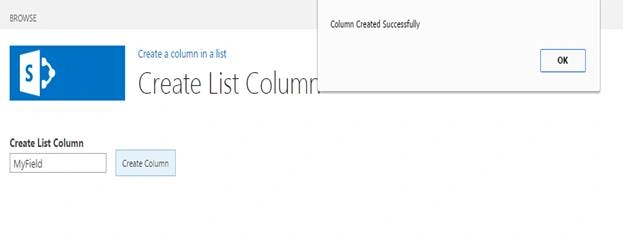
- Once you click on the button you will receive an alert that your column has been successfully created.
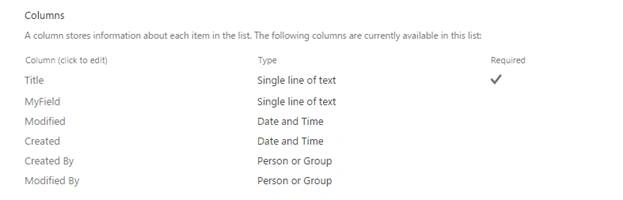
- Go to your list, you will see your created column.
Here we saw today how to create a column in a list using REST API in SharePoint Online and Office 365. You will love your app. Keep reading and keep learning!
Keep reading & keep learning!
Read more articles on SharePoint:


rajashri ThoratPosted Feb 6, 2017, 6:26 PM EST
Very nice article.Can you help me creating a Sharepoint list Data sheet view using REST api
Vignesh ManiTOP 100Posted Apr 5, 2016, 4:23 AM EDT
nice one
Humayun Kabir MamunPosted Apr 4, 2016, 12:54 AM EDT
Nice...
Debasis SahaTOP 100Posted Apr 4, 2016, 12:04 AM EDT
Good One..
Rahul Kumar SaxenaTOP 100Posted Apr 3, 2016, 11:48 PM EDT
Good Show