
To create a user in our application by using ASP.NET Membership we need the following steps to complete this process.
Step 1: Firstly, open visual studio, then go to File Menu and click New -> Web Site.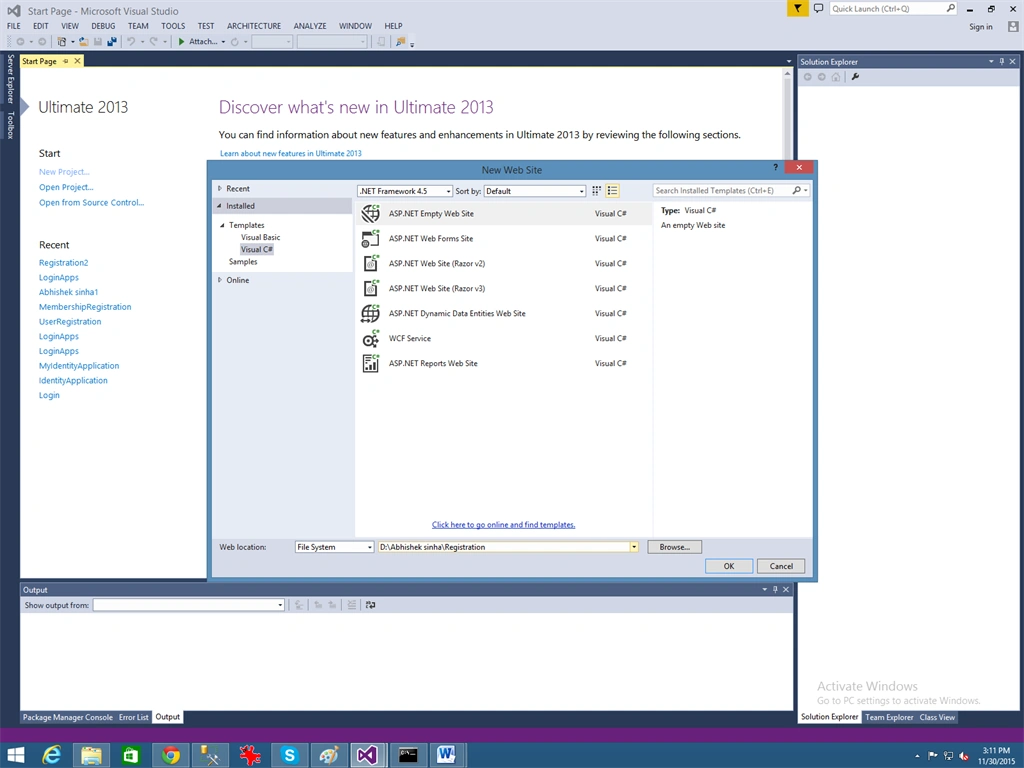
Step 2: After open the new empty website and add a new item Login.aspx in Registration inside Solution Explorer.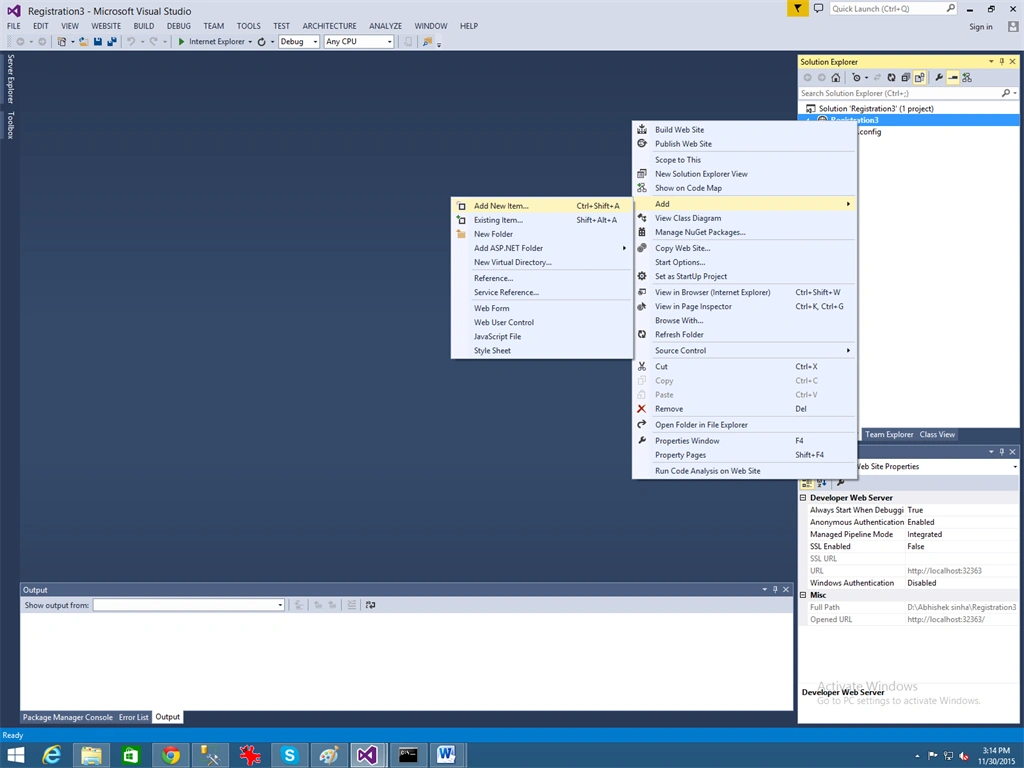
Step 3: Then write Login.aspx page code for creating page in our web site. The code is given below,
- <form id="form1" runat="server">
- <h3>Create New User</h3>
- <asp:Label id="Msg" ForeColor="maroon" runat="server" />
- <br />
- <table cellpadding="3" border="0">
- <tr>
- <td></td>
- <td colspan="2">
- <b>Sign Up for New User Account</b>
- </td>
- </tr>
- <tr>
- <td>UserName:</td>
- <td>
- <asp:TextBox ID="txtUserName" runat="server"/>
- </td>
- <td>
- <asp:RequiredFieldValidator ID="rqfUserName" runat="server" ControlToValidate="txtUserName" Display="Dynamic" ErrorMessage="Required" ForeColor="Red"/>
- </td>
- </tr>
- <tr>
- <td>Password:</td>
- <td>
- <asp:TextBox ID="txtPwd" runat="server" TextMode="Password"/>
- </td>
- <td>
- <asp:RequiredFieldValidator ID="RequiredFieldValidator1" runat="server" ControlToValidate="txtPwd" Display="Dynamic" ErrorMessage="Required" ForeColor="Red"/>
- </td>
- </tr>
- <tr>
- <td>Confirm Password:</td>
- <td>
- <asp:TextBox ID="txtCnfPwd" runat="server" TextMode="Password"/>
- </td>
- <td>
- <asp:RequiredFieldValidator id="PasswordConfirmRequiredValidator" runat="server" ControlToValidate="txtCnfPwd" ForeColor="red" Display="Dynamic" ErrorMessage="Required" />
- <asp:CompareValidator id="PasswordConfirmCompareValidator" runat="server" ControlToValidate="txtCnfPwd" ForeColor="red" Display="Dynamic" ControlToCompare="txtPwd" ErrorMessage="Confirm password must match password." />
- </td>
- </tr>
- <tr>
- <td>Email:</td>
- <td>
- <asp:TextBox ID="txtEmail" runat="server"/>
- </td>
- <td>
- <asp:RequiredFieldValidator ID="RequiredFieldValidator3" runat="server" ControlToValidate="txtEmail" Display="Static" ErrorMessage="Required" ForeColor="Red"/>
- </td>
- </tr>
- <tr>
- <td>Security Question:</td>
- <td>
- <asp:TextBox ID="txtQuestion" runat="server"/>
- </td>
- <td>
- <asp:RequiredFieldValidator ID="RequiredFieldValidator4" runat="server" ControlToValidate="txtQuestion" Display="Static" ErrorMessage="Required" ForeColor="Red"/>
- </td>
- </tr>
- <tr>
- <td>Security Answer:</td>
- <td>
- <asp:TextBox ID="txtAnswer" runat="server"/>
- </td>
- <td>
- <asp:RequiredFieldValidator ID="RequiredFieldValidator5" runat="server" ControlToValidate="txtAnswer" Display="Static" ErrorMessage="Required" ForeColor="Red"/>
- </td>
- </tr>
- <tr>
- <td></td>
- <td>
- <asp:Button ID="btnSubmit" runat="server" Text="Create User" onclick="btnSubmit_Click" />
- </td>
- </tr>
- <tr>
- <td colspan="3">
- <asp:Label ID="lblResult" runat="server" Font-Bold="true"/>
- </td>
- </tr>
- </table>
- </form>
- protected void btnSubmit_Click(object sender, EventArgs e) {
- MembershipCreateStatus createStatus;
- MembershipUser user = Membership.CreateUser(txtUserName.Text, txtPwd.Text, txtEmail.Text, txtQuestion.Text, txtAnswer.Text, true, out createStatus);
- switch (createStatus) {
- //This Case Occured whenver User Created Successfully in database
- case MembershipCreateStatus.Success:
- lblResult.ForeColor = Color.Green;
- lblResult.Text = "The user account was successfully created";
- txtUserName.Text = string.Empty;
- txtEmail.Text = string.Empty;
- txtQuestion.Text = string.Empty;
- txtAnswer.Text = string.Empty;
- break;
- // This Case Occured whenver we send duplicate UserName
- case MembershipCreateStatus.DuplicateUserName:
- lblResult.ForeColor = Color.Red;
- lblResult.Text = "The user with the same UserName already exists!";
- break;
- //This Case Occured whenver we give duplicate mail id
- case MembershipCreateStatus.DuplicateEmail:
- lblResult.ForeColor = Color.Red;
- lblResult.Text = "The user with the same email address already exists!";
- break;
- //This Case Occured whenver we send invalid mail format
- case MembershipCreateStatus.InvalidEmail:
- lblResult.ForeColor = Color.Red;
- lblResult.Text = "The email address you provided is invalid.";
- break;
- //This Case Occured whenver we send empty data or Invalid Data
- case MembershipCreateStatus.InvalidAnswer:
- lblResult.ForeColor = Color.Red;
- lblResult.Text = "The security answer was invalid.";
- break;
- // This Case Occured whenver we supplied weak password
- case MembershipCreateStatus.InvalidPassword:
- lblResult.ForeColor = Color.Red;
- lblResult.Text = "The password you provided is invalid. It must be 7 characters long and have at least 1 special character.";
- break;
- default:
- lblResult.ForeColor = Color.Red;
- lblResult.Text = "There was an unknown error; the user account was NOT created.";
- break;
- }
- }
This is for Connection
- <connectionStrings>
- <add name="dbconnection" connectionString="Data Source=MCNDESKTOP27\SQLEXPRESS;Initial catalog=AspMembership;User ID=sa;Password=Password$2"/>
- </connectionStrings>
This is for Membership
- <system.web>
- <membership>
- <providers>
- <clear/>
- <add name="AspNetSqlMembershipProvider" type="System.Web.Security.SqlMembershipProvider" connectionStringName="dbconnection" applicationName="SampleApplication"/>
- </providers>
- </membership>
- <profile>
- <providers>
- <clear/>
- <add name="AspNetSqlProfileProvider" type="System.Web.Profile.SqlProfileProvider" connectionStringName="dbconnection" applicationName="SampleApplication"/>
- </providers>
- </profile>
- <roleManager enabled="false">
- <providers>
- <clear/>
- <add name="AspNetSqlRoleProvider" type="System.Web.Security.SqlRoleProvider" connectionStringName="dbconnection" applicationName="SampleApplication"/>
- </providers>
- </roleManager>
- <compilation debug="true" targetFramework="4.5" />
- <httpRuntime targetFramework="4.5" />
- </system.web>
Step 6: After creating and executing the code in our web site, next we need to
create membership table in ASP.NET. For that run the aspnet_regsql.exe from
command prompt. So we have to open the tool at C:\Windows\Microsoft.NET\Framework64\v4.0.30319, here v4.0.30319 is the current.net version. Right-click on v4.0.30319 folder and
select "Open command menu window here". Now run Aspnet_regsql.exe and finish the
process for creating database for ASP.NET Membership.
- Firstly, run the aspnet_regsql.exe in open command window, then setup wizard will open like the following,

- Then here we click next button for further steps in setup wizard. Then my window will appear like the following,
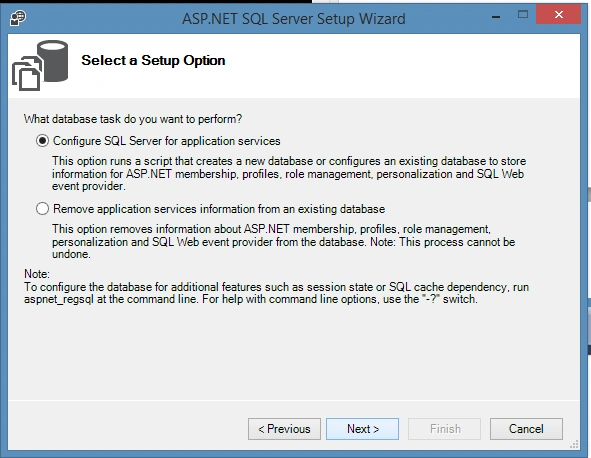
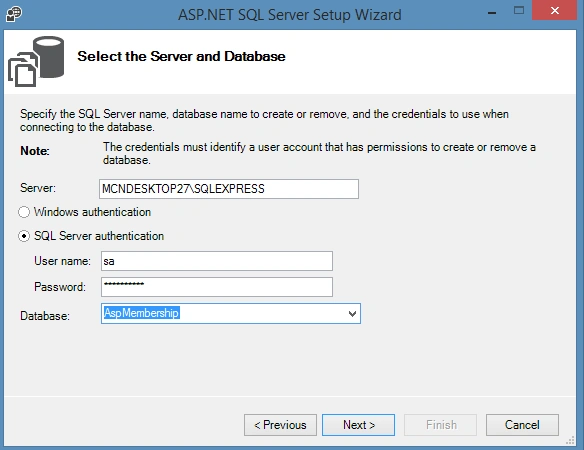
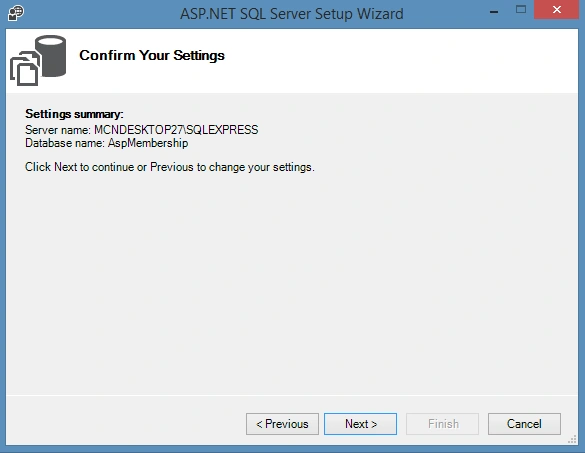
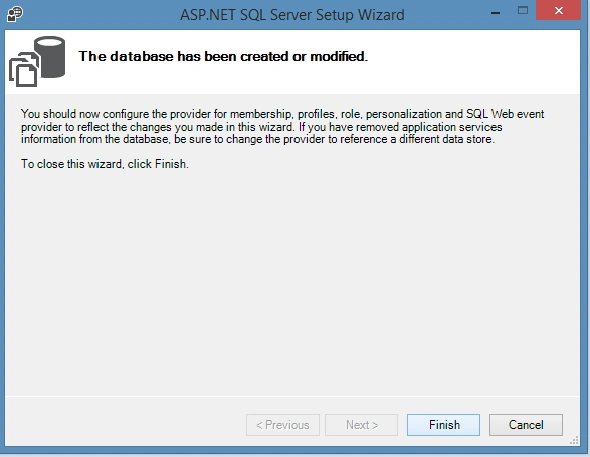
Here we finished our process to execute of aspnet_regsql.exe command and processed the steps for creating membership table in ASP.NET. So now table is created in my assigned database. Here different type of table created in my database.
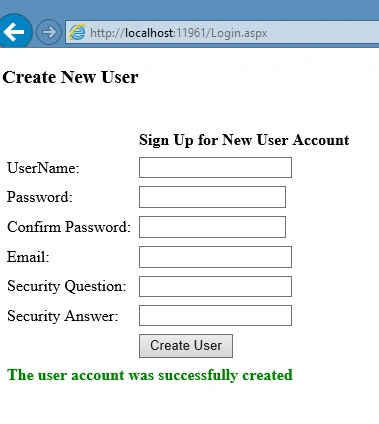
Step 7: After completing this process we will go back to visual studio and run the application by clicking F5. After debugging our application registration page will appear in browser where we enter the textbox field which is required. After inserting the correct information in the field, we click the submit button for creating the user. For successful user creation a message will appear in a label in registration page.

Step 8: By proceeding this process ASP.NET Membership provider which create user information data in aspnet_Membership table.
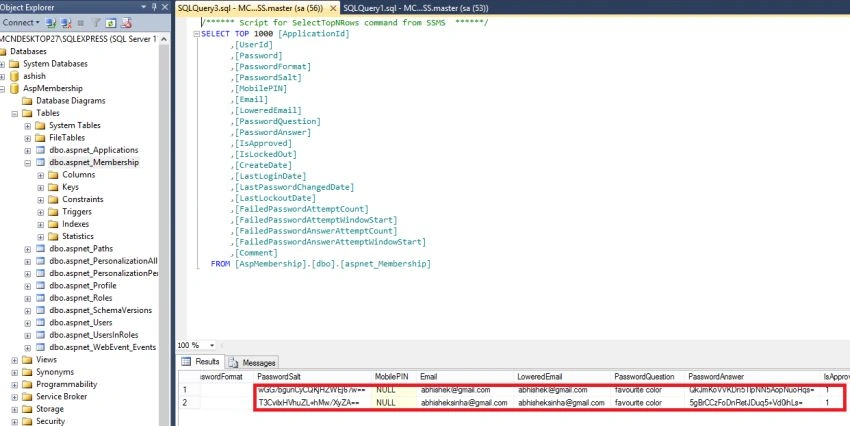
Here, this is the data in table which we have created. The data goes into the aspnet_membership table which is created by ASP.NET membership provider.


Nirmal PrajapatiPosted Apr 11, 2025, 7:34 AM EDT
Is there any chance to change from Email ([email protected]) to Username (admin) ? if So, how?
Humayun Kabir MamunPosted Dec 7, 2015, 7:21 PM EST
Nice...
Saillesh PawarPosted Dec 7, 2015, 7:58 AM EST
Good1 appreciate your hard work
Johanes GultomPosted Dec 7, 2015, 5:13 AM EST
Oke thanks http://www.johanes.my.id/sehatpoker/
Raja TPosted Dec 7, 2015, 2:14 AM EST
Nice one, Welcome to csharpcorner
Mukesh KumarPosted Dec 7, 2015, 2:09 AM EST
Welcome..good one
Santhakumar MunuswamyPosted Dec 7, 2015, 1:50 AM EST
Good One
Jaipal ReddyPosted Dec 7, 2015, 1:17 AM EST
Welcome to csharpcorner. .