

Introduction
In this article, I will demonstrate how to dynamically bind asp.net server control from the database. I will bind DropdowList, RadioButtonList, CheckBoxList, ListBox, and BulletedList.
Step 1
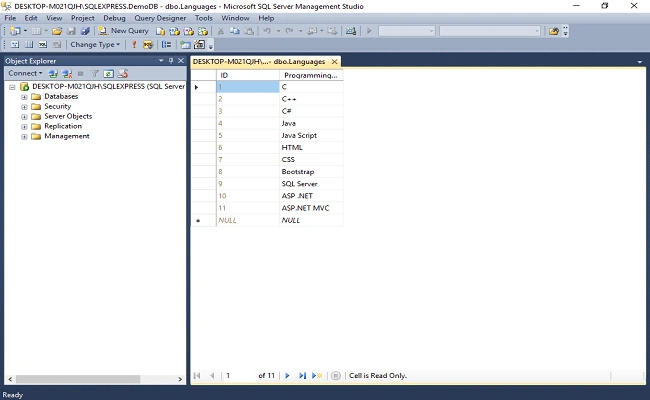
Create database table in sql server 2014.
- CREATE TABLE [dbo].[Languages](
- [ID] [int] IDENTITY(1,1) NOT NULL,
- [Programming_Language] [nvarchar](50) NULL,
- CONSTRAINT [PK_Languages] PRIMARY KEY CLUSTERED
- (
- [ID] ASC
- )WITH (PAD_INDEX = OFF, STATISTICS_NORECOMPUTE = OFF, IGNORE_DUP_KEY = OFF, ALLOW_ROW_LOCKS = ON, ALLOW_PAGE_LOCKS = ON) ON [PRIMARY]
- ) ON [PRIMARY]
- GO
- CREATE procedure spGetAllProgrammingLanguage
- as
- begin
- select ID,Programming_Language from [dbo].[Languages]
- end
Step 2
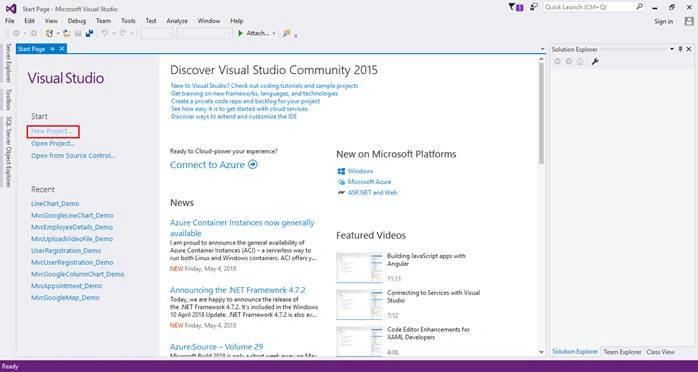
Open Visual Studio 2015 click on New Project and create an empty web application project.
Screenshot for creating new project 1
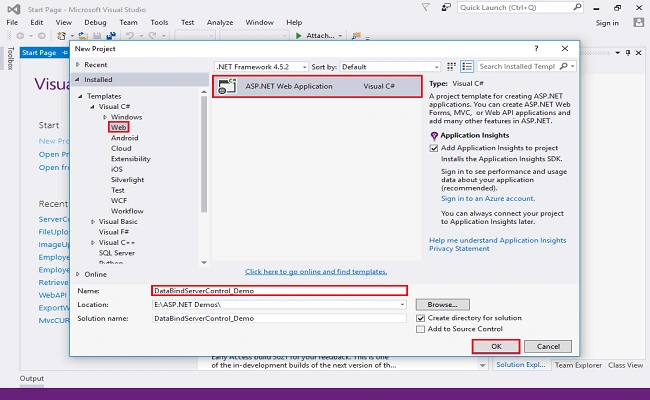
After clicking on New Project one window will appear; select Web from left panel, choose ASP.NET Web Application and give a meaningful name to your project then click on OK as shown in below screenshot.
Screenshot for creating new project 2
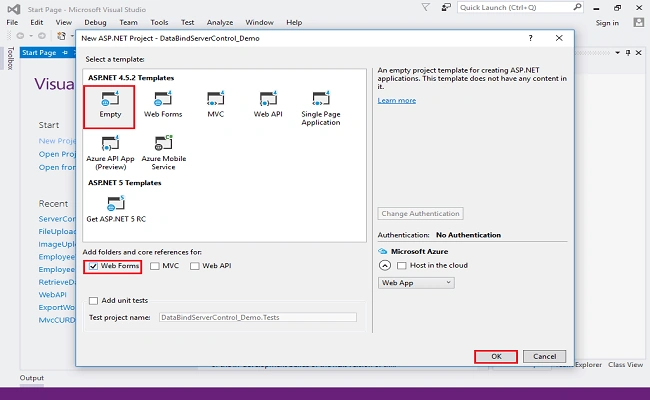
After clicking on OK one more window will appear. Choose empty, check on the Web Forms checkbox and click on OK.
Screenshot for creating new project 3
Step 3
Double click on webconfig file and database connections. Write the following line of code.
- <connectionStrings>
- <add name="DBCS" connectionString="data source=DESKTOP-M021QJH\SQLEXPRESS; database=DemoDB; integrated security=true;"/>
- </connectionStrings>
Step 4
Right click on project and web form and give it a meaningful name.
Step 5
Add script and styles of bootstrap in the head section of web form.
- <link rel="stylesheet" href="https://maxcdn.bootstrapcdn.com/bootstrap/4.1.0/css/bootstrap.min.css">
- <script src="https://ajax.googleapis.com/ajax/libs/jquery/3.3.1/jquery.min.js"></script>
- <script src="https://maxcdn.bootstrapcdn.com/bootstrap/4.1.0/js/bootstrap.min.js"></script>
Step 6
Design web form, and drag and drop DropdowList control
- <!DOCTYPE html>
- <html>
- <head runat="server">
- <title></title>
- <link rel="stylesheet" href="https://maxcdn.bootstrapcdn.com/bootstrap/4.1.0/css/bootstrap.min.css">
- <script src="https://ajax.googleapis.com/ajax/libs/jquery/3.3.1/jquery.min.js"></script>
- <script src="https://maxcdn.bootstrapcdn.com/bootstrap/4.1.0/js/bootstrap.min.js"></script>
- </head>
- <body>
- <form id="form1" runat="server">
- <div class="container py-4">
- <h4 class="text-uppercase text-center">HOW TO DYNAMICALLY BIND ASP.NET DROPDOWNLIST CONTROL FROM DATABASE</h4>
- <div class="row">
- <div class="col-md-6">
- <div class="form-group">
- <label>Choose Programming Language</label>
- <asp:DropDownList ID="DropDownList1" runat="server" CssClass="custom-select"></asp:DropDownList>
- </div>
- </div>
- </div>
- </div>
- </form>
- </body>
- </html>
Step 7
Right click on web form choose view code. Write following code to bind DropdowList control.
- using System;
- using System.Configuration;
- using System.Data;
- using System.Data.SqlClient;
- namespace ServerControlBinding_Demo
- {
- public partial class DropDownList : System.Web.UI.Page
- {
- protected void Page_Load(object sender, EventArgs e)
- {
- if (!IsPostBack)
- {
- BindDropdowList();
- }
- }
- private void BindDropdowList()
- {
- string CS = ConfigurationManager.ConnectionStrings["DBCS"].ConnectionString;
- using (SqlConnection con = new SqlConnection(CS))
- {
- SqlCommand cmd = new SqlCommand("spGetAllProgrammingLanguage", con);
- cmd.CommandType = CommandType.StoredProcedure;
- con.Open();
- DropDownList1.DataSource = cmd.ExecuteReader();
- DropDownList1.DataTextField = "Programming_Language";
- DropDownList1.DataValueField = "ID";
- DropDownList1.DataBind();
- DropDownList1.Items.Insert(0, "Choose Programming Language");
- }
- }
- }
- }
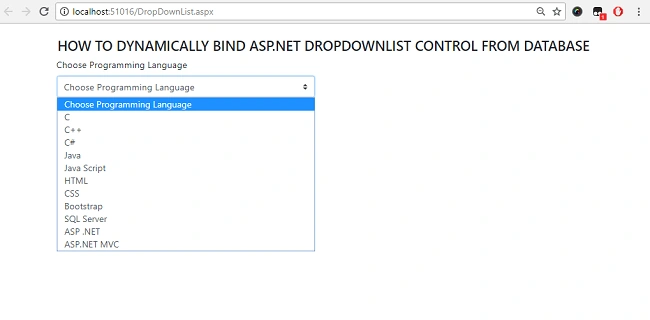
Output for DropdowList
Step 8
Design web form drag and drop RadioButtonList control
- <!DOCTYPE html>
- <html>
- <head runat="server">
- <title>RadioButtonLis</title>
- <link rel="stylesheet" href="https://maxcdn.bootstrapcdn.com/bootstrap/4.1.0/css/bootstrap.min.css">
- <script src="https://ajax.googleapis.com/ajax/libs/jquery/3.3.1/jquery.min.js"></script>
- <script src="https://maxcdn.bootstrapcdn.com/bootstrap/4.1.0/js/bootstrap.min.js"></script>
- </head>
- <body>
- <form id="form1" runat="server">
- <div class="container py-4">
- <h5 class="text-uppercase text-center">HOW TO DYNAMICALLY BIND ASP.NET RADIOBUTTONLIST CONTROL FROM DATABASE</h5>
- <div class="row">
- <div class="col-md-6">
- <div class="form-group">
- <label>Choose Programming Language</label>
- <asp:RadioButtonList ID="RadioButtonList1" runat="server" CssClass="custom-radio"></asp:RadioButtonList>
- </div>
- </div>
- </div>
- </div>
- </form>
- </body>
- </html>
Step 9
Write the following code to bind DropdowList control.
- using System;
- using System.Data;
- using System.Data.SqlClient;
- using System.Configuration;
- namespace ServerControlBinding_Demo
- {
- public partial class RadioButtonList : System.Web.UI.Page
- {
- protected void Page_Load(object sender, EventArgs e)
- {
- if (!IsPostBack)
- {
- BindRadioButtonList();
- }
- }
- private void BindRadioButtonList()
- {
- string CS = ConfigurationManager.ConnectionStrings["DBCS"].ConnectionString;
- using (SqlConnection con = new SqlConnection(CS))
- {
- SqlCommand cmd = new SqlCommand("spGetAllProgrammingLanguage", con);
- cmd.CommandType = CommandType.StoredProcedure;
- con.Open();
- RadioButtonList1.DataSource = cmd.ExecuteReader();
- RadioButtonList1.DataTextField = "Programming_Language";
- RadioButtonList1.DataValueField = "ID";
- RadioButtonList1.DataBind();
- }
- }
- }
- }
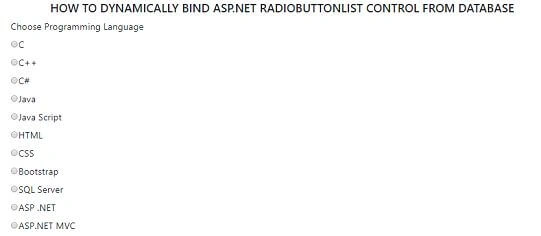
Output for RadioButtonList
Step 10
Design web form drag and drop ListBox control
- <!DOCTYPE html>
- <html>
- <head runat="server">
- <title>ListBox</title>
- <link rel="stylesheet" href="https://maxcdn.bootstrapcdn.com/bootstrap/4.1.0/css/bootstrap.min.css">
- <script src="https://ajax.googleapis.com/ajax/libs/jquery/3.3.1/jquery.min.js"></script>
- <script src="https://maxcdn.bootstrapcdn.com/bootstrap/4.1.0/js/bootstrap.min.js"></script>
- </head>
- <body>
- <form id="form1" runat="server">
- <div class="container py-5">
- <h4 class="text-uppercase text-center">HOW TO DYNAMICALLY BIND ASP.NET LISTBOX CONTROL FROM DATABASE</h4>
- <div class="row">
- <div class="col-md-6">
- <div class="form-group">
- <label>Choose Programming Language</label>
- <asp:ListBox ID="ListBox1" runat="server" CssClass="form-control"></asp:ListBox>
- </div>
- </div>
- </div>
- </div>
- </form>
- </body>
- </html>
Step 11
Write the following code to bind ListBox control.
- using System;
- using System.Data;
- using System.Data.SqlClient;
- using System.Configuration;
- namespace ServerControlBinding_Demo
- {
- public partial class ListBox : System.Web.UI.Page
- {
- protected void Page_Load(object sender, EventArgs e)
- {
- if (!IsPostBack)
- {
- BindListBox();
- }
- }
- private void BindListBox()
- {
- string CS = ConfigurationManager.ConnectionStrings["DBCS"].ConnectionString;
- using (SqlConnection con = new SqlConnection(CS))
- {
- SqlCommand cmd = new SqlCommand("spGetAllProgrammingLanguage", con);
- cmd.CommandType = CommandType.StoredProcedure;
- con.Open();
- ListBox1.DataSource = cmd.ExecuteReader();
- ListBox1.DataTextField = "Programming_Language";
- ListBox1.DataValueField = "ID";
- ListBox1.DataBind();
- }
- }
- }
- }
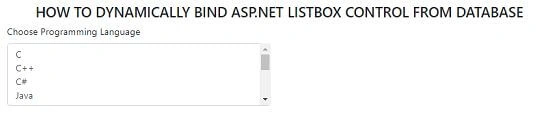
Output for RadioButtonList
Step 12
Design web form drag and drop CheckBoxList control
- <!DOCTYPE html>
- <html>
- <head runat="server">
- <title>CheckBoxList</title>
- <link rel="stylesheet" href="https://maxcdn.bootstrapcdn.com/bootstrap/4.1.0/css/bootstrap.min.css">
- <script src="https://ajax.googleapis.com/ajax/libs/jquery/3.3.1/jquery.min.js"></script>
- <script src="https://maxcdn.bootstrapcdn.com/bootstrap/4.1.0/js/bootstrap.min.js"></script>
- </head>
- <body>
- <form id="form1" runat="server">
- <div class="container py-5">
- <h5 class="text-uppercase text-center">HOW TO DYNAMICALLY BIND ASP.NET CHECKBOXLIST CONTROL FROM DATABASE</h5>
- <div class="row">
- <div class="col-md-6">
- <div class="form-group">
- <label>Choose Programming Language</label>
- <asp:CheckBoxList ID="CheckBoxList1" runat="server" CssClass="custom-checkbox"></asp:CheckBoxList>
- </div>
- </div>
- </div>
- </div>
- </form>
- </body>
- </html>
Step 13
Write the following code to bind CheckBoxList control.
- using System;
- using System.Data;
- using System.Data.SqlClient;
- using System.Configuration;
- namespace ServerControlBinding_Demo
- {
- public partial class CheckBoxLIst : System.Web.UI.Page
- {
- protected void Page_Load(object sender, EventArgs e)
- {
- if (!IsPostBack)
- {
- BindCheckBoxList();
- }
- }
- private void BindCheckBoxList()
- {
- string CS = ConfigurationManager.ConnectionStrings["DBCS"].ConnectionString;
- using (SqlConnection con = new SqlConnection(CS))
- {
- SqlCommand cmd = new SqlCommand("spGetAllProgrammingLanguage", con);
- cmd.CommandType = CommandType.StoredProcedure;
- con.Open();
- CheckBoxList1.DataSource = cmd.ExecuteReader();
- CheckBoxList1.DataTextField = "Programming_Language";
- CheckBoxList1.DataValueField = "ID";
- CheckBoxList1.DataBind();
- }
- }
- }
- }
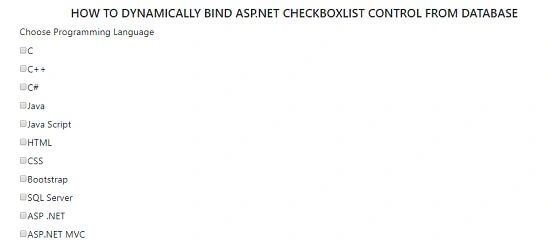
Output for CheckBoxList
Step 14
Design web form drag and drop BulletedList control,
- <!DOCTYPE html>
- <html>
- <head runat="server">
- <title>BulletedList</title>
- <link rel="stylesheet" href="https://maxcdn.bootstrapcdn.com/bootstrap/4.1.0/css/bootstrap.min.css">
- <script src="https://ajax.googleapis.com/ajax/libs/jquery/3.3.1/jquery.min.js"></script>
- <script src="https://maxcdn.bootstrapcdn.com/bootstrap/4.1.0/js/bootstrap.min.js"></script>
- </head>
- <body>
- <form id="form1" runat="server">
- <div class="container py-5">
- <h5 class="text-uppercase text-center">HOW TO DYNAMICALLY BIND ASP.NET BULLETEDLIST CONTROL FROM DATABASE</h5>
- <div class="row">
- <div class="col-md-6">
- <div class="form-group">
- <label>Choose Programming Language</label>
- <asp:BulletedList ID="BulletedList1" runat="server"></asp:BulletedList>
- </div>
- </div>
- </div>
- </div>
- </form>
- </body>
- </html>
Step 15
Write the following code to bind BulletedList control.
- using System;
- using System.Data;
- using System.Data.SqlClient;
- using System.Configuration;
- namespace ServerControlBinding_Demo
- {
- public partial class BulletedList : System.Web.UI.Page
- {
- protected void Page_Load(object sender, EventArgs e)
- {
- if (!IsPostBack)
- {
- BindBulletedList();
- }
- }
- private void BindBulletedList()
- {
- string CS = ConfigurationManager.ConnectionStrings["DBCS"].ConnectionString;
- using (SqlConnection con = new SqlConnection(CS))
- {
- SqlCommand cmd = new SqlCommand("spGetAllProgrammingLanguage", con);
- cmd.CommandType = CommandType.StoredProcedure;
- con.Open();
- BulletedList1.DataSource = cmd.ExecuteReader();
- BulletedList1.DataTextField = "Programming_Language";
- BulletedList1.DataValueField = "ID";
- BulletedList1.DataBind();
- }
- }
- }
- }
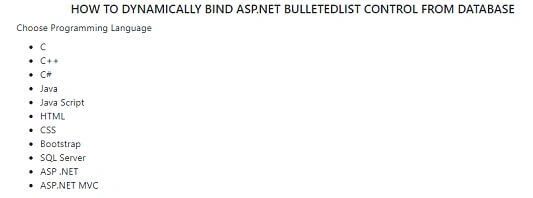
Output for BulletedList
Conclusion
In this article, I have explained data binding with ASP.NET server control like DropdowList, RadioButtonList, CheckBoxList, ListBox, and BulletedList. I hope you have understood all the controls.
Join the conversation! Your thoughts help the community grow.