
Is it true that the only way to close a browser window is to add JavaScript? The script can be added to the button onclick attribute on page load but this presents the problem that no Server-Side code will get executed but it will occur a bit faster. Below we are discussed many methods of making a browser window (page) close withowt prompt YES or No and some other methods such opening of the browser window on fullscreen without toolbox, menu bar and close[x] button.
Many developers argue and contend that it is impossible to deactivate close[x] button... Is it true?
Is is possible to remove title Bar , Resize buttons and close[x] button at right top from pop-up browser window
Sometimes (for example, in a pc-lock program, or error dialog where a decision must be made) you will not want your users to be able to close a window simply by pressing the X button. This code disables the X button, and also the Close item on the system menu that is displayed when you right-click on the title bar)
You could close a asp.net webpage dynamically write the following code for the button click event:
lines 59 - 62 in file WebForm1.aspx.cs in archive of the sample
private void Button2_Click(object sender, System.EventArgs e)
{ // window.close() instead of self.close()
Response.Write("<script language='javascript'> { self.close() }</script>");
}
We need the code that will work both in FF and IE for the page with close button is opened by another window. An interesting possibility is this:
<a id=anchor1 runat="server" href="javascript:window.open('','_parent',''); window.close();">
as a HTMLAnchor control and:
<asp:HyperLink id="webcontrol" NavigationURL=... ...</asp:HyperLink>
Many programmers ask the similar questions of opening a popup window, passing values to the popup window and then return values back to the parent page using both Internet Explorer and Firefox, We (PhotonSoft Ltd. and other companies) decided to take a plunge into the subject and experiment with an easy implementation. This article explains how to transfer values between the Parent page and a Pop-up window, how to open on fullscreen a .aspx form. an how to deactivate close[x] button with using only a Java Script imported The code has been tested against IE7 and Firefox.
Internet Explorer(IE) contains the showModalDialog() method which proves very effective while creating a modal dialog box and displaying a html document in it. One caveat being, showModalDialog() is not a W3C implementation. So it is not supported in Firefox (as of version 2.0.0.11). Firefox supports the window.open() method. However there is no built in functionality in Firefox that keeps the popup modal. At the most, you can use 'modal=yes' to make the popup appear in front. However unlike the showModalDialog() in IE, you cannot restrict the user to access the parent page when the popup is opened in Firefox. In short, it is not truly modal. There are different ways to get around this problem, however in this article, we will only focus on exchanging values between the parent and popup page.
In this article, we will see how to take a simple approach and create a popup window using both IE and Firefox, two or three methods programmatically Server-Side/Client-Side closing, and Java Scripts included into .aspx form to open it on Fullscreen and deactivating close[x] button using only Java Script. In the first part, we will pass in the first name from the parent page to the popup window. In the second part, the popup window will reverse the name and return the reversed string to the parent window. All set!! Let us get started.
Part 1 - Passing value to Popup window
Step 1: Open Visual Studio. Create a new website (File > New > Website / Description type "Test"). Set the location, filename and C# as a language of the project.
Step 2: In your Default.aspx, add a label (lblFName), textbox (txtFName) and a button (btnPopup). Set the 'Text' property of the label to 'FirstName'. Similarly set the 'Text' property of the button control to 'Show Popup'.
Step 3: Now add the following aspx forms: WebForm1.aspx, Default.aspx and Popup.aspx form. Right click your project (test1) > Add New Item > Web Form > Rename form as 'PopupWin.aspx' and click on Add.
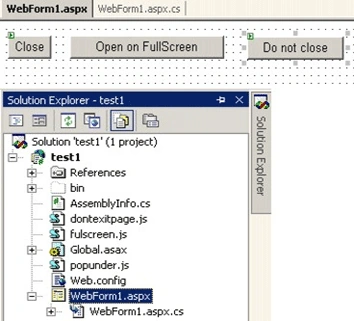
Step 4: In the WebForm1.aspx you have to add three buttons Button1, javascript button labeled Open on FullScreen and Button3 In the PopupWin.aspx, add a textbox (txtReverse) and a button (btnReverse).
Well now we have three .aspx web forms, WebForm1.aspx, Default.aspx which is the parent page and PopupWin.aspx which will be the popup page and a little simple HTML page with two imported Java Scripts dontexitpage.js and popunder.js.
We start with:
lines 23 - 28 in file WebForm1.aspx.cs in archive of the sample
private void Page_Load(object sender, System.EventArgs e)
{
// Close window on Button Click (ASP.NET)
this.Button1.Attributes.Add("OnClick","self.close()");
}
An alternative of this is the following:
lines 59 - 62 in file WebForm1.aspx.cs in archive of the sample
/* private void Button2_Click(object sender, System.EventArgs e)
{ //window.close() instead of self.close()
Response.Write("<script language='javascript'> { self.close() }</script>");
} */
Region #region starts on line 52.
The code for button 3 is a simple redirection to a secret page. This button open browser window on fullscreen with only button1 on it:
lines 54 - 57 in file WebForm1.aspx.cs in archive of the sample
private void Button3_Click(object sender, System.EventArgs e)
{
Response.Redirect("dontexitpage.html");
}
fulscreen.js
function fullwin(targeturl){
window.open(targeturl,"","fullscreen,scrollbars")
}
Let us now pass a value from Default.aspx to the popup window.
Step 5: We will invoke the popup window on the button (btnPopup) click of Default.aspx. To do so, we will use Button.Attribute.Add and call a javascript function that will open the popup window. The javascript function will be contained in a seperate pop.js file which we will create shortly. Add this code in the code behind file of your Default.aspx.
protected void Page_Load(object sender, EventArgs e)
{
btnPopup.Attributes.Add("onClick", "javascript:InvokePop('" + txtFName.ClientID + "');");
}
Over here we are passing the ClientID of the textbox. ClientID is the identifier of the server control, generated by ASP.NET. You must be wondering why I am not passing the value of the textbox directly. Well passing the control has an advantage where there is more than one control that is passed to the popup page. While returning back the values from the popup to the parent page; it helps you to decide and determine which control receives which value. Even though we will be using only one textbox for simplicity, I thought of creating a sample which can be extended later by you to suit your needs. If the use of ClientID is not clear to you, wait till we get to part 2 of this article, and I will again touch upon the subject.
Step 6: Let us now create the javascript functionality which will open the Popup. Right click your project > Add New Item > Jscript file > Rename the file to pop.js. Add the following function to the pop.js file
function InvokePop(fname)
{
val = document.getElementById(fname).value;
// to handle in IE 7.0
if (window.showModalDialog)
{
retVal = window.showModalDialog("PopupWin.aspx?Control1=" + fname + "&ControlVal=" + val ,'Show Popup Window',"dialogHeight:90px,dialogWidth:250px,resizable:yes,center:yes,");
document.getElementById(fname).value = retVal;
}
// to handle in Firefox
else
{
retVal = window.open("PopupWin.aspx?Control1="+fname + "&ControlVal=" + val,'Show Popup Window','height=90,width=250,resizable=yes,modal=yes');
retVal.focus();
}
}
This function accepts the textbox control, retrieve's the value of the textbox that needs to be reversed and passes the textbox control and its value to PopupWin.aspx through query string. This is the function which will be called on the btnPopup click.
Step 7: To wire up the .js with your asp.net pages, add a link to the javascript file in both the pages as shown below:
Default.aspx
<head runat="server">
<title>Parent Page</title>
<script type="text/javascript" src="pop.js"></script>
</head>
PopupWin.aspx
<head runat="server">
<title>Popup Page</title>
<script type="text/javascript" src="pop.js"></script>
</head>
Step 8: In the code behind file of PopupWin.aspx, add the following code at the Page_Load() to retrieve the value from the querystring and display the value in the TextBox 'txtReverse', placed in the popup window.
protected void Page_Load(object sender, EventArgs e)
{
txtReverse.Text = Request.QueryString["ControlVal"].ToString();
}
If you are eager to test the value going from Parent page to the popup window, you can do so now. Make Default.aspx as 'Set as Start page' and run the sample. Enter your name in txtFName TextBox and click on Show Popup button. A popup window opens with the value entered in the Parent page.
Part 2 - Passing value from Popup window to the Parent page
In this second part, we will reverse the string and pass the reversed string back to the parent page. To do so, follow these steps:
Step 1: Add additional functions to the pop.js file which will reverse the string and return the string back to the parent page.
// pop.js
function ReverseString()
{
var originalString = document.getElementById('txtReverse').value;
var reversedString = Reverse(originalString);
RetrieveControl();
// to handle in IE 7.0
if (window.showModalDialog)
{
window.returnValue = reversedString;
window.close();
}
// to handle in Firefox
else
{
if ((window.opener != null) && (!window.opener.closed))
{
// Access the control.
window.opener.document.getElementById(ctr[1]).value = reversedString;
}
window.close();
}
}
function Reverse(str)
{
var revStr = "";
for (i=str.length - 1 ; i > - 1 ; i--)
{
revStr += str.substr(i,1);
}
return revStr;
}
function RetrieveControl()
{
//Retrieve the query string
queryStr = window.location.search.substring(1);
// Seperate the control and its value
ctrlArray = queryStr.split("&");
ctrl1 = ctrlArray[0];
//Retrieve the control passed via querystring
ctr = ctrl1.split("=");
}
As you saw in part 1, the value was passed from the parent window to the popup window and was kept in the txtReverse TextBox. The function ReverseString() retrieves the value from this textbox and passes the string to the Reverse() function which reverses the string. The reversed string is then kept in the 'reversedString' variable. The 'RetrieveControl' splits the query string and identifies the control in the parent page to which the reversed string value is to be sent.
Note: If you observe, in the IE implementation, I am not really making use of the RetrieveControl(), however in Firefox I am. If you remember, in the beginning of part1 , I had mentioned the use of ClientID, using which both controls and their values can be passed to determine which control recieves which value. This is especially needed when there are multiple controls. Well the RetrieveControl seperates the different controls and you can use the variables in this method to return values to the respective contro.l
The value is then returned to the parent window and the popup window is closed.
Step 2: Now in order to use these newly added javacript functions, just call the ReverseString() function on the btnReverse click. To do so, add the onclick attribute to the btnReverse.
<input class="button" type="button" id="btnReverse" value="Reverse value back" onclick="ReverseString();"/>
That's it. Now test1 the code. Pass your name from the Parent window to the Popup window and then reverse the string and pass it back to the Parent window.
I would like to mention that there are multiple ways of doing the task demoed in this article. I have seen some cool examples by experts. One of them I would like to mention is that of NC01 where he makes use of properties and ViewState, to pass values to the Popup window. I would encourage you to use this article as a base and try out your own implementations that would work on multiple browsers.

Join the conversation! Your thoughts help the community grow.