
Here are the steps,
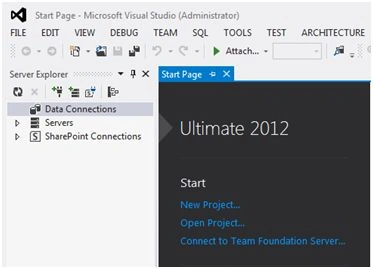
Step 1: Go to Visual Studio and click new project as sin the following figure 1,
Step 2: Then select MVC 4 Web Application as in the following figure 2,

Step 3:
Now write the project name and click on OK button then one new window will open. In this new window there will be option of selecting Project template as Empty, Basic, Internet Application, Mobile Application and Web API. Choose any one of these project template, then select View engine as your choice as in the following figure 3,

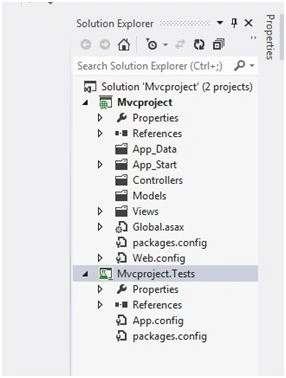
Now click on OK button and your Solution Explorer will be like following figure 4,
Step 4: Now go to Views folder, click with right mouse button and select Add, then View as in the following figure 5,

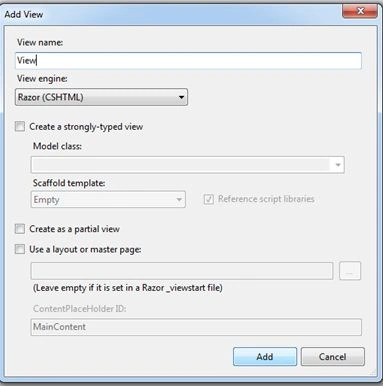
Step 5: Now new window will appear as figure 6. In this write View Name and click on Add Button .
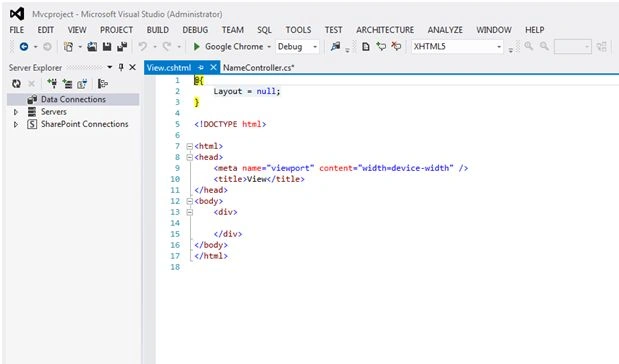
Step 6: Now View page will appear as in the following figure 7. Now write the code which is required for View page.
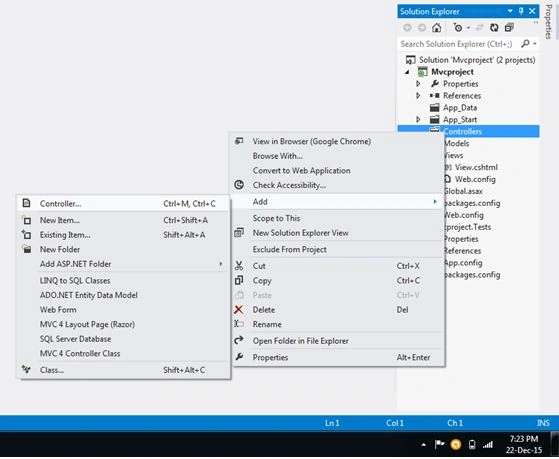
Step 7: Now go to Controller folder and click with right mouse button and select Add then controller as in the following figure 8,
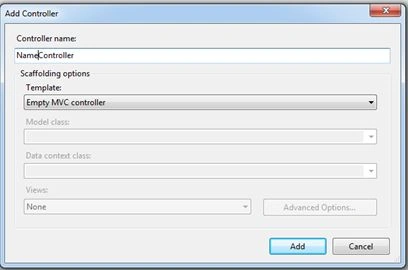
Step 8: Now new window will open as in the following Figure 9 then write the Controller Name and click on button Add.
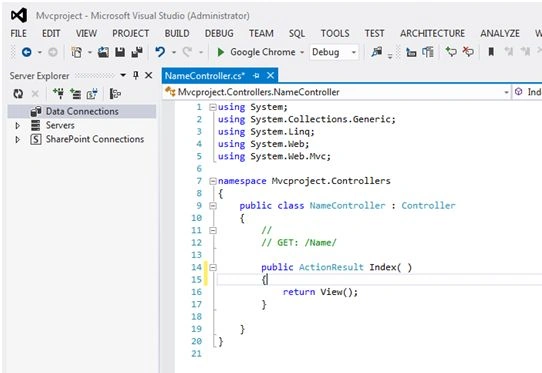
Step 9: Now Controller page will appear as in following figure 10. Now write the code which is required for project.
Now run the application and check.
Step 2: Then select MVC 4 Web Application as in the following figure 2,
Step 3:
Now write the project name and click on OK button then one new window will open. In this new window there will be option of selecting Project template as Empty, Basic, Internet Application, Mobile Application and Web API. Choose any one of these project template, then select View engine as your choice as in the following figure 3,
Now click on OK button and your Solution Explorer will be like following figure 4,
Step 4: Now go to Views folder, click with right mouse button and select Add, then View as in the following figure 5,
Step 5: Now new window will appear as figure 6. In this write View Name and click on Add Button .
Step 6: Now View page will appear as in the following figure 7. Now write the code which is required for View page.
Step 7: Now go to Controller folder and click with right mouse button and select Add then controller as in the following figure 8,
Step 8: Now new window will open as in the following Figure 9 then write the Controller Name and click on button Add.
Step 9: Now Controller page will appear as in following figure 10. Now write the code which is required for project.
Now run the application and check.


SubashPosted Aug 21, 2016, 8:52 PM EDT
Good Share
Santhakumar MunuswamyPosted Dec 25, 2015, 10:21 AM EST
Thanks for nice article
Omid NasriPosted Dec 25, 2015, 6:24 AM EST
Thanks.
Sridhar SharmaPosted Dec 25, 2015, 5:25 AM EST
Nice Share
Sibeesh VenuTOP 100Posted Dec 25, 2015, 5:14 AM EST
Nice Share
Gowtham KTOP 100Posted Dec 25, 2015, 5:14 AM EST
Nice, Thanks for sharing
Ankur MistryTOP 100Posted Dec 25, 2015, 5:12 AM EST
Nice share
Mukesh KumarPosted Dec 24, 2015, 9:13 PM EST
Good One