
SharePoint list has the following three type of forms:
- DispForm
- NewForm
- Editform
By default SharePoint list forms are opening as a page, but we can have the option to open the forms on Dialog.

Figure 1: Form
Steps
The following are the steps to change the list forms to dialog.
Step 1: Open SharePoint List on your site.

Figure 2 : Sample List
Step 2: Select List option from the ribbon bar to go to the list settings as in the following screenshot:
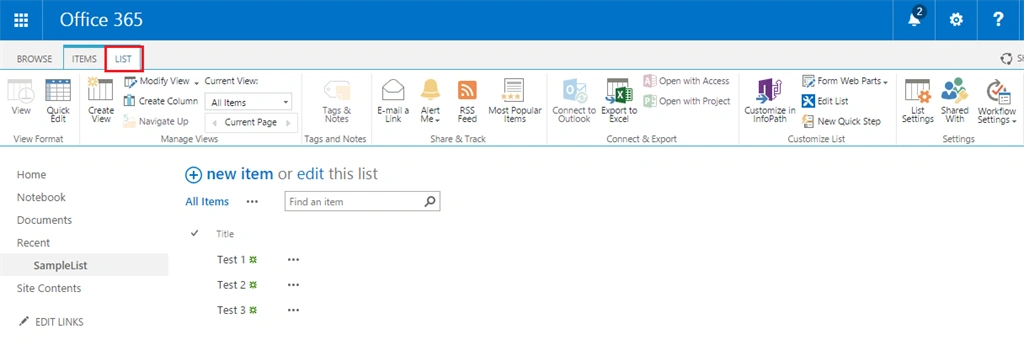
Figure 3: Ribbon Bar
Step 3: Click the List Settings on the ribbon bar.

Figure 4: List Setting
Step 4: On the List settings page select the Advanced settings option.
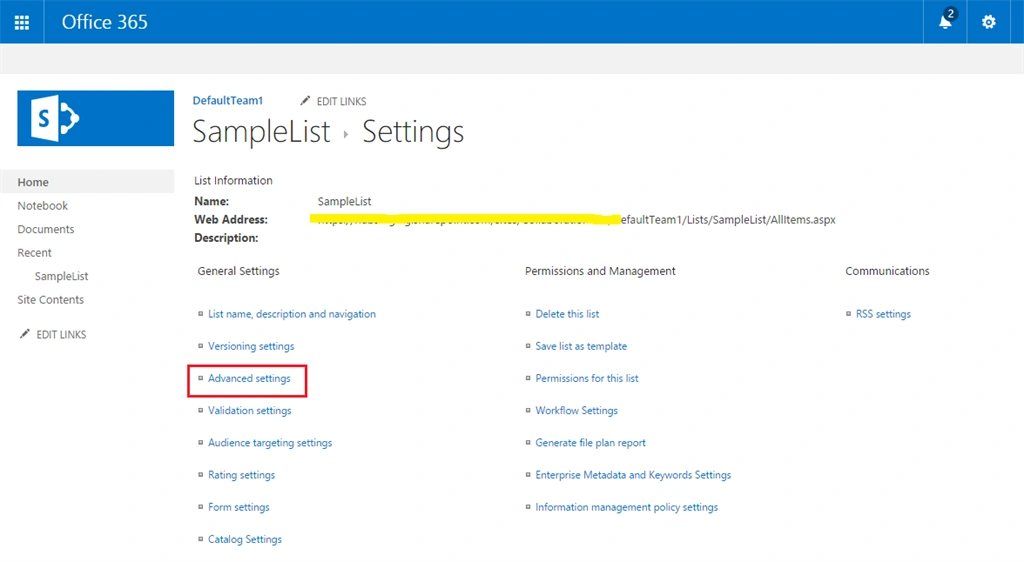
Figure 5: Advanced settings
Step 5: Then scroll down the advanced settings page, you will get the following options as in the following screenshot:

Figure 6: Setting
Step 6: Check the “yes” on advanced settings page to open the form on dialog.
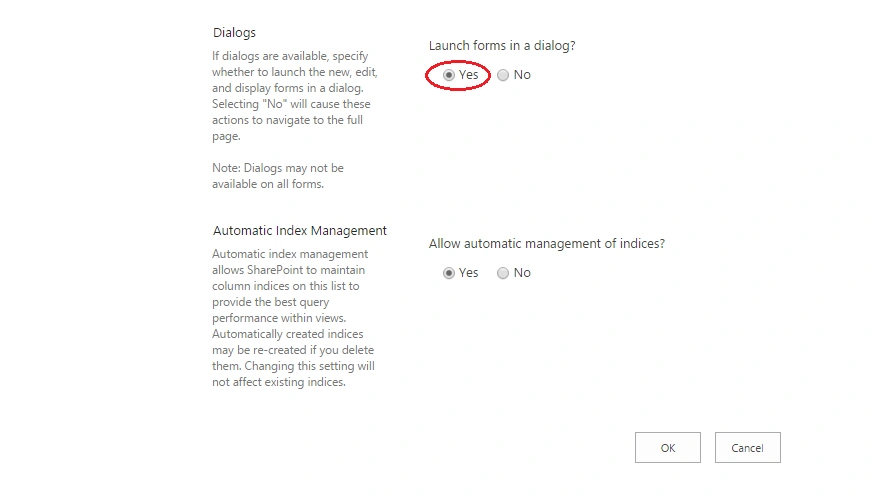
Figure 7: Check yes
Step 7: Click “Ok” to save the settings.
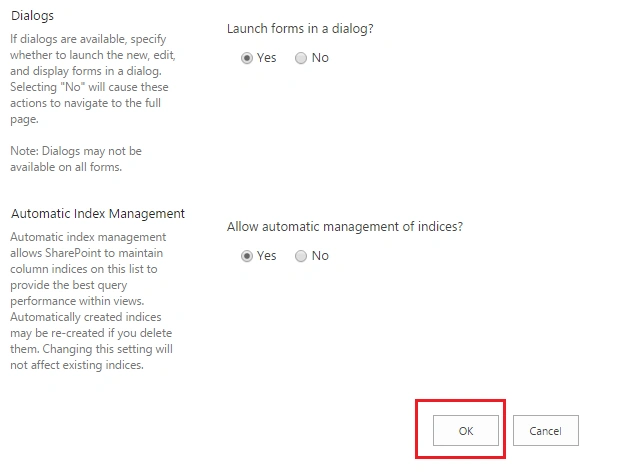
Figure 8: Click OK
Finally your list forms will open in dialog as in the following screenshot:

Figure 9: Final List
Summary
In this article we explored how to open SharePoint NewForm, Dispform and Editform in dialog.


Kaviya BalasubramanianPosted Sep 14, 2015, 6:44 AM EDT
Thank you All :)
Santhakumar MunuswamyPosted Sep 11, 2015, 11:03 PM EDT
Thanks for nice article:)
Mohammed IbrahimPosted Sep 11, 2015, 9:48 PM EDT
nice information
Pankaj Kumar ChoudharyTOP 100Posted Sep 11, 2015, 9:24 AM EDT
Nice Explain........
RakeshPosted Sep 11, 2015, 6:27 AM EDT
Good share
Nilesh JadavPosted Sep 11, 2015, 5:23 AM EDT
Nice share sir !!
Karthikeyan KPosted Sep 11, 2015, 3:39 AM EDT
Good one..Thanks for sharing
Kaviya BalasubramanianPosted Sep 11, 2015, 2:27 AM EDT
Thanks all :)
Vinodh NarayananPosted Sep 11, 2015, 1:45 AM EDT
good one
Harshad PansuriyaPosted Sep 11, 2015, 1:38 AM EDT
Nice Share
Rajeesh MenothPosted Sep 11, 2015, 1:38 AM EDT
Nice Share