

One of the features in Microsoft Visual Studio LightSwitch is Views in the Solution Explorer. You cannot find a feature like that in previous Microsoft IDEs like VB.
Types of Views in Solution Explorer:
There are two types of views available in the Solution Explorer.
- Logical View
- File View
You can select the type of project view of a LightSwitch project by selecting the project view dropdown button on the Solution Explorer pane of the Visual Studio LightSwitch IDE.
Logical View:
If you think "I don't care I just want to get the job done", then your option is Logical View.
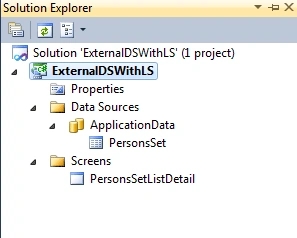
File View:
If you think "I need to see everything" then your option is File View.
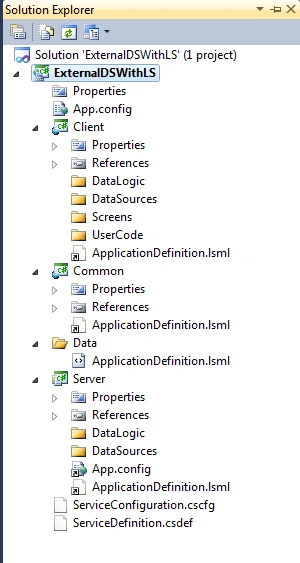
Example:
Here is the real time example for both Logical & File Views.
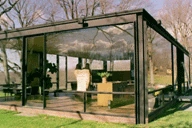
The above one is for File View, you can see inside the glass house.
The below picture is for the Logical View; a wooden house - you can't see inside.
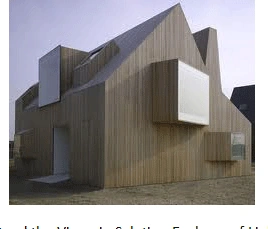
Now you may understand the Views in Solution Explorer of LightSwitch I guess.
Summary:
In this article, we have seen Views of Solution Explorer in LightSwitch.
Thanks for spending your precious time here. Please provide your valuable feedbacks and comments, which enables me to give a better article the next time.
Thanks.
Join the conversation! Your thoughts help the community grow.