

Explore Visual Studio Team Services
Why Visual Studio Team Services?
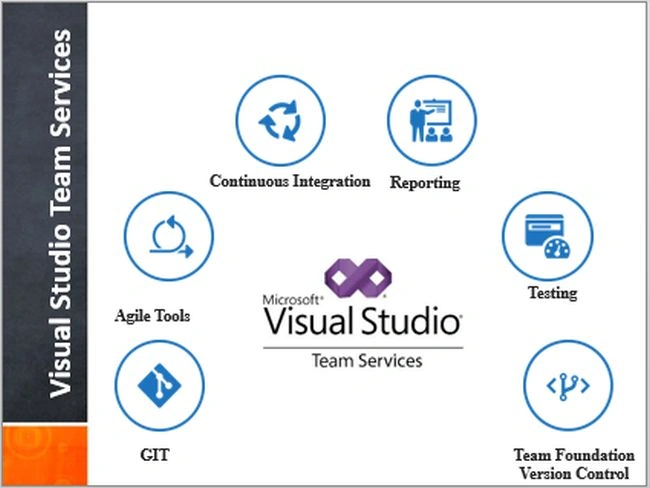
- VSTS helps us to plan better, code together and ship faster.
- VSTS provides many Agile tools, which serve us from the stage of idea planning until the release.
- Keep track and manage all the ideas with a Scrum board with Agile tools.
- VSTS serves as a central repo to improve the code quality.
- GIT/TFS serves as a basic centralized version control system.
- VSTS has tools for manual, performance and automated testing.
- Better reporting tools to increase the reports and productivity.
- Simplify continuous integration for the apps.
What is Git?
Git has been designed with the integrity of the managed source code as a top priority. The content of the files as well as the true relationships between files and directories, versions, tags and commits, all of these objects in the Git repository are secured with a cryptographically secure hashing algorithm called SHA1. This protects the code and the change history against both accidental and malicious change and ensures that the history is fully traceable. [Reference]
How is Git different from Team Foundation Server Version Control (TFVC)?
TFVC is a centralized version control tool, whereas Git is a distributed version control tool. What's the difference between the centralized and distributed [Reference]
Let's explore Visual Studio Team Services.
Step 1
Visit the Online Visual Studio portal at www.onlinevisualstudio.com.
Step 2
Sign in with your login credentials. If you don’t have an account yet, sign up to get started.
Step 3
After successful login, you will see the list of the projects (if you have any) like below (in my case, I have some dummy projects).
Visit the Online Visual Studio portal at www.onlinevisualstudio.com.
Step 2
Sign in with your login credentials. If you don’t have an account yet, sign up to get started.
Step 3
After successful login, you will see the list of the projects (if you have any) like below (in my case, I have some dummy projects).
Step 4
Navigate to New Project, as shown below.
Step 5
Provide the necessary details explained below.
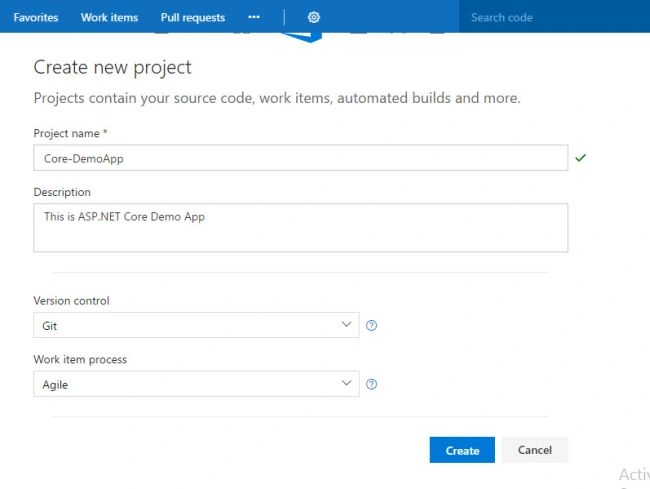
- Project Name- Name of your project.
- Description- Description about your project
- Version Control
- Team Foundation Server (TFS)
- GIT
- Work Item process
- Agile
- GIT
Supply the necessary details and click Create. A new team project will be created and you will be redirected to the dashboard.
Project Dashboard looks as shown below.
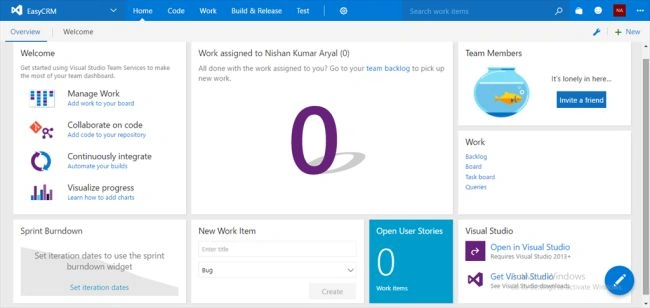
This dashboard gives you the all the possible Services, which you need to manage your team, work and source control and even real time continuous builds and publishing.
How to work in Teams with TFS?
This is very easy as we don’t need to bother about keeping track of the team's activity.
Add team members in project
Step 1
Navigate to Invite Friend, you will see a pop up, as shown below.
How to work in Teams with TFS?
This is very easy as we don’t need to bother about keeping track of the team's activity.
Add team members in project
Step 1
Navigate to Invite Friend, you will see a pop up, as shown below.
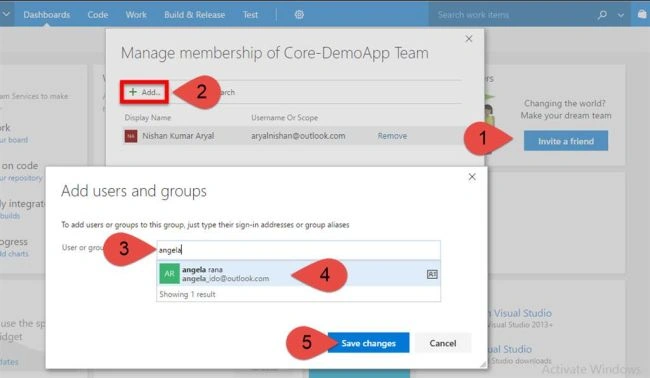
Step 2
Click Add
Step 3
Search for your team member (Email)
Step 4
Select team member.
Step 5
Save the changes
Now, let's add our existing Demo ASP.NET Web app to TFS Project. If you want to learn how to create basic ASP.NET Core Applications, please read my previous articles.
Step 1
File => Open => Project.
Step 2
File => Open => Project.
Step 2
Browse Project and Open
Once you open your project, you will see Solution Explorer, as shown below.
Manage Team Server in Visual Studio.
Step 1
Navigate to View Menu
Step 2
Select Team Explorer.
Step 3
Select Connect Project
Step 4
Select Project, which we created some minutes ago in Online Visual Studio.
Note
If you have not added any TFS Server yet:
Step 1
Get your TFS Server URL. For e.g. myowntfs.visualstudio.com
Step 2
Click Add TFS Server, as shown below.
Step 3
Paste the URL and click OK.
Step 4
After successful connection, you will see the list of projects on your TFS repository.
Once you open your project, you will see Solution Explorer, as shown below.
Manage Team Server in Visual Studio.
Step 1
Navigate to View Menu
Step 2
Select Team Explorer.
Step 3
Select Connect Project
Step 4
Select Project, which we created some minutes ago in Online Visual Studio.
Note
If you have not added any TFS Server yet:
Step 1
Get your TFS Server URL. For e.g. myowntfs.visualstudio.com
Step 2
Click Add TFS Server, as shown below.
Step 3
Paste the URL and click OK.
Step 4
After successful connection, you will see the list of projects on your TFS repository.
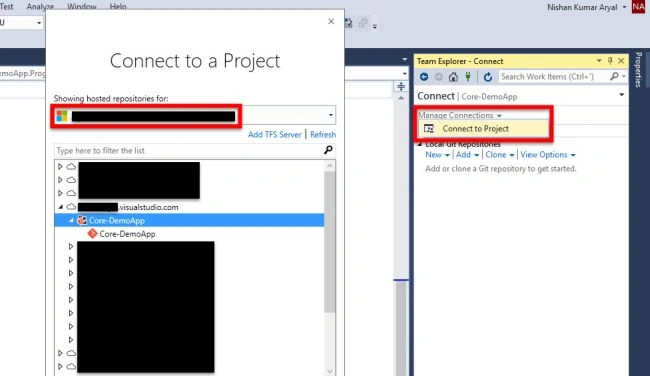
Once you select your TFS Project and Connect, you will be prompted with the screen given below.
Now, select where to clone on Local Machine.
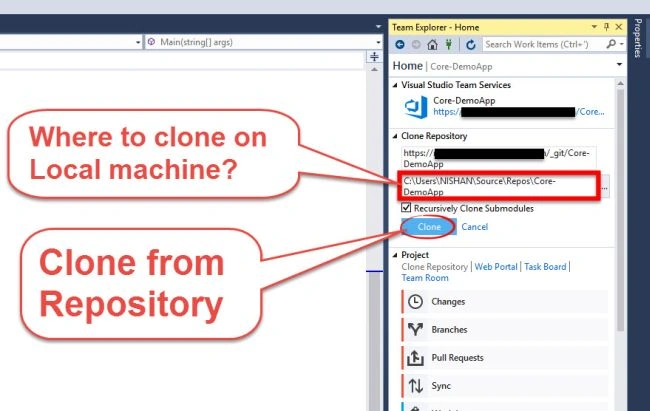
Note
Default location is C:\Users\PC-Name\Source\Repos\Project-Name. Once clone is finished, we can add out the project to remote GIT repository of TFS.
Adding solution to TFS Git repository
Step 1
Right click on the Project.
Step 2
Default location is C:\Users\PC-Name\Source\Repos\Project-Name. Once clone is finished, we can add out the project to remote GIT repository of TFS.
Adding solution to TFS Git repository
Step 1
Right click on the Project.
Step 2
Add Solution to Source control.
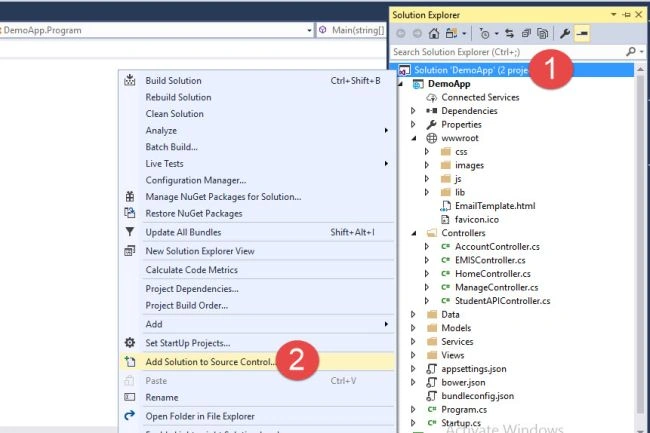
Step 3
Now, let's synchronize our project with TFS repository.
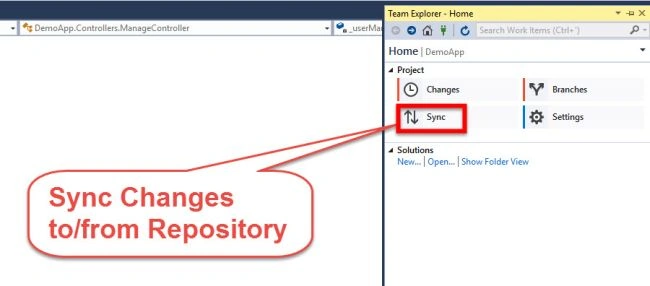
Step 4
Now, publish Git Repo, as shown below.
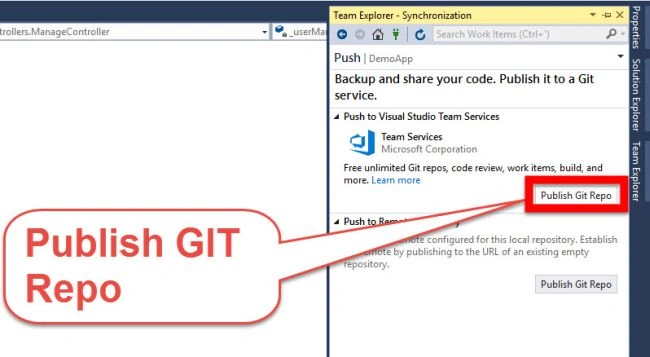
Publish source to GIT repo
Step 1
Select your Team Service Domain (in case you have been connected to more than 1 TFS Server).
Now, publish Git Repo, as shown below.
Publish source to GIT repo
Step 1
Select your Team Service Domain (in case you have been connected to more than 1 TFS Server).
Step 2
Select Team Project.
Step 3
Publish Repository.
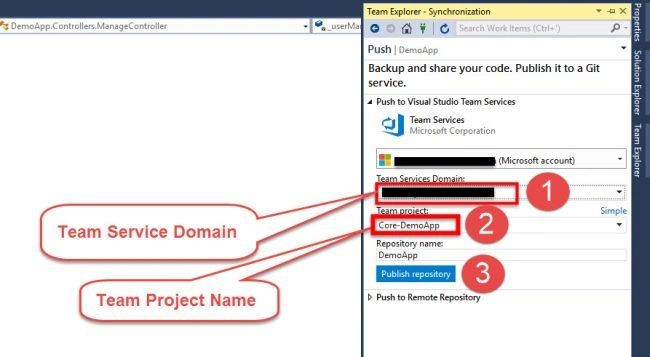
Step 4
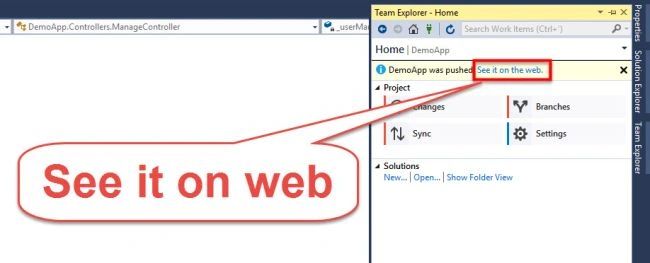
Once the source is pushed to GIT Repo, you can view it on the Website. Click See it on the Web to see your files on TFS Website.
When you navigate to code section in Project Dashboard, you will see all the files in the Server.
Once the source is pushed to GIT Repo, you can view it on the Website. Click See it on the Web to see your files on TFS Website.
When you navigate to code section in Project Dashboard, you will see all the files in the Server.
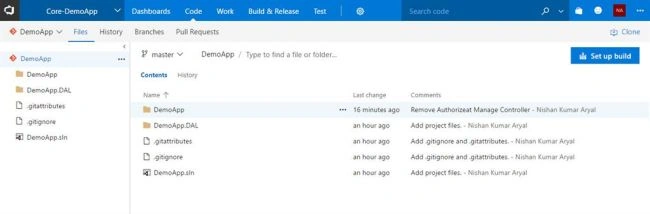
Thus, we have created a New Project with GIT Source Control, pushed our source code to TFSGIT repo, using Visual Studio. In the next article, we will learn how to keep track of changes in the source code, files and folders in the project. In the next demo, we will change some codes in the project and reflect those changes on the Server too, so that the team working in the same project can update the changes made on the same project without hassle.
Summary
We learnt
- What is GIT?
- How GIT differers from TFS?
- How to create project, using Visual Studio Team Servers?
- How to connect to TFS Server, using VisualStudio Team Explorer?
- How to publish source codes and file to GIT Repository in TFS?
Join the conversation! Your thoughts help the community grow.