

In this article:
- How to get all the managed paths for a web application
- How to create a new managed path for a web application
- How to remove a defined managed path from a web application
How to get all the managed paths for a web application:
Using Central Administration:
- Go to Central Administration => Application Management => Manage web applications.
- Select the web application for which you want to see all the defined managed paths.
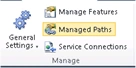
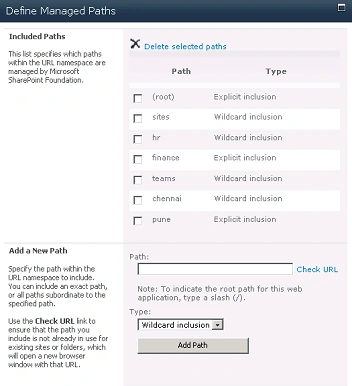
- In the ribbon, click on "Managed Paths" and you could see all the defined managed paths for the web application.
Using Powershell:
- On the Start menu, click All Programs.
- Click Microsoft SharePoint 2010 Products.
- Click SharePoint 2010 Management Shell.
- Type the following command.
Get-SPManagedPath -WebApplication "http://serverName:2010/"
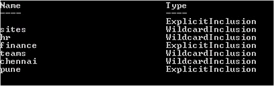
- All the defined managed paths for the web application will be retrieved as shown in the following.
How to create a new managed path for a web application:
Using Central Administration:
- Go to Central Administration => Application Management => Manage web applications.
- Select the web application for which you want to create a new managed path.
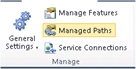
- In the ribbon, click on "Managed Paths" and you could see all the defined managed paths for the web application.
- Type the Path, for example "/HR".
- Select the type of inclusion from the drop down.
- Click on "Add Path", a new managed path is created successfully.
Using Powershell:
- On the Start menu, click All Programs.
- Click Microsoft SharePoint 2010 Products.
- Click SharePoint 2010 Management Shell.
- Type the following command to create a new managed path with "Wildcard inclusion".
New-SPManagedPath "/Chennai" -WebApplication "http://serverName:2010/"
- Type the following command to create a new managed path with "Exclusion inclusion".
New-SPManagedPath "/Pune" -WebApplication "http://serverName:2010/" -explicit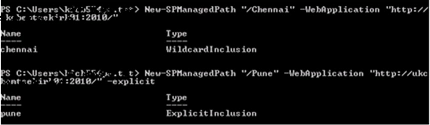
How to remove a defined managed path from a web application:
Using Central Administration:
- Go to Central Administration => Application Management => Manage web applications.
- Select the web application for which you want to delete a defined managed path.
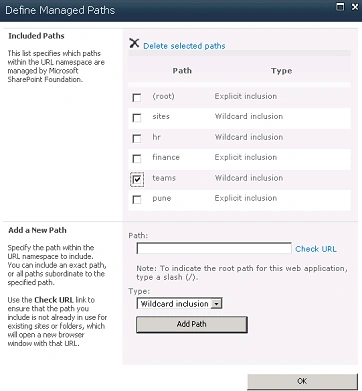
- In the ribbon, click on "Managed Paths" and you could see all the defined managed paths for the web application.
- Select the Managed path that you want to delete and click on "Delete selected Paths".
Using Powershell:
- On the Start menu, click All Programs.
- Click Microsoft SharePoint 2010 Products.
- Click SharePoint 2010 Management Shell.
- Type the following command to remove a managed path with confirmation prompt.
Remove-SPManagedPath -Identity "/Pune" -WebApplication "http://serverName:2010/"
- Type the following command to remove a managed path without confirmation prompt.
Remove-SPManagedPath -Identity "/Pune" -WebApplication "http://serverName:2010/" -confirm:$false
SapnaPosted Feb 1, 2011, 10:53 PM
The article is explained in a good way, great work.