

Last week, I attended C# Corner annual conference. In this conference, I met MVPs, authors, speakers, and the C# Corner Team. In this conference I learned a lot. I met with Mr. Glenn Block and I learned some new technologies, and ScriptCS is one of them.
What is ScriptCS?
ScriptCS enables developers to write C# code and C# applications using any text editor, and the C# Code compilation is performed by Roslyn. We can manage all packages and dependencies using Nuget.
Mr. Glenn Block, (Principal Product Manager at Splunk) developed the ScriptCS project to make C# a scripting language.
ScriptCS enables developers to write C# code and C# applications using any text editor, and the C# Code compilation is performed by Roslyn. We can manage all packages and dependencies using Nuget.
Mr. Glenn Block, (Principal Product Manager at Splunk) developed the ScriptCS project to make C# a scripting language.
How to Install ScriptCS: The following steps will explain how you can you install ScriptCS.
- Before installing ScriptCS you need to install Chocolatey.
You can install Chocolatey using your command prompt. Open command prompt as administrator and then just copy the following command and paste in command prompt.You can also install Chocolatey using PowerShell. To install use PowerShell using the following command:- @powershell -NoProfile -ExecutionPolicy Bypass -Command "iex ((new-object net.webclient).DownloadString('https://chocolatey.org/install.ps1'))" && SET PATH=%PATH%;%ALLUSERSPROFILE%\chocolatey\bin
- iex ((new-object net.webclient).DownloadString('https://chocolatey.org/install.ps1'))
- After installing Chocolatey, you can install the latest stable version of ScriptCS from your command prompt using the following command. Chocolatey will install ScriptCS to "%APPDATA%\scriptcs\". But if you want to update ScriptCS path then you can update accordingly.
- cinst scriptcs
Note: After installing you may need to restart your computer.
Any time you want to update ScriptCS then you can update using the following command:
- cup scriptcs
How to Create and Run a C# Code using ScriptCS
To create and run a C# Code using ScriptCS is very easy as in the following:
To create and run a C# Code using ScriptCS is very easy as in the following:
- Open Command Prompt.
- Type "scriptcs" command in command prompt and hit Enter key.
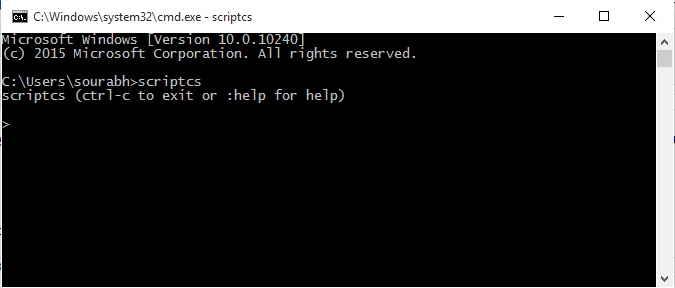
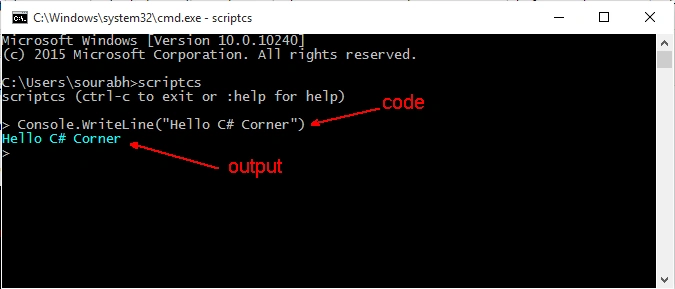
- Now write your code as in the following:
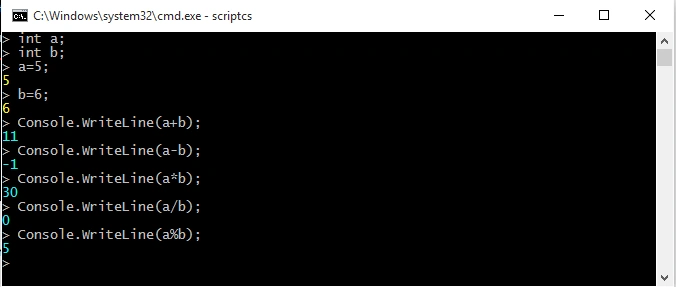
Working with variables using ScriptCS,
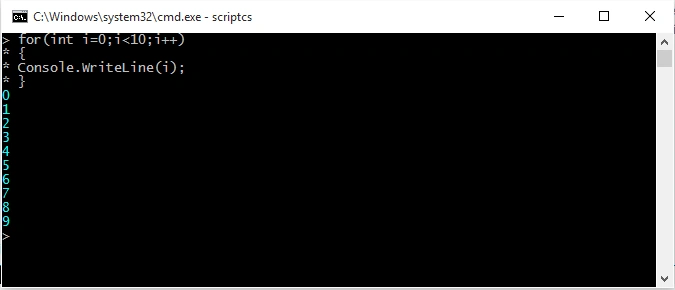
Working with loops using ScriptCS,
How to run C# Code after writing in your favorite text editor
You can write your C# code in your favorite text editor and save it as .csx
Working with loops using ScriptCS,
How to run C# Code after writing in your favorite text editor
You can write your C# code in your favorite text editor and save it as .csx
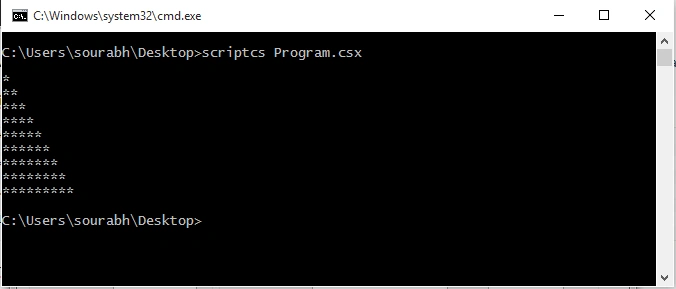
Example: Open your favorite text editor and write the following code:
- for(int i=0;i<10;i++)
- {
- for(int j=0;j<i;j++)
- {
- Console.Write("*");
- }
- Console.WriteLine();
- }
Now save this code as Program.csx. and run this using the following command:
- scriptcs Program.csx
Conclusion
In this article we have learned the following things:
In this article we have learned the following things:
- About ScriptCS
- Installation of Chocolaty
- Installation of ScriptCS
- Run simple program using ScriptCS
- Working with variables
- Working with loops
- We have also seen how we can write our C# code in your favorite text editor and run that code.
Read more articles on C# Programming:
Vignesh ManiPosted Mar 24, 2016, 8:27 AM
Nice
Rajeev PunhaniPosted Mar 24, 2016, 1:47 AM
Nice Article.
Humayun Kabir MamunPosted Mar 24, 2016, 12:45 AM
Nice...
Kumaresh RajalingamPosted Mar 23, 2016, 9:09 PM
Nice one
Shaili DashoraPosted Mar 23, 2016, 3:48 PM
Nice Article Sourabh Somani :)
Debasis SahaPosted Mar 23, 2016, 1:20 PM
Nice one..
Shakti Singh DulawatPosted Mar 23, 2016, 9:03 AM
Good JOb Tiger