

Introduction:
In this article I will explain about how to select multiple cells in datgridview using c# windows application. Use the MultiSelect property to allow a user to select multiple elements in the DataGridView control and perform an operation on all the selected elements.
How to start?
1. First open the visual studio and select Visual C# --> Windows --> WindowsFormsApplication.
2. Create new item and add one Form.
3. Drag and Drop datagridview control and named as datagridview1.
4. Double Click the form and move code behind Form1_Load.
5. Just dynamically update the datagridview properties as below.
dataGridView1.SelectionMode =
DataGridViewSelectionMode.CellSelect;
dataGridView1.MultiSelect
= true;
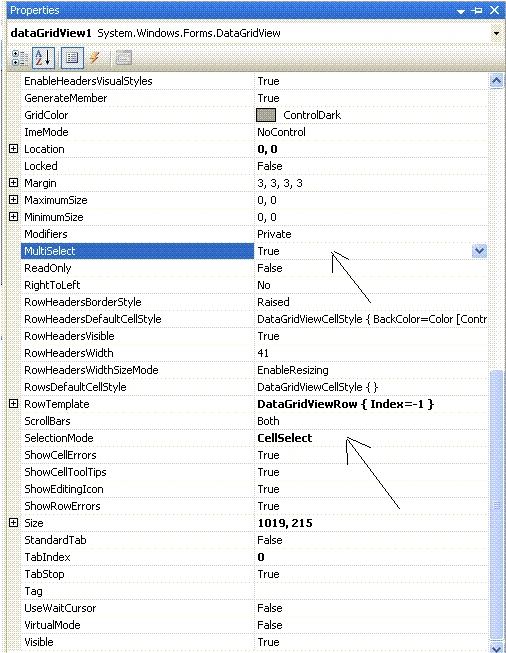
6. For modification manually in datagridview Propertise
7. Bind the datasource to the datagridview.
dataGridView1.DataSource = dtTemp;
8. Dynamically select the rows through code behind itself.
dataGridView1[1,1].Selected = true;
dataGridView1[2, 1].Selected = true;
dataGridView1[0, 2].Selected = true;
dataGridView1[1,
2].Selected = true;
9. Run the form and result will be as below.
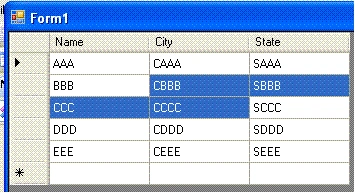
Here you can change the selected cells based on the scenario. I just explained to you how to select the cells through code line.
Tchala BPosted Jun 19, 2017, 2:25 PM
Thanks for this nice article but am having some issue somewhere in my project and its related to your article. My code currently allows a user to to select one item whose report is to be generated.I now want to upgrade it so that a user can select more than one item so that more than one report can be generated.I have already set the multiselect property to true,selection mode to cellselect and am now stuck. if (e.RowIndex < 0) return; this.EmpId = Convert.ToInt32(this.dgvPrint.Rows[e.RowIndex].Cells["Empid_Print"].FormattedValue); this.lblEmpPrint.Text = this.dgvPrint.Rows[e.RowIndex].Cells["Empname_Print"].FormattedValue.ToString(); this.btnPrint.Enabled = true; } The above code works for a single cell click,how do i modify it to work with multicellselect