

Custom Paging
Custom Paging improves the performance of default paging by retrieving only those records from the database that must be displayed on the particular page of data requested by the user. However, custom paging involves a bit more efforts to implement than that for default paging.
Read the below articles first to understand the AngularJS UI-Grid.
- UI-Grid With AngularJS And WebAPI
- Export Data In Angular-UI-Grid Using WebAPI
- Filtering In UI-Grid With AngularJS And WebAPI
- Custom Scroll In AngularJS-UI-Grid With Web API
- Expandable grid in AngularJS-UI-Grid with Web API
- CRUD Operation with Model dialog using UI-Grid in AngularJS and Web API
- How To Customize UI-Grid Height Dynamically
- Custom Paging In Angular-UI Grid
- Two Ways To Get Data From Entity Framework
Prerequisites
Visual Studio 2017 is the prerequisite to work with this article.
Thus, let's just use the sections with which we can implement the functionality.
- Create ASP.NET MVC 5 Application.
- Adding Model.
- Scaffolding in MVC 5.
- View in MVC 5.
- Log in an Entity Framework.
Create ASP.NET MVC 5 Application
In this section, we'll create an ASP.NET Web Application with the MVC 5 Project Template. Use the procedure given below.
Step 1
Open Visual Studio 2015 and click "New Project".
Step 2
Select "Web" from the left pane and create ASP.NET Web application.
Step 3
Select the MVC Project template in the next ASP.NET wizard.
Visual Studio automatically creates the MVC 5 Application, adds some files and folders to the solution.
Working with Entity Framework
Step 1
Right click on Models folder, click Add New Item, select ADO.NET Entity Data Model from Data template and give a name.
Step 2
Select EF Designer from the database.
Step 3
Make a new connection and select a connection, if you already have a connection.
Step 4
Select tables, view, and stored procedures and click Finish.
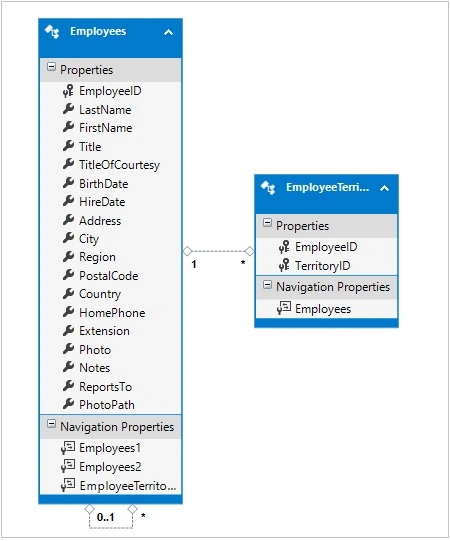
Stored Procedure
- USE [NORTHWND]
- GO
- /****** Object: StoredProcedure [dbo].[GetEmployeeWithPaging] Script Date: 11/13/2017 12:56:50 PM ******/
- SET ANSI_NULLS ON
- GO
- SET QUOTED_IDENTIFIER ON
- GO
- ALTER PROCEDURE [dbo].[GetEmployeeWithPaging]
- @PageNumber INT = NULL,
- @PageSize INT = NULL,
- @OrderBy VARCHAR(50) = N'EmployeeID', -- Column to sort programs by
- @SortDirection VARCHAR(4) = N'asc'
- AS
- DECLARE @totalCount int
- SET @totalCount = (SELECT COUNT(EmployeeID) as totalRecords FROM Employees)
- SELECT EmployeeID,
- FirstName,
- LastName,
- City,
- Region,
- PostalCode,
- Country,
- Notes,
- @totalCount as TotalCount
- FROM Employees
- ORDER BY
- CASE WHEN @SortDirection = 'asc' AND @OrderBy = 'FirstName' THEN FirstName END ASC
- ,CASE WHEN @SortDirection = 'desc' AND @OrderBy = 'FirstName' THEN FirstName END DESC
- ,CASE WHEN @SortDirection = 'asc' AND @OrderBy = 'LastName' THEN LastName END ASC
- ,CASE WHEN @SortDirection = 'desc' AND @OrderBy = 'LastName' THEN LastName END DESC
- ,CASE WHEN @SortDirection = 'asc' AND @OrderBy = 'City' THEN City END ASC
- ,CASE WHEN @SortDirection = 'desc' AND @OrderBy = 'City' THEN City END DESC
- ,CASE WHEN @SortDirection = 'asc' AND @OrderBy = 'Region' THEN Region END ASC
- ,CASE WHEN @SortDirection = 'desc' AND @OrderBy = 'Region' THEN Region END DESC
- ,CASE WHEN @SortDirection = 'asc' AND @OrderBy = 'PostalCode' THEN PostalCode END ASC
- ,CASE WHEN @SortDirection = 'desc' AND @OrderBy = 'PostalCode' THEN PostalCode END DESC
- ,CASE WHEN @SortDirection = 'asc' AND @OrderBy = 'Country' THEN Country END ASC
- ,CASE WHEN @SortDirection = 'desc' AND @OrderBy = 'Country' THEN Country END DESC
- OFFSET ((@PageNumber-1) * @PageSize) ROWS
- FETCH NEXT @PageSize ROWS ONLY
- public partial class GetEmployeeWithPaging_Result {
- public int EmployeeID {
- get;
- set;
- }
- public string FirstName {
- get;
- set;
- }
- public string LastName {
- get;
- set;
- }
- public string City {
- get;
- set;
- }
- public string Region {
- get;
- set;
- }
- public string PostalCode {
- get;
- set;
- }
- public string Country {
- get;
- set;
- }
- public string Notes {
- get;
- set;
- }
- public Nullable < int > TotalCount {
- get;
- set;
- }
- }
- /// <summary>
- ///
- /// </summary>
- /// <param name="PageNumber"></param>
- /// <param name="PageSize"></param>
- /// <param name="OrderBy"></param>
- /// <param name="SortDirection"></param>
- /// <returns></returns>
- public async Task < List < GetEmployeeWithPaging_Result >> GetEmployeeWithPaging(int PageNumber, int PageSize, string OrderBy, string SortDirection) {
- try {
- // Create the SQL param with the id provided by the caller
- var pageNumber = new SqlParameter("PageNumber", PageNumber == 0 ? (object) DBNull.Value : PageNumber);
- var pageSize = new SqlParameter("PageSize", PageSize == 0 ? (object) DBNull.Value : PageSize);
- var orderBy = new SqlParameter("OrderBy", OrderBy == null ? (object) DBNull.Value : OrderBy);
- var sortDirection = new SqlParameter("SortDirection", SortDirection == null ? (object) DBNull.Value : SortDirection);
- // Create an enumerated list of SearchProgramOptions objects
- var result = await db.Database.SqlQuery < GetEmployeeWithPaging_Result > ("GetEmployeeWithPaging @PageNumber,@PageSize,@OrderBy,@SortDirection", pageNumber, pageSize, orderBy, sortDirection).ToListAsync();
- return result;
- } catch (Exception ex) {
- // Something didn't go as expected - this Exception handler should be more verbose
- throw ex;
- }
- }
If you want to use a stored procedure, then read my previous article.
Web API
Right click on controller folder, click Add and select Controller and select Web API 2 Controller – Empty.
- [Route("GetEmployeeWithPaging")]
- public async Task < IEnumerable < GetEmployeeWithPaging_Result >> GetEmployeeWithPaging(int PageNumber = 0, int PageSize = 0, string OrderBy = null, string SortDirection = null)
- {
- return await _employeeVMBuilder.GetEmployeeWithPaging(PageNumber, PageSize, OrderBy, SortDirection);
- }
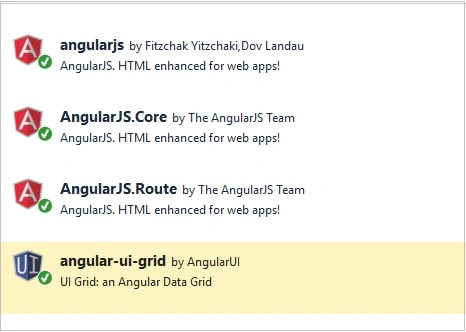
Add JavaScript files and CSS reference in BundleConfig.cs.
- bundles.Add(new ScriptBundle("~/bundles/angular").Include(
- "~/Scripts/angular.js",
- "~/Scripts/angular-route.js",
- "~/Scripts/ui-grid.js",
- "~/Scripts/angular-ui/ui-bootstrap.js",
- "~/Scripts/angular-ui/ui-bootstrap-tpls.js"));
- bundles.Add(new ScriptBundle("~/bundles/employee").Include(
- "~/Angular/app.js",
- "~/Angular/Services/employeeService.js",
- "~/Angular/Controller/employeeController.js",
- "~/Angular/Controller/editEmployeeController.js",
- "~/Angular/Controller/addEmployeeController.js"));
And, render on _layout.cshtml.
- @Scripts.Render("~/bundles/jquery")
- @Scripts.Render("~/bundles/bootstrap")
- @Scripts.Render("~/bundles/angular")
- @Scripts.Render("~/bundles/employee")
- @RenderSection("scripts", required: false)
Now, add a new Angular Controller with scope. I am using just one script for Module, Service, and Controller. You can have it separate if working on a big project.
Module
- //Define an angular module for our app
- var app = angular.module('app', ['ngRoute', 'ui.grid', 'ui.grid.edit', 'ui.grid.pagination', 'ui.grid.autoResize', 'ui.grid.expandable', 'ui.grid.selection', 'ui.grid.pinning', 'ui.bootstrap']).config(function($routeProvider, $locationProvider) {
- $locationProvider.hashPrefix('');
- $routeProvider.when('/', {
- templateUrl: 'Home',
- controller: 'homeController'
- }).when('/employee', {
- templateUrl: 'Employee',
- controller: 'employeeController'
- });
- //$locationProvider.html5Mode(true);
- //$locationProvider.html5Mode(true).hashPrefix('*');
- });
Service
- //get employees with paging params
- this.getEmployeeWithPaging = function (PageNumber,PageSize,OrderBy,SortDirection) {
- var req = $http.get('api/EmployeeAPI/GetEmployeeWithPaging', { params: { PageNumber:PageNumber,
- PageSize:PageSize,
- OrderBy:OrderBy,
- SortDirection:SortDirection } });
- return req;
- };
Controller
- app.controller("employeeController", function($scope, $filter, employeeService, $window, $http, $log, $interval, $uibModal) {
- init();
- function init() {
- //Pagination varibles
- var paginationOptions = {
- pageNumber: 1,
- pageSize: 10,
- sort: {
- columnName: 'EmployeeID',
- isAscending: false,
- }
- };
- $scope.currentPage = 1;
- $scope.pageSize = paginationOptions.pageSize;
- //end here
- $scope.loadData = function() {
- employeeService.getEmployeeWithPaging(paginationOptions.pageNumber, paginationOptions.pageSize, null, paginationOptions.sort).then(function(result) {
- $scope.gridOptions.totalItems = result.data[0].TotalCount;
- $scope.totalPage = Math.ceil($scope.gridOptions.totalItems / $scope.pageSize);
- $scope.gridOptions.data = result.data;
- console.log($scope.Employees);
- }, function(error) {
- $window.alert('Oops! Something went wrong while fetching employee data.');
- });
- };
- $scope.loadData();
- $scope.gridOptions = {
- enableRowSelection: true,
- selectionRowHeaderWidth: 35,
- enableRowHeaderSelection: false,
- //Added for custom paging
- paginationPageSizes: [$scope.pageSize, $scope.pageSize * 2, $scope.pageSize * 3],
- paginationPageSize: paginationOptions.pageSize,
- useExternalPagination: true, // custom
- useExternalSorting: true, // custom
- useExternalFiltering: true, // custom
- enableSorting: true,
- columnDefs: [{
- name: 'Edit',
- field: 'EmployeeID',
- width: '10%',
- enableColumnMenu: false,
- cellTemplate: '<button title="Edit" class="btn btn-xs btn-primary fa fa-edit" ng-click="grid.appScope.editEmployee(row)">Edit </button>',
- width: 50,
- pinnedLeft: false,
- enableHiding: false,
- exporterSuppressExport: true,
- enableSorting: false,
- enableFiltering: false
- }, {
- name: 'First Name',
- field: 'FirstName',
- headerCellClass: 'tablesorter-header-inner',
- enableFiltering: true,
- enableCellEdit: true,
- }, {
- name: 'Last Name',
- field: 'LastName',
- headerCellClass: 'tablesorter-header-inner',
- enableFiltering: true,
- enableCellEdit: true,
- }, {
- name: 'City',
- field: 'City',
- headerCellClass: 'tablesorter-header-inner',
- enableFiltering: true,
- enableCellEdit: true,
- }, {
- name: 'Region',
- field: 'Region',
- enableCellEdit: false,
- headerCellClass: 'tablesorter-header-inner',
- enableFiltering: true
- }, {
- name: 'Postal Code',
- field: 'PostalCode',
- enableCellEdit: false,
- headerCellClass: 'tablesorter-header-inner',
- enableFiltering: true
- }, {
- name: 'Country',
- field: 'Country',
- enableCellEdit: false,
- headerCellClass: 'tablesorter-header-inner',
- enableFiltering: true
- }, {
- name: 'Notes',
- field: 'Notes',
- width: '20%',
- enableCellEdit: false,
- headerCellClass: 'tablesorter-header-inner',
- enableFiltering: true
- }],
- //This code used for export grid data in csv file
- enableGridMenu: true,
- enableSelectAll: true,
- exporterMenuPdf: false,
- enableFiltering: true,
- exporterCsvFilename: 'EmployeeList_' + $filter('date')(new Date(), 'MM/dd/yyyy') + '.csv',
- exporterCsvLinkElement: angular.element(document.querySelectorAll(".custom-csv-link-location")),
- onRegisterApi: function(gridApi) {
- $scope.gridApi = gridApi;
- gridApi.selection.on.rowSelectionChanged($scope, function(row) {
- var msg = 'row selected ' + row.isSelected;
- $log.log(msg);
- console.log(msg);
- //$window.alert(msg);
- });
- gridApi.selection.on.rowSelectionChangedBatch($scope, function(rows) {
- var msg = 'rows changed ' + rows.length;
- $log.log(msg);
- // $window.alert(msg);
- console.log(msg);
- });
- //Added for custom paging
- gridApi.pagination.on.paginationChanged($scope, function(newPage, pageSize) {
- paginationOptions.pageNumber = newPage;
- paginationOptions.pageSize = pageSize;
- $scope.pageSize = pageSize;
- $scope.currentPage = newPage;
- $scope.totalPage = Math.ceil($scope.gridOptions.totalItems / $scope.pageSize);
- $scope.loadData();
- });
- //custom sort
- $scope.gridApi.core.on.sortChanged($scope, function(grid, sortColumns) {
- if (sortColumns.length == 0) {
- paginationOptions.sort = null;
- } else {
- paginationOptions.sort = sortColumns[0].sort.direction;
- }
- $scope.loadData();
- });
- },
- //end here
- //data for grid
- // data: 'employees'
- };
- }
- //Delete employee
- $scope.deleteSelected = function() {
- angular.forEach($scope.gridApi.selection.getSelectedRows(), function(data, index) {
- $scope.employees.splice($scope.employees.lastIndexOf(data), 1);
- });
- }*/
- //This function is used to open update request popup window
- $scope.addEmployee = function() {
- var modalInstance = $uibModal.open({
- //animation: $ctrl.animationsEnabled,
- templateUrl: 'Template/add.html',
- controller: 'addEmployeeController', // a controller for modal instance
- //controllerUrl: 'controller/test-controller', // can specify controller url path
- //controllerAs: 'ctrl', // controller as syntax
- //scope: $scope,
- size: 'md', // model size
- backdrop: 'static',
- keyboard: false, // ESC key close enable/disable
- //appendTo: parentElem,
- resolve: {
- //grid: function () { return grid; },
- //refreshGrid: function () { return $scope.RefreshGrid.bind(controller, $scope.searchData); },
- //row: function () { return row.entity; }
- row: function() {
- return null;
- }
- } // data passed to the controller
- }).closed.then(function() {
- $scope.RefreshGridData();
- $scope.showGrid = true;
- }, function() {});
- };
- //Open edit dialog
- $scope.editEmployee = function(row) {
- var modalInstance = $uibModal.open({
- //animation: $ctrl.animationsEnabled,
- templateUrl: 'Template/edit.html',
- controller: 'editEmployeeController', // a controller for modal instance
- //controllerUrl: 'controller/test-controller', // can specify controller url path
- //controllerAs: 'ctrl', // controller as syntax
- //scope: $scope,
- size: 'md', // model size
- backdrop: 'static',
- keyboard: false, // ESC key close enable/disable
- //appendTo: parentElem,
- resolve: {
- //grid: function () { return grid; },
- //refreshGrid: function () { return $scope.RefreshGrid.bind(controller, $scope.searchData); },
- row: function() {
- return row.entity;
- }
- } // data passed to the controller
- }).closed.then(function() {
- $scope.RefreshGridData();
- $scope.showGrid = true;
- }, function() {});
- }
- //refresh grid data after save of update
- $scope.RefreshGridData = function() {
- /* employeeService.getEmployees().then(function (result) {
- $scope.gridOptions.data = result.data;
- console.log($scope.Employees);
- }, function (error) {
- $window.alert('Oops! Something went wrong while fetching employee data.');
- }); */
- $scope.loadData();
- }
- //end
- });
Index
- @{
- ViewBag.Title = "Index";
- Layout = "~/Views/Shared/_Layout.cshtml";
- }
- <h2>Employee</h2>
- <div ng-controller="employeeController">
- <div style="padding-left: 30px;">
- <button type="button" id="addRow" class="btn btn-success" ng-click="addEmployee()">Add New Employee</button>
- </div>
- <br />
- <div ui-grid="gridOptions"
- ui-grid-pagination
- ui-grid-selection
- ui-grid-exporter
- ui-grid-resize-columns
- ui-grid-auto-resize
- class="grid">
- </div>
- </div>
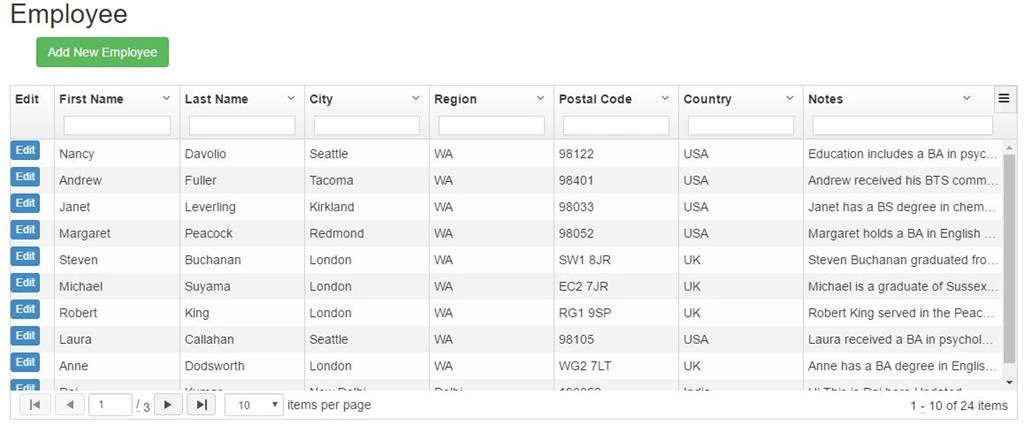
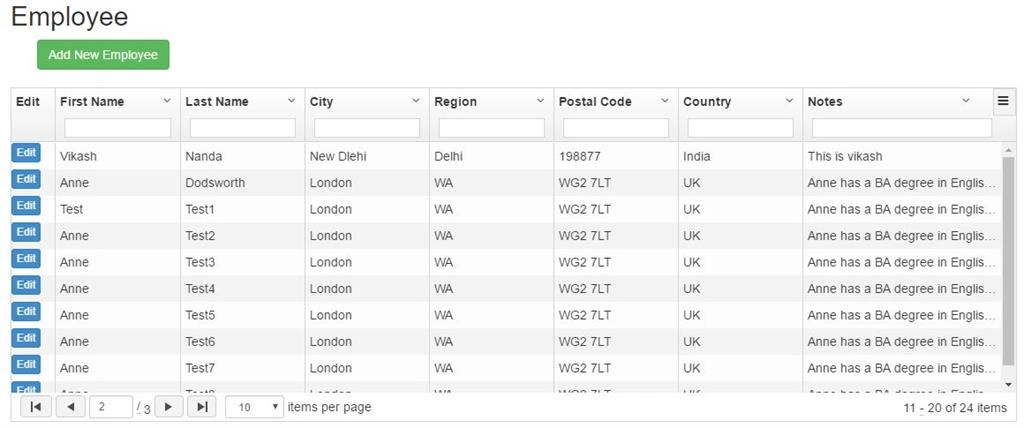
In the given screenshot, you can see the page index and page size. Click "Next" to see the next page index. Best way to check page index debug your application in debug mode. Every time when you press next you pass updated page index and page size and sorting order. The biggest benefit of server-side custom paging is when you have millions of records and loading is slow then go with custom paging, after custom paging no matter how big database is, you will get result fast because you are fetching 10 records each time.
Conclusion
In this article, we have seen how to implement server-side custom paging with Angular UI-Grid with Web API and Entity Framework in MVC. If you have any questions or comments, drop me a line in the comments section.
In the given screenshot, you can see the page index and page size. Click "Next" to see the next page index. Best way to check page index debug your application in debug mode. Every time when you press next you pass updated page index and page size and sorting order. The biggest benefit of server-side custom paging is when you have millions of records and loading is slow then go with custom paging, after custom paging no matter how big database is, you will get result fast because you are fetching 10 records each time.
Conclusion
In this article, we have seen how to implement server-side custom paging with Angular UI-Grid with Web API and Entity Framework in MVC. If you have any questions or comments, drop me a line in the comments section.
Become a master of the Rubik's Cube with this tutorial. Learn how to solve the cube with the beginner's method!
Purushottam RathorePosted Nov 27, 2017, 6:37 AM
Excellent stuff for who are learning Angular. This is very helpful for me. Thank you very much Raj Kumar sir.