

This article demonstrates simple steps to install docker and docker-compose in Ubuntu 20.04 server.
I created an Azure Linux VM and opened SSH port 22 so that I can login into this VM using PuTTY. Here I am connecting via public IP address but this not a secure way to perform this activity. Our focus here is to install docker into Ubuntu 20.04 server which we created from Azure.
I am already logged into Ubuntu server using PuTTY.
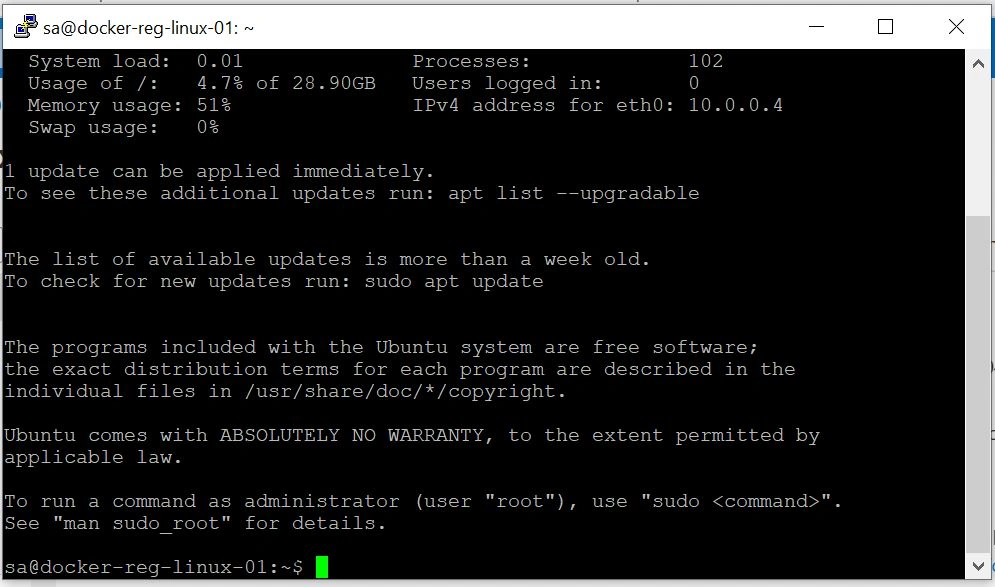
Let’s perform a series of steps to setup docker and docker-compose.
Install Docker
We will install docker from official docker repository.
STEP 1 - Update the list of packages
sudo apt updateSTEP 2 - Download Dependencies. This will ensure to access the Docker repositories over HTTPS.
sudo apt-get install apt-transport-https ca-certificates curl software-properties-commonSTEP 3 - Add GPG key for the Docker repository
curl -fsSL https://download.docker.com/linux/ubuntu/gpg | sudo apt-key add –STEP 4 - Add Docker repository to APT sources
sudo add-apt-repository "deb [arch=amd64] https://download.docker.com/linux/ubuntu $(lsb_release -cs) stable"STEP 5 - Install Docker and enable docker service
sudo apt updatesudo apt-get install docker-ceTo check docker version after installation
docker --version
Let’s start and enable docker service by running below commands -
sudo systemctl start dockersudo systemctl enable dockerWe installed and start docker service in Linux VM successfully. Let’s check the status of the service.
sudo systemctl status docker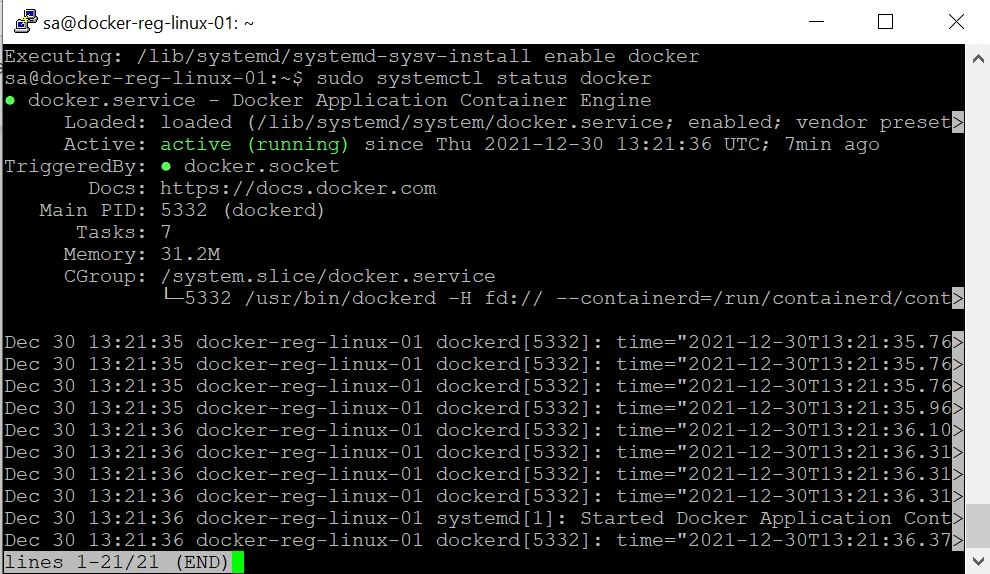
Awesome! Docker is up and running. Now you can press ctrl + c to exit.
Install Docker-compose
This is a continuation of docker installation. The assumption here is that you already installed docker as per previous steps and now you are installing docker-compose.
Here we are installing version 1.29.2. You can check latest release version from https://github.com/docker/compose/releases
STEP 1 – Download Latest Docker-compose
sudo curl -L "https://github.com/docker/compose/releases/download/1.29.2/docker-compose-$(uname -s)-$(uname -m)" -o /usr/local/bin/docker-composeSTEP 2 - Set permissions
sudo chmod +x /usr/local/bin/docker-composeLet’s verify the installation
docker-compose --version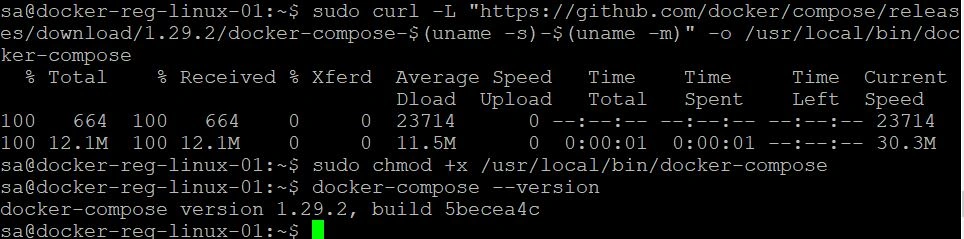
Awesome! Docker compose is successfully installed in Linux VM.
Join the conversation! Your thoughts help the community grow.