

In this article I would like to experiment with Central Administration web applications.
About Central Administration
The SharePoint Central Administration is a website used for:
- Application Management (Web Application, Sites, Lists, Services etc.)
- Monitoring (Job Status, Problems etc.)
- Security
- Application Settings, System Settings
- Performing Backup/Restore
- Configure Search, Services, Migration Assisting etc.
In summary the Central Administration is an Administrator/Developer tool. It is used to manage the websites for other users.
Opening Central Administration
We can access central administration from the start menu item: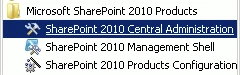
On executing the command you can see the following screen in the browser (ensure you provided the credentials properly - by default it will be system username and password)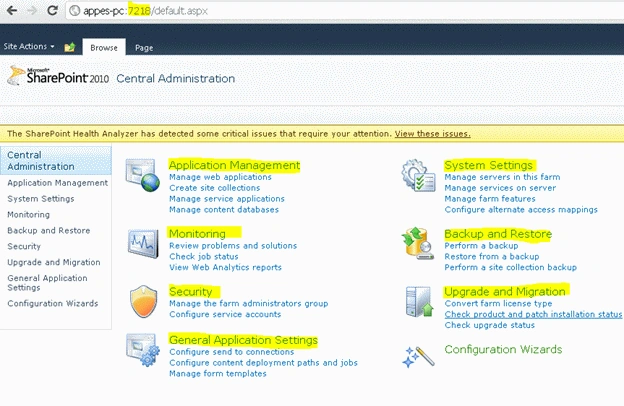
Now we are ready to explore web applications. Before that we need to go through the hierarchy of web applications, sites etc.
Hierarchy
The following is the hierarchy of SharePoint Farms, Web Applications, Site Collections, Sites, Lists and Documents.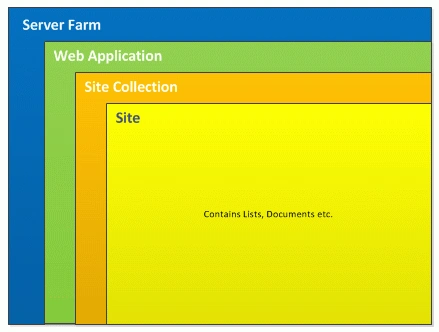
The following is the description of the items in the above image:
- Server Farm: Server Farm contains multiple components like SharePoint server and database server providing multiple Web Applications spanned over multiple machines. For development machines one single machine can support all the components.
- Web Application: Web Application contains multiple Site Collections. This could be equivalent to an ASP.NET application.
- Site Collection: Site Collection contains multiple Sites.
- Site: Site contains Lists, Documents etc.
Viewing existing Web Applications
On installation, there are 2 web applications by default:
- SharePoint Port 80 which is the one the user sees
- SharePoint Central Administration meant for Administrators
To view the web applications, click on the Manage web applications link under Applications Management category. You will see the following screen: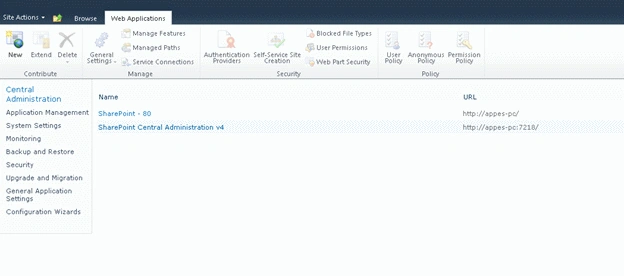
Please note the URLs for each of the web applications.
References
http://www.dummies.com/how-to/content/sharepoints-site-hierarchy-model.html
Summary
In this article we have seen the hierarchy of SharePoint and creation of WebSite and SiteCollection.
Join the conversation! Your thoughts help the community grow.