
Design Manager
Design Manager is the new feature introduce by SharePoint 2013. Now using this we can create faster master page & with little headache. Design manager convert Html into Master page, then apply this master page to Pages or System Pages.
HTML to Master Page conversion
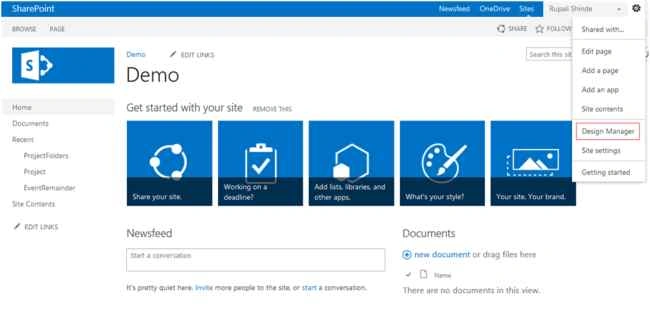
Step 1: Select Site Setting, then Design Manager.
Step 2: Design Manager, then Upload Design Files.
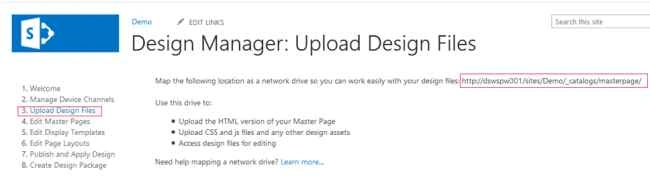
Step 3: Open the link shown above to add content, html files, CSS, scripts for your new Master Page.
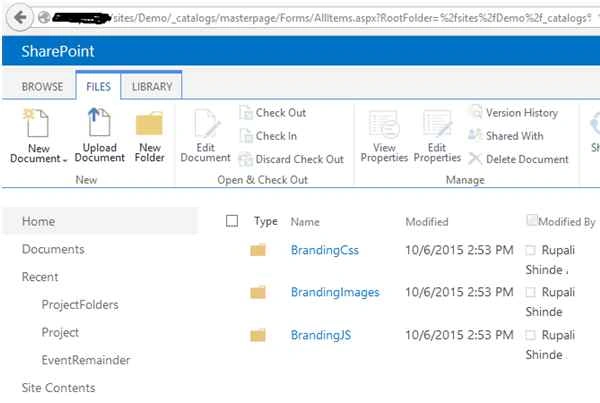
Step 4: Click on Files in the ribbon. Create Project specific folder & start uploading files in a newly created folder.

Step 5: After creating main folder, add Sub Folder into it like BrandingCss, BrandingImages, BrandingJS .
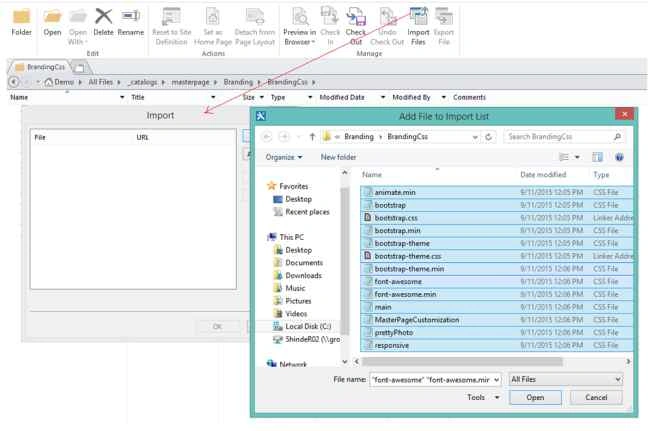
Step 6: Using SharePoint Designer add CSS, images, JS & html page. It is a faster way to upload files into site.
CSS upload.
Html upload.
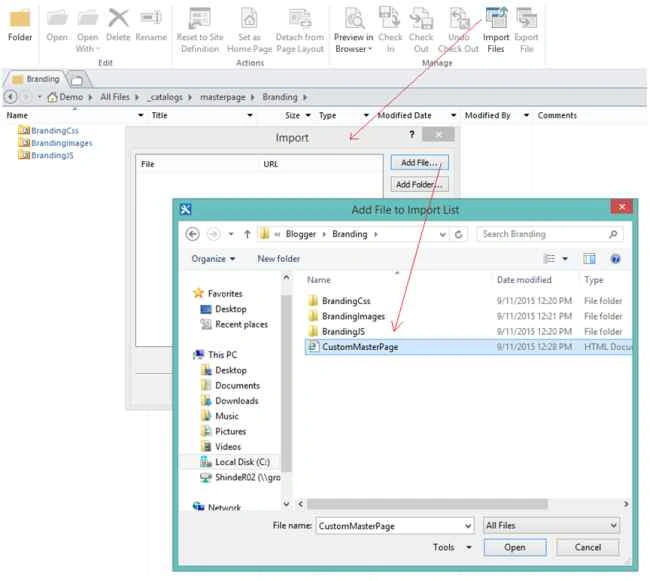
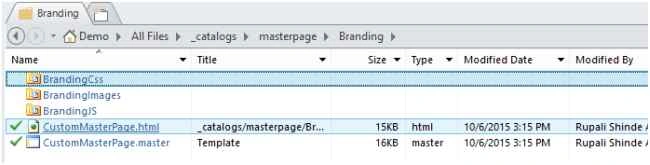
After html uploaded, the following is the structure at root level.
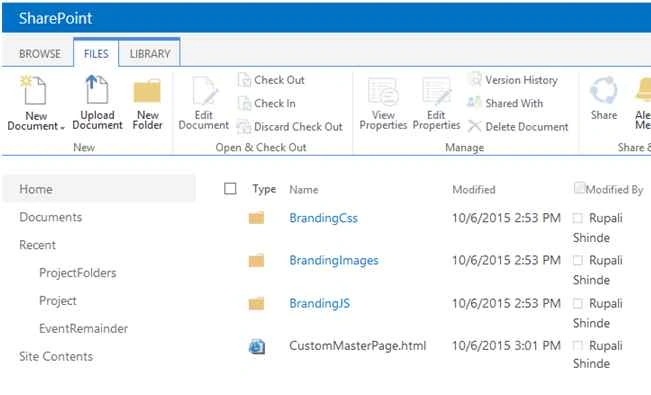
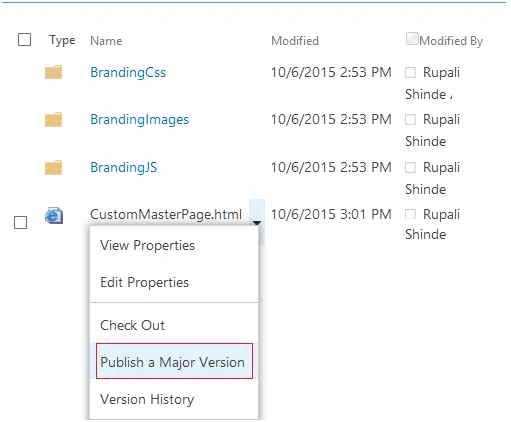
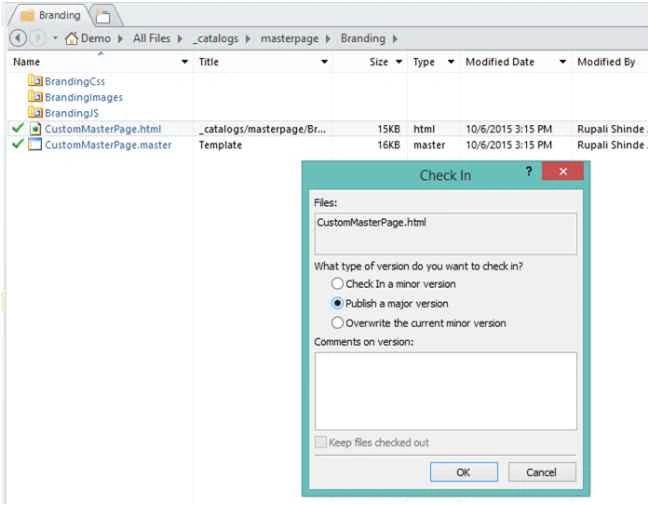
Before going to next steps publish the major version.
Step 7: Go to Design Manager, Edit Master Page, then convert Html file to Master Page.
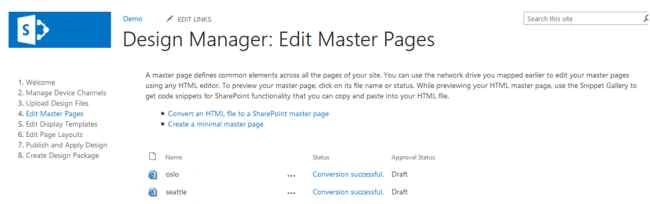
Select proper html page for conversion.
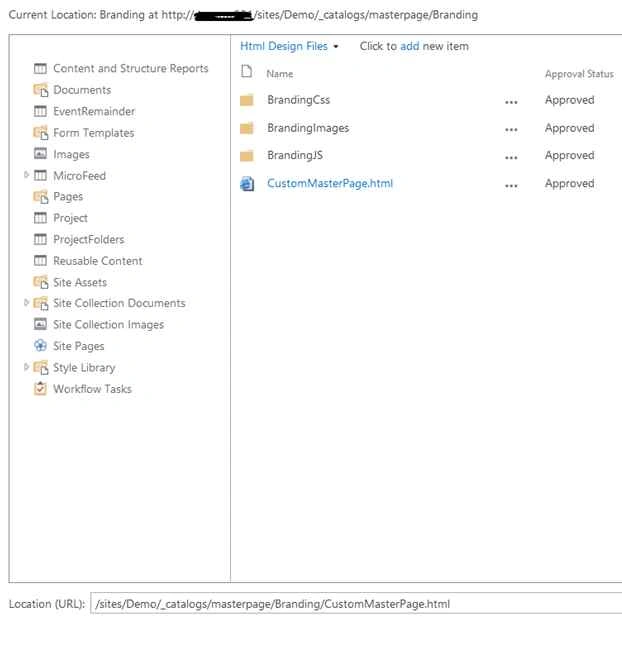
Now it looks like the following:

Publish the Draft version of page , so status become - Approved.
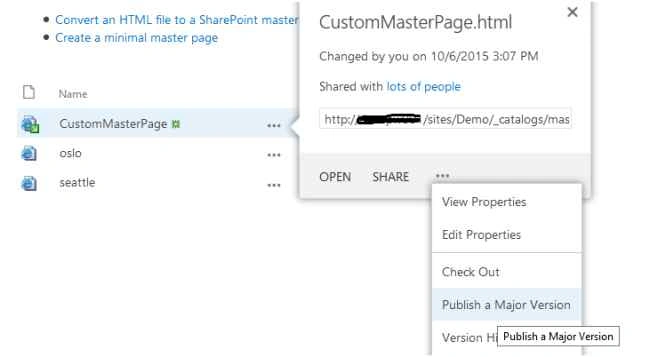
Step 8: Edit Html page using SharePoint Designer, corresponding Master Page get updated automatically.
Step 9: Publish Major Version of HTML file.
Step 10: Click the approved page to preview Design of Page.

Preview

Step 11: Change master page setting for site Pages.
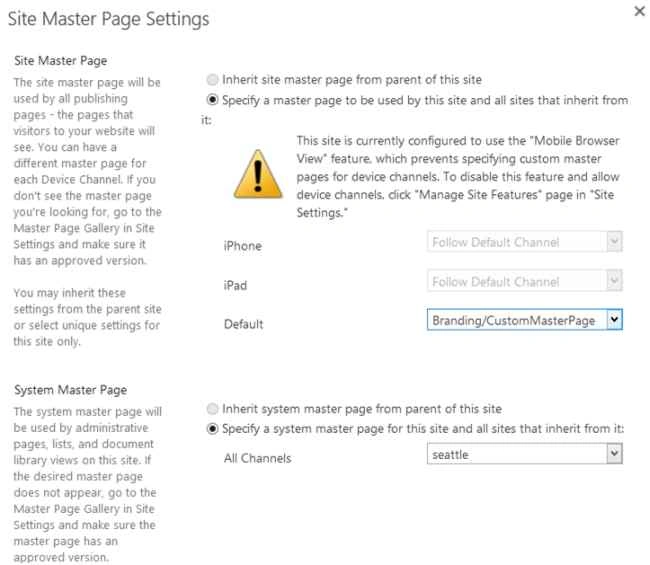
Result: As per setting, custom master page gets applied to user pages only & not system pages.

Result: If we change the settings of master page for System pages, system page looks like the following:

Thank you! if you have any query please mention it in the comment section.
SharePoint 2013 Design Manager - HTML To Master Page Conversion
In this article, you will learn how to use SharePoint 2013 Design Manager to create master page from html page.


adil ahmedPosted Aug 3, 2020, 11:27 PM EDT
Hi Thanks please can you share design files
Kiran Kumar TalikotiPosted Aug 5, 2019, 7:54 PM EDT
Thank you:)
Mani PerumalPosted Jul 21, 2017, 2:21 AM EDT
Helping at right time..Thank you..
Santhakumar MunuswamyPosted Oct 18, 2015, 2:01 AM EDT
Good one
Gowtham RajamanickamTOP 100Posted Oct 13, 2015, 2:16 AM EDT
great work.
Sujeet SumanPosted Oct 7, 2015, 8:25 PM EDT
Nice Article.............
Ankit BansalPosted Oct 6, 2015, 9:25 PM EDT
nice..thanks for sharing knowledge..
RakeshPosted Oct 6, 2015, 8:59 PM EDT
Good Share
Sibeesh VenuTOP 100Posted Oct 6, 2015, 8:56 PM EDT
Nice Share
Rupali ShindePosted Oct 6, 2015, 8:30 PM EDT
welcome , hope this article help you all
Nilesh JadavPosted Oct 6, 2015, 5:20 PM EDT
Thanks for the sharing
Vinodh NarayananPosted Oct 6, 2015, 10:13 AM EDT
good one