

Managed Paths in SharePoint are used to specify the paths in the URL namespace of Web Applications to be shared by the Site Collections hosted by the Web Application.
We have two kinds of Managed Paths that can be created within SharePoint, namely Wildcard and Explicit.
Explicit Managed Paths
Explicit Managed Paths may be used when we are not planning to create Site Collections under a specific Managed Path. We will see the creation of the Explicit Managed Path in this article and it would be like
http://sp-2016-dev/prashant-explicit
In this case, we cannot have more one site collection pointing to this URL.
Wildcard Managed Paths
Wildcard Managed Paths may be used when we are planning to create Sites or Sub Sites under a specific Managed Path. We will see the creation of the Wildcard Managed Path in this article and it would be like
http://sp-2016-dev/prashant-wildcard/
- Launch Central Administration Site
- Choose “Manage Web Applications”

- Select the Web Application in context of which you want to create the Managed Paths
- Choose “Manage Paths” Ribbon Control

We can see the UI for “Define Managed Paths” screen in the Modal Dialog and this is the place where we can add required managed paths for our Web Application.
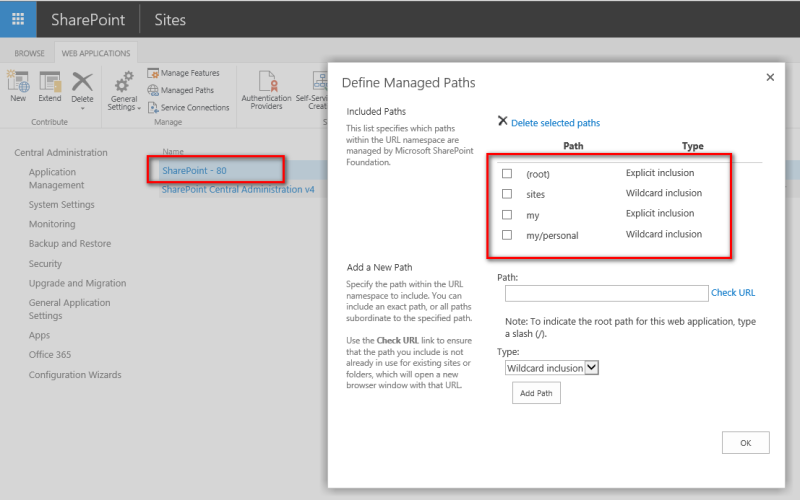
But since this article is about automating the SharePoint Processes, we will see how to do it using PowerShell in the following sections-
PowerShell Command
Wildcard Managed Paths
- Launch SharePoint 2016 Management Shell
- Run the following PowerShell Command to add a Wildcard Managed Path
New-SPManagedPath "Prashant-Wildcard" -WebApplication http://sp-2016-dev

We can go back to “Define Managed Path” screen to verify if the new Managed Path has been added for the specific Web Application

Explicit Managed Paths
- Launch SharePoint 2016 Management Shell
- Run the following PowerShell Command to add a Wildcard Managed Path
New-SPManagedPath "Prashant-Explicit" -WebApplication "http://sp-2016-dev" –Explicit

We can go back to “Define Managed Path” screen to verify if the new Managed Path has been added for the specific Web Application

Now finally we can verify the availability of the newly-created Managed Paths to the Site Collections created under the roof of Web Application http://sp-2016-dev
- Go to Application Management
- Choose “Create Site Collections”
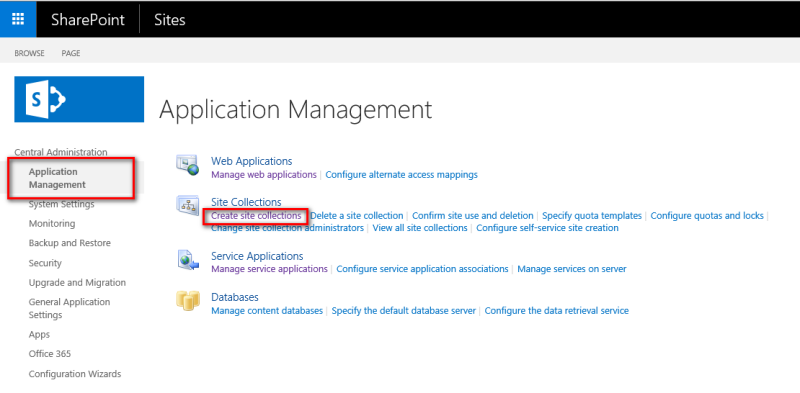
On the “Create Site Collection” screen under “Web Site Address” section we can see the newly created Managed Paths both Wildcard and Explicit type

That is all for this demo.
Hope you find it helpful.
Join the conversation! Your thoughts help the community grow.