
Here are the steps
Step 1: Using SharePoint Designer Create "Announcement " List.
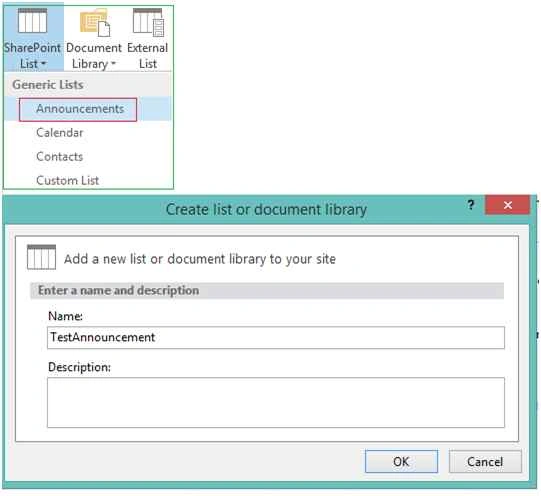
Step 2: Create List workflow for "Announcement " List with Platform type -" SharePoint 2013 workflow ".

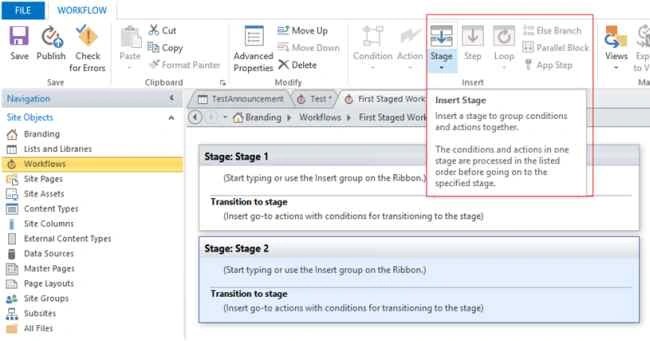
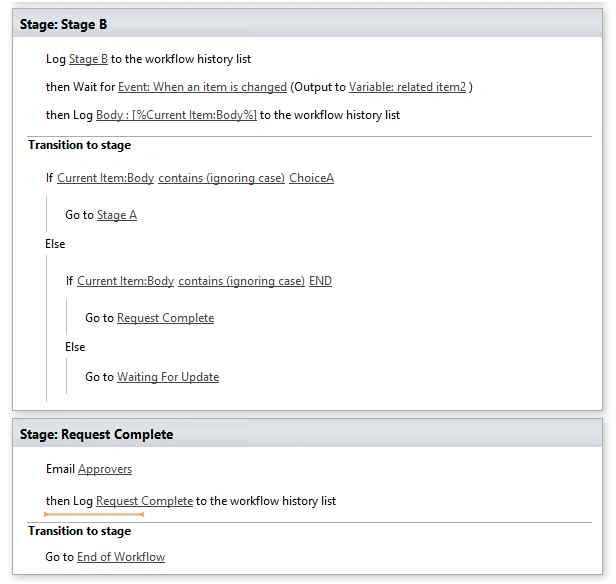
Step 3: Add Workflow Stage - We can add multiple Stages to workflow using "Insert Stage" option.
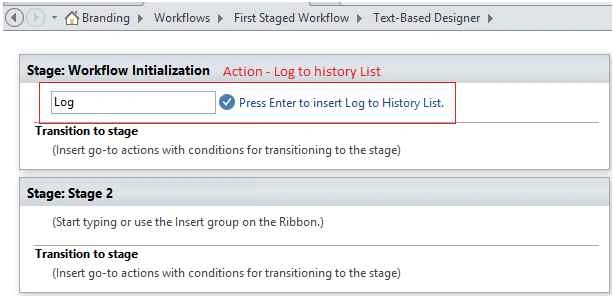
Step 4: Add Log History Action - Maintain log of workflow execution.
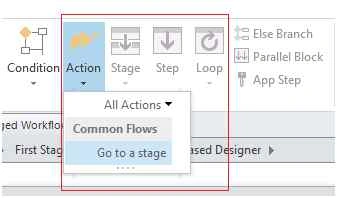
Step 5: Add Transition stage - Action -> go to Stage.
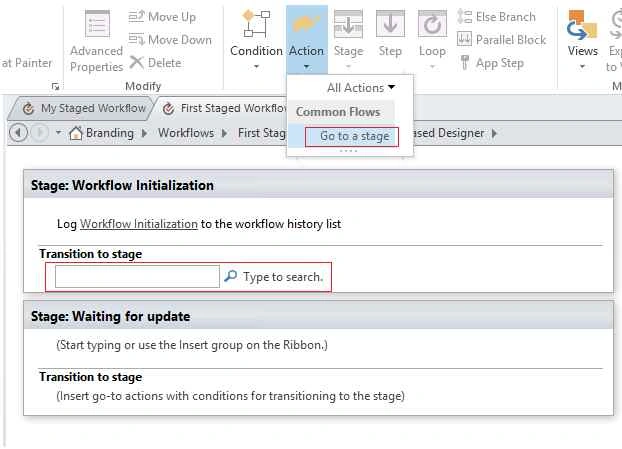
Step 6: Go to next stage.
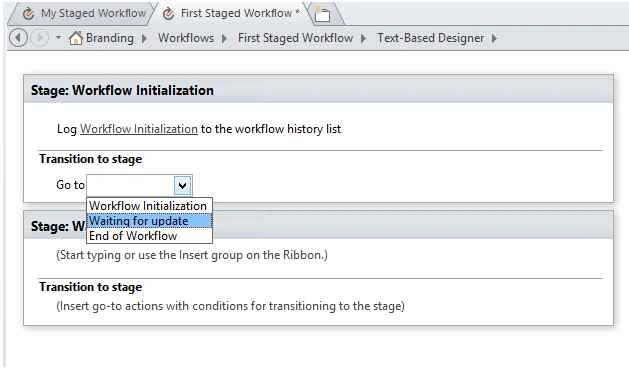
Step 7: Wait for list event occurrence - Type wait in search box. It prompt for two events, select "Wait for event in list item".

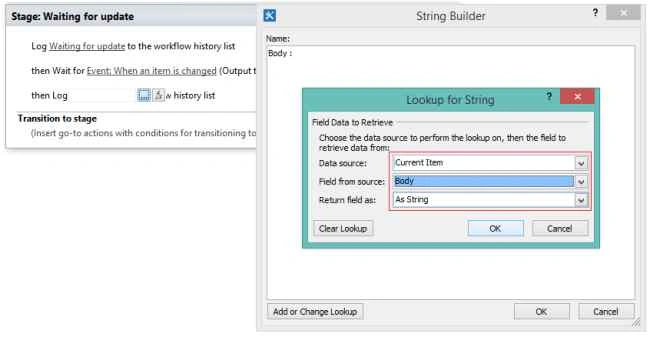
Step 8: Check List Event - There are two list events available. List item added or changed. Select "When an item is changed".

Step 9: Add Log History.
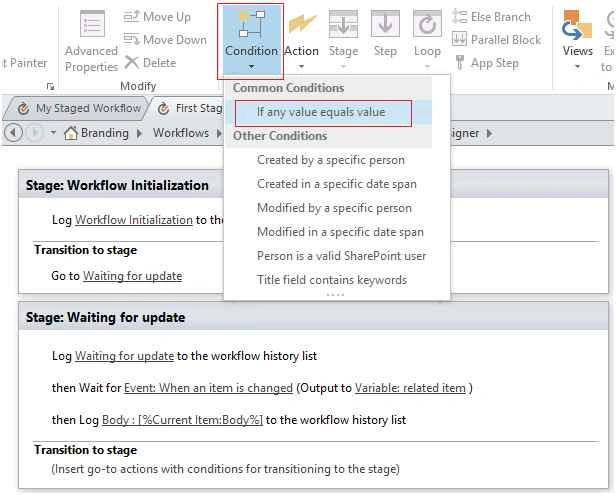
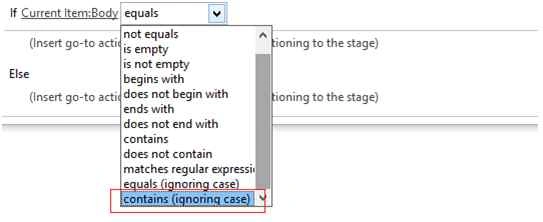
Step 10: Transition Stage Condition checking. Either go to next stage or previous stage based on value of list item body text.
Step 11: Current item body contains ChoiceA/ ChoiceB/ End.
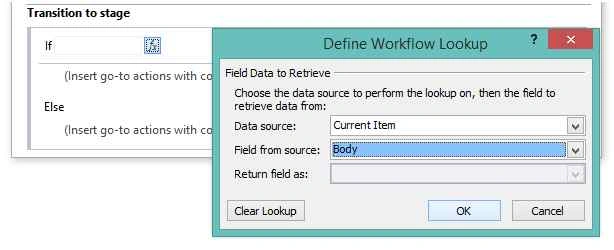
Next
Step 12: When any of the condition is true, navigate to stage.
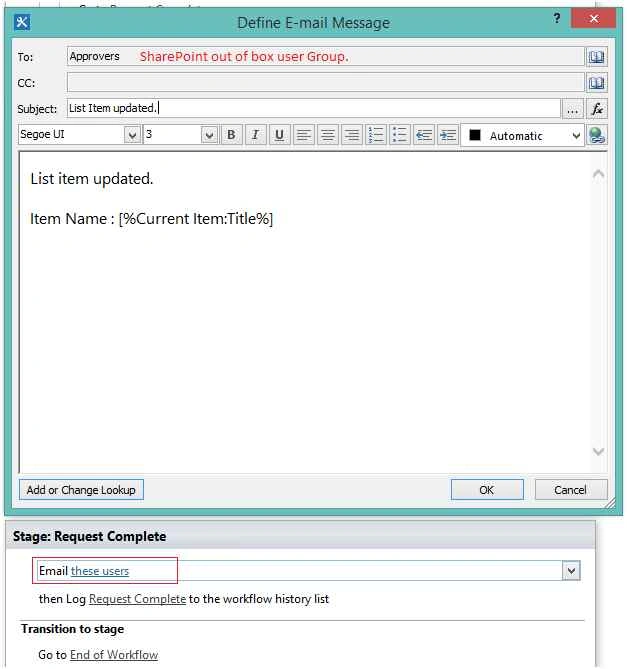
Step 13: Send Email.
Workflow
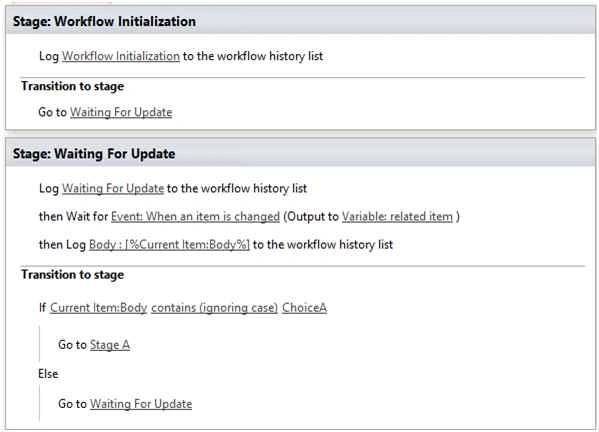

Check workflow Execution.
- Add new list item. Item body is having data i.e. "XYZ".
- Workflow transition happened to next stage i.e. "waiting for update".

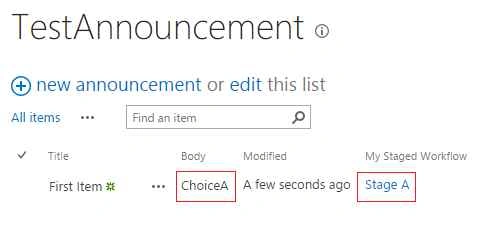
- Update list item with body text "ChoiceA". Workflow transition happened to "StageA"
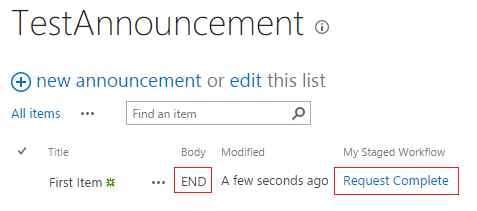
- Update list item with body text as "END". workflow transition happened to "Request Complete".
- People get Email notification about list item update.
Thank you! If you have any query please mention it in the comment section.


Vignesh ManiTOP 100Posted Jan 26, 2016, 12:53 AM EST
Good one
Santhakumar MunuswamyPosted Oct 18, 2015, 1:42 AM EDT
Good one
Rupali ShindePosted Oct 8, 2015, 8:03 PM EDT
thank you all :)
Ankit BansalPosted Oct 7, 2015, 8:51 PM EDT
nice one..
Sujeet SumanPosted Oct 7, 2015, 8:10 PM EDT
Nice Article..............
Vinodh NarayananPosted Oct 7, 2015, 9:21 AM EDT
Nice share
Priyaranjan K STOP 100Posted Oct 7, 2015, 6:44 AM EDT
Good One...
Nilesh JadavPosted Oct 7, 2015, 4:08 AM EDT
Great Work mam
Harshad PansuriyaPosted Oct 7, 2015, 3:18 AM EDT
Nice one]