
If we create multiple lists in a SharePoint hosted app, we need to type the URL to navigate to various site contents as there is no ‘Site Contents’ link available in app web. To overcome this situation, a simple solution is to keep links of all the lists in default.aspx page or any other page added inside app.
I will give a walk-through on how to achieve this using simple JS.
Prerequisites
SharePoint app is configured and working in the system.
Solution:
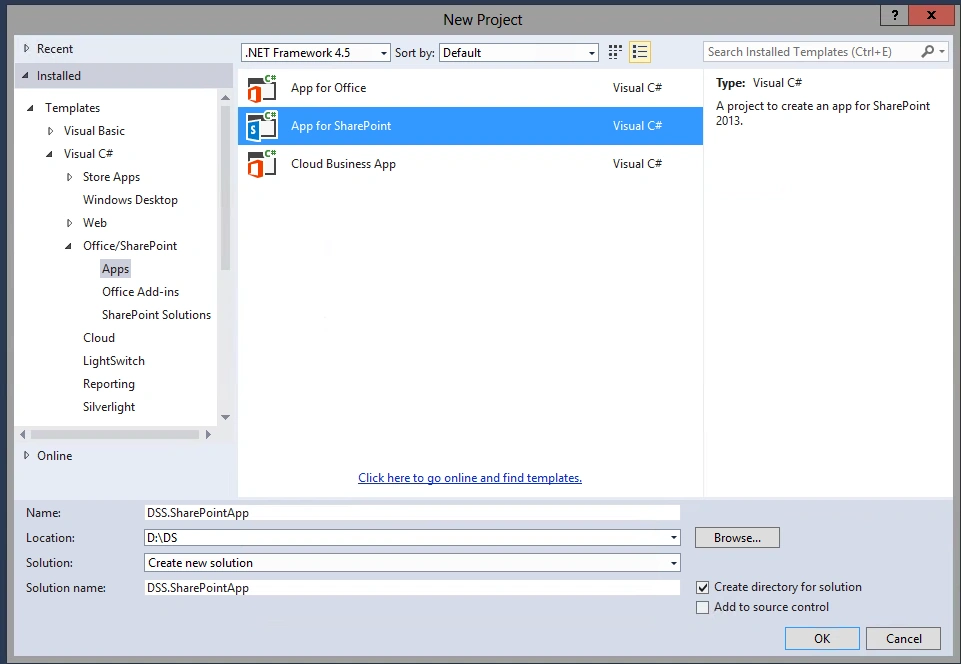
- Open Visual Studio, go to New Project, then Apps and select App for SharePoint.
- Provide appropriate name to the solution, then click OK.
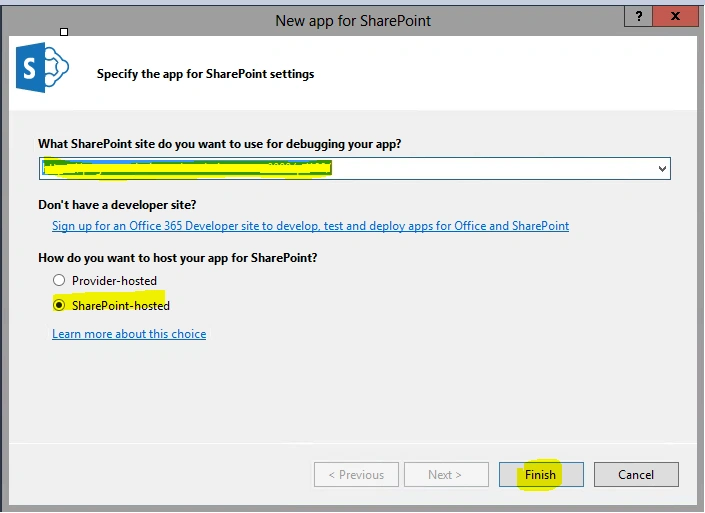
- Select your site for debug & deployment, then select SharePoint-hosted and click Finish
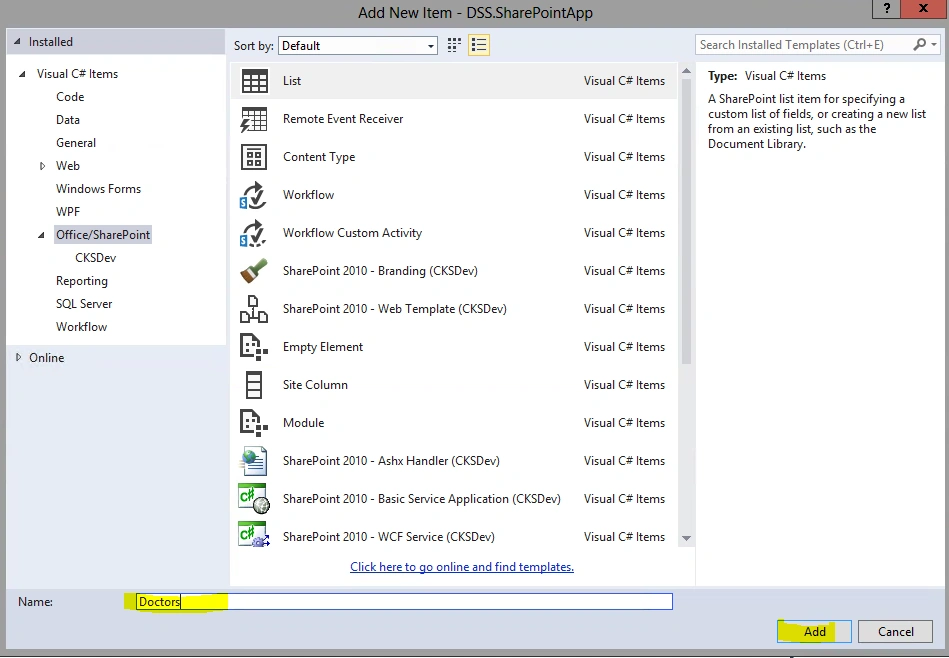
- Once project is created, add few lists to the project. Right click on project, Add, then New Item. Click List, then provide list name and Add.
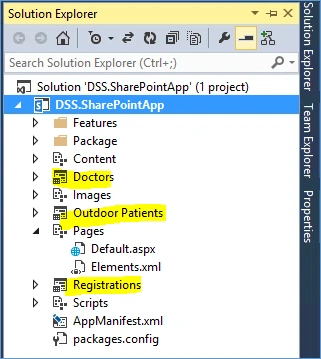
- Repeat step #4 to create more lists – I created 3 custom lists; Doctors, Outdoor Patients & Registrations.
- Now open ‘Default.aspx’ and add placeholder to display list URLs. Inside “PlaceHolderMain”, delete the existing div created by default with page and add a div & UL like the following code snippet:
- <%-- The markup and script in the following Content element will be placed in the <body> of the page --%>
- <asp:Content ContentPlaceHolderID="PlaceHolderMain" runat="server">
- <div id="dvLists">
- <h1>All Lists</h1>
- <ul id="list"></ul>
- </div>
- </asp:Content>
- Inside “PlaceHolderAdditionalPageHead”, add javascript to read web app url, form lists URLs and render it to the page. Final “PlaceHolderAdditionalPageHead” will look like the following:
- <%-- The markup and script in the following Content element will be placed in the <head> of the page --%>
- <asp:Content ContentPlaceHolderID="PlaceHolderAdditionalPageHead" runat="server">
- <script type="text/javascript" src="../Scripts/jquery-1.9.1.min.js"></script>
- <script type="text/javascript" src="/_layouts/15/sp.runtime.js"></script>
- <script type="text/javascript" src="/_layouts/15/sp.js"></script>
- <meta name="WebPartPageExpansion" content="full" />
- <!-- Add your CSS styles to the following file -->
- <link rel="Stylesheet" type="text/css" href="../Content/App.css" />
- <!-- Add your JavaScript to the following file -->
- <script type="text/javascript" src="../Scripts/App.js"></script>
- <!-- Script to display lists-->
- <script type="text/javascript">
- var page = {
- alllists: [
- { displayName: "Doctors", path: "Doctors" },
- { displayName: "Registrations", path: "Registrations" },
- { displayName: "Outdoor Patients", path: "Outdoor Patients" }
- ],
- };
- function CreateListUrl() {
- var i;
- for (i = 0; i < page.alllists.length; i++) {
- var list = page.alllists[i];
- var url = _spPageContextInfo.webServerRelativeUrl + "/Lists/" + list.path;
- $("#list").append("<li><a target='_blank' href='" + url + "' >" + list.displayName + "</a></li>");
- }
- }
- $(document).ready(function () {
- CreateListUrl();
- });
- </script>
- </asp:Content>
- Build and deploy the app, it will look like the following:
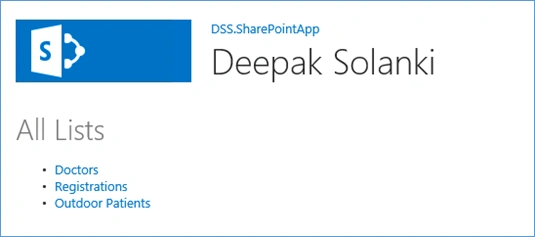
- Clicking on any of lists names will open the respective list in a new tab/window.


Deepak SolankiPosted Sep 20, 2015, 3:15 AM EDT
Thank you all. I hope it's helpful.
Vaikesh K PPosted Sep 12, 2015, 4:13 AM EDT
Nice
Karthikeyan KPosted Sep 12, 2015, 2:24 AM EDT
Good one sir...Thanks for sharing
Santhakumar MunuswamyPosted Sep 11, 2015, 11:03 PM EDT
Thanks for nice article:)
Mohammed IbrahimPosted Sep 11, 2015, 9:53 PM EDT
nice information
Shubham KumarPosted Sep 11, 2015, 9:38 PM EDT
nice article
Abhay ShankerPosted Sep 11, 2015, 7:31 PM EDT
Nice share..
Pankaj Kumar ChoudharyTOP 100Posted Sep 11, 2015, 9:20 AM EDT
Nice Start Deepak Sir........
RakeshPosted Sep 11, 2015, 6:24 AM EDT
Good work sir
Sumit DeshmukhPosted Sep 11, 2015, 6:14 AM EDT
Good One sir.., Thanks for Sharing
Nilesh JadavPosted Sep 11, 2015, 5:22 AM EDT
Nice one sir
Rajeesh MenothPosted Sep 11, 2015, 4:55 AM EDT
Nice One
Harshad PansuriyaPosted Sep 11, 2015, 3:58 AM EDT
Nice One Bro