
Introduction
In this article, you will see how to create SharePoint remote timer jobs with client side code, using Azure functions. Client Side Object Model will be used to create the timer jobs on Azure functions.
Create Function app
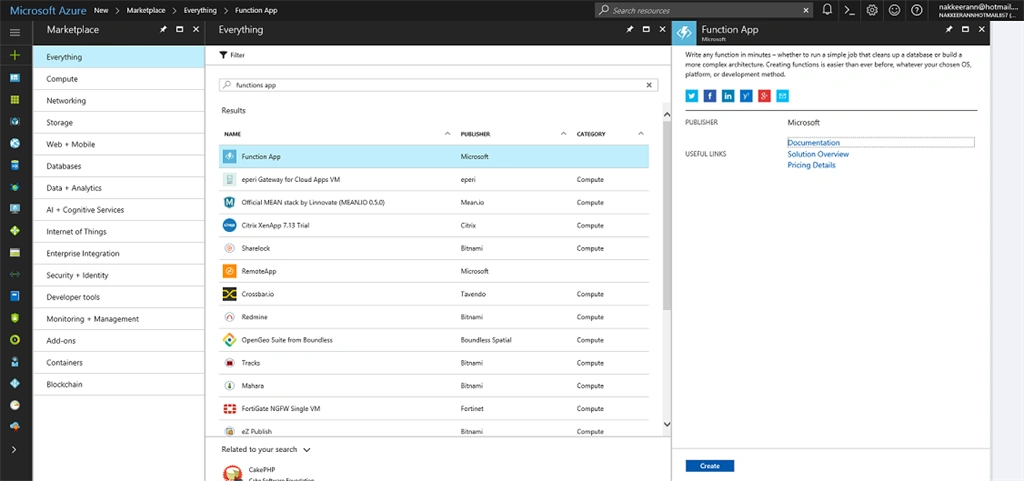
Create Function app, if it’s not created already. The screenshot is given below of the app creation.
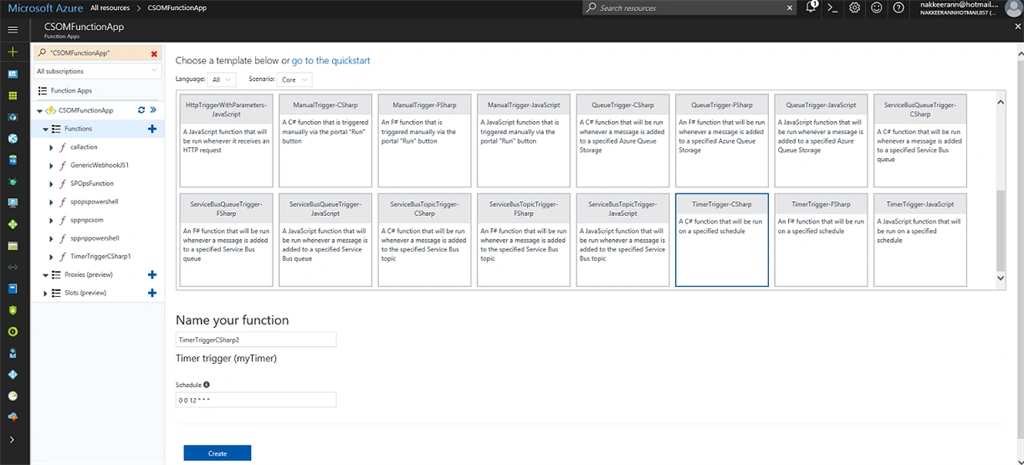
Once created, navigate to the app and create a Timer function. Here, choose TimerTrigger-CSharp option. Provide the name for the function. Specify the schedule details. Schedule has to be provided in the cron expression format. The format is given below to specify the schedule.
- {second} {minute} {hour} {day} {month} {day-of-week}
For example, the cron expression to run Azure function everyday at 4pm can be, as shown below.
- 0 0 16 * * *
The detailed documentation can be found on Microsoft documentation site at https://docs.microsoft.com/en-us/azure/azure-functions/functions-bindings-timer
Necessary references need to be uploaded to Azure functions platform (bin folder). In this example, you will see hardcoding the default (admin) user credentials on the written code.
Actual Logic/ Code
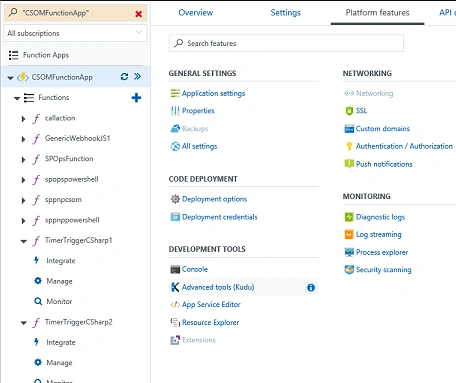
In Kudu Services app, from the debug control dropdown, select PowerShell option. Diagnostic center will open. Site -> wwwroot -> <yourfunction folder> -> Create bin folder. Upload SharePoint reference DLLs.
- Microsoft.SharePoint.Client.dll
- Microsoft.SharePoint.Client.Runtime.dll
Go to the created function (TimerTriggerCSharp1). By default, run.csx opens.
In this sample, let us look at retrieving the total items created with one empty column every day.
The piece of snippet given below loads the necessary assemblies. It also contains the code to retrieve the total number of items created with an empty column in the list TestList. Copy the code given below and paste it on run.csx file.
- #r "Microsoft.SharePoint.Client.Runtime.dll"
- #r "Microsoft.SharePoint.Client.dll"
- using System;
- using System.Net;
- using Microsoft.SharePoint.Client;
- public static void Run(TimerInfo myTimer, TraceWriter log)
- {
- log.Info($"C# Timer trigger function executed at: {DateTime.Now}");
- // parse query parameter
- string name = "TestList";
- if(name != null){
- // Input Parameters
- string siteUrl = "https://nakkeerann.sharepoint.com/";
- string userName = "[email protected]";
- string password = "****";
- System.Security.SecureString securestring = new System.Security.SecureString();
- foreach (char ch in password)
- securestring.AppendChar(ch);
- SharePointOnlineCredentials creds = new SharePointOnlineCredentials(userName, securestring);
- try{
- // Get and set the client context
- // Connects to SharePoint online site using inputs provided
- using (var clientContext = new ClientContext(siteUrl))
- {
- clientContext.Credentials = creds;
- Web web = clientContext.Site.RootWeb;
- List list = web.Lists.GetByTitle("TestList");
- CamlQuery camlQuery = new CamlQuery();
- camlQuery.ViewXml = "<View><Query><Where><IsNull><FieldRef Name='Column1'/>" +
- "</IsNull></Where></Query><RowLimit>100</RowLimit></View>";
- ListItemCollection items = list.GetItems(camlQuery);
- clientContext.Load(items);
- clientContext.ExecuteQuery();
- log.Info($"Empty items: {items.Count}");
- }
- }
- catch(Exception ex){
- log.Info($"Exception: {ex.Message}");
- }
- }
- else{
- log.Info(name);
- }
- }
Test the code by saving and running it. Logs file shows the trace and any logging.
In the integrate Windows, you can change the running schedules, whenever required.
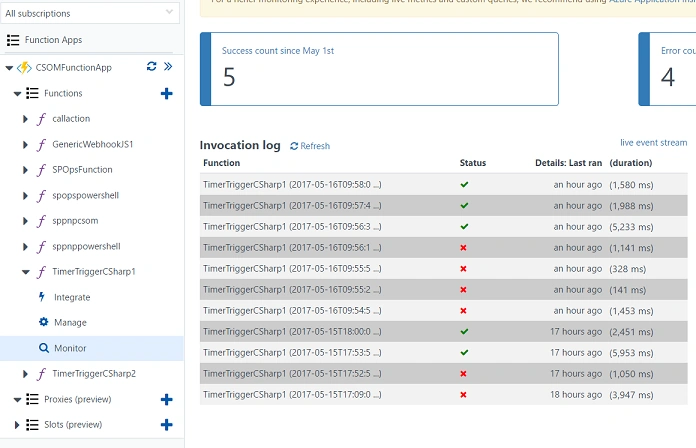
Monitor Window shows the log files with success/failure status.
Summary
Thus, you have learned running the remote timer jobs for SharePoint Online, using Azure Functions app.


Thiruppathi RPosted May 17, 2017, 8:26 PM EDT
Nice article.Thanks for sharing..