
This Article (PART I and PART II) is mainly to know HOW TO START WITH SQL REPORTING SERVICES.
Part I will brief you on How to Design Reports in VS.NET. And Part II will describe how to upload your reports on the Server and what code to write in the Application to invoke those reports.
Implementing the SQL Reporting Services in your ASP.NET Application can be categorized in three main Processes.
-
Creating your Reports i.e. .rdl Files (These file is used to design the Layout of your reports i.e. Look and Feel of the Report)
-
Uploading your Reports (.rdl Files) in SQL Report Server.
-
And writing code in your application to invoke these Reports from the SQL Report Server
Understanding How the Reports works
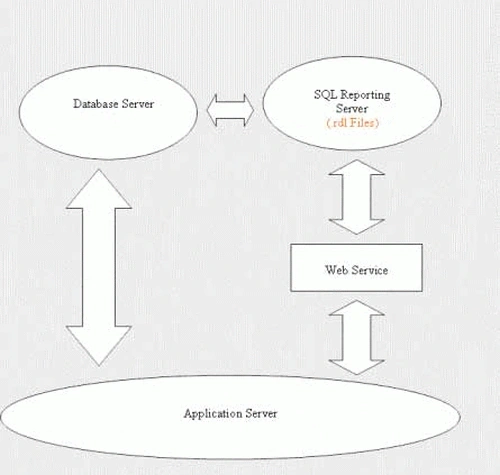
The above Diagram shows a simple architecture of a web scenario in which we have a Database Sever which is communicating to your Application Server. In addition we have a SQL Reports Server which contains the all the layout of the Reports i.e. your .rdl files along with the Database configuration.
The Application Server can communicate to your Database using ADO.NET (which is normally used by .NET Developers)
And Your Application Server will invoke your Reports via web service (provided by SQL Reporting Services).
Creating Reports
You can create reports as shown below:-
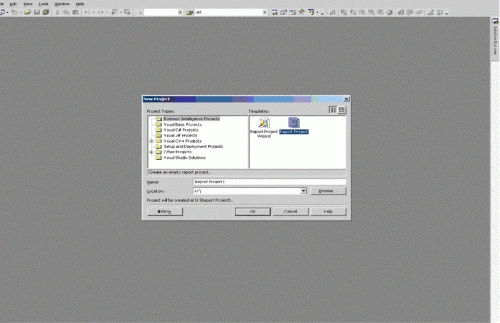
1. Select Business Intelligence Project - Report Project and give a name
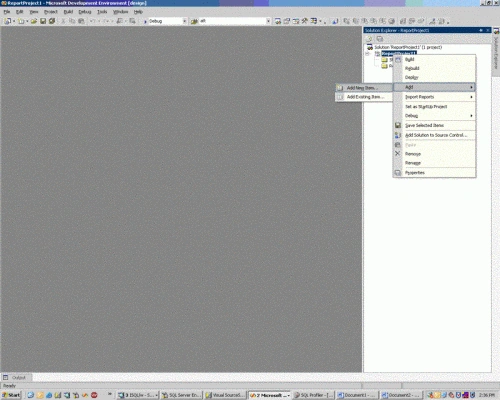
2. In the Solution Add a New Item
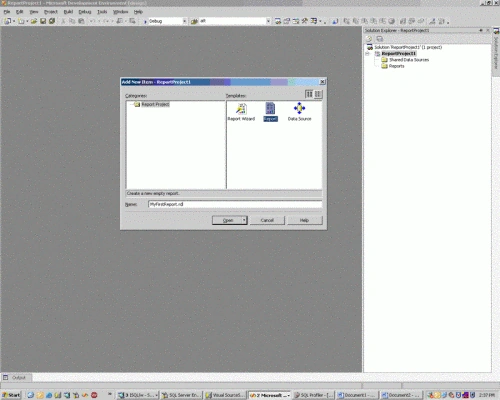
3. Select a New Report and give a name.
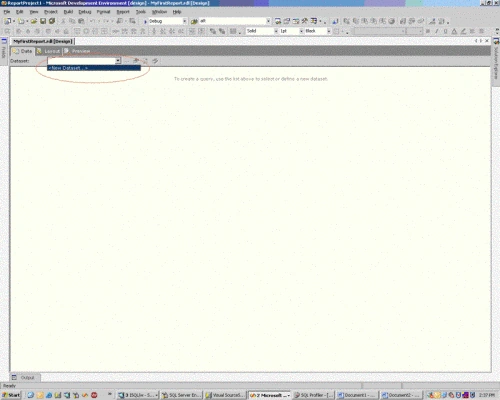
4. You can see three options Data, Layout and Preview. In the Data option define the Dataset
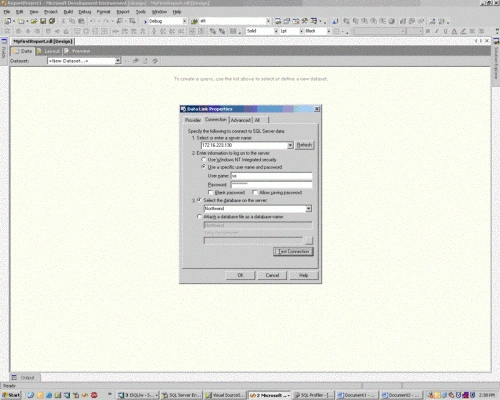
5. Select the Sever and the Data Base and Test Connection.
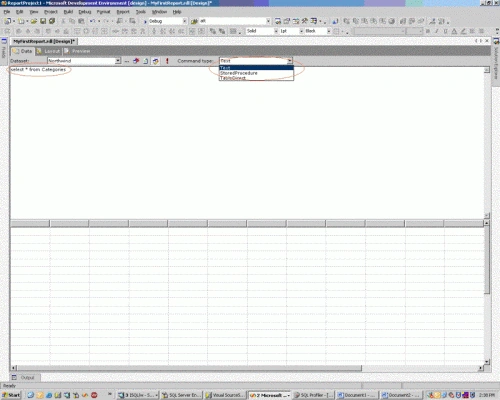
6. Insert the Query or Stored Procedure and Select the Command Type from the Drop Down.
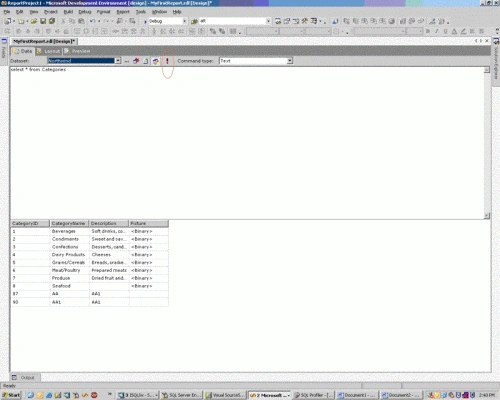
7. Execute the Query / Stored Procedure.
8. Select the Layout Option and you can see the different Field which is been returned by the Query / Stored Procedure.
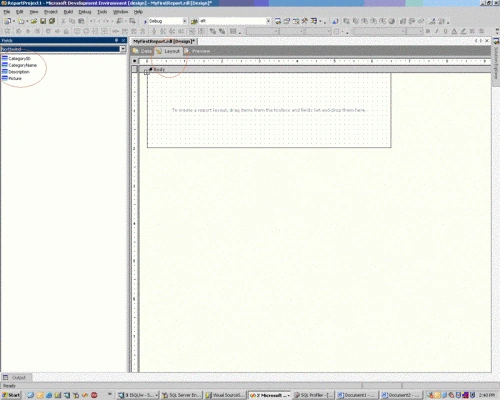
9. Select the Tool box.
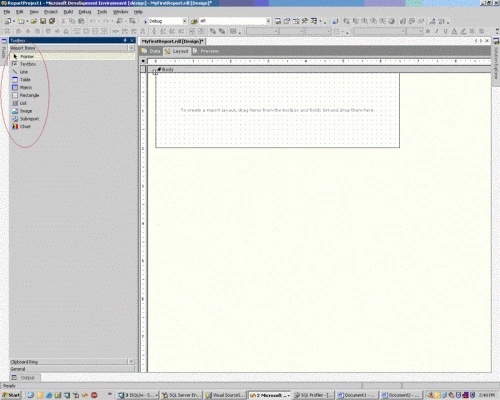
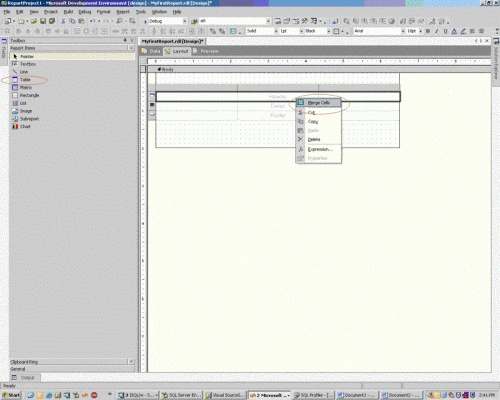
10. Drag and Drop a Table on the Report and select 2 - 3 Columns and right click. Select Merge Cells.
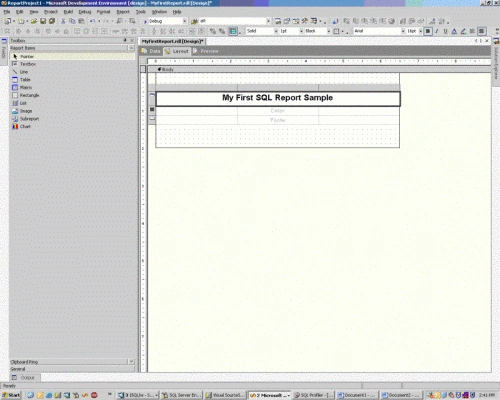
11. Insert Text in the Merged Cells.
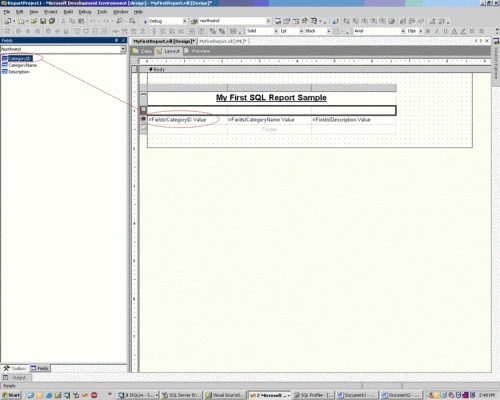
12. Drag and Drop the Field on the Table in the report.
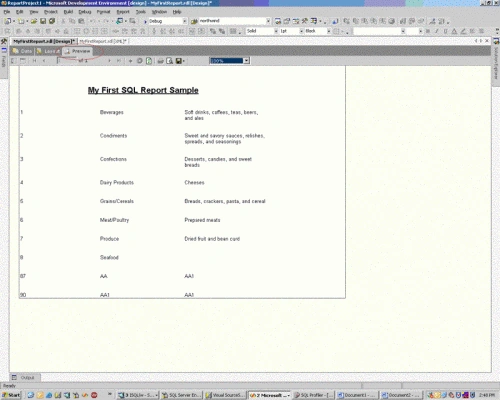
13. Go to the Preview Option and can see the reports preview ( how the report will look when called from the application.
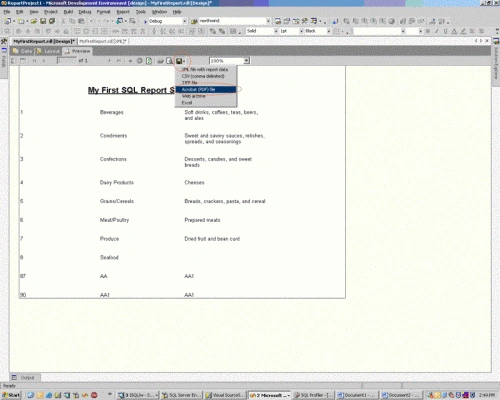
14. You can save you reports in different formats. Select the format by clicking Save Icon.
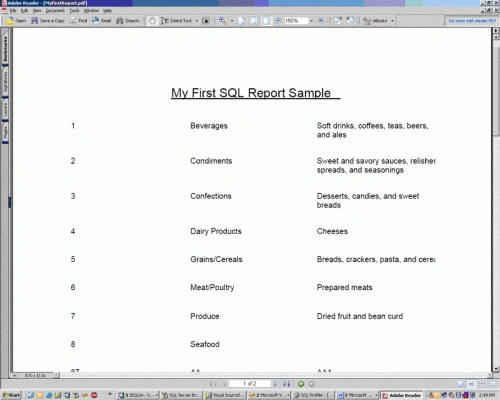
15. For Example if you select PDF format the report, will be save in .pdf as shown.
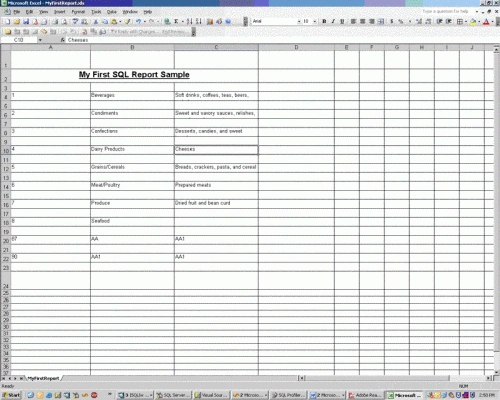
16. For Example if you select EXCEL format, the report will be save in .xls as shown.
Coming Soon:-
Starting with SQL Reporting Services with ASP.NET Application - PART II
Part II will describe how to upload your reports on the Server and what code to write in the Application to invoke those reports.
Jo LoPosted Mar 12, 2013, 11:54 AM
Please show part2
Former memberPosted Oct 8, 2012, 6:39 AM
This is rreally nice article-- http://www.dotnetpools.com
mohamed saadPosted Sep 18, 2012, 7:26 AM
please can u send part2
arif desaiPosted May 28, 2012, 5:52 AM
Thanks for valuable post
Joe PhanPosted Aug 25, 2011, 12:10 AM
dd
shashi reddyPosted Mar 29, 2011, 6:16 AM
after creating the report how to integrate with asp.net web page
srinivasPosted May 3, 2010, 6:14 AM
Dear Sonu Chauhan Its really nice article, i am searching for SQL Server Reporting Services Part-2
PhilomenPosted Feb 29, 2008, 3:56 AM
Hi, I am very new to this reporting service. After seeing this article, i am very comfortable in Reporting Service. Till i have a doubt on this. you have given an architecture. In that Reporting services communicate with web service. but Selecting Intelligence project web services did not use. I want to know how to communicate web services with Reporting services. Thank u
ram jPosted Jun 25, 2007, 2:39 AM
i understood ,how to generate the reports but i need part II ,i.e, how to load reports into server and code to write in the application to invoke reports
Manjula JothilingamPosted Feb 2, 2007, 12:59 AM
How to merge two rows in SSRS tabular reports?