

Pre-Requisite
For viewing the email notifications generated by the workflow, you need to configure a Development Machine with the SMTP receiver tool. You can view the Real World Scenarios on configuring this.
What is the purpose of Three-state workflow?
The three-state workflow can be used to track the status of list items. For each status change there will be Email Notification performed by this workflow.
The Issue Tracking template is built to work with this workflow as it contains a Choice column with 3 states.
Exploring the Workflow
For starting to create a new list using the Issue Tracking template see below: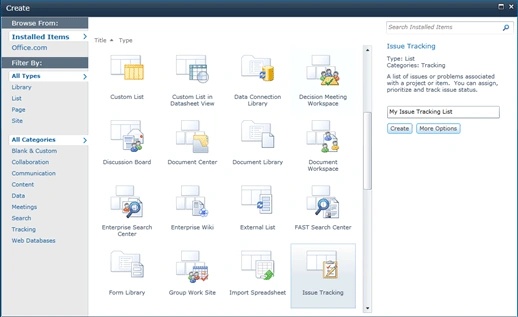
After creating the list we need to associate a workflow with the list using List tab > Workflow Settings > Add a Workflow.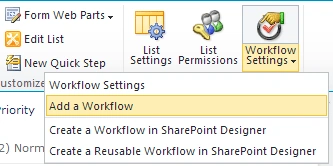
A wizard page will be appear as shown below: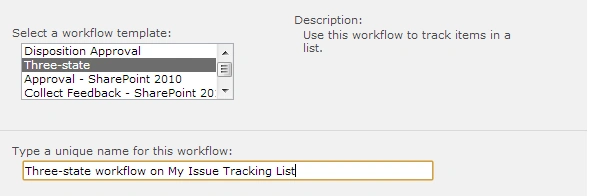
Select the Three-state workflow and enter a unique name for the workflow. In the bottom of the page you will see the Start Options. Check the "Start this workflow when a new item is created." check box.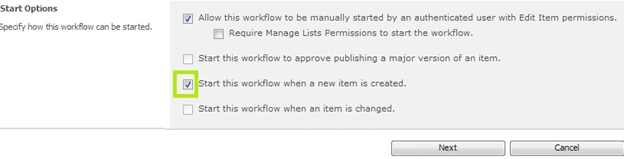
Click the Next button to continue.
Now you will be prompted with the second page of the workflow as shown below: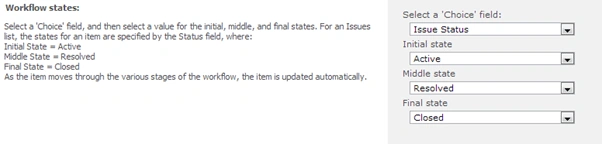
Please note that the Three-state workflow requires a column with 3 states as the "Choice" field. In this list the Issue Status column is selected as the "Choice" field. The remaining 3 drop down lists show the 3 different value selections for the Issue Status to set the Active / Resolved / Closed states.
Coming down to the page you can set Emailing options like Task Information, Email Subject and Body etc. Email Notifications are done to the involved persons.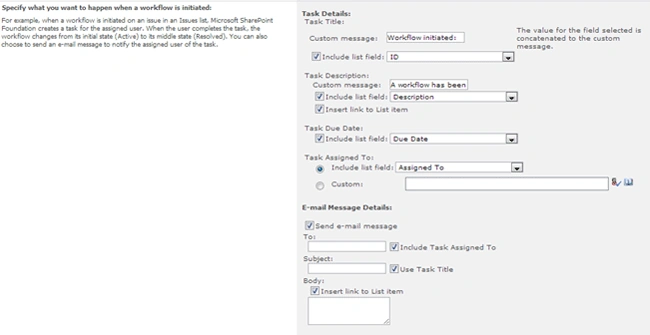
Leave the default options and click the OK button. Now your workflow is ready to send email notifications on task creation.
Email Notification
For viewing the emails generated by the workflow you need to have:
- Emails Server configured in Central Administration
- E-mail Property set in User Profile
- Smtp4dev tool running
Please view the Real World Scenarios section of the book to enable this.
- Configuring Email for Development Server
Testing Workflow
Now let us test the workflow by creating a task. Create a Task and make sure you select a valid user having an email for the Assigned To column.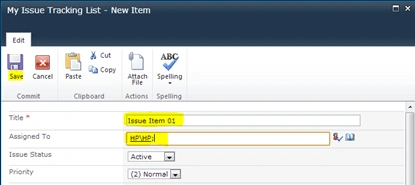
Save the changes and you should see the smtp4dev tool caught the email as shown below: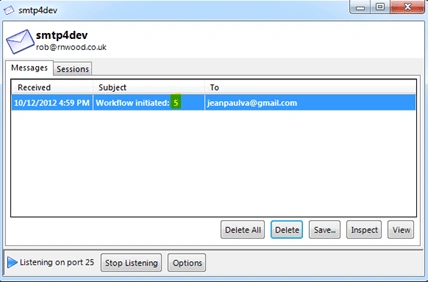
You will see that the ID value is being highlighted. This concludes our experiment with Three-state workflow.
Editing the Workflow
We can associate multiple workflows with a list or library. To edit an existing association use the Workflow Settings > Workflow Settings menu item.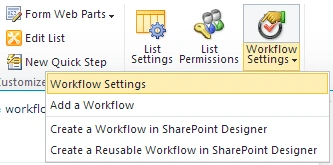
In the page that appears you can view the existing workflows associated and edit the settings. 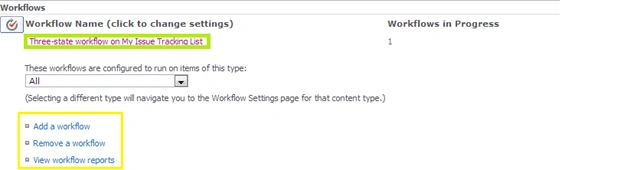
The Workflows in Progress column displays the number of workflow instances currently active.
There are additional links to Add / Remove workflows, View workflow reports too.
Where should I apply this Workflow?
We can use this workflow for the following requirement scenarios:
- Product or Project approval process where a new product idea can be traversed through different stages of approval before acceptance.
- Issue tracking system where a customer can create an issue item, the support team updates it to resolution, the Customer can change the status to Closed or Active again.
- Bug tracking system where the QA can create a task item, developer can change it to Resolved, QA can reopen it.
The effective use of a Three-state workflow should decrease the delivery time for a tracking system with email notifications. We can also use custom lists with transition properties for using the Three-state workflow.
References
http://office.microsoft.com/en-us/windows-sharepoint-services-help/use-a-three-state-workflow-HA010154431.aspx
Summary
In this article we had explored the Three-state workflow of SharePoint 2010. The following are the points worthy of summarization:
- Three-state workflow tracks status changes
- A Choice column is required for the list / library to use this Workflow
- Choice column requires at least 3 fields
- Issue Tracking list template is apt for this workflow
- Association of Three-state workflow with list instance is required
- Email notification is enabled for a Three-state workflow
Gowtham RajamanickamPosted Apr 11, 2016, 1:51 AM
useful for me
Jean PaulPosted Oct 15, 2012, 12:31 AM
Thank You Anshika, Isha for the good words.. Actually one of my blog friend was searching for it and asked me to create one.. so created it :)
Anshika MittalPosted Oct 15, 2012, 12:02 AM
vry nice explnation Jean Sir.
isha goelPosted Oct 14, 2012, 11:35 PM
This is easily understandable article.I'll try this
Jean PaulPosted Oct 14, 2012, 3:05 PM
Thanks a lot Vijay. I am a fan of you too :)
Vijay PrativadiPosted Oct 14, 2012, 2:41 PM
I like This! Good Presentation Jean... Cheers