
In SharePoint Online we can deploy the app directly to the developer site using Visual Studio, but we need to add the app to the app catalog for installing the app on the Team site, Project site, community site, etc.
Steps
Follow the below steps to upload a .app file in the app catalog.
Step 1. Go to the admin Portal in your SharePoint Online Tenant.
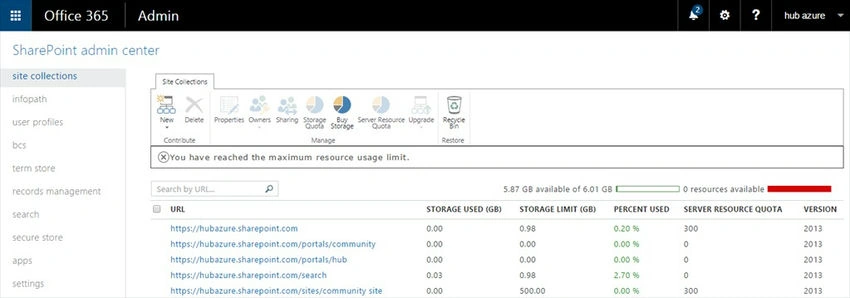
Step 2. From the Left navigation click on the “apps” to go to the app catalog.

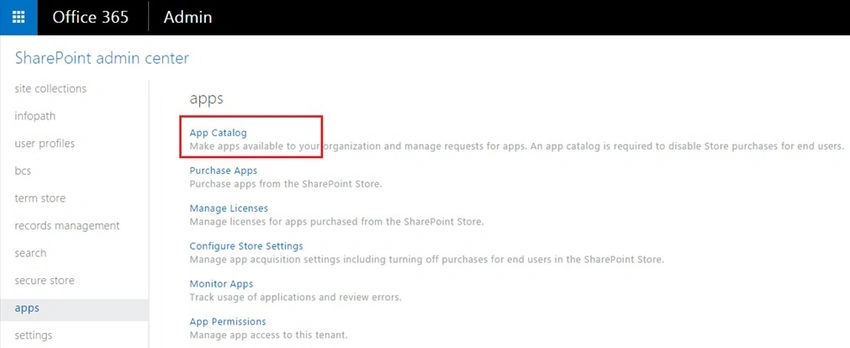
Step 3. On the Apps page select the “App Catalog”.
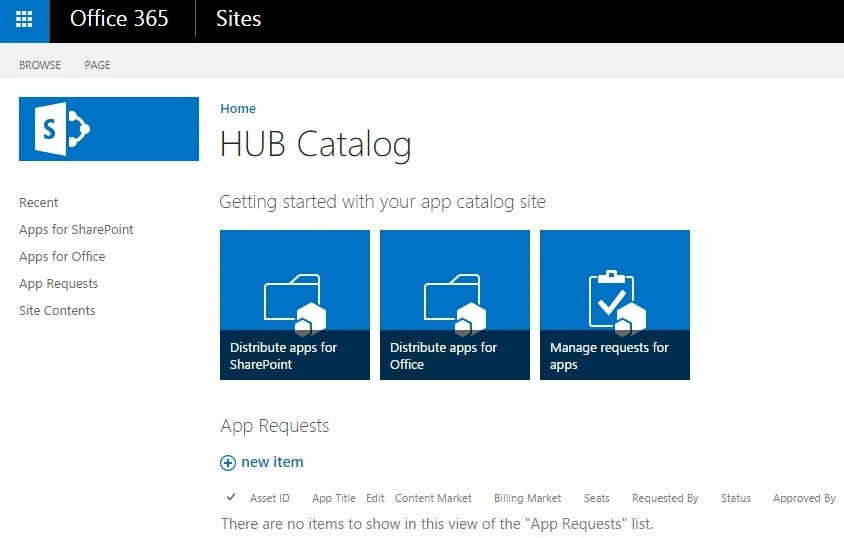
Step 4. Then you will be navigated to the app catalog site.
Note
If you haven’t created the app catalog site before, it will ask you to create a new app catalog. Provide the app catalog name and on clicking ok the app catalog site will be created.
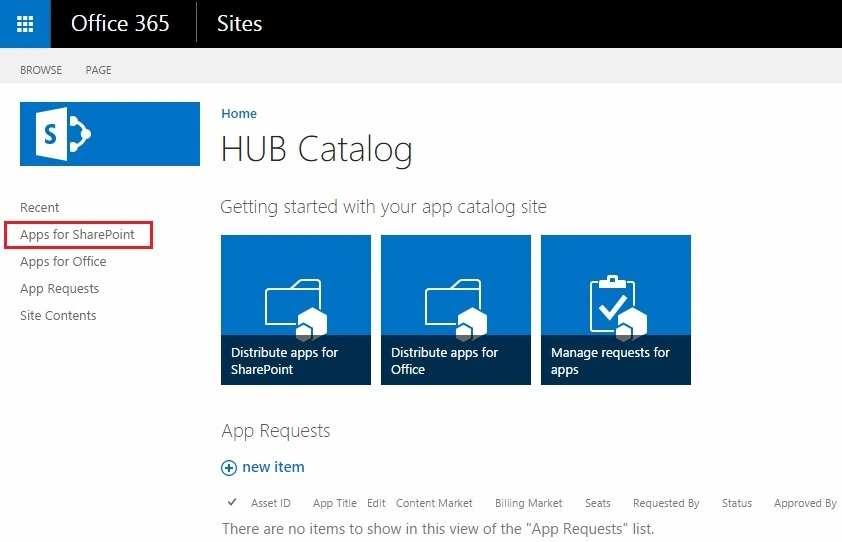
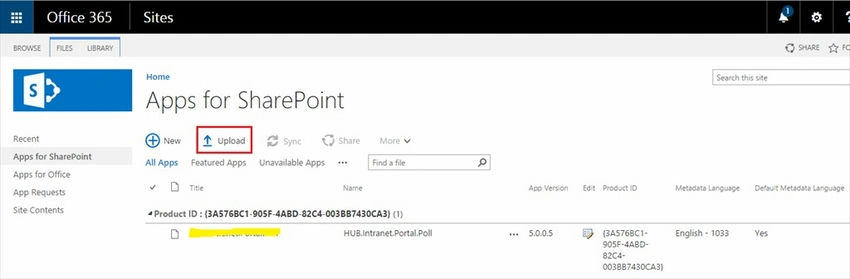
Step 5. Then click on the “Apps for SharePoint” from the left navigation.
Step 6. On the “AppCatalog” library you can upload the file using the upload option.
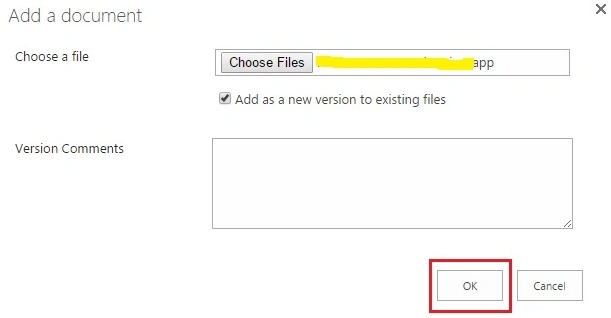
Step 7. Once you choose the file click ok to upload the file.
Finally, your app will be successfully uploaded to the app catalog library.
Summary
In this article, we have explored how to upload an app file in the app catalog.


Love ThakkerPosted Jun 6, 2020, 1:56 AM EDT
Hi. Nice explanation of steps to upload app package. I have a query - is it possible to deploy app solution using console app?
Kaviya BalasubramanianPosted Sep 30, 2015, 1:49 AM EDT
thank you ankit and mohammed
Mohammed IbrahimPosted Sep 29, 2015, 11:29 AM EDT
nice
Ankit BansalPosted Sep 29, 2015, 3:26 AM EDT
nice..
Kaviya BalasubramanianPosted Sep 29, 2015, 1:12 AM EDT
Thank you all :)
Harshad PansuriyaPosted Sep 28, 2015, 9:37 PM EDT
Nice One
Sujeet SumanPosted Sep 28, 2015, 9:27 PM EDT
Nice Article................
Nilesh JadavPosted Sep 28, 2015, 8:24 PM EDT
Great Explanation
Pankaj Kumar ChoudharyTOP 100Posted Sep 28, 2015, 7:45 PM EDT
Nice Explain Mam............