

Introduction
First of all you need to download the application . Please go through the following link to download.
Please find this article in my blog http://sibeeshpassion.com/Using-GitHub-Application-in-Windows.html
Procedure to follow
Step 1
Once you have download the application, please install and open it. Please make sure that you are logged into your GitHub account.
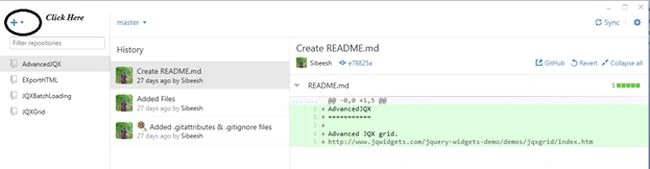
Step 2
Type the name of your repository and browse to the local path, once you have done that please click “Create Repository” .
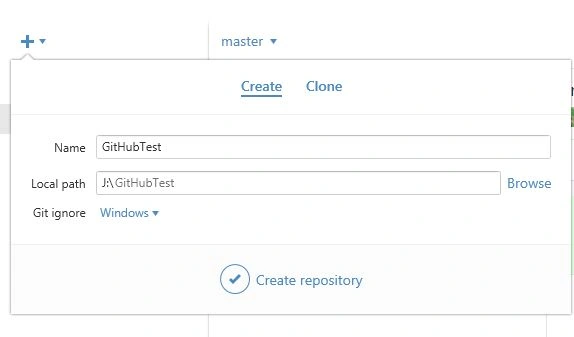
Now you can see that a repository has been created in the left side.
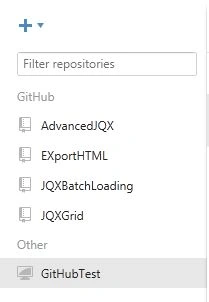
Step 3
Now please right-click on the repository you just created and click open in the explorer.
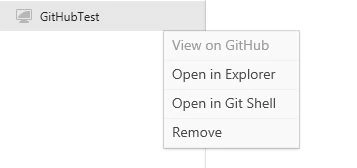
Now the repository will be opened in your explorer.
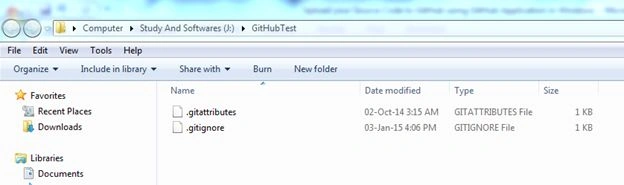
Step 4
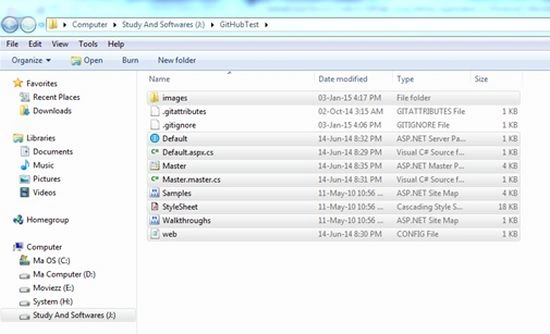
Now copy the files you want to upload and paste them into the repository you just created.
Once you have pasted, please verify you have everything needed in that repository.
Step 5
Now please return to the application and you can see “Uncommitted changes” there as shown in the following image.
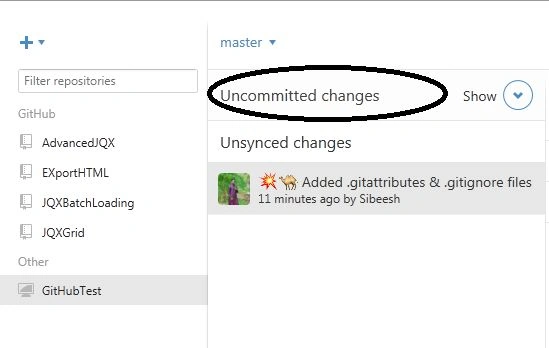
Click on the Show button.
Step 6
Type the Summary and Description. Please note that you can unselect the unwanted files on the right side.
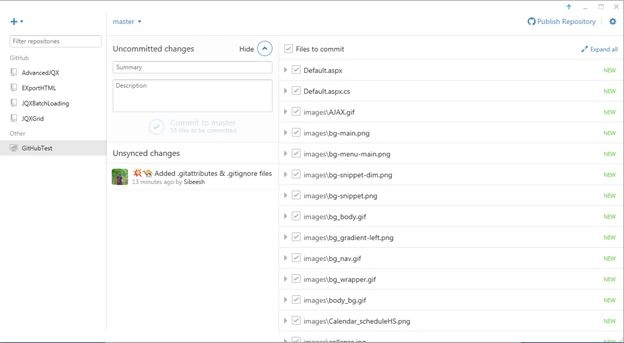
Click commit to master.
Step 7
Now click the repository under the unsynced changes.
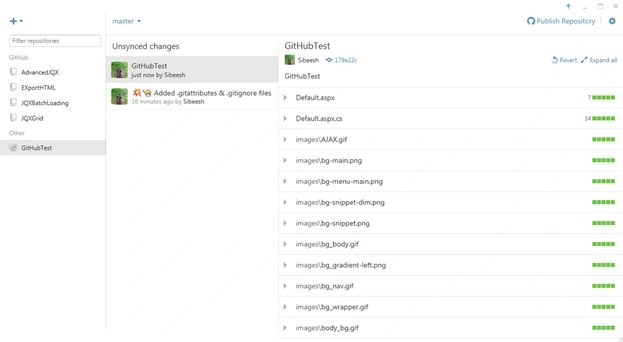
Step 8
Now click on the Publish repository.
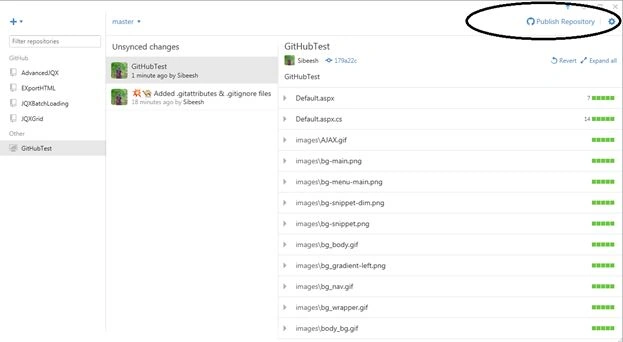
Step 9
Enter the description and click publish.
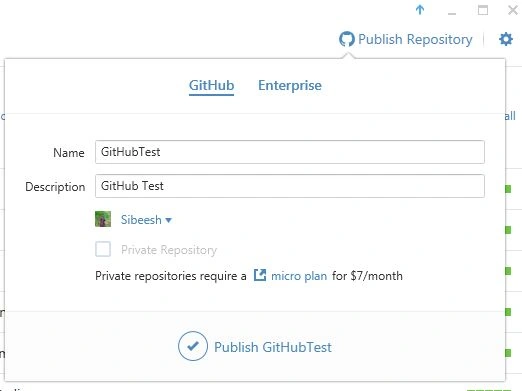
Step 10
Once you have published, it will take some time depending on the file size. Then you can see a sync button in the top right corner. Click on that.

Step 11
Then click on the settings button just near to the sync button and select the view on GitHub.
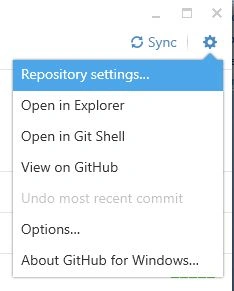
Now it will open in your GitHub account. Wow, that's all; we have uploaded our files.
I hope it helps. Please provide your valuable comments.
Kindest Regards
Sibeesh
Procedure to follow
Step 1
Once you have download the application, please install and open it. Please make sure that you are logged into your GitHub account.
Step 2
Type the name of your repository and browse to the local path, once you have done that please click “Create Repository” .
Now you can see that a repository has been created in the left side.
Step 3
Now please right-click on the repository you just created and click open in the explorer.
Now the repository will be opened in your explorer.
Step 4
Now copy the files you want to upload and paste them into the repository you just created.
Once you have pasted, please verify you have everything needed in that repository.
Step 5
Now please return to the application and you can see “Uncommitted changes” there as shown in the following image.
Click on the Show button.
Step 6
Type the Summary and Description. Please note that you can unselect the unwanted files on the right side.
Click commit to master.
Step 7
Now click the repository under the unsynced changes.
Step 8
Now click on the Publish repository.
Step 9
Enter the description and click publish.
Step 10
Once you have published, it will take some time depending on the file size. Then you can see a sync button in the top right corner. Click on that.
Step 11
Then click on the settings button just near to the sync button and select the view on GitHub.
Now it will open in your GitHub account. Wow, that's all; we have uploaded our files.
I hope it helps. Please provide your valuable comments.
Kindest Regards
Sibeesh
Bhuvanesh MohankumarPosted May 23, 2016, 1:14 PM
Good one
Saillesh PawarPosted Apr 23, 2016, 5:23 AM
Great Share helped me a lot Sibesh sir
Sam HobbsPosted Feb 10, 2015, 2:12 AM
Is there a way to create a project and check the checkbox to add the project to source control when the project is created and then use Github for Windows to upload the project? I would think that is the normal way to use Github. I prefer to not "copy the files you want to upload and paste them". Can't that be done automatically? I will try to figure it out but perhaps another article would be useful.
Sam HobbsPosted Feb 10, 2015, 2:07 AM
You say "Please make sure that you are logged into your GitHub account." but I am not sure what that means. After installing it, it showed me a wizard and the first thing it asks is for me to sign in. So I think the signing in is automatic enough. Then it got hung up at the step where it searches for repositories. I got out of that by checking the box to skip it. You say "Type the name of your repository" but I seemed to not have any repositories so that confused me. I tried to create a repository. I am not sure what to specify for "Git ignore". Since you used the default, Windows, I used that. Is there any use of using "Visual Studio" for "Git ignore"? I think the current Github for Windows works differently (I am using Visual Studio 2013) since it is executing outside of VS for me. So I do not "see that a repository has been created in the left side".
Guest UserPosted Jan 9, 2015, 1:58 AM
You can use GUI client for Github, that's fine, but as developers we should love console/terminal, which give more power. I agree with you Gaurav Kumar Arora, I love gitbash over GIT Gui.
Sibeesh VenuPosted Jan 4, 2015, 10:36 AM
Gaurav Kumar Arora May be you are right. But as per my experience , GitHub Windows app will do all of my requirement. And I have never used MAC . So I am happy with that. Thanks a lot for your suggestion. I will definitely try that.
Gaurav Kumar AroraPosted Jan 4, 2015, 9:21 AM
Its good tool. As per my personal experience I like GitBash (works on both Windows and Mac machine)
Sibeesh VenuPosted Jan 4, 2015, 7:09 AM
Manish Kumar Choudhary Thanks a lot . I am glad you liked it :)
Sibeesh VenuPosted Jan 4, 2015, 7:09 AM
Michal Habalcik Thanks a lot . I am glad you liked it :)
Manish Kumar ChoudharyPosted Jan 4, 2015, 6:36 AM
Nice one.. I will also bookmark this very useful article. ..
Michal HabalcikPosted Jan 4, 2015, 6:28 AM
Very useful. I am about to start experimenting with GitHub, so definitely bookmarking this. Thanks for sharing.