
Welcome to an article on the User Profile Dashboard on Office 365 SharePoint. To view that, you need to be a tenant admin. If you are, let’s see how we can do it,
- Click on the left corner of your SharePoint site to view the apps.
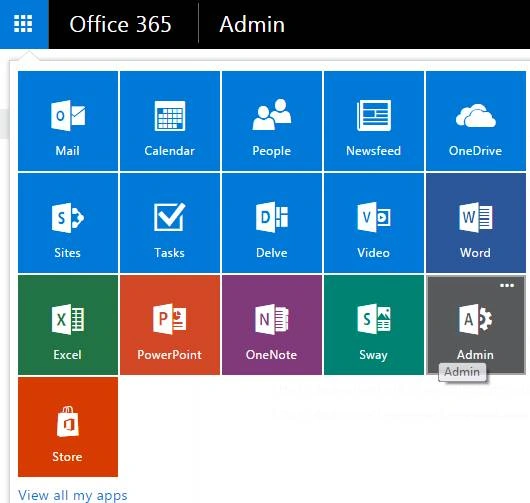
- Click on Admin.
- You will come to the “SharePoint admin center”.
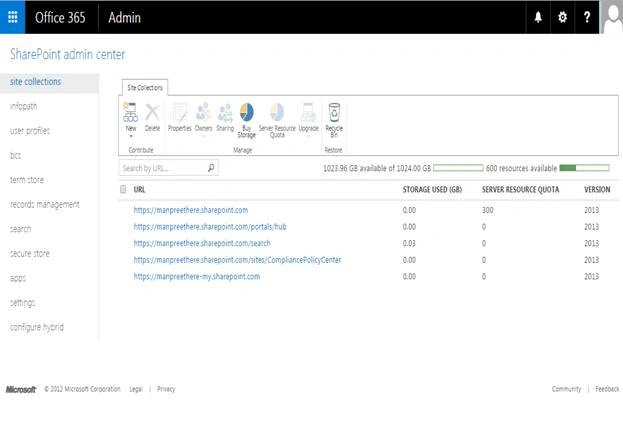
- Select user profiles on the left navigation.
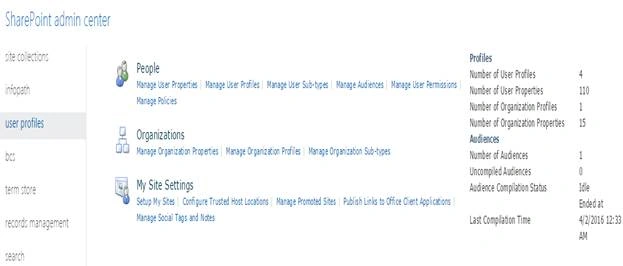
- On the right corner, you can see the User Profile dashboard as per the screen below.
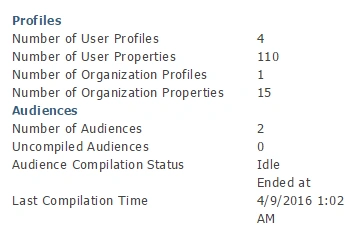
- Number of User Profiles.
- Number of User Properties.
- Number of Organization Profiles.
- Number of Organization Properties.
- Number of Audiences.
- Number of Uncompiled Audiences.
- Audience Compilation Status.
- Last Compilation Time.
Thereby, it displays all the details on its dashboard which have been configured under the user profiles by the admin on Office 365.
Read more articles on SharePoint:


Manpreet SinghTOP 100Posted May 22, 2016, 4:23 PM EDT
Sure Viipiin Tyagi && Humayun Kabir Mamun, Thanks for your feedback. This article is the last sequence of the User Profile section so you see in less details. Kindly view the previous articles from this one to view more in details about user profile.
Humayun Kabir MamunPosted Apr 23, 2016, 8:52 PM EDT
Nice but i agree with Viipiin Tyagi...
Vipin TyagiPosted Apr 20, 2016, 11:09 PM EDT
My friend Manpreet Singh Please mind,I'm not so much experienced person but as per my understanding, this article is not so useful for the developers or for the end users.Please explore more on user dashboard in a single article.
Vignesh ManiTOP 100Posted Apr 20, 2016, 11:55 AM EDT
Nice
Debasis SahaTOP 100Posted Apr 20, 2016, 6:27 AM EDT
Good One..
Vinodh NarayananPosted Apr 19, 2016, 11:02 PM EDT
good one
Rahul Kumar SaxenaTOP 100Posted Apr 19, 2016, 7:06 PM EDT
Good Show
Mahendra SinghPosted Apr 19, 2016, 7:03 PM EDT
This is really helpful for the end user