

Introduction
In this article we will use jQuery Mobile in Backbone.js. Backbone.js is a JavaScript framework. We use Backbone to create well-structured web applications. In this article we will use jQuery Mobile in the backbone,js.
jQuery Mobile is a very easy way to create an application that is easily accessible on phones, tablets and desktop devices. It is a framework that is compatible with other mobile app frameworks.
The following provides a sample web application using jQuery Mobile in Backbone.js.
Step 1
Create a Web application as in the following:
- Start Visual Studio 2013. From the Start window select "New Project".
- Select "Installed" -> "Template" -> "Visual C#" -> "Web" -> "Visual Studio 2012" and select "Empty Web Application".
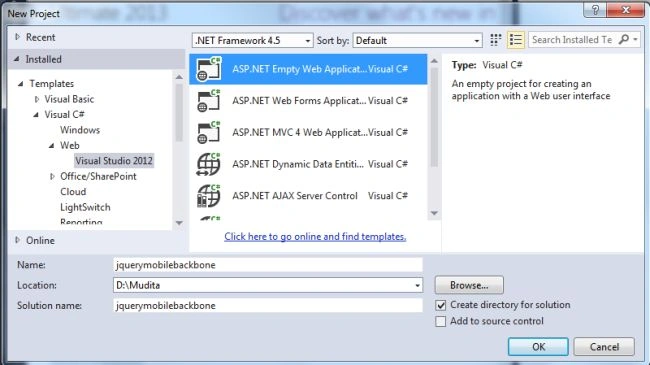
- Click on the "OK" button.
Step 2
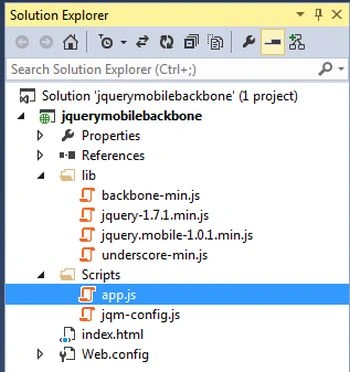
We need to add the following Scripts file to our project:
Step 3
Now we need to add various JavaScript files to our application. First we add our own script file in this project.
- Right-click on the Scripts folder and select "Add".
- Select "New Item" -> "JavaScript".
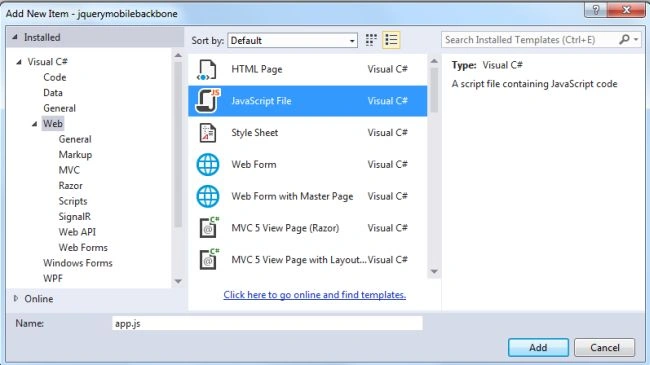
- Click on the "OK" button.
Add the following code:
window.MainView = Backbone.View.extend({
template: _.template($('#home').html()),
render: function (eventName) {
$(this.el).html(this.template());
return this;
}
});
window.List1View = Backbone.View.extend({
template: _.template($('#page1').html()),
render: function (eventName) {
$(this.el).html(this.template());
return this;
}
});
window.List2View = Backbone.View.extend({
template: _.template($('#page2').html()),
render: function (eventName) {
$(this.el).html(this.template());
return this;
}
});
var router = Backbone.Router.extend({
routes: {
"": "home",
"page1": "page1",
"page2": "page2"
},
initialize: function () {
// Handle back button throughout the application
$('.back').live('click', function (event) {
window.history.back();
return false;
});
this.firstList = true;
},
home: function () {
console.log('#home');
this.changePage(new MainView());
},
page1: function () {
console.log('#page1');
this.changePage(new List1View());
},
page2: function () {
console.log('#page2');
this.changePage(new List2View());
},
changePage: function (page) {
$(page.el).attr('data-role', 'page');
page.render();
$('body').append($(page.el));
var transition = $.mobile.defaultPageTransition;
// We don't want to slide the first List
if (this.firstList) {
transition = 'none';
this.firstList = false;
}
$.mobile.changePage($(page.el), { changeHash: false, transition: transition });
}
});
$(document).ready(function () {
console.log('document ready');
app = new router();
Backbone.history.start();
});
Step 4
Now add the HTML page.
- In the Solution Explorer.
- Right-click on the project then select "Add" -> "HTML page".
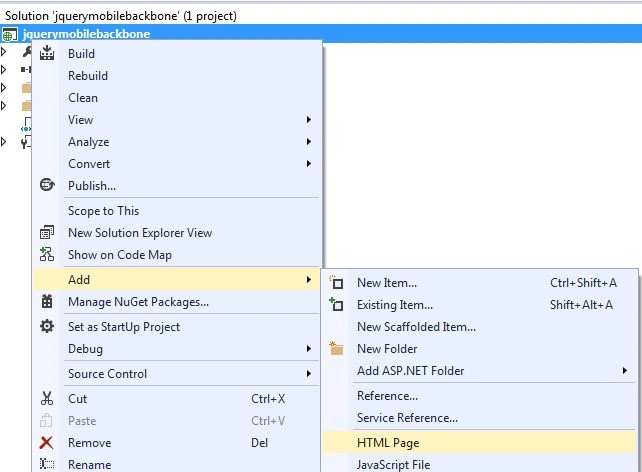
- Change the name of the page.
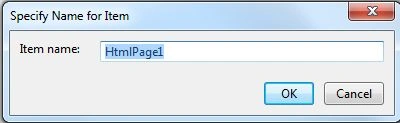
- Click on the "Add" button.
Add the following code:
<!DOCTYPE html>
<html class="ui-mobile-rendering">
<head>
<title></title>
<meta name="viewport" content="width=device-width, initial-scale=1">
<link rel="stylesheet" type="text/css" href="http://code.jquery.com/mobile/1.0.1/jquery.mobile-1.0.1.min.css" />
<!-- The Templates -->
<script type="text/template" id="home">
<div data-role="header">
<h1>jquery mobile with backbone,js</h1>
</div>
<div data-role="content">
<h3>This application of jquery mobile with backbone.js</h3>
<p>We know that backbone.js is a JavaScript framework for developing with JavaScript in a Model View and Collection model. We can also create a single page application using the backbone.js.</p>
<p>jQuery Mobile is a HTML5-based user interface system designed to make responsive web sites and apps that are accessible on all smartphone, tablet and desktop devices..</p>
<p>This is the Main Page.</p>
<p>This Navigate to the:</p>
<ul data-role="listview" data-inset="true">
<li><a href="#page1">List 1</a></li>
<li><a href="#page2">List 2</a></li>
</ul>
</div>
</script>
<script type="text/template" id="page1">
<div data-role="header">
<a href="#" data-icon="back" class="back ui-btn-left">Back</a>
<h1>List 1</h1>
</div>
<div data-role="content">
<p>This is List of programming language</p>
<ul><li>.Net</li>
<li>Java</li>
<li>Android</li>
<li>PHP</li>
</ul>
<p> This Navigate to the:</p>
<ul data-role="listview" data-inset="true">
<li><a href="#">Home</a></li>
<li><a href="#page2">List 2</a></li>
</ul>
</div>
</script>
<script type="text/template" id="page2">
<div data-role="header">
<a href="#" data-icon="back" class="back ui-btn-left">Back</a>
<h1>List 2</h1>
</div>
<div data-role="content">
<p>This is List of designing skills. </p>
<ul>
<li>HTML5</li>
<li>CSS3</li>
<li>JQuery</li>
<li>JavaScript</li>
</ul>
<p> This Navigate to the:</p>
<ul data-role="listview" data-inset="true">
<li><a href="#">Home</a></li>
<li><a href="#page1">List1</a></li>
</ul>
</div>
</script>
<!-- The Scripts -->
<script src="lib/jquery-1.7.1.min.js"></script>
<script src="Scripts/jqm-config.js"></script>
<script src="lib/jquery.mobile-1.0.1.min.js"></script>
<script src="lib/underscore-min.js"></script>
<script src="lib/backbone-min.js"></script>
<script src="Scripts/app.js"></script>
</head>
<body>
</body>
</html>
Step 5
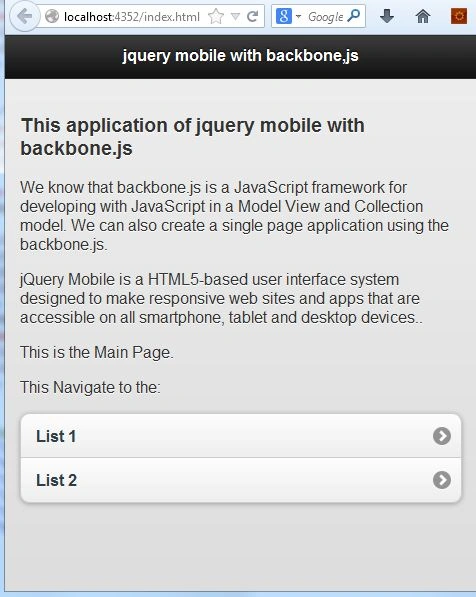
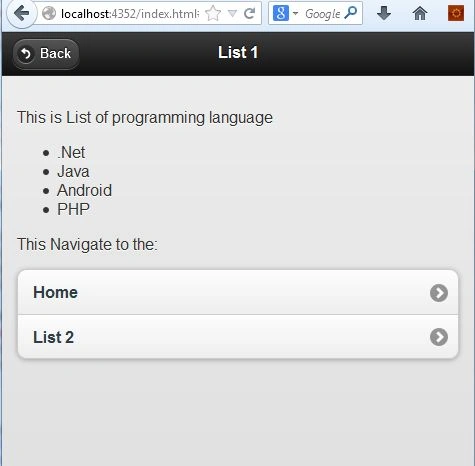
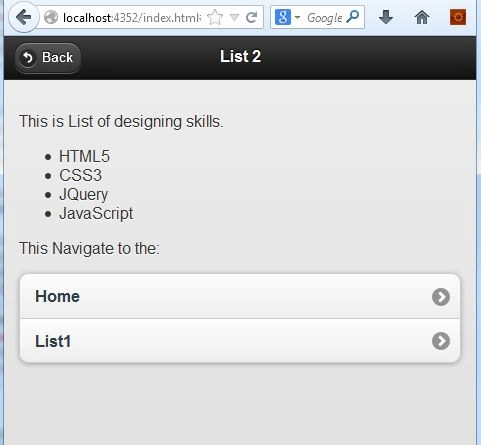
Execute the application. Two lists, List1 and List2, are displayed. When we click on List1 then it opens List1 and if we click on List2 then it displays List2. The back button is for returning to the last page.
Join the conversation! Your thoughts help the community grow.