
In this article I would like to share with you how to use validation using JQuery in asp.net. JQuery plays a major role for any technology. It is simple to understand and easy to use. It can create impressive animations and interactions.
Now I am discussing about this article using the simple article.
First of all download uploaded file. In this application I am attaching three JQueries as follows:
jquery-1.3.2.js
jquery-latest.js
jquery.validate.js
Example:
<%@ Page Language="C#" AutoEventWireup="true" CodeFile="Default.aspx.cs" Inherits="_Default"
%>
<!DOCTYPE html PUBLIC "-//W3C//DTD XHTML 1.0 Transitional//EN" "http://www.w3.org/TR/xhtml1/DTD/xhtml1-transitional.dtd">
<html xmlns="http://www.w3.org/1999/xhtml">
<head runat="server">
<title>Validation Example using JQuery</title>
<link rel="stylesheet" href="ValidationStyle.css" type="text/css" />
<script type="text/javascript" src="script/jquery-1.3.2.js"></script>
<script type="text/javascript" src="script/jquery-latest.js"></script>
<script type="text/javascript" src="script/jquery.validate.js"></script>
<%--this javascriptis used to show the message after valid statement.--%>
<script type="text/javascript">
jQuery.validator.setDefaults({
debug: true,
success: "valid"
}); ;
</script>
<%--write the following javascript for passing the parameter for jquery--%>
<script type="text/javascript">
$(document).ready(function() {
$("#form1").validate({
rules: {
<%=txtUserName.UniqueID
%>: {
minlength: 5,
required: true
},
<%=txtPassword.UniqueID
%>: {
minlength: 5,
required: true
},
<%=txtEmail.UniqueID
%>: {
required: true
},
<%=txtURL.UniqueID
%>: {
required: true
}
}, messages: {
<%=txtUserName.UniqueID
%>:{
required: "Plaese enter your name",
minlength: "User name must be atleaet of 5 characters"
},
<%=txtPassword.UniqueID
%>:{
required: "Plaese enter your password",
minlength: "Password must be atleaet of 5 characters"
},
<%=txtEmail.UniqueID
%>:{
required: "Plaese enter your Email Id",
},
<%=txtURL.UniqueID
%>:{
required: "Plaese enter Website URL",
}
}
});
});
</script>
</head>
<body>
<form id="form1" runat="server">
<table width="50%" cellpadding="2" cellspacing="4" style="border: solid 1px navy;
background-color: #d5d5d5;">
<tr>
<td colspan="2" align="center">
<b>Validation Example using JQuery</b>
</td>
</tr>
<tr>
<td align="right" width="75px">
User Name :
</td>
<td>
<asp:TextBox ID="txtUserName" runat="server" Width="180px"></asp:TextBox>
</td>
</tr>
<tr>
<td align="right">
Password :
</td>
<td>
<asp:TextBox ID="txtPassword" runat="server" TextMode="Password" Width="180px"></asp:TextBox>
</td>
</tr>
<tr>
<td align="right">
Email Id :
</td>
<td>
<asp:TextBox ID="txtEmail" runat="server" CssClass="email" Width="180px"></asp:TextBox>
</td>
</tr>
<tr>
<td align="right">
URL :
</td>
<td>
<asp:TextBox ID="txtURL" runat="server" CssClass="url" Width="180px"></asp:TextBox>
</td>
</tr>
<tr>
<td align="right">
</td>
<td align="left">
<asp:Button ID="btnSubmit" runat="server" Text="Submit" />
</td>
</tr>
</table>
</form>
</body>
</html>
Use the following Style sheet
StyleSheet:
body{}
#field{margin-left: .5em;float:
right;}
#field, label{float:
left;font-family: Arial,
Helvetica, sans-serif;font-size:
small;}
br{clear:
both;}
input{border:
1px solid
black;margin-bottom: .5em;}
input.error{border:
1px solid
red;}
label.error{position:absolute;background: url('Images/unchecked.gif') no-repeat;padding-left: 20px; margin-left: .3em; vertical-align: middle;background-color: #FFEBE8;border: solid 1px red;width: 250px;}
label.valid{position:inherit;background:
url('Images/checked.gif') no-repeat;display:
block;width:
16px;height:
16px;border:
none;vertical-align:top;}
Output:
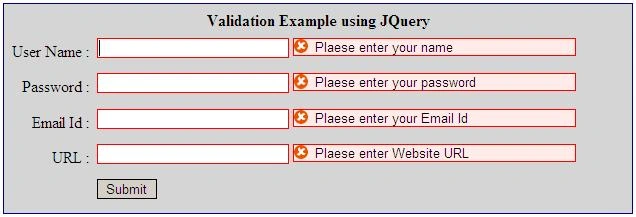
Figure 1: All fields
are required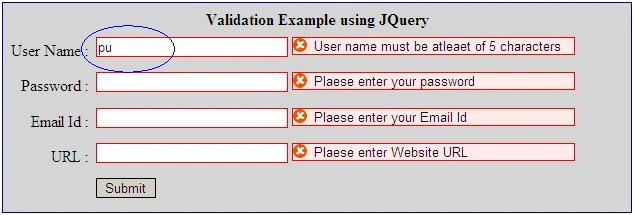
Figure 2: In the
first text box range should be atleast 5 characters.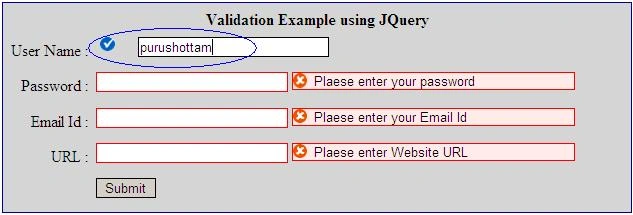
Figure 3:
The input of the first textbox is valid. Here blue icon represent the valid
data.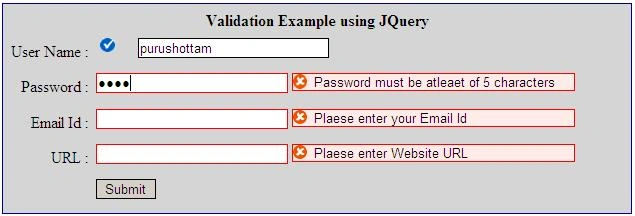
Figure 4: Password
range must be atleast 5 characters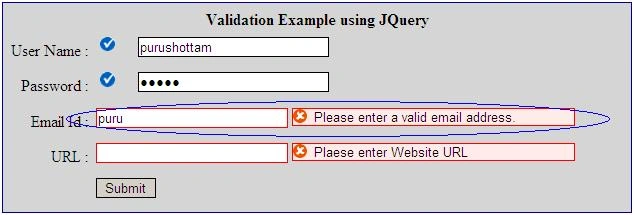
Figure 5: Check email
validation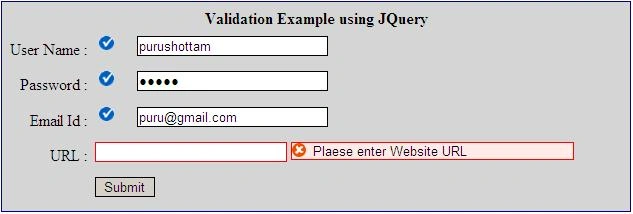
Figure 6: Valid
email.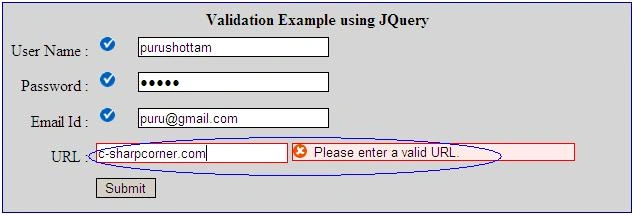
Figure 7: Check valid
url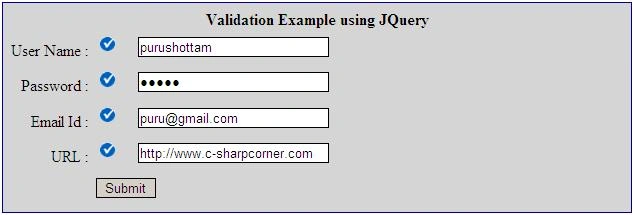
Figure 8: All inputs
are valid.


निलेश जांभुळकरPosted Jun 5, 2018, 11:00 PM EDT
<script type="text/javascript"> jQuery.validator.setDefaults({ debug: true, success: "valid" }); ; </script>
charan rajPosted Sep 14, 2014, 11:05 PM EDT
how to validate the dropdownlist using jquery in same method
charan rajPosted Sep 14, 2014, 11:04 PM EDT
Hello sir,
Chirag KayasthaPosted Apr 28, 2014, 11:08 PM EDT
hello sir i am new for jquery, so i want yo know how i use j query in content page in asp.net application
qamar shahzadPosted Sep 3, 2013, 12:36 AM EDT
I have used this in my application and facing the same issue as mentioned by Ravikumar G.... Submit button is getting disabled after using this... I have found that problem is in jquery file which we append in page header.. but as I am novice to JQUERY so unable to find that bug.. Kindly guide if any one know's this solution.....
Ravikumar GPosted Jan 29, 2013, 7:25 PM EST
All the validations are working fine but when i click on submit button even i enter the correct data in the fields , the form is not submitting. Plz suggest me where I am wrong?... I'm beginner to JQuery.
Sapan SingheditedPosted Jan 24, 2013, 7:39 PM ESTEdited Apr 8, 2013, 2:42 AM EDT
Good Job
sankarprasathPosted Sep 1, 2012, 1:47 AM EDT
i have used above zip file and run it in my VS2010 but validation parts are not working for me..
Buengkan ThaiBuengkanPosted Jun 13, 2012, 1:41 AM EDT
good job
Manoranjan BeheraeditedPosted Apr 29, 2011, 4:34 AM EDTEdited Apr 29, 2011, 4:35 AM EDT
Can u give me javascript validation when we use TextBox validation then error message display in below of the TextBox
Manoranjan BeheraPosted Apr 29, 2011, 4:31 AM EDT
that jQury part very well
christo kleynhansPosted Feb 16, 2011, 1:41 AM EST
Hello, great artical. I would like to know how you would check multiple textboxes for correct emails entered. The page is for sending emails, the user can send a email to multiple addresses. The problem is that there is only one textbox, the rest are created dynamically when the user clicks on a link "Add Recipient". So it is uncertian how many textboxes there will be. Each textbox created has an ID of: "txtBox" plus a integer number that is one more than the last. How would i validate these textboxes with jQuery?
kenny kennyPosted Feb 4, 2011, 8:08 PM EST
I am getting error on visual studio 2008 after inserting the code
Raj KumarTOP 100Posted Jan 18, 2011, 6:01 PM EST
Good article. keep it up.