

Visual Brush
The Visual object in WPF represents a visual control. That said, you can pretty much create a visual that can be a control or a combination of controls including a Window, Page, or even a MediaElement and draw an element with this visual. A Visual object usually hosts one container panel such as a Grid or StackPanel and on this container; you may place as many controls you like.
Creating a Visual Brush
The VisualBrush element in XAML creates a visual brush.
The following code snippet creates a visual brush and sets the Visual property. The Visual property can be an element inherited from the Visual such as a Grid or StackPanel.
<VisualBrush>
<VisualBrush.Visual />
</VisualBrush>
We can fill a shape with a visual brush by setting a shape's Fill property to the visual brush. The code snippet in Listing 25 creates a rectangle shape sets the Fill property to a VisualBrush. In this code, a Visual hosts a StackPanel that contains a Rectange, TextBlock, and a Button control. Now keep in mind, these controls on a VisualBrush can still have their own identity such as events, attributes, and methods.
<Grid Name="LayoutRoot">
<Rectangle Width="300" Height="300" Stroke="Black" Margin="5,0,5,0">
<Rectangle.Fill>
<VisualBrush>
<VisualBrush.Visual>
<StackPanel Background="White">
<Rectangle Width="100" Height="20">
<Rectangle.Fill>
<LinearGradientBrush StartPoint="0,0" EndPoint="1,1" >
<GradientStop Color="Yellow" Offset="0" />
<GradientStop Color="Green" Offset="1.0" />
</LinearGradientBrush>
</Rectangle.Fill>
</Rectangle>
<TextBlock Foreground="Red" TextAlignment="Center"
FontFamily="Georgia"
FontWeight="Bold">
Visual Brush
</TextBlock>
<Button Background="LightBlue" Foreground="Orange">
Button for Visual
</Button>
</StackPanel>
</VisualBrush.Visual>
</VisualBrush>
</Rectangle.Fill>
</Rectangle>
</Grid>
Listing 25
The output looks like Figure 32.
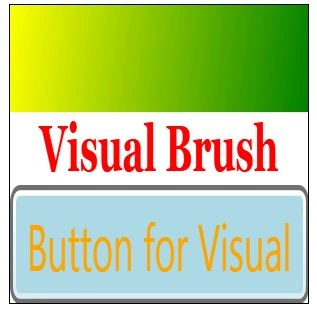
Figure 32. A shape filled with a Visual brush
Similar to a DrawingBrush, the VisualBrush support both Viewport and TileMode properties.
The Viewport property determines the size and position of the base tile when the TileMode of a DrawingBrush is not set to None, and the ViewportUnits property determines whether the Viewport is specified using absolute or relative coordinates. If the coordinates are relative, they are relative to the size of the output area. The point (0,0) represents the top left corner of the output area, and (1,1) represents the bottom right corner of the output area. To specify that the Viewport property uses absolute coordinates, set the ViewportUnits property to Absolute.
The TileMode property of DrawingBrush represents the tile mode that is a type if a TileMode enumeration. The TileMode enumeration has Tile, FlipX, FlipY, FlipXY, and None values.
The following code snippet sets the Viewport and TileMode properties of a DrawingBrush.
<VisualBrush
Viewport="0,0,0.25, 0.25" TileMode="Tile">
The output with TileMode set to Tile looks like Figure 33.
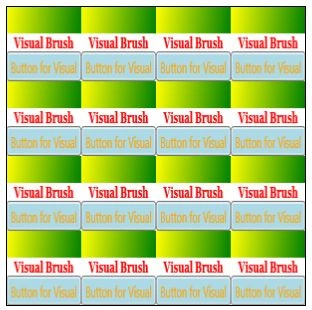
Figure 33. A shape filled with a Visual brush in Tile mode
The VisualBrush object in WPF is used to create a VisualBrush at run-time. The code listed in CreateARectangleWithVisualBrush() method in Listing 26 creates a VisualBrush, sets its visual property to a StackPanel that contains a Rectangle, TextBlock, and a Button control.
private void CreateARectangleWithVisualBrush()
{
// Create a
background recntangle
Rectangle
visualBoard = new Rectangle();
visualBoard.Width = 300;
visualBoard.Height = 300;
// Create a
DrawingBrush
VisualBrush
vBrush = new VisualBrush();
// Create a
StackPanel and add a few controls to it
StackPanel
stkPanel = new StackPanel();
// Create a
Rectangle and add it to StackPanel
Rectangle
yellowGreenRectangle = new Rectangle();
yellowGreenRectangle.Height = 100;
yellowGreenRectangle.Width = 20;
LinearGradientBrush
yellowGreenLGBrush = new LinearGradientBrush();
yellowGreenLGBrush.StartPoint = new Point(0, 0);
yellowGreenLGBrush.EndPoint = new Point(1, 1);
GradientStop
blueGS = new GradientStop();
blueGS.Color = Colors.Yellow;
blueGS.Offset = 0.0;
yellowGreenLGBrush.GradientStops.Add(blueGS);
GradientStop
orangeGS = new GradientStop();
orangeGS.Color = Colors.Green;
orangeGS.Offset = 0.25;
yellowGreenLGBrush.GradientStops.Add(orangeGS);
yellowGreenRectangle.Fill =
yellowGreenLGBrush;
stkPanel.Children.Add(yellowGreenRectangle);
// Create a
TextBlock and add it to StackPanel
TextBlock
redTextBlock = new TextBlock();
redTextBlock.Text = "Visual Brush";
redTextBlock.FontWeight = FontWeights.Bold;
redTextBlock.FontFamily = new FontFamily("Georgia");
redTextBlock.TextAlignment = TextAlignment.Center;
stkPanel.Children.Add(redTextBlock);
// Create a
Button and add it to StackPanel
Button
blueButton = new Button();
blueButton.Background = new SolidColorBrush(Colors.LightBlue);
blueButton.Foreground = new SolidColorBrush(Colors.Orange);
blueButton.Content = "Button for Visual";
stkPanel.Children.Add(blueButton);
// Set Viewport
and TileMode
vBrush.Viewport = new
Rect(0, 0, 0.25, 0.25);
vBrush.TileMode = TileMode.Tile;
// Set Visual of
VisualBrush
vBrush.Visual = stkPanel;
// Fill rectangle
with a DrawingBrush
visualBoard.Fill = vBrush;
LayoutRoot.Children.Add(visualBoard);
}
Listing 26
Mohammad MirshahieditedPosted Jul 6, 2012, 3:27 PMEdited Nov 9, 2012, 12:12 AM
hi mahesh this site have many error aboute "Edit my commnet" please eleminate this error...thanks..
Mohammad MirshahiPosted Jul 6, 2012, 3:13 PM
thanks mahesh