
Getting Started
Creating a Silverlight Application:
- Open Visual Studio 2010.
- Go to File => New => Project.
- Select Silverlight Windows Phone from the Installed templates and choose the Windows Phone Application.
- Enter the Name and choose the location.
- Click OK.
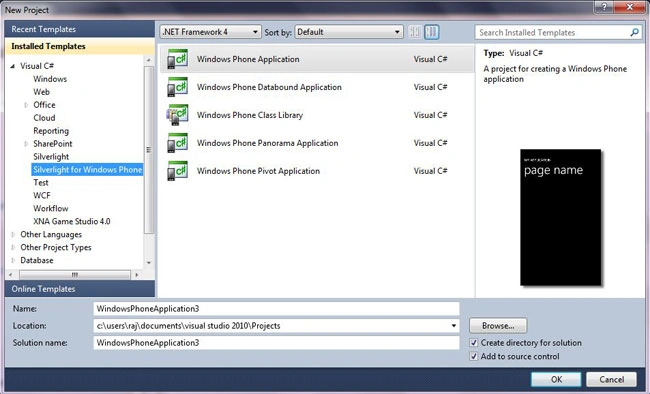
Image1.
Before proceeding further now make a new WCF Service Application like image 2.
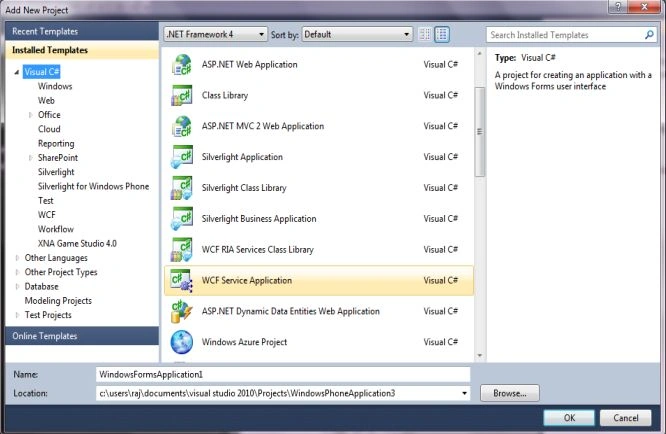
Click OK.
Click on Add New Item tab and add a Linq To Sql Classes data template and configure database.
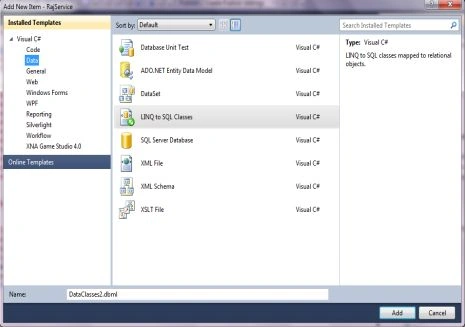
Image3.
Drag and drop database tables.
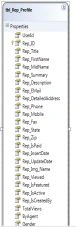
Image 4.
You can rename table name if you want.
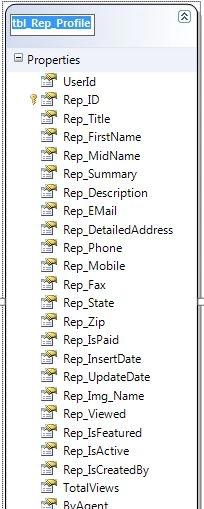
Image 5.
Now let's start work on service part.
IService1.cs
using System;
using System.Collections.Generic;
using System.Linq;
using System.Runtime.Serialization;
using System.ServiceModel;
using System.ServiceModel.Web;
using System.Text;
namespace RajService
{
// NOTE: You can use the "Rename" command on the "Refactor" menu to change the interface name "IService1" in both code and config file together.
[ServiceContract]
publicinterfaceIService1
{
[OperationContract]
List<tbl_Rep_Profile> FindModelByModelId(int modelid);
[OperationContract]
List<tbl_Rep_Profile> GetAllModels();
}
}
Service1.svc
using System;
using System.Collections.Generic;
using System.Linq;
using System.Runtime.Serialization;
using System.ServiceModel;
using System.ServiceModel.Web;
using System.Text;
namespace RajService
{
// NOTE: You can use the "Rename" command on the "Refactor" menu to change the class name "Service1" in code, svc and config file together.
publicclassService1 : IService1
{
publicList<tbl_Rep_Profile> FindModelByModelId(int modelid)
{
DataClasses1DataContext context = newDataClasses1DataContext();
var res = from r in context.tbl_Rep_Profiles where r.UserId == modelid select r;
return res.ToList();
}
publicList<tbl_Rep_Profile> GetAllModels()
{
DataClasses1DataContext context = newDataClasses1DataContext();
var res = from r in context.tbl_Rep_Profiles
select r;
return res.Take(5).ToList();
}
}
}
Click on View in Browser to see WCF service is working fine or not.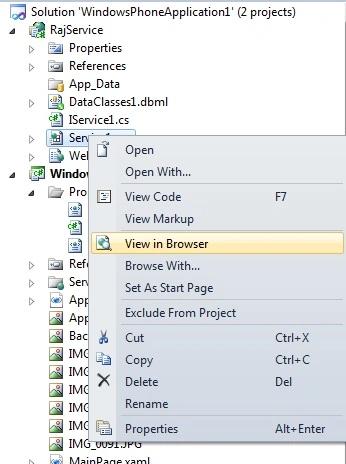
Image 6.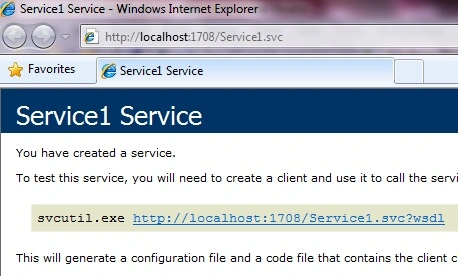
Image 7.
Now add service reference in application using click of Add Service Reference.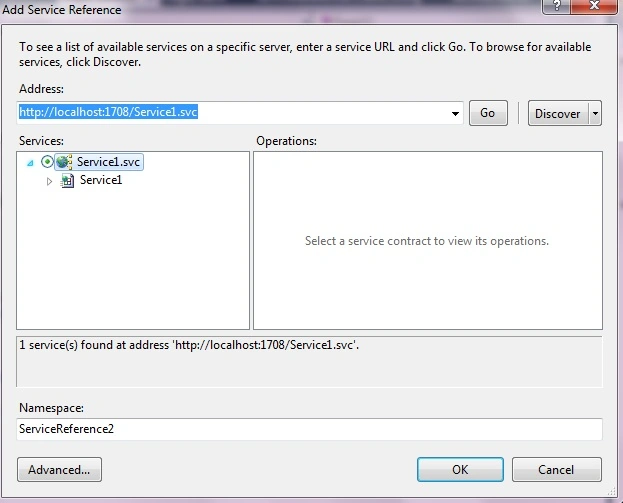
Image 8.
We are done with service work here; now to do the pages work.
MainPage.xaml
<Grid x:Name="LayoutRoot" Background="Transparent">
<Grid.RowDefinitions>
<RowDefinition Height="*"/>
</Grid.RowDefinitions>
<!--ContentPanel - place additional content here-->
<Grid x:Name="ContentPanel" Grid.Row="1" Margin="12,0,12,0">
<ListBox Height="650" HorizontalAlignment="Left" Margin="11,17,0,0" Name="listBox1" VerticalAlignment="Top" Width="434" >
<ListBox.ItemTemplate>
<DataTemplate>
<StackPanel Orientation="Horizontal">
<Image Source="{Binding Rep_Img_Name}" Width="150" Stretch="Uniform" HorizontalAlignment="Center" />
<TextBlock Text="{Binding UserId}"/>
<TextBlock Text="{Binding Rep_Title}"/>
<TextBlock Text="{Binding Rep_FirstName}"/>
<TextBlock Text="{Binding Rep_Email}"/>
</StackPanel>
</DataTemplate>
</ListBox.ItemTemplate>
</ListBox>
</Grid>
</Grid>
MainPage.xaml.cs
using System;
using System.Collections.Generic;
using System.Linq;
using System.Net;
using System.Windows;
using System.Windows.Controls;
using System.Windows.Documents;
using System.Windows.Input;
using System.Windows.Media;
using System.Windows.Media.Animation;
using System.Windows.Shapes;
using Microsoft.Phone.Controls;
using WindowsPhoneApplication1.ServiceReference1;
namespace WindowsPhoneApplication1
{
publicpartialclassPage2 : PhoneApplicationPage
{
public Page2()
{
InitializeComponent();
Service1Client svc = newService1Client();
svc.GetAllModelsCompleted += newEventHandler<GetAllModelsCompletedEventArgs>(svc_GetAllModelsCompleted);
svc.GetAllModelsAsync();
}
void svc_GetAllModelsCompleted(object sender, GetAllModelsCompletedEventArgs e)
{
listBox1.ItemsSource = e.Result;
}
}
}
Now 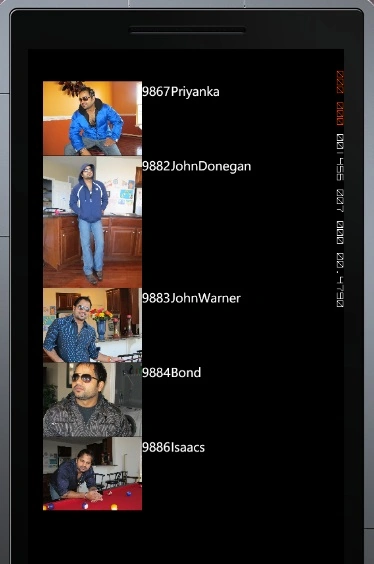
Image 9.
So we are done here with WCF service using Windows Phone 7. Any question or comments are most welcome just drop me a line in c-sharpcorner comments section.


Ritesh GuptaPosted Mar 26, 2013, 9:58 AM EDT
Hello Raj,I am saving my images to local folder of WCF service and their paths are being saved in database along with other fields like name,city etc.My problem is i am unable to fetch whole data including image.Please help me. Thanks in advance
Harshal JumleeditedPosted Feb 19, 2013, 2:30 AM ESTEdited Feb 19, 2013, 2:31 AM EST
Is the reverse of this possible ? I am trying from several days but unable to send 2,3 or 4 rows of data to server via WCF from my WP7 Check this link here is the question in detail http://stackoverflow.com/questions/14950170/send-data-to-server-from-windows-phone-7-to-web-application-using-wcf-i-am-abl
Nirav ShahPosted Nov 4, 2012, 9:04 AM EST
In the Below example when trying to do it with only one table "table2" the I got an error "EndpointNotFoundException was unhandled"
Nirav ShahPosted Nov 4, 2012, 8:26 AM EST
Hello I am a beginner. Please help me out to solve this problem. How can I populate using table joins. For Example: There are two tables as below: Table1->(having only one column) Column name : category value1 : colddrink Table2->(having 3 columns) Columnname : sub_category item_name price value1 : colddrink pepsi 10 value2 : colddrink fanta 15 value3 : colddrink limca 20 Then how can I populate listbox with item_name and price using join between table1 and table2. Please Rp ASAP. Give me any helpful link. -Thank You.
ricky tanPosted Jul 27, 2011, 6:57 AM EDT
Hi Raj Kumar, i've downloaded the solutions of the example, but the thing is, i cant seems to make it work. I've tried to edit some parts and make it to my own. The thing is, after i run the program, listbox shows nothing
GERASIMOS VONITSANOSPosted Apr 8, 2011, 7:39 AM EDT
the tutorial is really great, i have a question, how can we edit the data in the listbox and then submit to the database?
Former memberPosted Feb 7, 2011, 9:35 PM EST
Nice article
Purushottam RathorePosted Jan 30, 2011, 8:30 PM EST
Its a good article for beginners.
Mahesh ChandTOP 10Posted Jan 28, 2011, 3:22 AM EST
Keep it up!