
Introduction : In Windows Workflow Foundation, arguments represent the flow of data into and out of an activity. An activity has a set of arguments and they make up the signature of the activity. An argument is bound using an expression that returns value.
Let see how to create FlowDecision activity.
Step : 1 Create an Workflow Console Application.
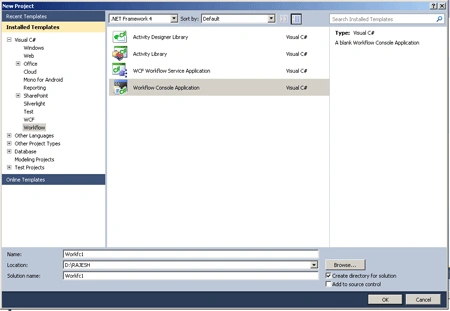
Define the Class.
Step : 2 Goto Solution Explorer and right-click.
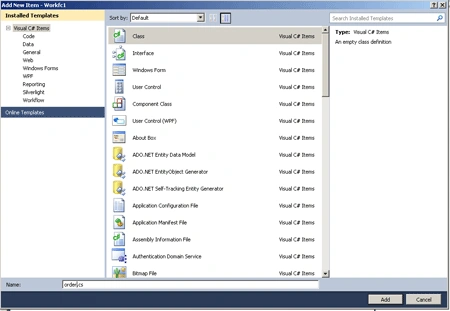
- Select Add->NewItem->Class.
- Select Class template and specify the name as order.cs.
- Click Add option.
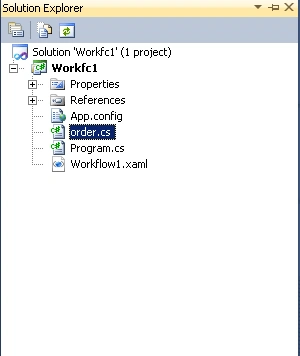
Step : 3 Go to Solution Explorer and see.
Step : 4 Go to order.cs Class and write a code.
Code :
using
System;
using
System.Collections.Generic;
using
System.Linq;
using
System.Text;
namespace op1
{
public
class OrderItem
{
public int
ID { get; set; }
public int
Quantity { get; set;
}
public string
Code { get; set;
}
public string
Description { get; set;
}
}
public class
order
{
public order()
{
Items = new
List<OrderItem>();
}
public int
orderid { get; set;
}
public string
Description { get; set;
}
public decimal
Weight { get; set;
}
public string
ShippingMethod { get;
set; }
public List<OrderItem>
Items { get; set;
}
}
}
Implementing the Workflow.
Solution template created a Workflow file name Workflow1.xaml.
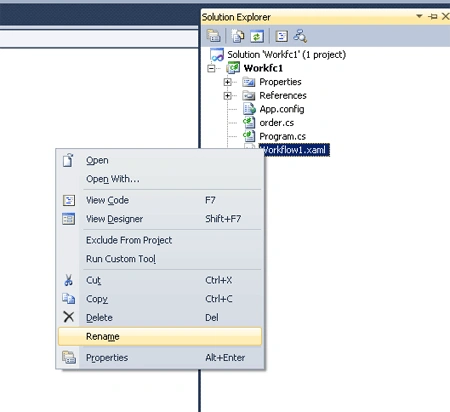
Step : 5 Solution Explorer->right-click
- Select Rename and change a name.
-
Open file and change Class
attribute.
Defining the Arguments.
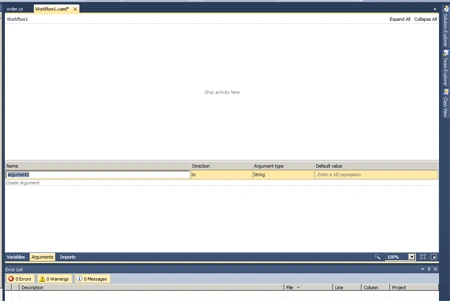
Step : 6 Open the OrderWF.xaml file and define the arguments.
- Click the Arguments button at the bottom left of the Workflow designer.
- Click the Create Argument Link and write Name as Orderinfo.
- Click argument type and select Browser for types.
Step : 7 Designing the Workflow.
- Drag a Sequence ,WriteLine, Assign activity, Switch<T> activity.
- Right -click and write a DisplayName.
Switch<T> activity works like a switch statement in c#. it allows we to execute a sequence activities.
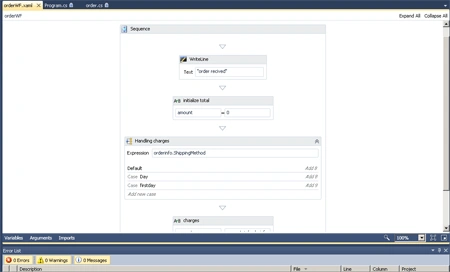
Step : 8 Select Switch<T>->Expression property.
- Write a Expression.
- Click->Add new case link.
- Enter the case value.
Step : 9 Go to Solution Explorer->right-click.
- OrderWF.xaml->ViewCode and write a code.
Code :
<Switch
x:TypeArguments="x:String"
DisplayName="Handling
charges"
Expression="[orderinfo.ShippingMethod]"
sap:VirtualizedContainerService.HintSize="473,256">
<Switch.Default>
<Add
x:TypeArguments="x:Decimal,
x:Decimal, x:Decimal"
DisplayName="Add
8" Left="[Amount]"
Result="[Amount]"
Right="[9.0D]"
/>
</Switch.Default>
<Add
x:TypeArguments="x:Decimal,
x:Decimal, x:Decimal"
x:Key="Day"
DisplayName="Add
8"
sap:VirtualizedContainerService.HintSize="453,100"
Left="[Amount]"
Result="[Amount]"
Right="[18.0D]"
/>
<Add
x:TypeArguments="x:Decimal,
x:Decimal, x:Decimal"
x:Key="firstday"
DisplayName="Add
9"
sap:VirtualizedContainerService.HintSize="453,100"
Left="[Amount]"
Result="[Amount]"
Right="[17.0D]"
/>
</Switch>
<Assign
DisplayName="charges"
sap:VirtualizedContainerService.HintSize="473,57">
<Assign.To>
<OutArgument
x:TypeArguments="x:Decimal">[amount]</OutArgument>
</Assign.To>
<Assign.Value>
<InArgument
x:TypeArguments="x:Decimal">[amount
+ (orderinfo.Weight * 0.8D)]</InArgument>
Step : 10 Drag Assign
activity and set the DisplayName and write a code for value property.
Code :
"The total amount is : "amount.ToString();
Step : 11 Go to program.cs
file and write a code for Workflow.
Code :
using
System;
using
System.Linq;
using
System.Activities;
using
System.Activities.Statements;
using
System.Collections.Generic;
namespace op1
{
class Program
{
static void
Main(string[] args)
{
order myOrder =
new order()
{
orderid = 1,
Description = "Need some stuff",
ShippingMethod = "firstday",
Weight = 90
};
IDictionary<string,
object> input = new
Dictionary<string,
object> { { "orderinfo",
myOrder } };
IDictionary<string,
object> output =
WorkflowInvoker.Invoke(new
orderWF(), input);
decimal amount = (decimal)output["amount"];
Console.WriteLine("Workflow
returned ${0} for my order amount", amount);
Console.WriteLine("Hi");
Console.ReadLine();
}
}
}
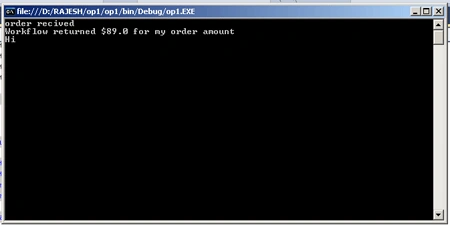
Step : 12 Press F5 and run
it.
rashik rashPosted Mar 15, 2018, 5:02 AM
I declare inarguments for the workflow. I pass the values during invoking but it gives following exception"The following keys from the input dictionary do not map to arguments and must be removed: x. Please note that argument names are case sensitive."Thanks in advance
Arun SharmaPosted Feb 12, 2014, 1:55 AM
not very clear. lot of steps are missing in screenshots and explaination