
Introduction
Enabling the Custom Scripts is allowing the users to run the custom scripts on personal sites and self-service created sites. Without enabling the custom scripts, we can’t embed the script in personal sites using SharePoint designer.
Steps - Follow the below steps to “Enable” the custom script feature.
Step 1 - Open your Office 365 Admin Portal.

Step 2 - Then, select SharePoint from left navigation, as shown below.

Step 3 - On SharePoint admin page, select 'Settings'. It will navigate to Settings page.

Step 4 - Check 'Allow users to run custom scripts on personal sites and self-service created sites', as shown below.
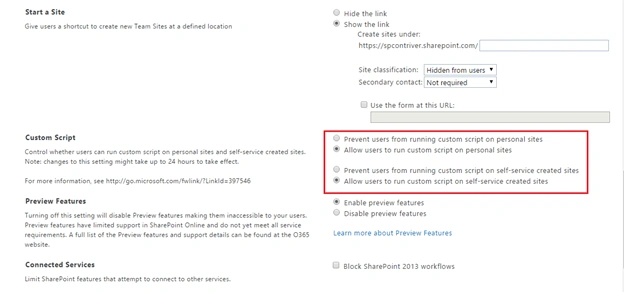
Step 5 - Then, click “OK”. It takes about 24 hours for the changes to take effect.
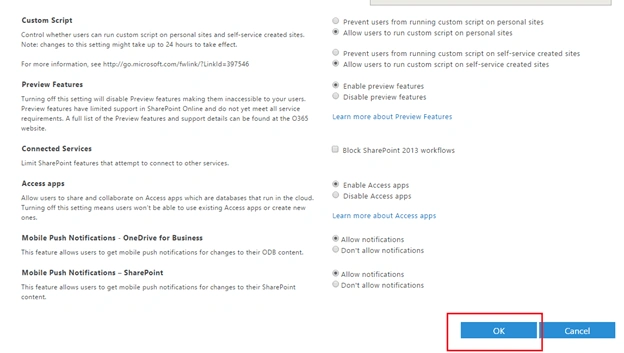
Finally, you can embed the code for personal sites using SharePoint Designer.
Summary - So, we have explored how to enable the custom script for SharePoint Online Portal.
Enable Custom Script In SharePoint Online
In this blog, I would like to share the steps to enable the Custom Script in SharePoint Online portal.


Sravan AmbalaPosted Mar 5, 2020, 6:01 PM EST
HI Kaviya, I want to run a script to hide sharepoint controls like headerbar. Can you please suggest a way for it.
Deepak KumarPosted Feb 24, 2020, 2:36 AM EST
Thanks Kaviya for this great post. I have a query, I have have executed these two commands connect-sposervice -url https://myspsite-admin.sharepoint.com set-SPOsite -Identity https://myspsite.sharepoint.com -DenyAddAndCustomizePages 0 but next day I need to run thses commands again. Is there any job run by SPO to revert thses changes ?
Kaviya BalasubramanianPosted Sep 20, 2016, 9:01 PM EDT
Thanks :)
Tarun DPosted Sep 20, 2016, 9:00 PM EDT
Nice one.