

Introduction
In this blog, you will see as an administrator how to export all the flow details to CSV using PowerShell.
Prerequisites:
Install the following modules.
- Install-Module -Name Microsoft.PowerApps.Administration.PowerShell
- Install-Module -Name Microsoft.PowerApps.PowerShell -AllowClobber
You should have appropriate permissions to retrieve all the required information. Refer the following URL to get more information.
https://docs.microsoft.com/en-us/power-platform/admin/powerapps-powershell#power-automate-commands
PowerShell Script:
Open Notepad and paste the following script. Save the file as script.ps1.
- $currentTime=$(get-date).ToString("yyyyMMddHHmmss");
- $outputFilePath=".\results-"+$currentTime+".csv"
- $resultColl=@()
- # This call opens prompt to collect credentials (Azure Active Directory account and password) used by the commands
- Add-PowerAppsAccount
- # Get all the flows
- write-host -ForegroundColor Magenta "Getting all the flows..."
- $flows=Get-AdminFlow
- # Loop through the flows
- foreach($flow in $flows)
- {
- $result = New-Object PSObject
- $result | Add-Member -MemberType NoteProperty -name "DisplayName" -value $flow.DisplayName
- $result | Add-Member -MemberType NoteProperty -Name "CreatedTime" -value $flow.CreatedTime
- $result | Add-Member -MemberType NoteProperty -Name "LastModifiedTime" -value $flow.LastModifiedTime
- #Add the object with above properties to the Array
- $resultColl += $result
- }
- #Export the result Array to CSV file
- $resultColl | Export-CSV $outputFilePath -NoTypeInformation
Open Windows PowerShell window and navigate to the location where the script file was saved.
Run the following command.
.\script.ps1
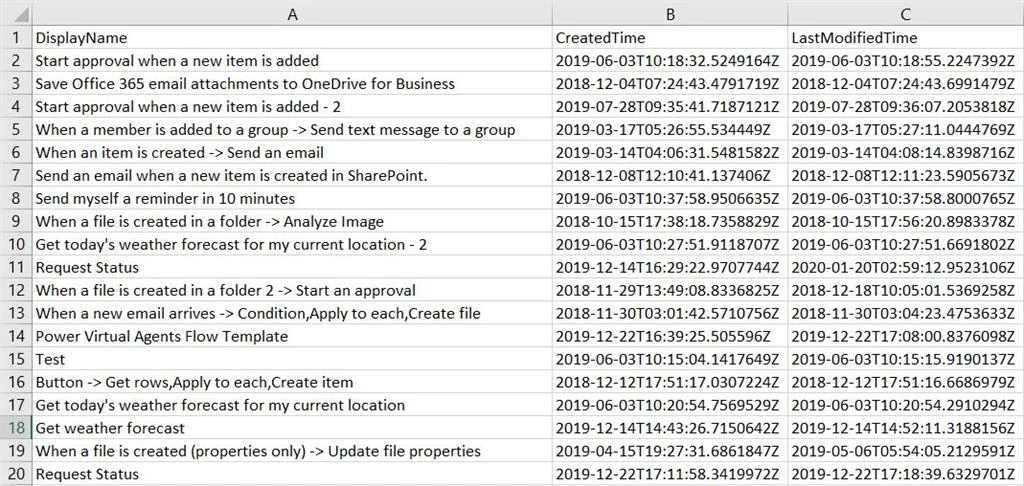
Result:
Output exported to CSV.
Reference:
https://docs.microsoft.com/en-us/power-platform/admin/powerapps-powershell#power-automate-commands
Summary:
In this blog, you saw how to export all the flow details to CSV using PowerShell.
Join the conversation! Your thoughts help the community grow.