
What is docker?
Docker provides a virtualization environment to run containers. In more practical terms it means we can define docker images that run on top of the OS virtualization to provide services. A container is in principle the instance of the image.
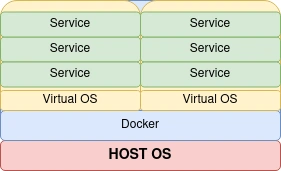
Docker Terminology Definitions
Docker image
A docker image is a set of services defined to run on top of the Virtual Host OS.
Dockerfile
- # define the base image to pull
- FROM docker.elastic.co/elasticsearch/elasticsearch:7.10.2
- # make port 9200 and 9300 available to the world outside this container
- EXPOSE 9200
- EXPOSE 9300
- # build the image file
- $ docker build ./my_elastic_image --tag=mbister/elastic_cust
- # run the custom image file
- $ docker run -d -p 9200:9200 -p 9300:9300 -e "discovery.type=single-node" mbister/elastic_cust
- FROM ubuntu:latest
- # Update the image to the latest packages
- RUN apt-get update && apt-get upgrade -y
Docker compose
- version: '3'
- services:
- elasticsearch:
- image: docker.elastic.co/elasticsearch/elasticsearch:7.10.2
- environment:
- - cluster.name=docker-cluster
- - bootstrap.memory_lock=true
- - "ES_JAVA_OPTS=-Xms512m -Xmx512m"
- ulimits:
- memlock:
- soft: -1
- hard: -1
- ports:
- - "9200:9200"
- kibana:
- image: docker.elastic.co/kibana/kibana:7.10.2
- ports:
- - "5601:5601"
We can run the above file by;
- # run the docker-compose file in the background (-d)
- $ docker-compose up -d
- # specifying the docker-compose file
- $ docker-compose -f <compose_file> up -d
We can now access Kibana on http://localhost:5601/ and ES on http://localhost:9200/. To shutdown we use the down option;
- $ docker-compose down
If you just want to fire up a container with out much fuzz;
- $ sudo docker pull docker.elastic.co/elasticsearch/elasticsearch:7.10.2
- $ sudo docker run -p 9200:9200 -p 9300:9300 -e "discovery.type=single-node" --name "es_demo_app" docker.elastic.co/elasticsearch/elasticsearch:7.10.2
The 'e' flag sets elastic to a single node mode.
The --name flag is used to give it a handy name and it will ensure we start the same container with data persistency.
Start by using the name.
- #start
- $ docker container run es_demo_app
- #stop
- $ docker container stop es_demo_app
List containers
- $ docker container ls
List running containers
- $ docker container ps
Tricks and treats.
A handy way of removing all containers
- #-a all -q ids
- $ docker container rm $(docker container ls -a -q)
A super handy little trick if your container crashes or causes other issues, you can access the terminal on the docker image:
- $ docker exec -it <containerid> /bin/bash
Susan MurrayPosted Apr 1, 2021, 2:59 PM
This was cool! thanks