
Usually, Azure SDK for .NET should provide the APIs to register an Azure AD application programmatically in C#. But as of February 2019, the facility is only available using PowerShell and not using C#. The C# APIs are under consideration or development. Hence, we will follow an approach of running a PowerShell script in the C# application to achieve our goal.
Prerequisites
- Visual Studio 2017 (I am using the 2017 version; we can also use a lower version).
- PowerShell v5.0 or higher version.
- Azure Admin account
We can check the PowerShell version by running the below command on PowerShell.
$PSVersionTable.PSVersion
There are 3 steps in this solution.
- Create a C# application
- Add NuGet packages to our project
- Code to run PowerShell script in C#
Step 1 - Create a C# Application
- Open Visual Studio as Administrator.
- Create a console app (.NET Framework).
- Enter AppRegistration in the name section and click OK.
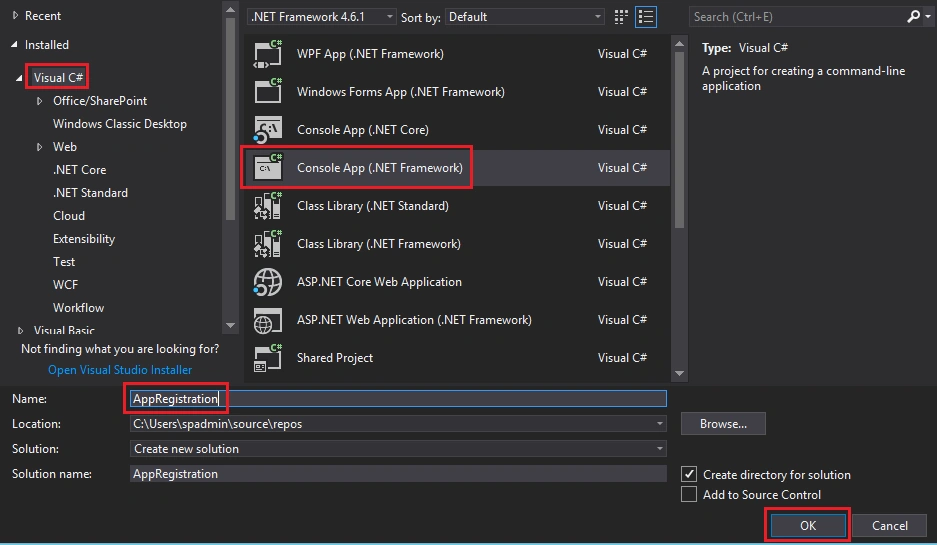
Step 2 - Add NuGet packages to our project
Add a NuGet package called System.Management.Automation.dll created by the Microsoft Corporation. This package will allow us to run the PowerShell scripts from C# applications.

We also need to add the Newtonsoft.Json package created by James Newton-King which will allow us to convert PowerShell Objects into JSON Objects. We can not directly convert a PowerShell Object to C# Object; so we need to first convert it into JSON and then, we can convert it into C# Object.

Step 3 - C# code to run PowerShell commands
Add the reference namespaces in the import section of your Program.cs file.
- using System.Management.Automation.Runspaces;
- using System.Management.Automation;
- using Newtonsoft.Json;
- string Username = “<User name of Azure account>”;
- string Password = “<Password of Azure account>”;
- string Appname = “<Name using which we want to register an Azure Application>”;
- PowerShell powershell = PowerShell.Create();
- Runspace runspace = RunspaceFactory.CreateRunspace();
- runspace.Open();
- powershell.Runspace = runspace;
- powershell.AddScript("Install-Module -Name AzureADPreview -Force; \n");
- powershell.AddScript("Import-Module -Name AzureADPreview -Verbose \n");
- powershell.AddScript("$username = \""+Username +"\"; \n" +
- "$password = convertTo-securestring '"+ Password + "' -AsPlainText -Force; \n" +
- "$cred = new-object -typename System.Management.Automation.PSCredential -argumentlist $username, $password; \n" +
- "Connect-AzureAD -Credential $cred; \n" +
- "New-AzureADApplication -DisplayName '"+Appname+"' -ReplyUrls 'https://AppRegisterationDemo.contoso.com' -PublicClient $true");
- try
- {
- var result = powershell.Invoke();
- if (powershell.Streams.Error.Count > 0)
- {
- foreach (var err in powershell.Streams.Error.ToString())
- {
- Console.WriteLine(err);
- }
- return "0";
- }
- else
- {
- Console.WriteLine(result);
- int i = 0;
- foreach (var outputItem in result)
- {
- if (outputItem != null)
- {
- Console.WriteLine(outputItem.BaseObject.GetType());
- var jsonData =
- JsonConvert.SerializeObject(outputItem.Properties.ToDictionary(k => k.Name, v => v.Value), new JsonSerializerSettings()
- {
- PreserveReferencesHandling =
- PreserveReferencesHandling.Objects,
- Formatting = Formatting.Indented
- });
- if (i == 1)
- {
- var deseialized = JsonConvert.DeserializeObject<MyInfo>(jsonData);
- appID = deseialized.AppId;
- ObjectId = deseialized.ObjectId;
- Console.WriteLine(appID);
- }
- i++;
- }
- }
- }
- runspace.Close();
- Console.WriteLine("App Created Successfully");
- return "1";
- }
- catch (Exception ex)
- {
- return "0";
- }
We also need to add one class named MyInfo in which we will save the Object Id and Application Id.
- public class MyInfo
- {
- public string AppId { get; set; }
- public string ObjectId { get; set; }
- }
After all these changes, our file will look like following.
- using System;
- using System.Collections.Generic;
- using System.Linq;
- using System.Text;
- using System.Collections.ObjectModel;
- using Newtonsoft.Json;
- using System.Management.Automation.Runspaces;
- namespace AppRegistraion
- {
- public class MyInfo
- {
- public string AppId { get; set; }
- public string ObjectId { get; set; }
- }
- class Program
- {
- public string appID = "";
- public string ObjectId = "";
- static void Main(string[] args)
- {
- string Username = “<User name of Azure account>”;
- string Password = “<Password of Azure account>”;
- string Appname = “<Name using which we want to register an Azure Application>”;
- PowerShell powershell = PowerShell.Create();
- Runspace runspace = RunspaceFactory.CreateRunspace();
- runspace.Open();
- powershell.Runspace = runspace;
- powershell.AddScript("Install-Module -Name AzureADPreview -Force; \n");
- powershell.AddScript("Import-Module -Name AzureADPreview -Verbose \n");
- powershell.AddScript("$username = \""+Username +"\"; \n" +
- "$password = convertTo-securestring '"+ Password + "' -AsPlainText -Force; \n" +
- "$cred = new-object -typename System.Management.Automation.PSCredential -argumentlist $username, $password; \n" +
- "Connect-AzureAD -Credential $cred; \n" +
- "New-AzureADApplication -DisplayName '"+Appname+"' -ReplyUrls 'https://AppRegisterationDemo.contoso.com' -PublicClient $true");
- try
- {
- var result = powershell.Invoke();
- if (powershell.Streams.Error.Count > 0)
- {
- foreach (var err in powershell.Streams.Error.ToString())
- {
- Console.WriteLine(err);
- }
- return "0";
- }
- else
- {
- Console.WriteLine(result);
- int i = 0;
- foreach (var outputItem in result)
- {
- if (outputItem != null)
- {
- Console.WriteLine(outputItem.BaseObject.GetType());
- var jsonData = JsonConvert.SerializeObject(outputItem.Properties.ToDictionary(k => k.Name, v => v.Value), new JsonSerializerSettings()
- {
- PreserveReferencesHandling = PreserveReferencesHandling.Objects,
- Formatting = Formatting.Indented
- });
- if (i == 1)
- {
- var deseialized = JsonConvert.DeserializeObject<MyInfo>(jsonData);
- appID = deseialized.AppId;
- ObjectId = deseialized.ObjectId;
- Console.WriteLine(appID);
- }
- i++;
- }
- }
- }
- runspace.Close();
- Console.WriteLine("App Created Successfully");
- return "1";
- }
- catch (Exception ex)
- {
- return "0";
- }
- }
- }
Code Explanation
- In the above code, first, we are creating PowerShell object and a runspace in which the PowerShell script will run.
- In this runspace, we are adding scripts using the Addscript() method.
- In PowerShell scripts, we are first installing AzureADPreview module and importing it to our runspace. Then, we are connecting to Azure AD using Connect-AzureAD command.
- Using New-AzureADApplication command, we are creating an Azure AD application.
- Now, we have invoked the commands to run using the Invoke() method of PowerShell object.
- We need to check for errors if any using powershell.Streams.Error.
- We want an Object ID and Application ID for the application we have created in Azure AD. To get both of these IDs, we have converted the PowerShell object into a JSON object and JSON object into a C# object using JsonConvert.SerializeObject method and JsonConvert.DeserializeObject() method respectively.
Summary
Thus, we can automate the application registration using C# code and PowerShell. In the next blog, we will see how to add and grant permissions programatically.
sandeep gangwarPosted Aug 21, 2019, 5:23 AM
I am trying this code in .net core its not working.Giving missing 'System.Windows.Forms, error.Could you please me ?