

In this blog, I am going to describe and walk through the method that can be used to retrieve/fetch files from Azure Storage programmatically. Let's jump right into it.
Azure Files
Azure Files offers fully managed file shares in the cloud that are accessible via the industry standard Server Message Block (SMB) protocol or Network File System (NFS) protocol. Some of the common applications of Azure Files would include serving as a replacement for on-premises file servers, persistent volumes for stateful containers, storing application logs, migrating applications, etc.
Pre-Requisites
We need the following for the code covered in this article to work,
- VS Code
- .Net Core
- Azure Storage SAS Connection String
- You need to create and obtain this from your storage account in your subscription using the Azure Portal
- Go to Azure Portal. Set your subscription
- Navigate to your resource group which is hosting the storage account
- Click on Storage Accounts and go to the target storage account for this activity
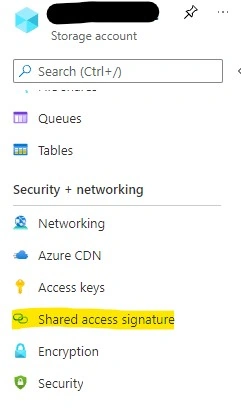
- Click on the "Shared Access Signature" option under the Security + networking section on the left navigation
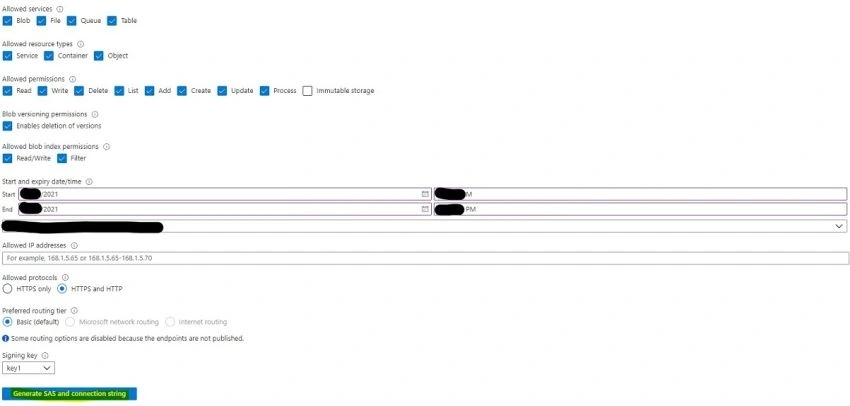
- Complete all the requested settings and select the duration of validity for the SAS connection that will be created
- Click on "Generate SAS and connection string"
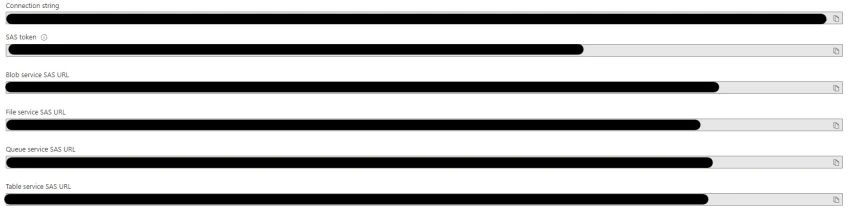
- Copy the connection string specified in "Connection string" and save it for usage in the code
- You need to create and obtain this from your storage account in your subscription using the Azure Portal
Implementation
Assuming that all the pre-requisites are now ready, we will begin the actual code implementation to connect to our Azure Files and collect the required files/folder details from there using a C# (.Net Core) based code.
Step 1 - Create the Console App
- Launch VS Code and open the folder where you want to create the console app
- Open the Terminal in Visual Studio Code by selecting View > Terminal from the main menu
- In the terminal, type the following command,
Code
dotnet new console --framework net5.0 -
This will create the Hello World console application. We can remove the below line from Program.cs file
C#//Console.WriteLine("Hello World!");
Step 2 - Add the required packages
- Add Microsoft.Azure.Storage
Code
dotnet add package Microsoft.Azure.Storage - Add Microsoft.Azure.Storage.File
Code
dotnet add package Microsoft.Azure.Storage.File
Step 3
Create the method GetAllFilesFromDirectory.
private static List<IListFileItem> GetAllFilesFromDirectory(CloudFileDirectory directory)
{
    List<IListFileItem> results = new List<IListFileItem>();
    FileContinuationToken token = null;
    do
    {
       FileResultSegment resultSegment = directory.ListFilesAndDirectoriesSegmentedAsync(token).GetAwaiter().GetResult();
       token = resultSegment.ContinuationToken;
    }
    while (token != null);
    return results;
}
Step 4
Include the below references in Program.cs file.
using System;
using System.Collections.Generic;
using Microsoft.Azure.Storage.File;
using Microsoft.Azure.Storage;
Step 5
Modify the Main in Program.cs file.
static void Main(string[] args) {
    string connectionString = @ "your-SAS-connection-string-saved-in-pre-requisites";
    CloudStorageAccount cloudStorageAccount = CloudStorageAccount.Parse(connectionString);
    CloudFileClient cloudFileClient = cloudStorageAccount.CreateCloudFileClient();
    CloudFileShare cloudFileShare = cloudFileClient.GetShareReference("your-file-share-name");
    CloudFileDirectory rootDirectory = cloudFileShare.GetRootDirectoryReference();
    CloudFileDirectory fileDirectory = rootDirectory.GetDirectoryReference("your-file-share-folder-name");
    List < IListFileItem > fileList = GetAllFilesFromDirectory(fileDirectory);
    Console.WriteLine("File Count in folder " + cloudFileShare.Name + " is : " + fileList.Count);
    //Console.WriteLine("Hello World!");
}
Now our code is ready for execution. When you run this console now, you should see in output file share name and the count of files. We are just printing out the number of files within our Azure File Share as part of this code but you can modify and use the collection of files that we have obtained and stored in the list (fileList object) returned by the program execution based on your business needs and requirements.
Happy Coding!
NitzPosted Jun 9, 2022, 7:33 AM
You missed to fill the list object (Result) in step 3