

Introduction
In this blog, I demonstrate running the .sql files from the command prompt.
Step 1
Create the table using the Sql management studio.
SQL
CREATE TABLE tbl_Student
(
ID INT IDENTITY(1,1) PRIMARY KEY,
Fname VARCHAR(100),
Lname VARCHAR(100),
Salary INT
)
Step 2
SQL
INSERT INTO tbl_Student (Fname,LName,Salary) VALUES('Rakesh','Kalluri',10000)
INSERT INTO tbl_Student (Fname,LName,Salary) VALUES('Srujan','Kumar',15000)
INSERT INTO tbl_Student (Fname,LName,Salary) VALUES('Raju','Bhai',17000)
INSERT INTO tbl_Student (Fname,LName,Salary) VALUES('Dany','Mark',18000)
The above script file is saved in Desktop with the file name Student.sql. The file is saved on the desktop now we need to run the file from the command prompt.
Step 3
Go to run - -> Type CMD -? Click OK
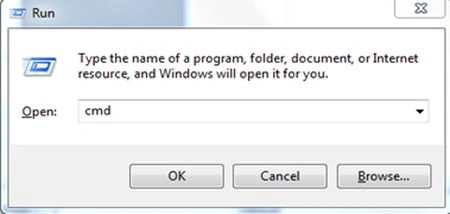
Then command prompt will be opened.
Step 4
Syntax 1
SQL
sqlcmd -S [Servername] -d[Databasename] -i [Filepath]Syntax 2 (For SQL Authentication)
SQL
sqlcmd -S[Servername] -U[Username] -P[Password] -d[Databasename] -i[Filepath]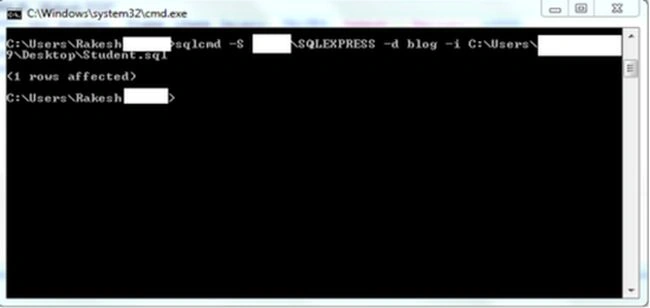
After that, check the table to see how many rows were affected.
For more information about Sqlcmd.
Type sqlcmd -? in the command prompt.
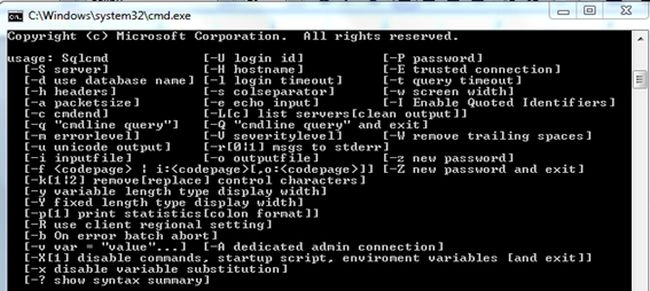
Summary
This blog taught us how to Run .Sql File from Command Prompt.
Join the conversation! Your thoughts help the community grow.