
Here are the steps:
Click Start, navigate through control panel.
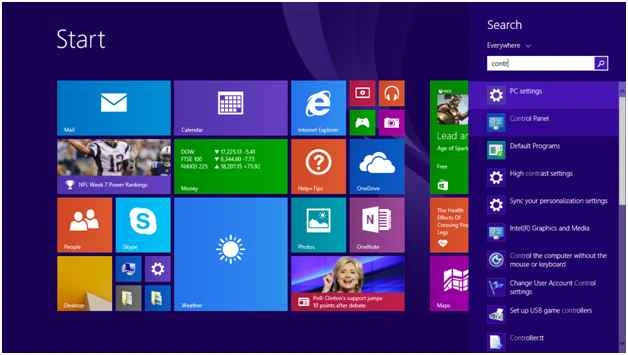
Click Programs

Under Program and features click Turn windows features on or off.
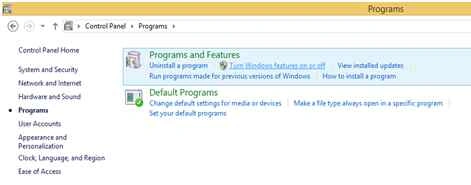
Enable Hyper-v and click OK.
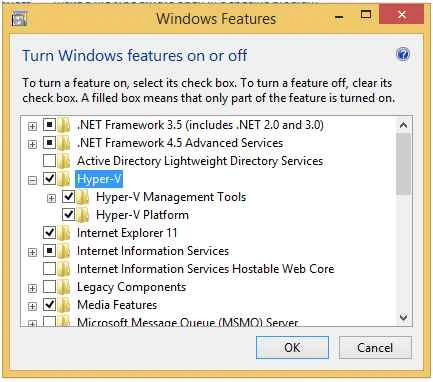
Now its installing hyper-v feature on windows.

Click Restart now to enable hyper-v feature.
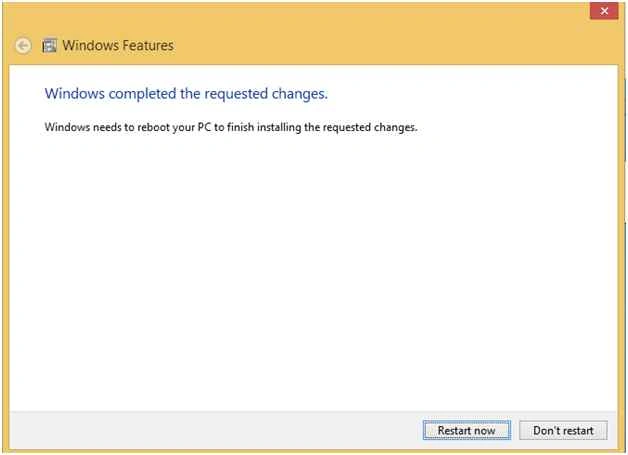
After successful restart windows features configured successfully.
Click Start, then search Hyper-V.
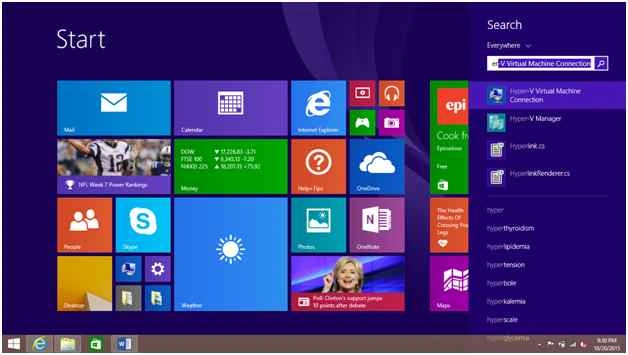
Now I am going to configure the virtual machine using Hyper-V.
Open Hyper-V Manager.
Click New, then Virtual Machine.
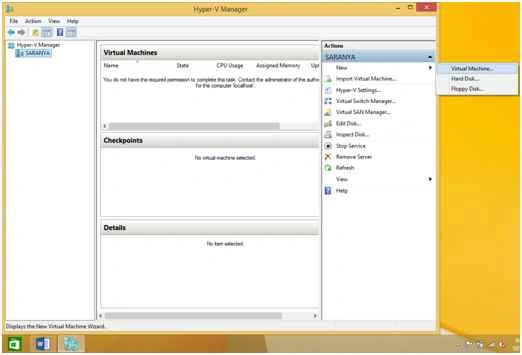
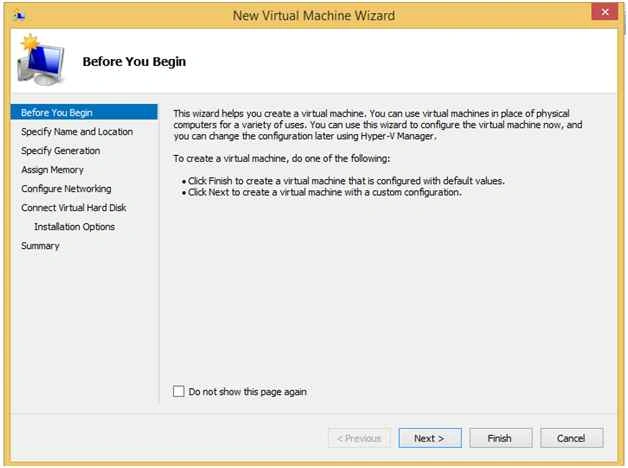
On this popup click next to create a virtual machine.
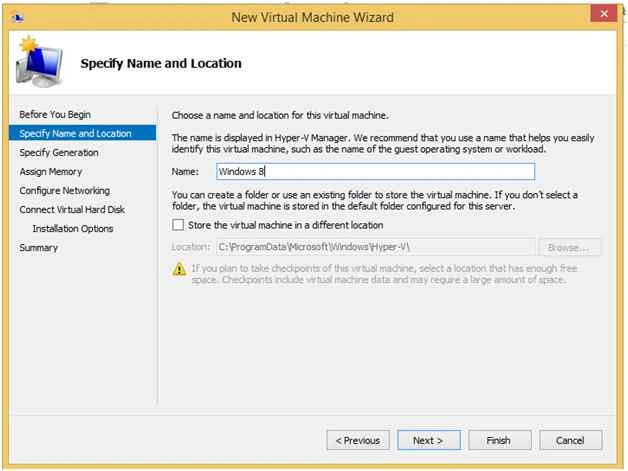
Provide the name for the virtual machine.
Click Generation 1 as default and click Next.
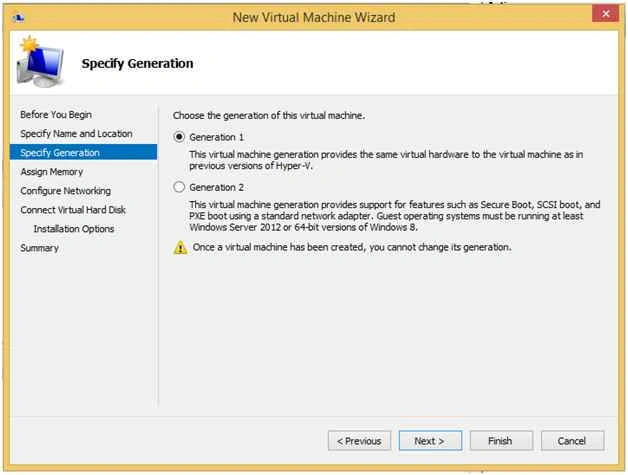
Provide the memory for the virtual machine “I assigned 2GB of RAM”.
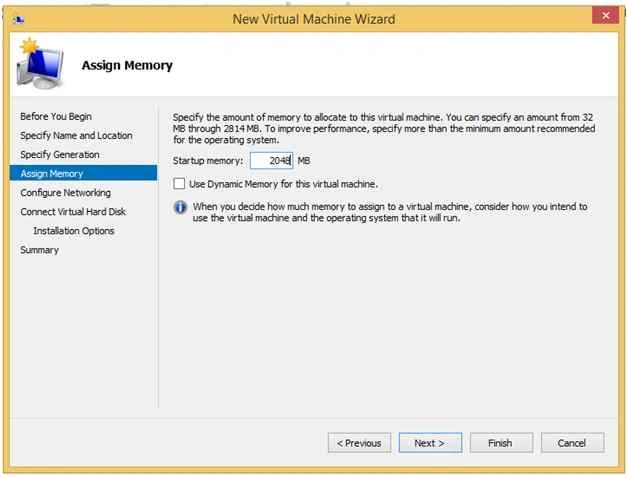
Click Next.
Configuring Ethernet adapter.
Select the path for creating a virtual disk and provide the size of virtual harddisk.
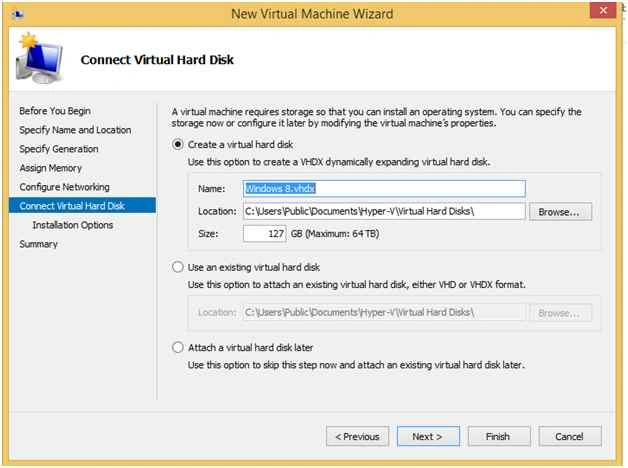
Click next.
In installation option I selected “Install an operating system later”.
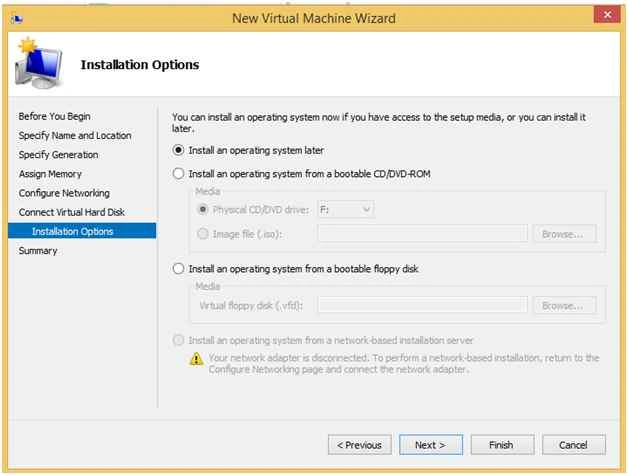
You can also select “Install operating system from bootable CD/DVD-ROM”.
Click next to complete the configuration.
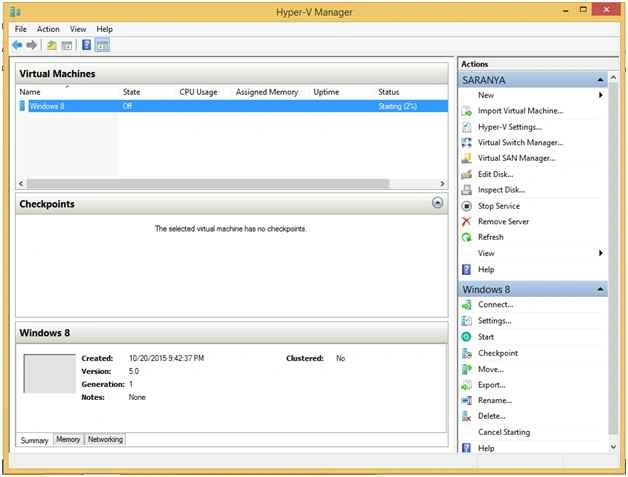
So the virtual machine configured successfully.
You can use this windows feature @ free of cost instead of VMware.
Click Programs
Under Program and features click Turn windows features on or off.
Enable Hyper-v and click OK.
Now its installing hyper-v feature on windows.
Click Restart now to enable hyper-v feature.
After successful restart windows features configured successfully.
Click Start, then search Hyper-V.
Now I am going to configure the virtual machine using Hyper-V.
Open Hyper-V Manager.
Click New, then Virtual Machine.
On this popup click next to create a virtual machine.
Provide the name for the virtual machine.
Click Generation 1 as default and click Next.
Provide the memory for the virtual machine “I assigned 2GB of RAM”.
Click Next.
Configuring Ethernet adapter.
Select the path for creating a virtual disk and provide the size of virtual harddisk.
Click next.
In installation option I selected “Install an operating system later”.
You can also select “Install operating system from bootable CD/DVD-ROM”.
Click next to complete the configuration.
So the virtual machine configured successfully.
You can use this windows feature @ free of cost instead of VMware.


Vinodh NarayananPosted Oct 25, 2015, 8:09 AM EDT
Santhakumar Munuswamy Thanks a lot sir
Santhakumar MunuswamyPosted Oct 25, 2015, 7:48 AM EDT
Good one
Vinodh NarayananPosted Oct 20, 2015, 10:12 PM EDT
Sibeesh Venu Thanks a lot
Vinodh NarayananPosted Oct 20, 2015, 10:11 PM EDT
Nilesh Jadav Ya sure...
Nilesh JadavPosted Oct 20, 2015, 9:59 PM EDT
Have you try to install any OS ?? By the way Nice one !!
Sibeesh VenuTOP 100Posted Oct 20, 2015, 9:10 PM EDT
Nice Share
Vinodh NarayananPosted Oct 20, 2015, 8:59 PM EDT
Harshad Pansuriya Thanks a lot
Vinodh NarayananPosted Oct 20, 2015, 8:58 PM EDT
Priyaranjan K S thank you
Vinodh NarayananPosted Oct 20, 2015, 8:58 PM EDT
Mohammed Ibrahim Thanks
Harshad PansuriyaPosted Oct 20, 2015, 7:59 PM EDT
Nice one
Mohammed IbrahimPosted Oct 20, 2015, 7:06 PM EDT
nice
Priyaranjan K STOP 100Posted Oct 20, 2015, 5:45 PM EDT
Nice walkthrough ...