
Introduction
In this article, you will see how to find the XML output on the self-hosting URL. Here first we self-host the application on the URL "http://localhost:8080" and then copy this URL to the browser and add the "api/items" for showing the API controller value. Here we need the "Microsoft ASP. Net Web API Self Host" package.
Use the following procedure to create the sample application.
Step 1
First we create the console application.
- Start Visual Studio 2012.
- Select "New Project" from the Start page.
- In the Templates, select "Installed templates" -> "Visual C#".
- Select "Console application" and change the name to "Hosting".
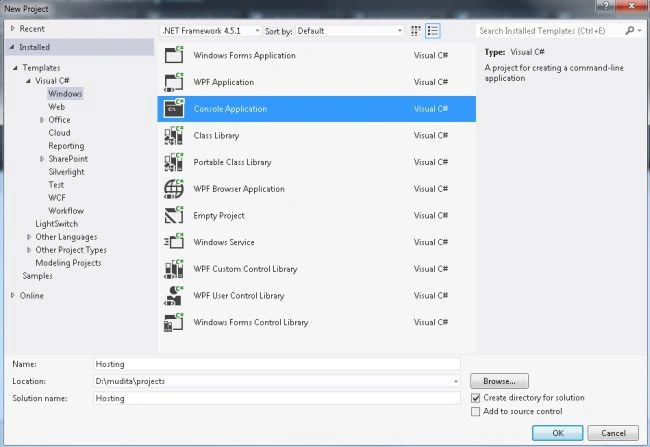
- Click on the "OK" button.
Set the ".Net Framework 4".
- In the "Solution Explorer" right-click on the project.
- Select "Properties".
- In the "Properties windows" select the ".Net Framework 4" from the Drop Down List of Target Folder.
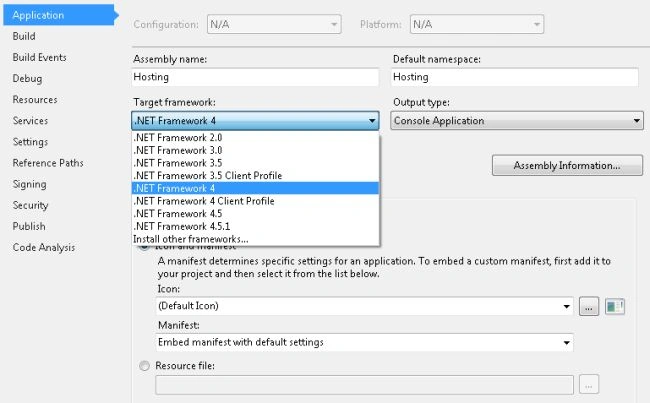
- For applying the change open a prompt and click on "Yes".
Step 3
We check that the Nuget Package Manager is installed or not.
- Go to the "Tools" menu.
- If there is a "Library Package Manager" visible then the "Nuget Package Manager" is installed.
- If "Library Package Manager" is not visible then it is not installed.
For installation of "Nuget Package Manager":
- Go to the "Tools" menu then select "Extension and Updates".
- In the "Extension and Updates" dialog box select "Online".
- In the search box type "nuget package manager".
- Select the "Nuget Package Manager" and Install it.
Step 4
Now we install the Web API Self-Host Package.
- Go to the "Tools" menu then select "Library Package Manager" -> "Manages Nuget Packages For Solution".
- In the "Nuget Package Manager" dialog box type "Microsoft.AspNet.WebApi.SelfHost".
- Select the ASP.NET Web API Self Host and click "Install".
Step 5
Create the Model class:
- In the "Solution Explorer".
- Right-click on the project then select "Hosting" -> "Add" -> "Class".
- Change the name of the class to "Item".
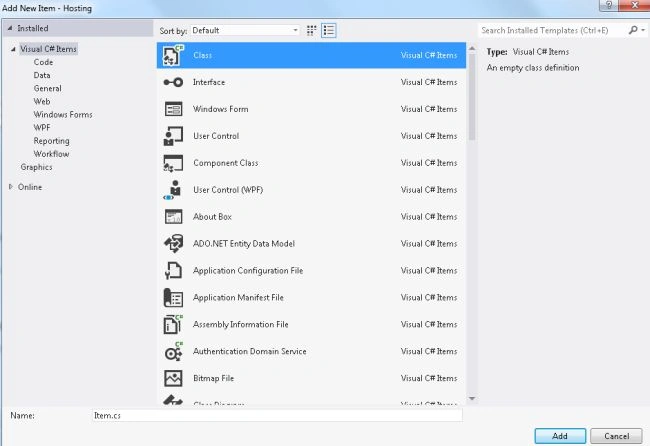
- Click on the "OK" button.
Add the following code:
- using System;
- using System.Collections.Generic;
- using System.Linq;
- using System.Text;
- using System.Threading.Tasks;
- namespace Hosting
- {
- public class Item
- {
- public int Id { get; set; }
- public string Name { get; set; }
- public string Category { get; set; }
- }
- }
Step 6
To add a Controller class:
- In the "Solution Explorer".
- Right-click on the project then select "Hosting" -> "Add" -> "Class".
- Change the name of the class to "ItemsController".
- Click on the "OK" button.
Add the Following Code:
- using System;
- using System.Collections.Generic;
- using System.Linq;
- using System.Net;
- using System.Text;
- using System.Web.Http;
- namespace Hosting
- {
- public class ItemsController : ApiController
- {
- Item[] items = new Item[]
- {
- new Item { Id = 1, Name = "Apple", Category = "Fruit" },
- new Item{ Id = 2, Name = "Tomato", Category = "vasitable" },
- new Item{ Id = 3, Name = "T-Shirt", Category = "cloths" }
- };
- public IEnumerable<Item> GetAllItems()
- {
- return items;
- }
- public Item GetItemById(int id)
- {
- var item = items.FirstOrDefault((i) => i.Id == id);
- if (item == null)
- {
- throw new HttpResponseException(HttpStatusCode.NotFound);
- }
- return item;
- }
- public IEnumerable<Item> GetItemsByCategory(string category)
- {
- return items.Where(i => string.Equals(i.Category, category,
- StringComparison.OrdinalIgnoreCase));
- }
- }
- }
Step 7
Now we host our Web API.
Open the "Program.cs" file and add the following code into this file:
- using System;
- using System.Collections.Generic;
- using System.Linq;
- using System.Text;
- using System.Threading.Tasks;
- using System.Web.Http;
- using System.Web.Http.SelfHost;
- namespace Hosting
- {
- class Program
- {
- static void Main(string[] args)
- {
- var config = new HttpSelfHostConfiguration("http://localhost:8080");
- config.Routes.MapHttpRoute(
- "API Default", "api/{controller}/{id}",
- new { id = RouteParameter.Optional });
- using (HttpSelfHostServer server = new HttpSelfHostServer(config))
- {
- server.OpenAsync().Wait();
- Console.WriteLine("Host The Application on Given URL");
- Console.ReadLine();
- }
- }
- }
- }
Step 8
Execute the application. It will show a Console output screen for displaying a message.
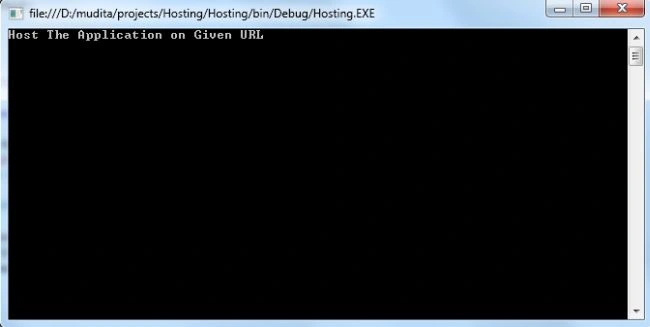
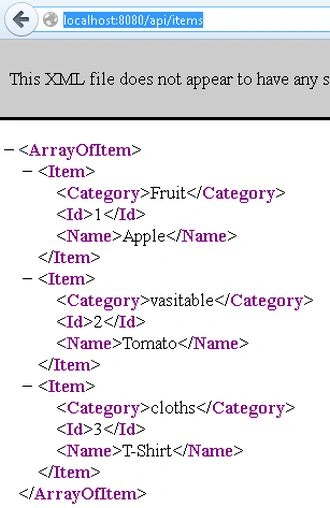
Now copy the URL and paste it into the browser and change it to "http://localhost:8080/api/items".
The output will be as:

Join the conversation! Your thoughts help the community grow.