
For hosting a website on IIS, follow these steps:
- IIS Installation
- Enable ASP.NET features on IIS
- Install .NET framework
- Hosting a Site
- Database connectivity
- Conclusion
Step 1: IIS Installation.
IIS is a protocol server which is used to host a website on server. IIS stands for Internet Information services.
To install IIS start with windows start icon -> Control panel, Programs and Features , then click Turn Windows features on or off.

Figure 1
After that click windows features on or off, the Windows Features pop up window opens.
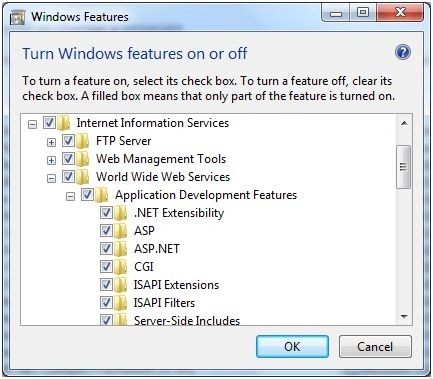
Figure 2: Windows features
Step 2: Enable ASP.NET Features on IIS
Expand the Application Development Features in that enable the ASP.NET application features such as:
- .NET Extensibility
- ASP
- ASP.NET
- CGI
- ISAPI Extensions
- ISAPI Filters
- Server-Side Includes.
After enabling the ASP.NET features on IIS hit Ok. The IIS server Manager is successfully enabled in start control list.
Step 3: Install .NET Framework.
Now we have to install .NET framework version in our system because the aspx web page needs to run the platform of .net framework.
Here is the download link for .NET Frame work 4.5 click Here.
On this page hit download button and the following window will open then hit Save File.

Figure 3: Setup.exe
Then the file is saved, click the saved exe file and the extract field process window will appear. The file extraction process completed and the following authorization window will appear, check I agree box then hit Install. Then the download and installation progress will appear in the same window.
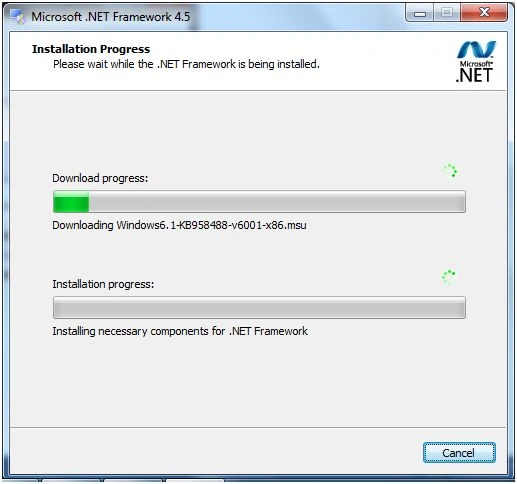
Figure 4: Installation Process
After the downloading and Installation progress are completed hit the finish button to complete the Installation. Now your IIS is ready to host ASP.NET web sites.
Step 4: Hosting a site.
Select the website folder which one you want to host it into your IIS.
Start IIS server, in that click site, right click on site and then choose add web site
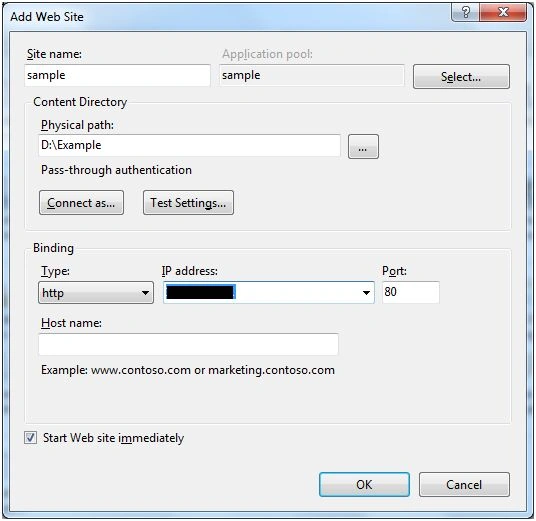
Figure 5: Add web site window
Add site name, path of that site folder, then assign the IP address or enter the host name of that particular site like www.example.com and then hit ok.
After the process is completed your site is placed under default web site under Sites.
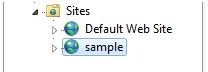
Figure 6
At the same time there is one application pool is automatically created while adding the web site.
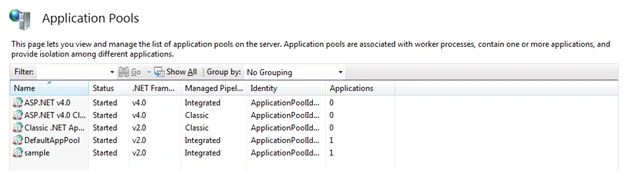
Figure 7: Application Pool
Here I have a simple web page like default.aspx in your website there is a database connectivity available which means then you have to follow the steps to add the database into application pool.
Step 5: Database Connectivity
In the application pool panel right click the application name like sample, then choose Advanced Settings option.
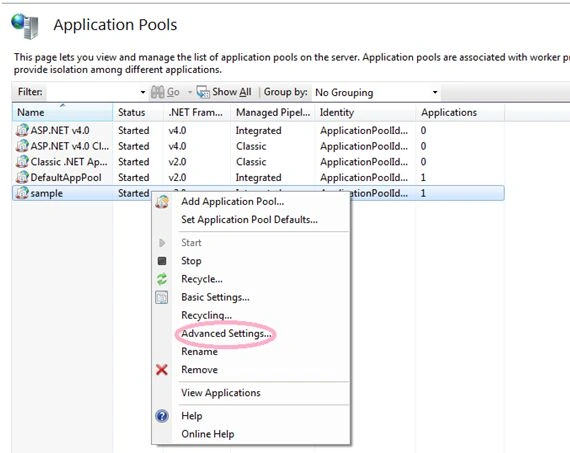
Figure 8: Advanced settings Option
The settings window will open in that window select .net framework version like v2.0. Based on our pages it automatically chooses the framework version. Then select managed pipeline mode is Integrated or Classic.
Then in the process model tab select Identity then choose the following:
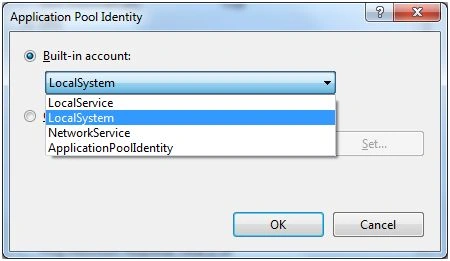
Figure 9: Pool Identity
Select LocalSystem because our database connectivity is placed in our system SQL Server so we need to choose LocalSystem then only our database is connected. Then hit OK to close the window.
Step 6: Conclusion.
In the Actions panel choose Browse link
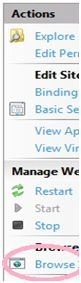
Figure 10: Browse
Now your site will appear in the browser like the following figure:
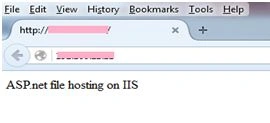
Figure 11: Browser
Now your application is ready to be browsed on any other system through domain name (Globally) or locally connected LAN network (IP Address) computers.


Dharmendra Kumar PanditPosted Sep 22, 2019, 1:01 AM EDT
Thank you nice article very helpful.......
Manimekalai GanesanPosted Jun 7, 2016, 1:34 AM EDT
Thank you prasanna
Prasanna MuraliPosted May 20, 2016, 5:15 PM EDT
Nice one...
Manimekalai GanesanPosted Apr 7, 2016, 9:57 PM EDT
Thank you Gowtham sir
Gowtham RajamanickamTOP 100Posted Apr 7, 2016, 12:27 AM EDT
Good Show.
Manimekalai GanesanPosted Mar 9, 2016, 6:16 PM EST
Thank u Shailesh
Shailesh UkePosted Mar 8, 2016, 8:05 PM EST
Nice One..
Nandha KumarPosted Mar 8, 2016, 5:50 PM EST
Nice
Vignesh ManiTOP 100Posted Mar 7, 2016, 10:41 PM EST
Nice
Prashant VermaPosted Mar 7, 2016, 10:14 PM EST
nice
Atul RawatPosted Mar 7, 2016, 9:23 PM EST
nice article sir..
Manimekalai GanesanPosted Mar 7, 2016, 6:30 PM EST
Thanks for you all
sreenivasa kPosted Mar 7, 2016, 8:35 AM EST
nice
Ankur MistryTOP 100Posted Mar 7, 2016, 7:12 AM EST
Nice share
Asfend YarPosted Mar 7, 2016, 7:04 AM EST
nice
Md Almajid KoushikPosted Mar 7, 2016, 6:09 AM EST
Great, thanks for share.....
Saillesh PawarPosted Mar 7, 2016, 5:47 AM EST
Great One. Important things to note down before deploying application on IIS Server.
kalu singh raoPosted Mar 7, 2016, 5:34 AM EST
NIce...
Mohammed IbrahimPosted Mar 7, 2016, 3:51 AM EST
nice
Humayun Kabir MamunPosted Mar 7, 2016, 2:56 AM EST
Nice...