
Introduction
To create a Group Policy Object (GPO) to distribute the software package, follow these steps: Start the Active Directory Users and Computers snap-in by clicking Start, pointing to Administrative Tools, and then clicking Active Directory Users and Computers.
I will provide step by step to install Deploy Software via GPO Windows server with screenshots below.
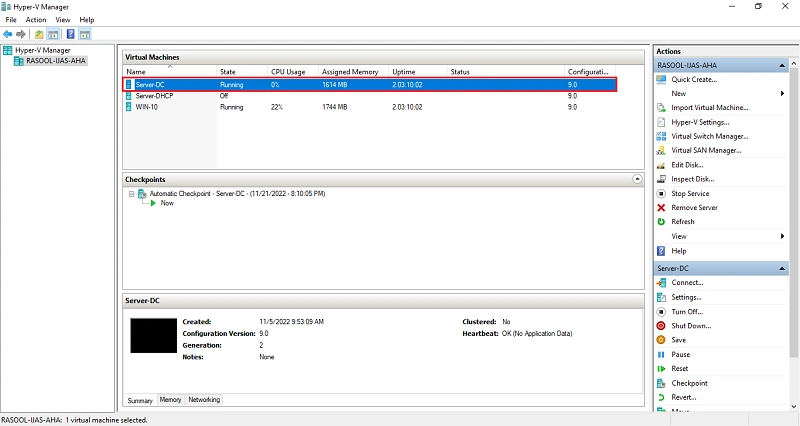
Go to Hyper-V Manager, select the install Server-DC
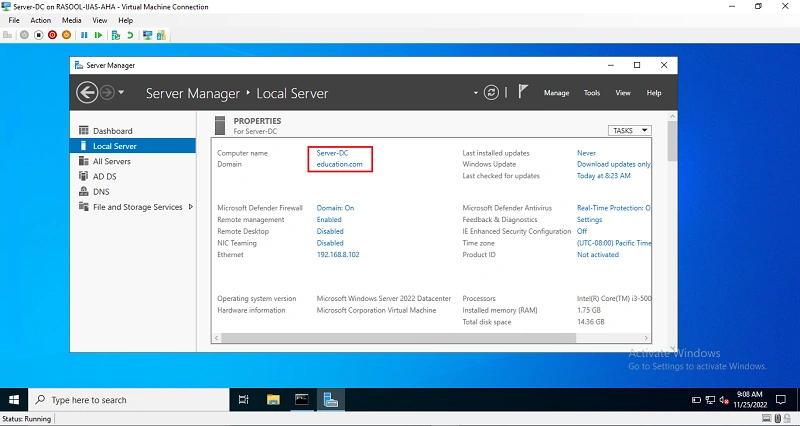
gpmc.msc
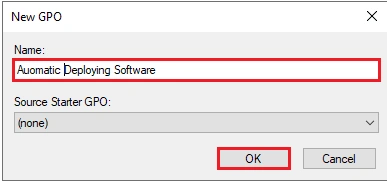
Next Create the New Group policy object by following step. Click Ok
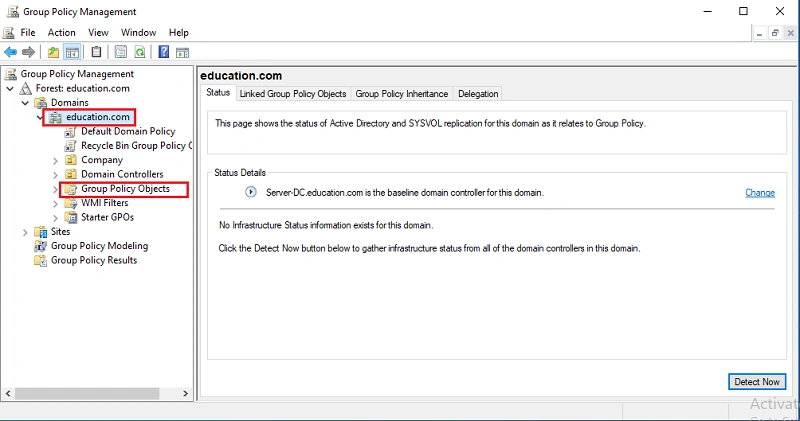
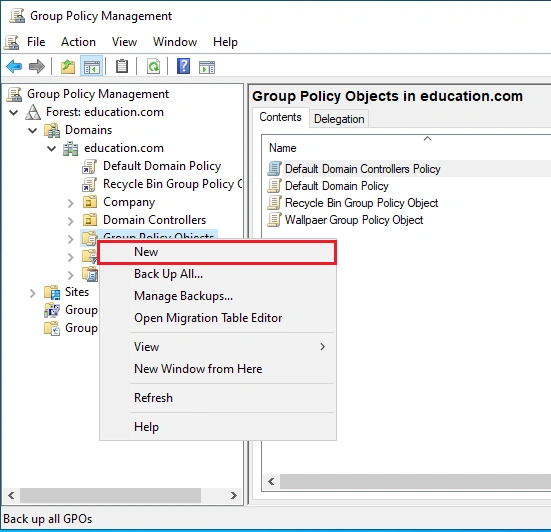
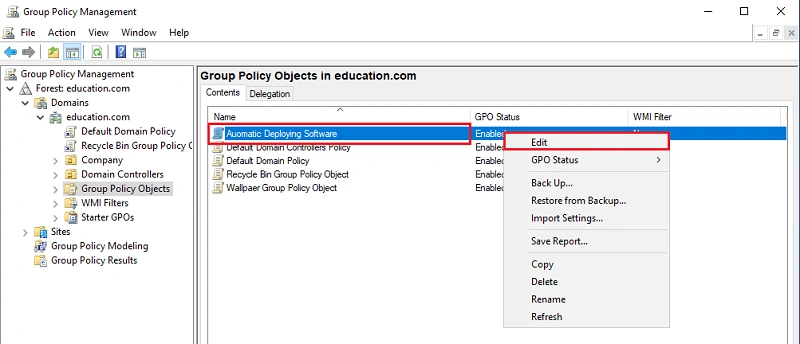
Next Select the Group policy object, Right-click Edit
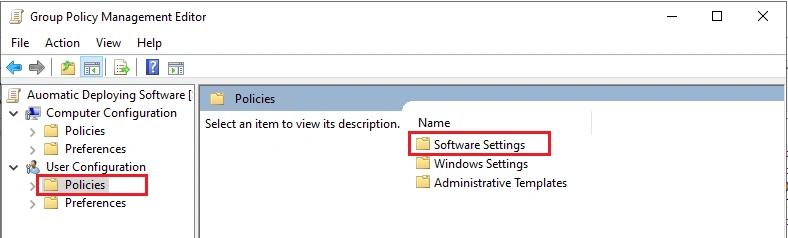
Select the software Settings
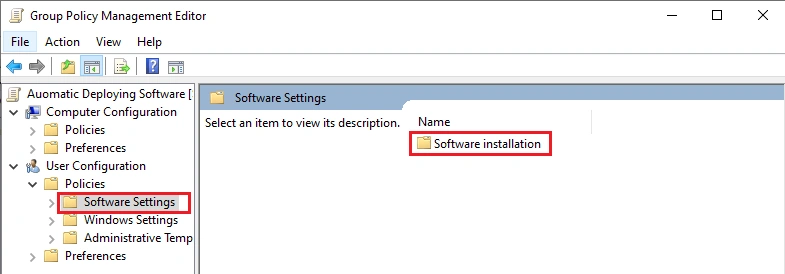
Next software Installation
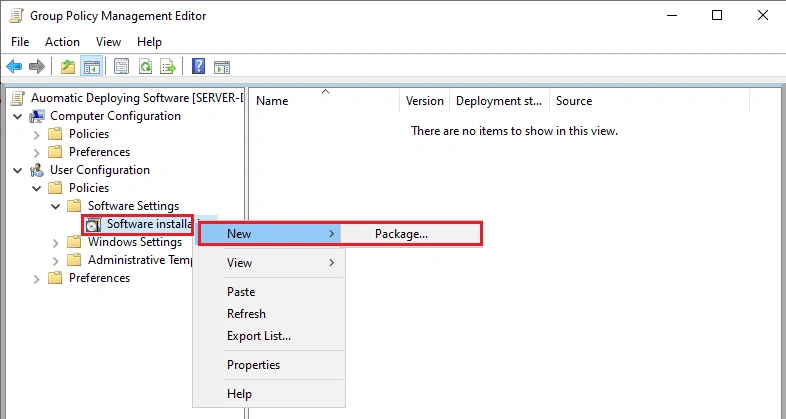
Select the Software installation, Right Click New and Package Click
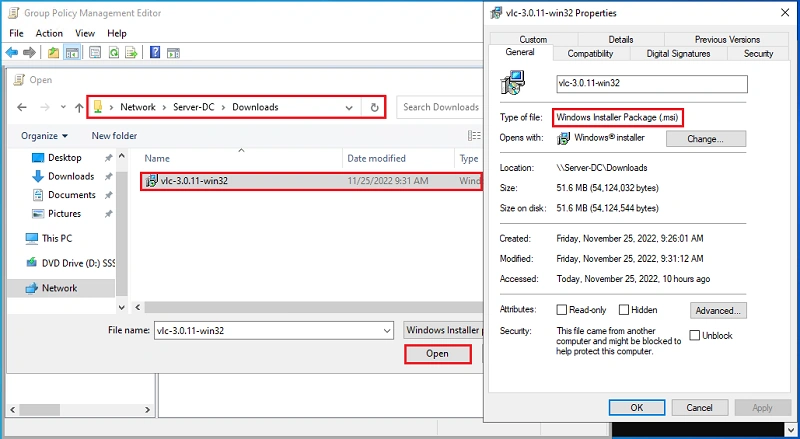
Next choose the installer file must be MSI file
installer file should be shared file
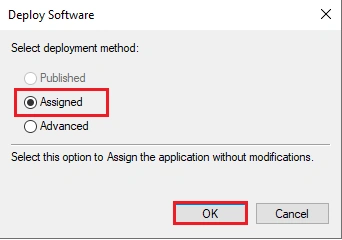
Next select Assigned, click ok
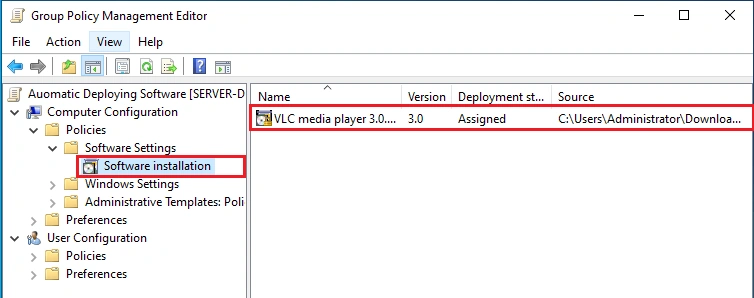
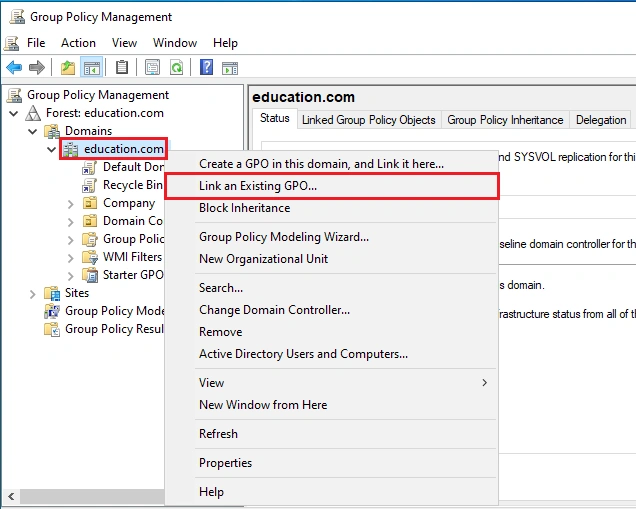
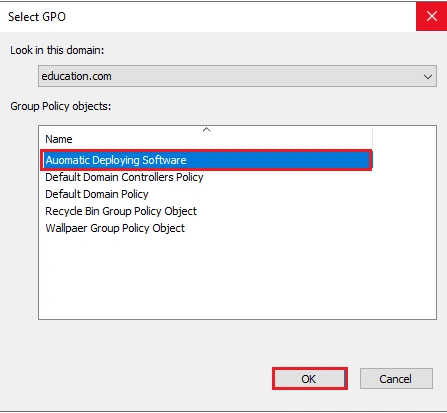
Next link an existing GPO following step, click Ok.
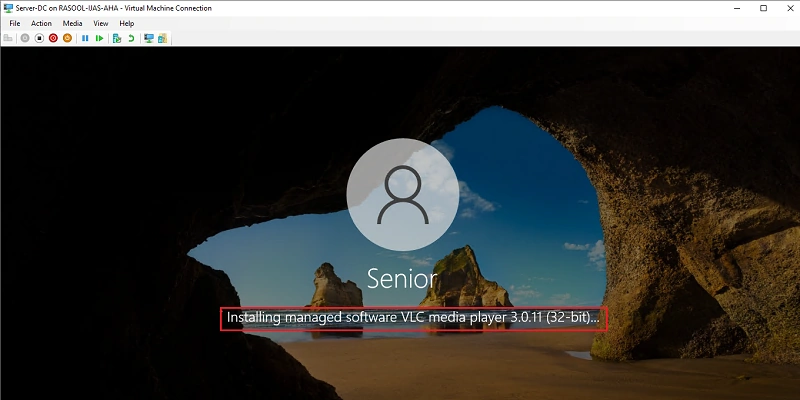
Successfully Deployed Software on windows server
Conclusion
This article taught us how to set up Deploy Software on windows server. If you have any questions, please contact me.
Thanks.


Viknaraj ManogararajahTOP 100Posted Nov 29, 2022, 2:26 AM EST
Interesting Article about Group Policy Object (GPO).