
Introduction
This article shows how to use interactive sorting for an SSRS report.
Create a Report Server Project as in Figure 1.
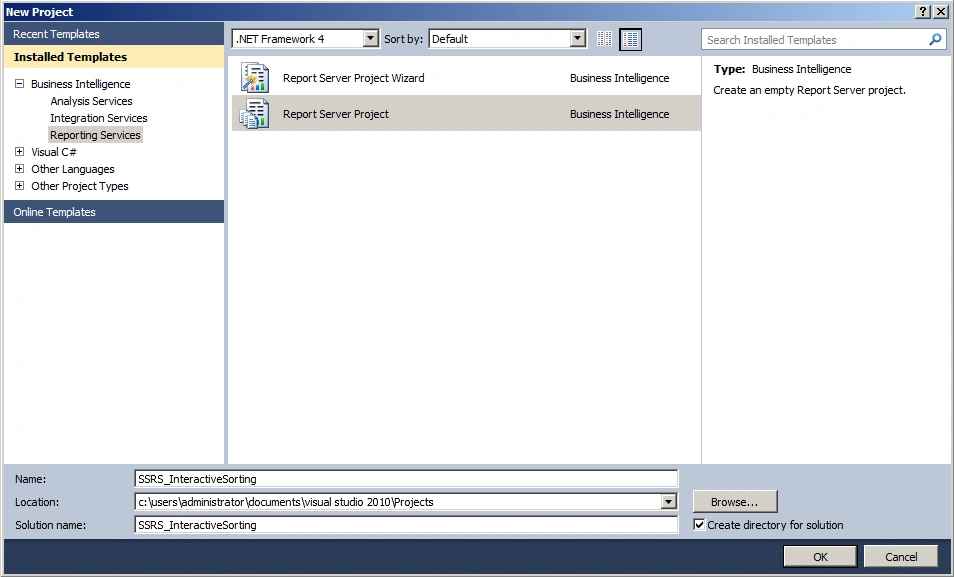
Figure 1: Report Server Project
Add a Data Source as in Figure 2.
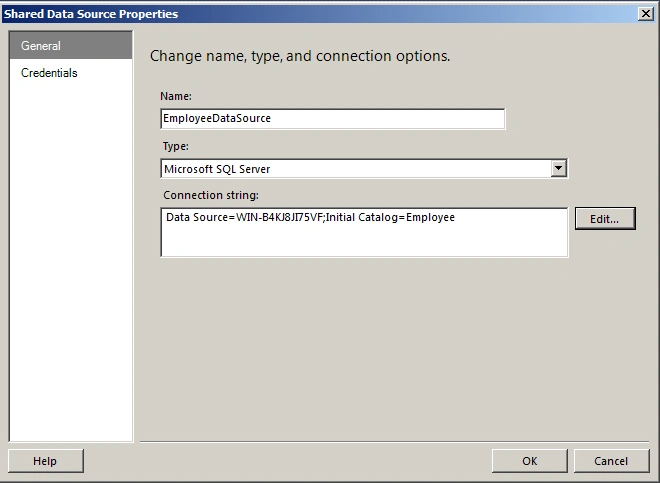
Figure 2: Data Source
Add a dataset as in Figure 3.
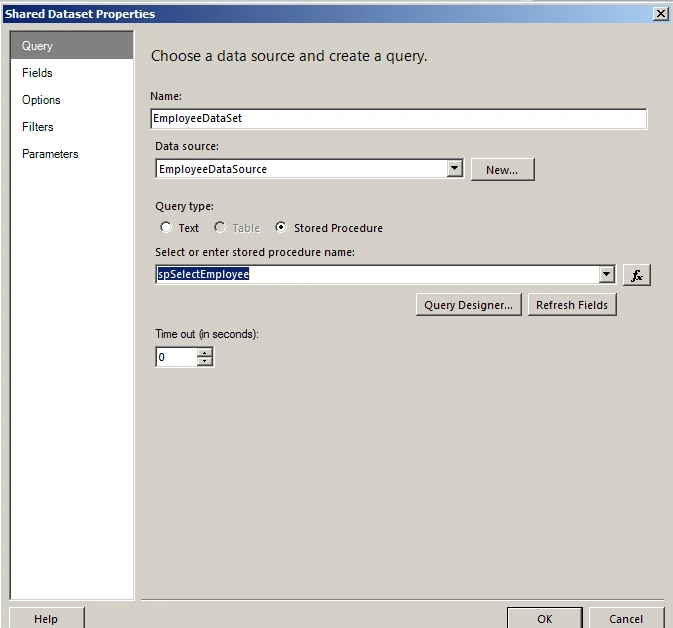
Figure 3: Shared Dataset
Add a report item as in Figures 4 and 5.
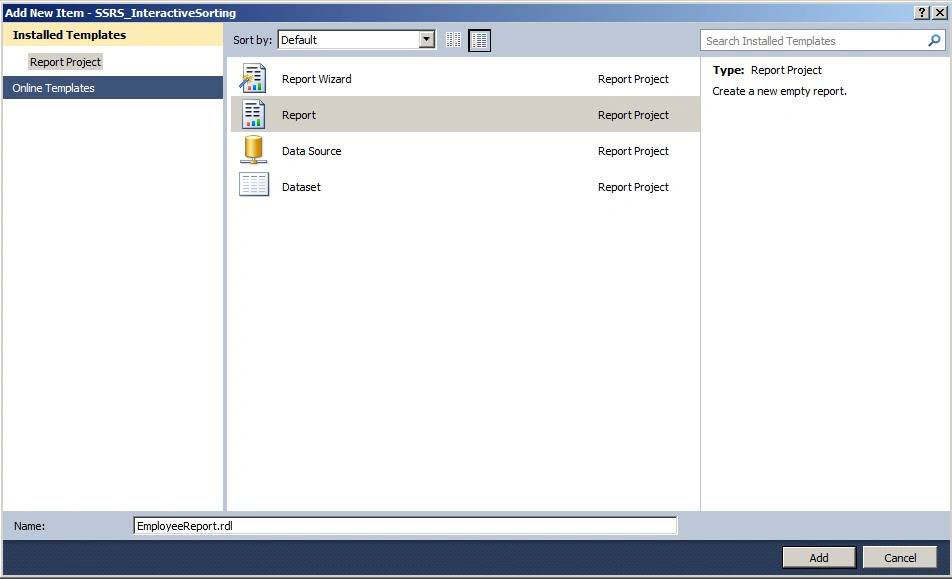
Figure 4: Report item
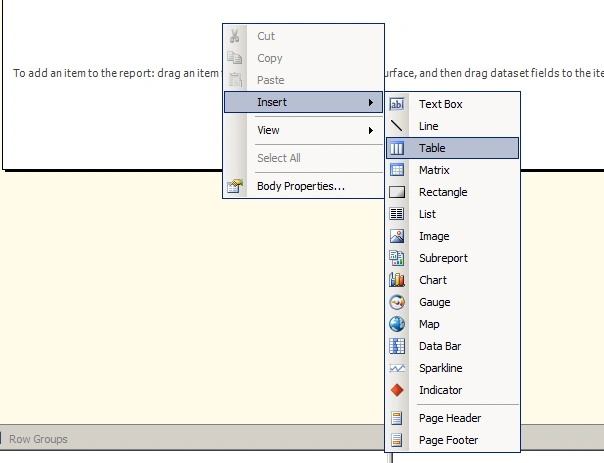
Figure 5: Insert table
Choose the Data Source as in Figure 6.
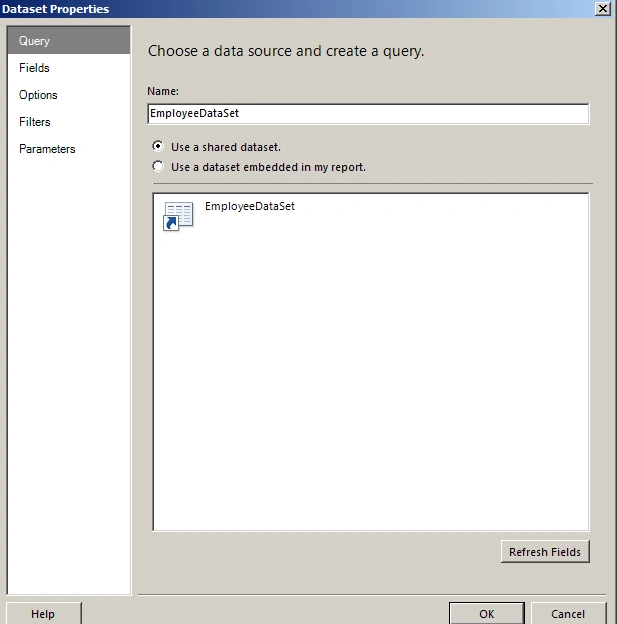
Figure 6: Datasource
Set up the table properties as in Figures 7 and 8.
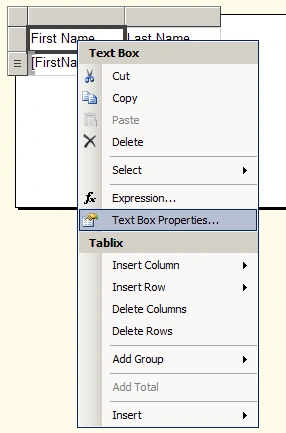 &;
Figure 7: TableProperties
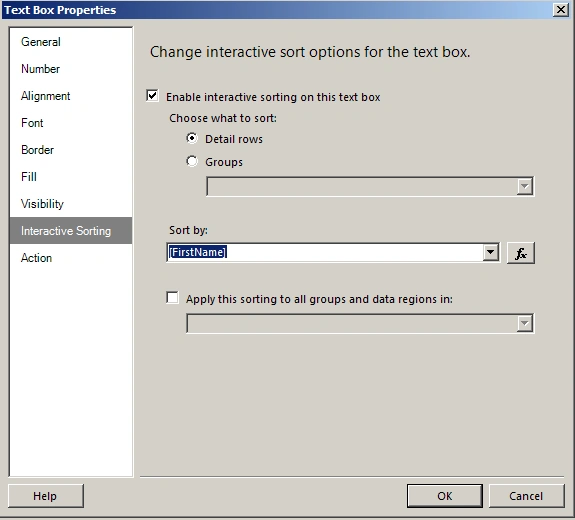
Figure 8: Interactive Sorting
The output of the report is as in Figure 9.
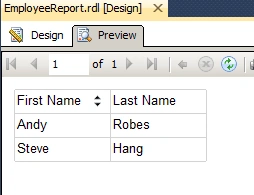
Figure 9: Sorting
Summary
In this article, we saw how to use interactive sorting for SSRS reports.


NitinPosted May 28, 2015, 9:02 AM EDT
nice
Santhakumar MunuswamyPosted May 27, 2015, 11:20 AM EDT
Thanks for nice one
Gowtham RajamanickamTOP 100Posted May 27, 2015, 4:24 AM EDT
this is great..
Sibeesh VenuTOP 100Posted May 27, 2015, 1:56 AM EDT
Good one.