
If you work with Microsoft Fabric Warehouse, you will often need to inspect several tables at the same time.
For example, you may want to check your regional data, inspect your products, and then validate your orders.
A simple query window might contain all three statements:
SELECT *
FROM dbo.Region;

SELECT *
FROM dbo.Product;

SELECT *
FROM dbo.Orders;
At first glance, this looks straightforward. But there is an interesting question that comes up when working with multiple result sets:
How do you move between the results returned by each SELECT statement?
This is particularly useful when you're developing SQL, validating data, troubleshooting a pipeline, or simply exploring tables in a Fabric Warehouse.
Running Multiple Queries at Once
Let's assume our Fabric Warehouse contains three tables:
dbo.Regiondbo.Productdbo.Orders
Instead of running each query separately, we can place all three statements in the same SQL editor:
SELECT * FROM dbo.Region;

SELECT * FROM dbo.Product;

SELECT * FROM dbo.Orders;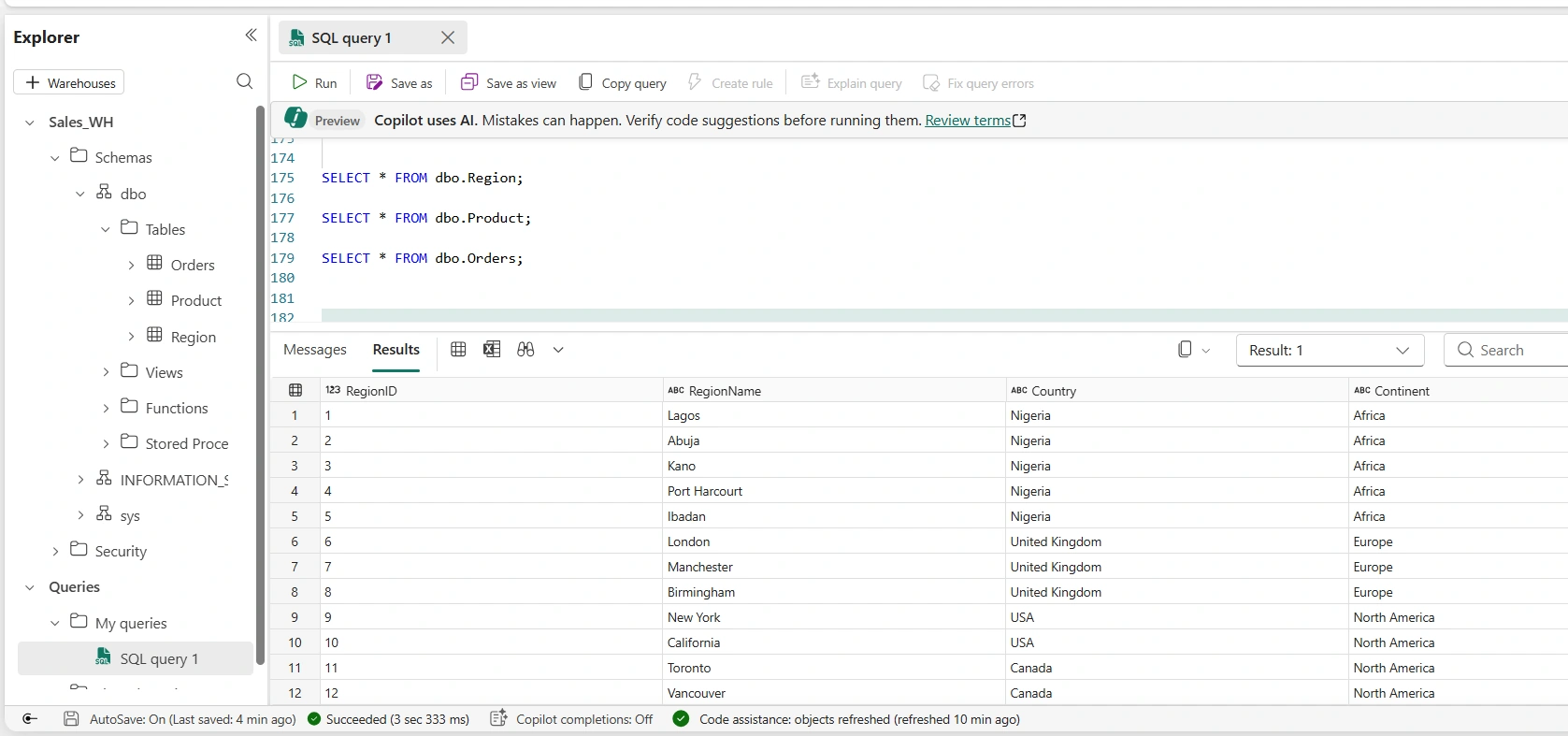
When the query is executed, Fabric processes the statements and returns the corresponding result sets.
The first result comes from:
SELECT * FROM dbo.Region;The second comes from:
SELECT *
FROM dbo.Product;
And the third comes from:
SELECT * FROM dbo.Orders;This can be much more convenient than repeatedly executing individual queries.
Switching Between the Result Sets
Once multiple SELECT statements have been executed, the SQL experience provides access to the different result sets.
Instead of having to execute the statements one at a time, you can move between the returned results and inspect the output from each query.
This becomes especially useful when you're working with related tables.
For example, you might first inspect Region:
SELECT *
FROM dbo.Region;Then switch to the Product result:
SELECT *
FROM dbo.Product;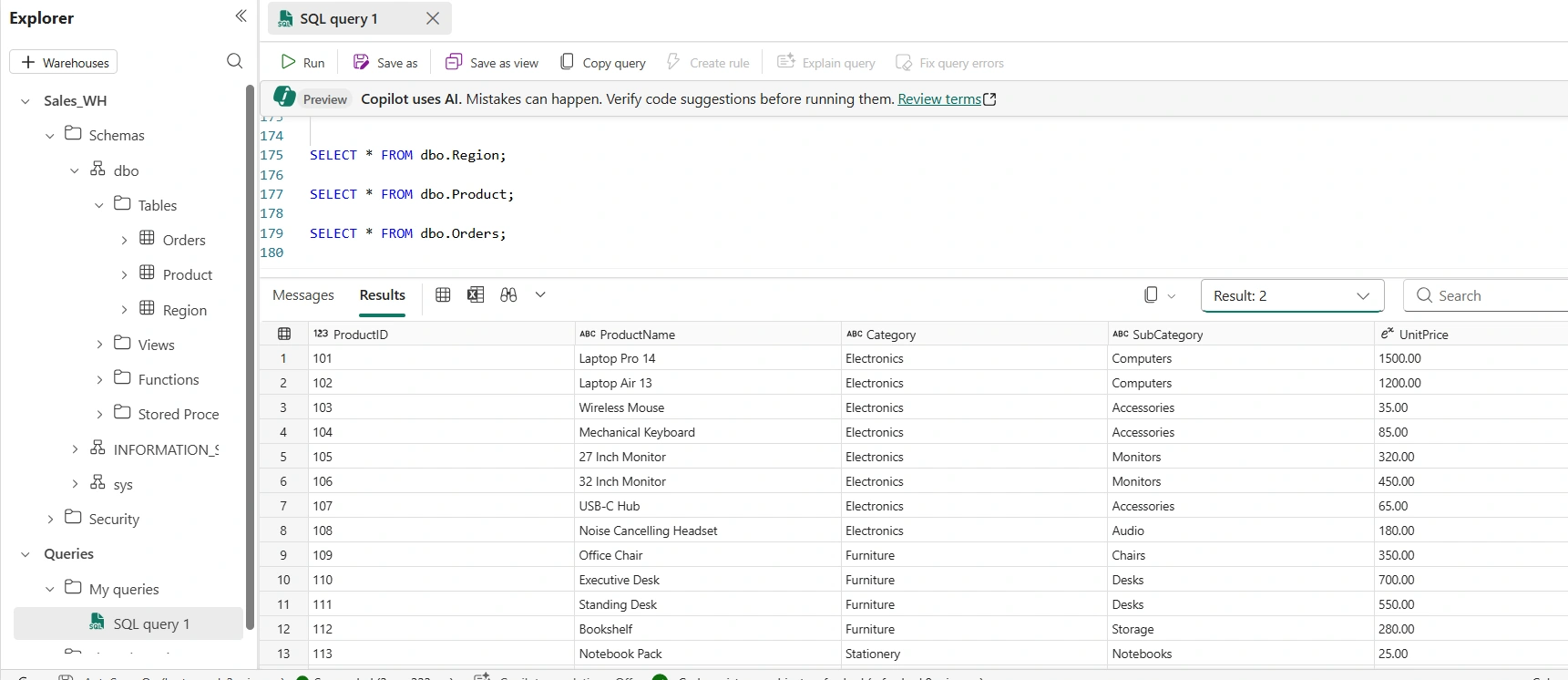
And finally inspect:
SELECT *
FROM dbo.Orders;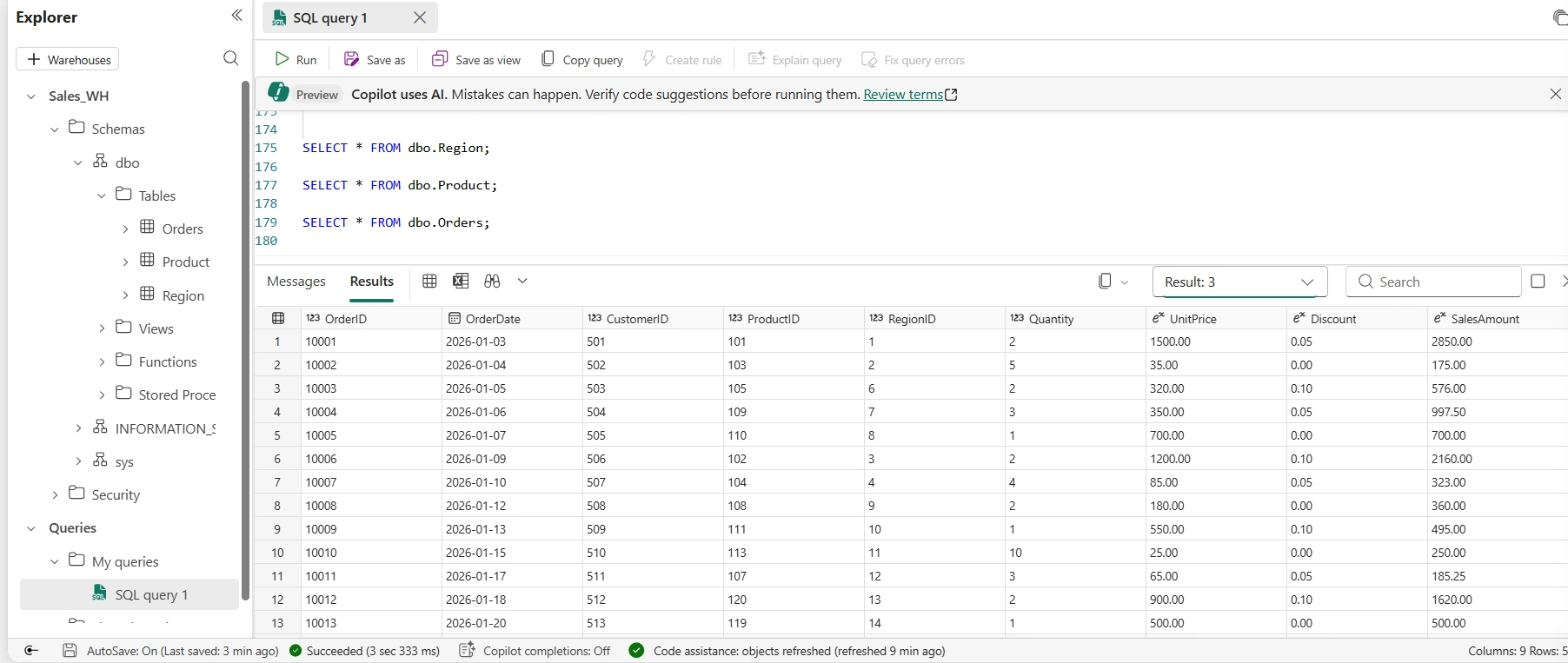
You can therefore keep all three queries together while examining their individual outputs.
Why Is This Useful?
There are many situations where this simple feature becomes surprisingly useful.
Imagine you're troubleshooting a sales report.
You want to verify:
Are all regions available?
Are the products correctly loaded?
Are orders being populated correctly?
Instead of opening three separate query windows, you can write:
SELECT * FROM dbo.Region;

SELECT * FROM dbo.Product;

SELECT * FROM dbo.Orders;
Run the statements together and inspect the results.
This makes quick data validation much easier.
A Simple Data Validation Example
Suppose you have loaded data into your Fabric Warehouse and want to perform a quick sanity check.
You could run
SELECT *
FROM dbo.Region;

SELECT *
FROM dbo.Product;

SELECT *
FROM dbo.Orders;
You can visually inspect each result set to identify obvious problems.
For example:
The Region table might contain unexpected duplicate records.
The Product table might have missing product names.
The Orders table might contain unexpected NULL values.
Foreign-key relationships might appear to be broken.
For development and testing, this is often much quicker than building a complicated validation query.
You Can Also Use Aggregations
You don't necessarily need to return every row.
In fact, when working with large Warehouse tables, returning SELECT * can be unnecessary.
A better validation query might be:
SELECT COUNT(*) AS RegionCount
FROM dbo.Region;

SELECT COUNT(*) AS ProductCount
FROM dbo.Product;

SELECT COUNT(*) AS OrderCount
FROM dbo.Orders;
Now you have three result sets containing the number of records in each table.
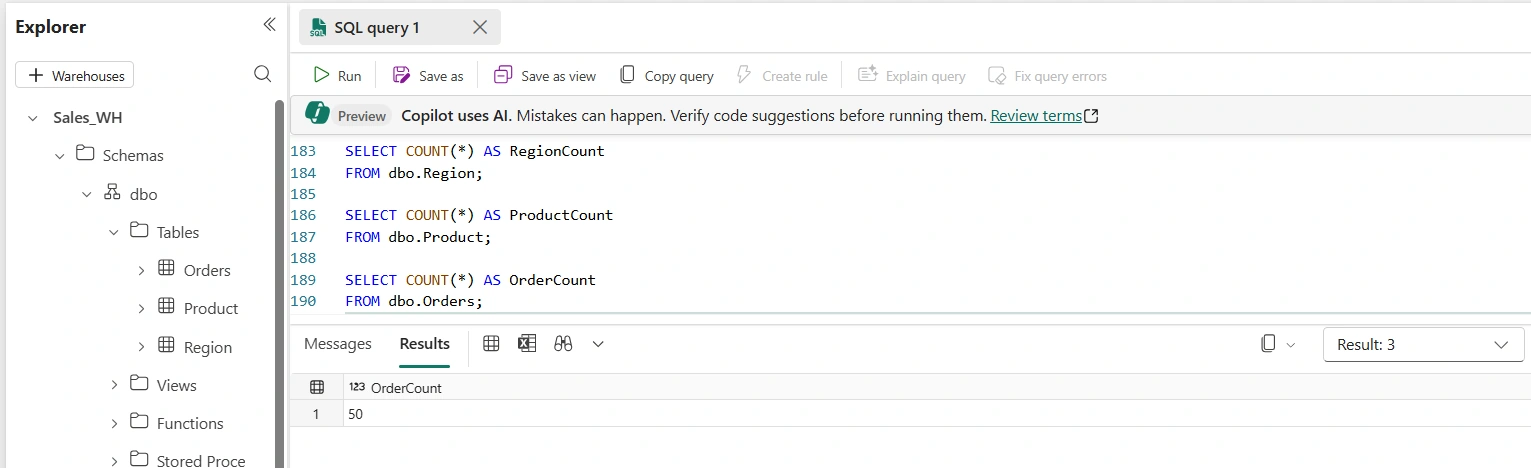
This is often a better approach when you're simply checking whether data has loaded successfully.
Combine Detailed and Summary Queries
You can also mix different types of queries.
For example:
SELECT *
FROM dbo.Region;

SELECT
    COUNT(*) AS ProductCount
FROM dbo.Product;

SELECT
    COUNT(*) AS OrderCount
FROM dbo.Orders;
The first query lets you inspect the actual Region records, while the other two give you quick row counts.
This is a useful pattern during development.
Multiple Queries Don't Mean One Result Set
One important thing to understand is that these are still three separate SELECT statements.
They aren't automatically combined into one table.
For example:
SELECT * FROM dbo.Region;

SELECT * FROM dbo.Product;

SELECT * FROM dbo.Orders;
does not mean Fabric is joining the three tables.
Each statement is independent and produces its own result.
If you actually wanted one combined result, you would need to use something such as:
JOINUNIONUNION ALLCTEs
Subqueries
depending on the problem you're trying to solve.
Multiple Result Sets vs. JOIN
This distinction is particularly important.
Suppose you want to inspect all three tables separately.
Use:
SELECT * FROM dbo.Region;

SELECT * FROM dbo.Product;

SELECT * FROM dbo.Orders;
But if you want to combine information from those tables into a single analytical result, you might instead write something like:
SELECT
    o.OrderID,
    p.ProductName,
    r.RegionName
FROM dbo.Orders AS o
JOIN dbo.Product AS p
    ON o.ProductID = p.ProductID
JOIN dbo.Region AS r
    ON o.RegionID = r.RegionID;
Now you're producing one result set containing data from multiple tables.
That's a completely different purpose.
A Useful Development Pattern
When I'm developing or troubleshooting a Warehouse solution, I like keeping related validation queries together.
For example:
-- Check regions
SELECT *
FROM dbo.Region;

-- Check products
SELECT *
FROM dbo.Product;

-- Check orders
SELECT *
FROM dbo.Orders;
The comments make it immediately obvious what each result represents.
You could also create a more comprehensive validation script:
-- Region validation
SELECT
    COUNT(*) AS RegionCount
FROM dbo.Region;

-- Product validation
SELECT
    COUNT(*) AS ProductCount
FROM dbo.Product;

-- Order validation
SELECT
    COUNT(*) AS OrderCount
FROM dbo.Orders;
This becomes particularly handy after running an ETL or ELT process.
Don't Always Use SELECT *
There's another lesson hidden in this simple example.
Although:
SELECT * FROM dbo.Orders;is perfectly fine when you're exploring a small table, it isn't always the best approach in production.
If the Orders table contains millions of rows and dozens of columns, returning everything can create unnecessary work.
Instead, select only what you need:
SELECT
    OrderID,
    OrderDate,
    ProductID,
    RegionID,
    Quantity,
    SalesAmount
FROM dbo.Orders;
This makes your intention clearer and can make troubleshooting much easier.
The Bigger Picture
Being able to execute multiple SQL statements in the same Fabric Warehouse query window might seem like a small feature.
But small productivity features can make a significant difference when you're working with data every day.
You can use multiple result sets to:
Validate newly loaded tables
Compare datasets
Check row counts
Troubleshoot ETL pipelines
Inspect dimension and fact tables
Quickly investigate data-quality issues
Explore a new Warehouse
And because the queries remain together, your investigation is easier to reproduce later.
Final Thoughts
Microsoft Fabric Warehouse provides a familiar SQL experience, but the real power comes from how easily you can use that SQL experience as part of your broader data-engineering workflow.
If you have several independent queries such as:
SELECT * FROM dbo.Region;

SELECT * FROM dbo.Product;

SELECT * FROM dbo.Orders;
you don't necessarily need to execute them individually.
Run them together, then move between their result sets to inspect the output from each statement.
It's a simple technique but once you start using it during development and troubleshooting, it can save a surprising amount of time.
And when you're working on a Fabric Warehouse with dozens or hundreds of tables, those little productivity gains quickly add up.

Join the conversation! Your thoughts help the community grow.