Overview
In Microsoft 365 Exchange Online, you may sometimes encounter an error when trying to disable Retention Hold on a mailbox using PowerShell. This issue can be confusing because it may occur even when the Recoverable Items folders appear to have free space.
This article explains:
The error message
Why it happens
How to identify the root cause
The practical fix
The Error Scenario
When attempting to disable retention hold using the following command:
Set-Mailbox -Identity "[email protected]" -RetentionHoldEnabled $falseThe command fails with an error similar to:
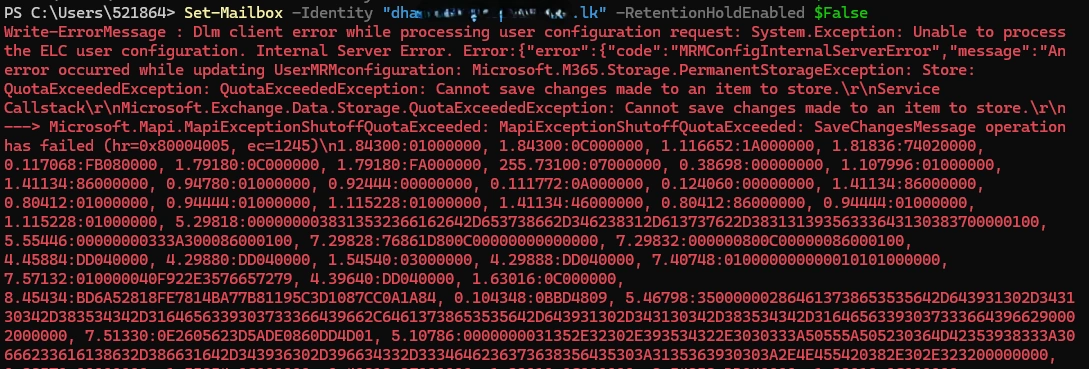
This error indicates that Exchange Online is unable to write changes to the mailbox configuration.
Root Cause
The primary cause of this error is that the mailbox has exceeded its quota.
In Exchange Online:
Any mailbox configuration change (including retention settings) requires free writable space
If the mailbox is at or beyond its ProhibitSendReceiveQuota, Exchange cannot commit configuration updates
Even if Recoverable Items folders have space, Exchange still needs room in the primary mailbox
Mailbox Quota Status
In this case, the mailbox had reached its quota limits.
Mailbox Quotas and Actual Storage
Get-Mailbox -Identity "[email protected]" | fl Prohibit*Get-MailboxStatistics -Identity "[email protected]" | ft TotalItemSize, ItemCountOutput:
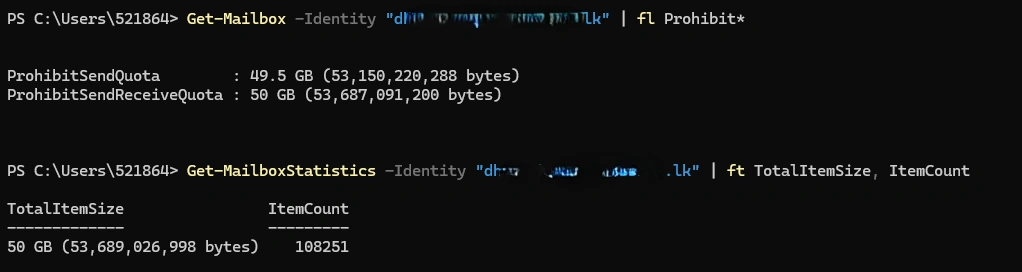
At this point, the mailbox was effectively full.
Recoverable Items Check
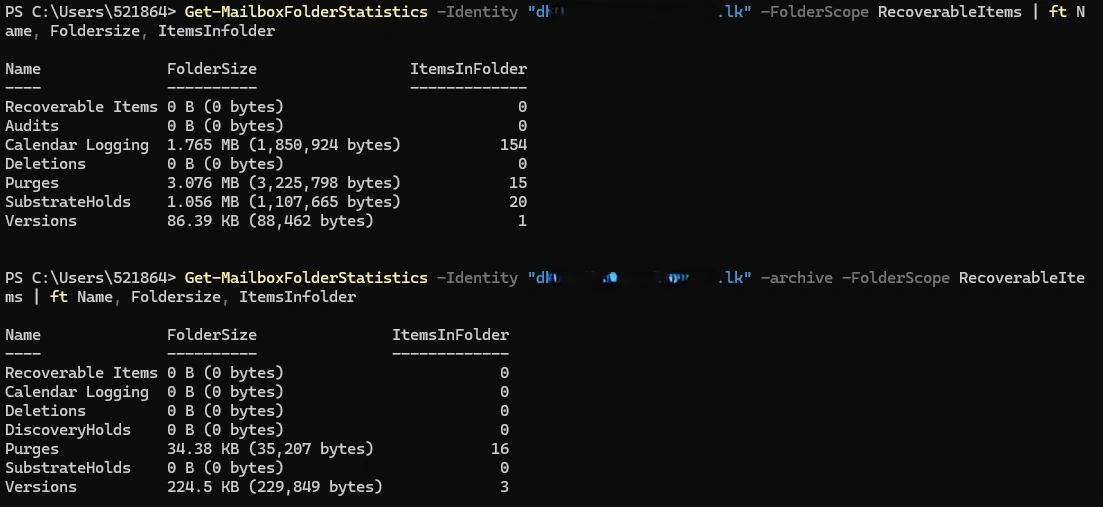
Initially, the Recoverable Items folders were checked for both the primary mailbox and archive mailbox.
Primary Mailbox – Recoverable Items
Get-MailboxFolderStatistics -Identity "[email protected]" -FolderScope RecoverableItemsArchive Mailbox – Recoverable Items
Get-MailboxFolderStatistics -Identity "[email protected]" -Archive -FolderScope RecoverableItemsResult:
Why the Error Occurs
Even though Recoverable Items had free space, Exchange Online still could not save mailbox configuration changes because:
The primary mailbox store had no free space
Retention Hold changes require writing metadata to the mailbox
When mailbox quota is exceeded, Exchange blocks write operations
Resolution
To resolve the issue, free space must be created in the primary mailbox.
What Was Done
Unwanted emails were deleted from the mailbox
Emails were soft deleted, which:
Removes them from the primary mailbox
Moves them to the Recoverable Items folder
This action reduced the primary mailbox size
After space was freed, the retention hold was disabled successfully
Set-Mailbox -Identity "[email protected]" -RetentionHoldEnabled $false
Key Takeaways
Exchange Online requires free primary mailbox space to apply configuration changes
A mailbox at quota can block:
Retention Hold changes
MRM/ELC updates
Other mailbox-level settings
Always check:
Primary mailbox size
ProhibitSendReceiveQuota
If necessary:
Soft delete or hard delete items
Or temporarily increase mailbox quota (if policy allows)
Conclusion
If you encounter MRMConfigInternalServerError or QuotaExceededException when modifying retention settings, always verify the primary mailbox quota first. Freeing even a small amount of space can immediately resolve the issue.

Join the conversation! Your thoughts help the community grow.