
Introduction
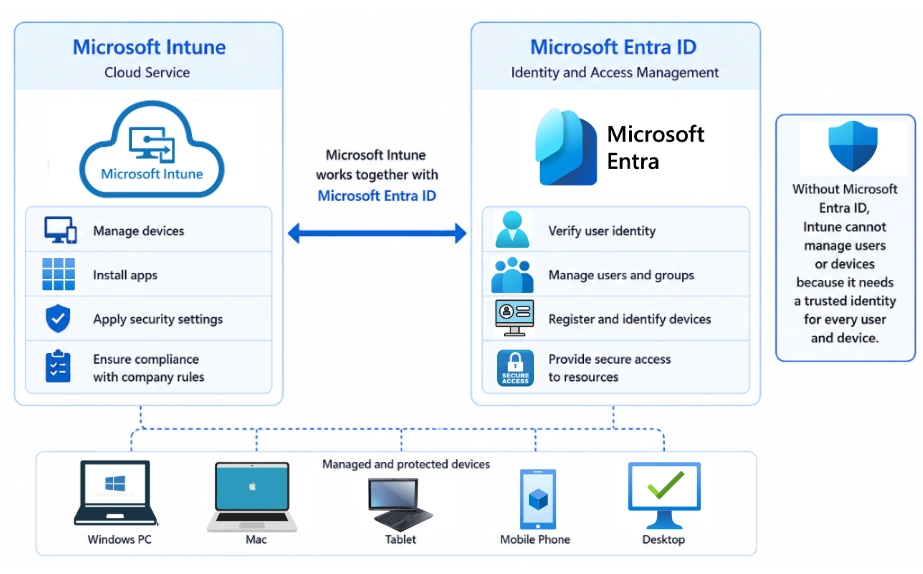
Microsoft Intune is a cloud service that helps organizations manage and protect computers, tablets, and mobile phones. It allows IT administrators to control devices, install apps, apply security settings, and make sure devices follow company rules.
Microsoft Intune works together with Microsoft Entra ID. Without Microsoft Entra ID, Intune cannot manage users or devices because it needs a trusted identity for every user and device.
What is Microsoft Entra ID?
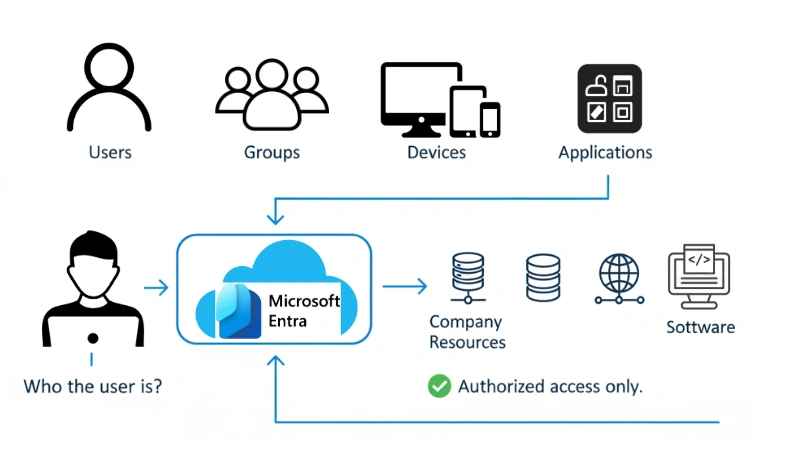
Microsoft Entra ID is Microsoft's cloud-based identity service. It manages:
Users
Groups
Devices
Applications
It checks who the user is and allows only authorized users to access company resources.
Microsoft Entra ID was previously called Azure Active Directory (Azure AD).
Why is Microsoft Entra ID Important for Intune?
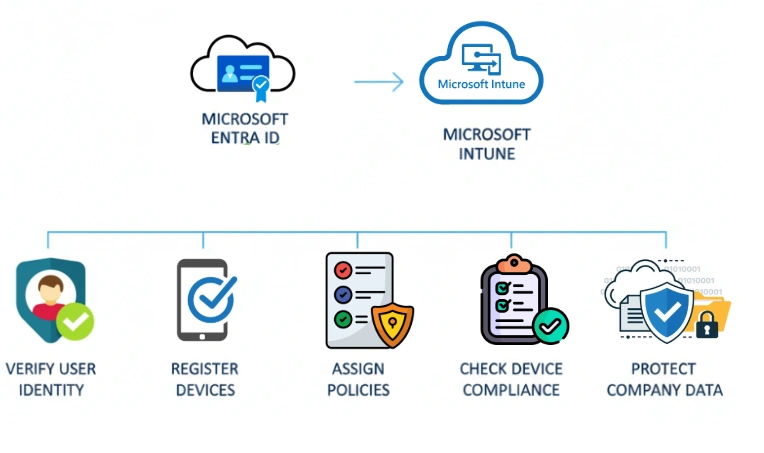
Microsoft Intune uses Microsoft Entra ID for all management tasks.
With Microsoft Entra ID, Intune can:
Verify user identity
Register devices
Assign policies
Deploy applications
Check device compliance
Protect company data
This makes device management simple and secure.
How Microsoft Entra ID Works with Intune
When a user enrolls a device, Microsoft Entra ID and Intune work together.
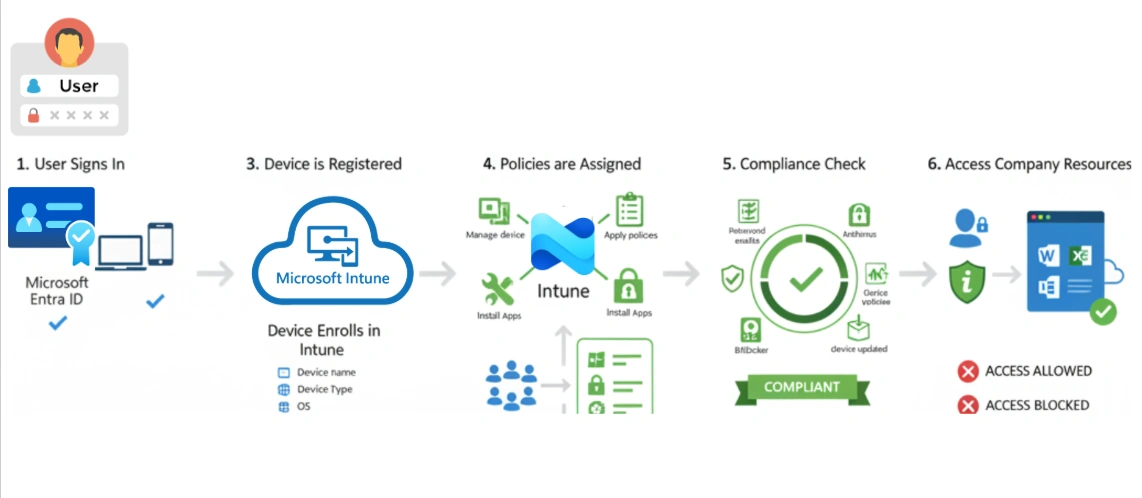
Step 1: User Signs In
The user signs in using their Microsoft Entra ID account.
Microsoft Entra ID checks the username and password.
If everything is correct, the user is allowed to continue.
Step 2: Device is Registered
The device is registered or joined to Microsoft Entra ID.
A device record is created that includes:
Device name
Device type
Operating system
Device owner
Join type
This information helps Intune manage the device.
Step 3: Device Enrolls in Intune
After registration, the device is enrolled in Microsoft Intune.
Intune can now:
Manage the device
Apply policies
Install apps
Monitor compliance
Step 4: Policies are Assigned
Administrators create groups in Microsoft Entra ID.
They assign Intune policies to these groups.
For example:
Sales Group
↓
Receives:
Microsoft Office
Wi-Fi settings
Security policies
Update policies
Every member of the group receives the same settings automatically.
Step 5: Compliance Check
Intune checks whether the device follows company security rules.
Examples:
Password is enabled
Antivirus is running
BitLocker is enabled
Device is updated
If the device meets the rules, it is marked as Compliant.
Step 6: Access Company Resources
When the user opens Microsoft 365 or another company app:
Microsoft Entra ID checks the user's identity.
Intune checks if the device is compliant.
If both checks are successful, access is allowed.
If the device is not compliant, access can be blocked.
Microsoft Entra ID Device Join Types
There are three types of device registration.
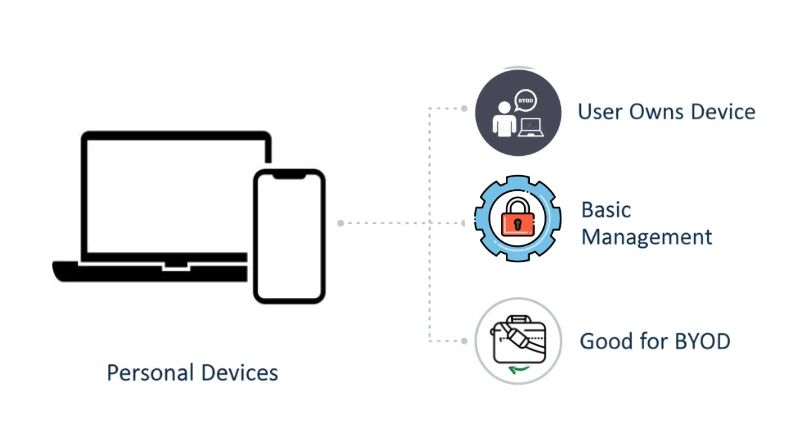
1. Microsoft Entra Registered
This option is mainly for personal devices.
Examples:
Personal laptop
Personal phone
Features:
User owns the device.
Basic management.
Good for Bring Your Own Device (BYOD).
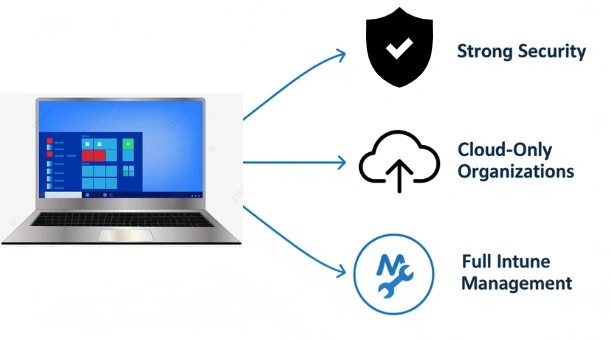
2. Microsoft Entra Joined
This option is for company-owned devices.
Features:
Full Intune management
Strong security
Best for cloud-only organizations
Example:
A company Windows 11 laptop.
3. Hybrid Microsoft Entra Joined
This option is for organizations that use both:
On-premises Active Directory
Microsoft Entra ID
Features:
Supports older and cloud environments.
Works well with Microsoft Configuration Manager and Intune.
Main Parts of Microsoft Entra ID in Intune
User Identity
User identity allows users to:
Sign in
Enroll devices
Access company resources
Group Identity
Groups help organize users and devices.
Example groups:
HR
Finance
IT
Sales
Policies can be assigned to these groups.
Device Identity
Every enrolled device has its own identity.
It stores information like:
Device name
Operating system
Compliance status
Ownership
Authentication Token
After the user signs in, Microsoft Entra ID creates a security token.
The token proves:
The user is authenticated.
The device is trusted.
Users do not need to enter their password every time.
Conditional Access
Conditional Access adds extra security.
Example:
Only allow access if:
The user is signed in.
The device is compliant.
Multi-Factor Authentication (MFA) is completed.
If these conditions are not met, access is denied.
Example
A hospital uses Microsoft Intune and Microsoft Entra ID.
A doctor wants to open patient records.
The process is:
The doctor signs in.
Microsoft Entra ID checks the doctor's identity.
Intune checks the device compliance.
If the device is secure, access is allowed.
If the device is not secure, access is blocked.
This helps protect patient information.
Conclusion
Microsoft Entra ID is the identity service that Microsoft Intune depends on. It helps verify users, register devices, create groups, and apply security policies. Together, Microsoft Entra ID and Intune help organizations manage devices, protect company information, and allow only trusted users and compliant devices to access important resources. This makes device management easier, safer, and more efficient.

Join the conversation! Your thoughts help the community grow.