
What are Xamarin and Xamarin Forms?
- Xamarin is a cross-platform tool to develop multi-platform applications.
- Xamarin offers a shared code (C#) but separately designed UIs Android (java), Windows (C#), iOS (Objective C & XCODE).
- Xamarin.Forms UIs and shared code (C#) are the same in all projects. To develop multi-platforms applications, run all projects (Android, Windows, iOS) at the same time.
Prerequisites
- Visual Studio 2017 Enterprise
The steps given below are required to be followed in order to design Linear layout horizontal & vertical view in Xamarin.Android, using Microsoft Visual Studio 2017.
Step 1
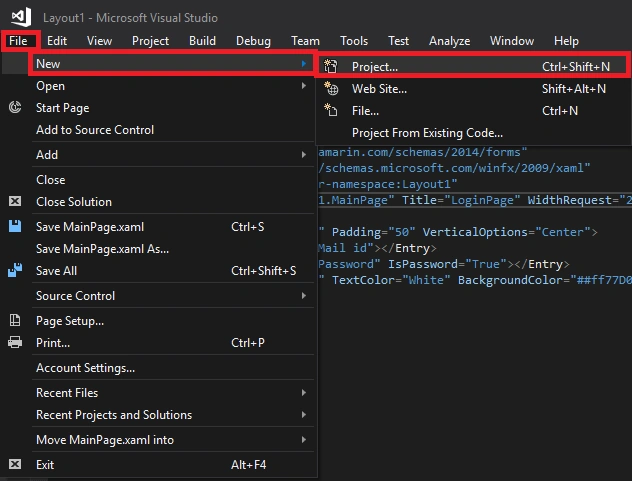
- Go to the Visual Studio 2017.
- Click File -> New -> Project.
Step 2
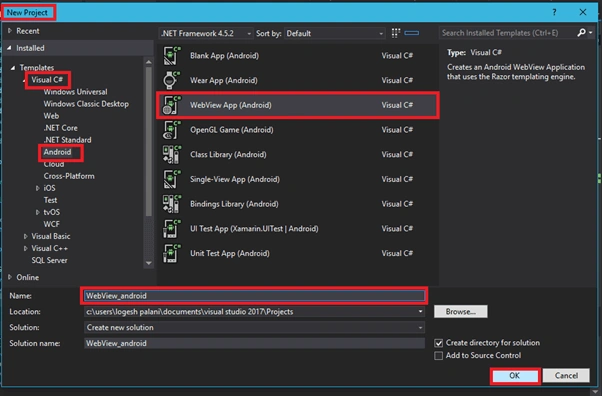
- Click to C# -> Android -> Blank App (Android).
- Enter the application name.
- Go to Blank App = A project for creating a Xamarin.Android Application.
Step 3
After this, go to
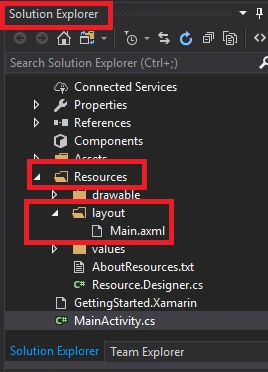
- Open Solution Explorer window.
- Click Resources folder followed by clicking Layout folder -> Open Main.axml
The below steps are the same for Horizontal & Vertical Views.
Step 4.1: Linear Layout – Horizontal View
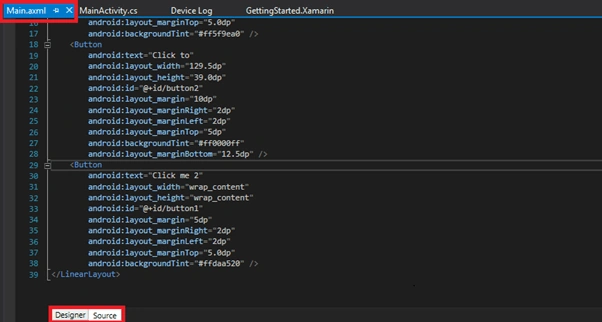
- In this step, go to the .axml page and insert the code given below in Main.axml and save it.
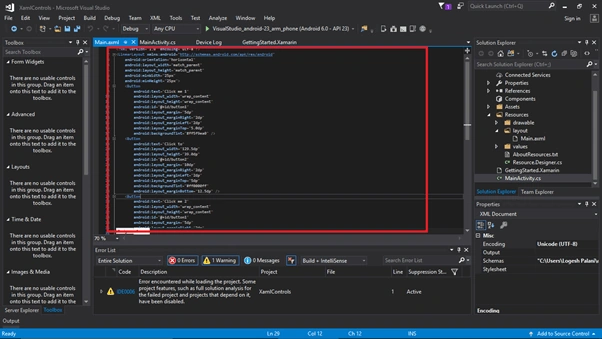
- <?xml version="1.0" encoding="utf-8"?>
- <LinearLayout xmlns:android="http://schemas.android.com/apk/res/android"
- android:orientation="horizontal"
- android:layout_width="match_parent"
- android:layout_height="match_parent"
- android:minWidth="25px"
- android:minHeight="25px">
- <Button
- android:text="Click me 1"
- android:layout_width="wrap_content"
- android:layout_height="wrap_content"
- android:id="@+id/button1"
- android:layout_margin="5dp"
- android:layout_marginRight="2dp"
- android:layout_marginLeft="2dp"
- android:layout_marginTop="5.0dp"
- android:backgroundTint="#ff5f9ea0" />
- <Button
- android:text="Click to"
- android:layout_width="129.5dp"
- android:layout_height="39.0dp"
- android:id="@+id/button2"
- android:layout_margin="10dp"
- android:layout_marginRight="2dp"
- android:layout_marginLeft="2dp"
- android:layout_marginTop="5dp"
- android:backgroundTint="#ff0000ff"
- android:layout_marginBottom="12.5dp" />
- <Button
- android:text="Click me 2"
- android:layout_width="wrap_content"
- android:layout_height="wrap_content"
- android:id="@+id/button1"
- android:layout_margin="5dp"
- android:layout_marginRight="2dp"
- android:layout_marginLeft="2dp"
- android:layout_marginTop="5.0dp"
- android:backgroundTint="#ffdaa520" />
- </LinearLayout>
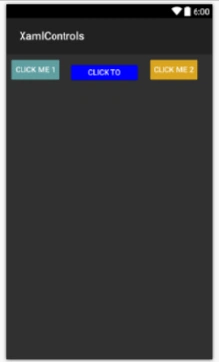
Click Main.axml page Designer View. Wait for a few minutes to get the Designer View visible.
The Designer View horizontal buttons are given below.
Step 4.2: Linear Layout – Vertical View
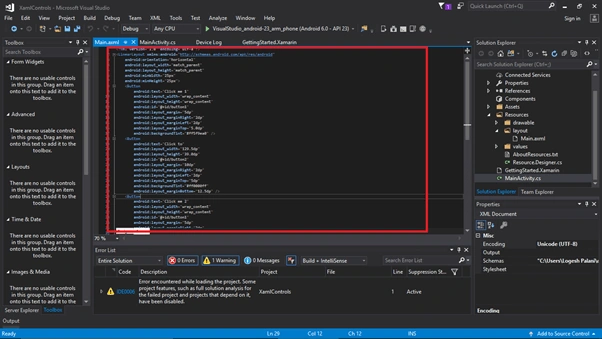
- In this step, go to axml page. Insert the code given below in Main.axml and save it.
- <?xml version="1.0" encoding="utf-8"?>
- <LinearLayout xmlns:android="http://schemas.android.com/apk/res/android"
- android:orientation="vertical"
- android:layout_width="match_parent"
- android:layout_height="match_parent"
- android:minWidth="25px"
- android:minHeight="25px">
- <Button
- android:text="Am first button"
- android:layout_width="match_parent"
- android:layout_height="wrap_content"
- android:id="@+id/button1"
- android:backgroundTint="#ffff7f50" />
- <Button
- android:text="ButtonAam Scond Button"
- android:layout_width="match_parent"
- android:layout_height="wrap_content"
- android:id="@+id/button2"
- android:backgroundTint="#ffd2691e" />
- <Button
- android:text="Don't Touch Me"
- android:layout_width="match_parent"
- android:layout_height="wrap_content"
- android:id="@+id/button3"
- android:layout_marginLeft="2dp"
- android:layout_marginRight="2dp"
- android:backgroundTint="#ff7fffd4" />
- <Button
- android:text="touch Me"
- android:layout_width="match_parent"
- android:layout_height="wrap_content"
- android:id="@+id/button4"
- android:backgroundTint="#ffee82ee"
- android:layout_marginRight="2dp"
- android:layout_marginLeft="2dp" />
- <Button
- android:text="Button"
- android:layout_width="match_parent"
- android:layout_height="wrap_content"
- android:id="@+id/button5"
- android:layout_margin="2dp"
- android:layout_marginLeft="2dp"
- android:layout_marginRight="2dp"
- android:backgroundTint="#ff008000" />
- </LinearLayout>
Go to Main.axml page designer view. Wait for a few minutes to get Designer View visible.
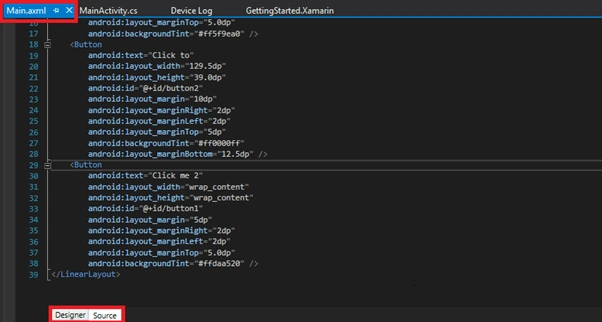
The Designer View vertical buttons are given below.
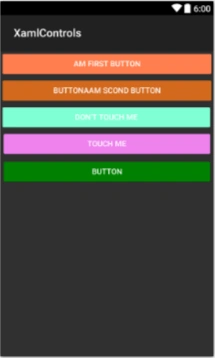
Your horizontal and vertical Views are designed succesfully.

Join the conversation! Your thoughts help the community grow.