
Users hate staring at a spinner. When an order takes a few seconds to process, they want to see what is happening, not refresh the page and hope.
In this guide, we build a live order tracker. A .NET 10 Minimal API puts each order on an Azure Service Bus queue, a background worker processes it, and SignalR pushes every status change to a React screen as it happens.
By the end, you will have: reliable background processing, instant UI updates, automatic retries, a dead-letter path for failed orders, and a UI that recovers after a dropped connection.
Two Tools, Two Different Promises
The most important idea in this design is that Service Bus and SignalR do very different jobs:
| Azure Service Bus | SignalR | |
|---|---|---|
| Job | Moves work reliably | Tells people what happened |
| Direction | Service to service | Server to browser |
| If the receiver is offline | The message waits in the queue | The update is missed |
| Failure handling | Retries and a dead-letter queue | Reconnects, but doesn't replay missed messages |
Golden rule: Service Bus carries the work, and SignalR only carries the news. Never treat a SignalR message as the source of truth. That is why this sample also keeps each order's latest status on the server.
How the Flow Works
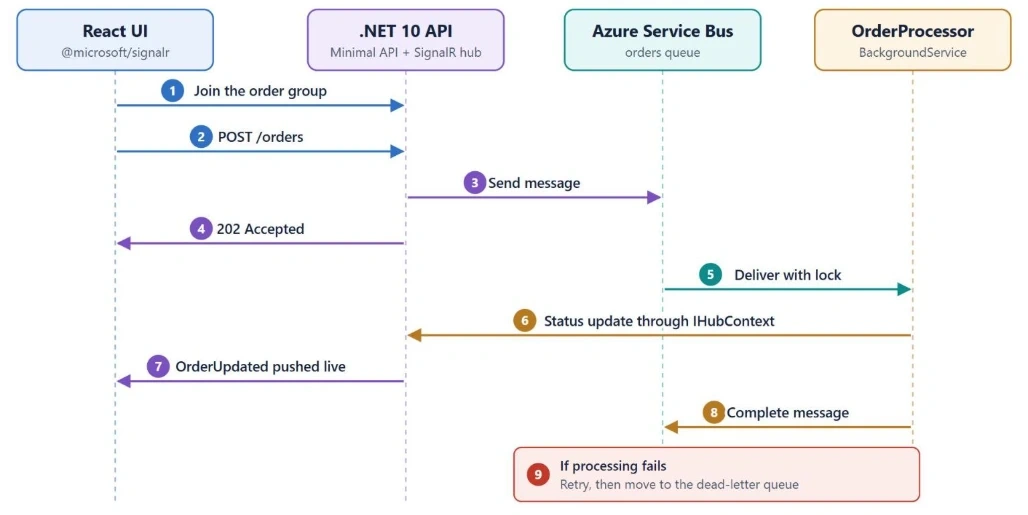
Notice that React joins the SignalR group before it sends the order. A fast worker could otherwise send the first update before the browser is listening, and that update would be lost.
Prerequisites
- .NET 10 SDK
- Node.js
- Docker Desktop, for the Service Bus emulator
This guide was written with these package versions:
| Package | Version |
|---|---|
| Azure.Messaging.ServiceBus | 7.21.0 |
| @microsoft/signalr | 10.0.11 |
SignalR's server side is already included in ASP.NET Core, so the API doesn't need an extra package for it.
Step 1: Run Service Bus Locally
You don't need an Azure subscription to start. Microsoft's Service Bus emulator runs in Docker and costs nothing.
Save this as config.json:
{
  "UserConfig": {
    "Namespaces": [
      {
        "Name": "sbemulatorns",
        "Queues": [
          {
            "Name": "orders",
            "Properties": {
              "DeadLetteringOnMessageExpiration": false,
              "DefaultMessageTimeToLive": "PT1H",
              "DuplicateDetectionHistoryTimeWindow": "PT20S",
              "ForwardDeadLetteredMessagesTo": "",
              "ForwardTo": "",
              "LockDuration": "PT1M",
              "MaxDeliveryCount": 3,
              "RequiresDuplicateDetection": false,
              "RequiresSession": false
            }
          }
        ],
        "Topics": []
      }
    ],
    "Logging": {
      "Type": "File"
    }
  }
}
Next, copy the docker-compose.yaml file from Microsoft's emulator guide and create a .env file beside it:
CONFIG_PATH="C:\\Projects\\emulator\\config.json"
ACCEPT_EULA="Y"
MSSQL_SA_PASSWORD="Choose-A-Strong-Password-1"
EMULATOR_HTTP_PORT=5300
Setting ACCEPT_EULA to Y accepts the license terms for the emulator and SQL Server on Linux, so read them first. Then start the containers:
docker compose up -dPort clash? The emulator uses port 5672, the same port as RabbitMQ. Stop any local RabbitMQ container first. Also note that the emulator doesn't keep data after a restart.
Step 2: Create the API
dotnet new web -n OrderTracker.Api
cd OrderTracker.Api
dotnet add package Azure.Messaging.ServiceBus --version 7.21.0
Add this to appsettings.Development.json. This is the emulator's fixed local connection string, not a real secret:
"ServiceBus": {
  "ConnectionString": "Endpoint=sb://localhost;SharedAccessKeyName=RootManageSharedAccessKey;SharedAccessKey=SAS_KEY_VALUE;UseDevelopmentEmulator=true;",
  "QueueName": "orders",
  "MaxDeliveryCount": 3
},
"Spa": {
  "Origin": "http://localhost:3000"
}
Create Contracts.cs:
using System.ComponentModel.DataAnnotations;

public sealed record PlaceOrderRequest(
    Guid OrderId,
    [Required, StringLength(100)] string Product,
    [Range(1, 100)] int Quantity);

public sealed record OrderMessage(Guid OrderId, string Product, int Quantity);

public sealed record OrderUpdate(
    Guid OrderId,
    string Status,
    string Detail,
    DateTimeOffset At);
Step 3: Add the SignalR Hub
We only want to send an order's updates to the people tracking that order, so each order gets its own SignalR group. A strongly typed hub also means a misspelled client method becomes a compile error.
Create OrderHub.cs:
using Microsoft.AspNetCore.SignalR;

public interface IOrderClient
{
    Task OrderUpdated(OrderUpdate update);
}

public sealed class OrderHub : Hub<IOrderClient>
{
    public Task TrackOrder(Guid orderId) =>
        Groups.AddToGroupAsync(Context.ConnectionId, GroupName(orderId));

    public static string GroupName(Guid orderId) => $"order-{orderId}";
}
Step 4: Save the Status, Then Notify
This small class protects the golden rule: every update is saved first and pushed second. If a browser misses the push, it can still fetch the latest status.
Create OrderNotifier.cs:
using System.Collections.Concurrent;
using Microsoft.AspNetCore.SignalR;

public sealed class OrderStatusStore
{
    private readonly ConcurrentDictionary<Guid, OrderUpdate> _latest = new();

    public void Save(OrderUpdate update) => _latest[update.OrderId] = update;

    public OrderUpdate? Find(Guid orderId) =>
        _latest.TryGetValue(orderId, out var update) ? update : null;
}

public sealed class OrderNotifier(
    OrderStatusStore store,
    IHubContext<OrderHub, IOrderClient> hub)
{
    public async Task PublishAsync(Guid orderId, string status, string detail)
    {
        var update = new OrderUpdate(orderId, status, detail, DateTimeOffset.UtcNow);

        store.Save(update);
        await hub.Clients.Group(OrderHub.GroupName(orderId)).OrderUpdated(update);
    }
}
IHubContext is what lets code outside a hub, like our background worker, send messages to connected clients. The in-memory store keeps this sample simple. Use a database in a real app.
Step 5: Process the Queue
ServiceBusProcessor is Microsoft's recommended starting point for receiving messages. It handles receiving, concurrency, and lock renewal for you.
We turn off automatic completion so that each message's outcome is explicit in our code:
| Outcome | Call | What happens |
|---|---|---|
| Success | CompleteMessageAsync | The message is removed |
| Temporary failure | AbandonMessageAsync | The lock is released and the message is delivered again |
| Permanent failure | DeadLetterMessageAsync | The message moves to the dead-letter queue |
Create OrderProcessor.cs:
using System.Text.Json;
using Azure.Messaging.ServiceBus;

public sealed class OrderProcessor(
    ServiceBusClient client,
    OrderNotifier notifier,
    IConfiguration configuration,
    ILogger<OrderProcessor> logger) : BackgroundService
{
    private readonly int _maxDeliveryCount =
        configuration.GetValue<int>("ServiceBus:MaxDeliveryCount");

    private ServiceBusProcessor? _processor;

    protected override async Task ExecuteAsync(CancellationToken stoppingToken)
    {
        _processor = client.CreateProcessor(
            configuration["ServiceBus:QueueName"],
            new ServiceBusProcessorOptions
            {
                AutoCompleteMessages = false,
                MaxConcurrentCalls = 4
            });

        _processor.ProcessMessageAsync += HandleMessageAsync;
        _processor.ProcessErrorAsync += HandleErrorAsync;

        await _processor.StartProcessingAsync(stoppingToken);
    }

    private async Task HandleMessageAsync(ProcessMessageEventArgs args)
    {
        var message = args.Message;
        OrderMessage order;

        try
        {
            order = message.Body.ToObjectFromJson<OrderMessage>()!;
        }
        catch (JsonException ex)
        {
            // A retry can't fix bad data, so dead-letter it immediately.
            await args.DeadLetterMessageAsync(
                message, "InvalidPayload", ex.Message, args.CancellationToken);
            return;
        }

        try
        {
            await RunOrderStagesAsync(order, args.CancellationToken);
            await args.CompleteMessageAsync(message, args.CancellationToken);
        }
        catch (OperationCanceledException) when (args.CancellationToken.IsCancellationRequested)
        {
            throw; // The app is stopping. The message will be delivered again.
        }
        catch (Exception ex) when (message.DeliveryCount >= _maxDeliveryCount)
        {
            logger.LogError(ex, "Order {OrderId} failed permanently.", order.OrderId);
            await notifier.PublishAsync(
                order.OrderId, "Failed", "We couldn't process this order.");
            await args.DeadLetterMessageAsync(
                message, "ProcessingFailed", ex.Message, args.CancellationToken);
        }
        catch (Exception ex)
        {
            logger.LogWarning(ex, "Attempt {Attempt} failed for {OrderId}.",
                message.DeliveryCount, order.OrderId);
            await notifier.PublishAsync(
                order.OrderId, "Retrying", $"Attempt {message.DeliveryCount} failed.");
            await args.AbandonMessageAsync(
                message, cancellationToken: args.CancellationToken);
        }
    }

    private async Task RunOrderStagesAsync(OrderMessage order, CancellationToken ct)
    {
        await notifier.PublishAsync(order.OrderId, "Processing", "Checking payment.");
        await Task.Delay(1500, ct);

        // Simulates a failing service so you can test the retry flow.
        if (order.Product.StartsWith("fail", StringComparison.OrdinalIgnoreCase))
        {
            throw new InvalidOperationException("The payment service is unavailable.");
        }

        await notifier.PublishAsync(order.OrderId, "Packing", "Preparing your items.");
        await Task.Delay(1500, ct);

        await notifier.PublishAsync(order.OrderId, "Completed", "Your order is ready.");
    }

    private Task HandleErrorAsync(ProcessErrorEventArgs args)
    {
        logger.LogError(args.Exception, "Service Bus error from {Source} on {Entity}.",
            args.ErrorSource, args.EntityPath);

        return Task.CompletedTask;
    }

    public override async Task StopAsync(CancellationToken cancellationToken)
    {
        if (_processor is not null)
        {
            await _processor.StopProcessingAsync(cancellationToken);
            await _processor.DisposeAsync();
        }

        await base.StopAsync(cancellationToken);
    }
}
Step 6: Wire Up the Minimal API
Replace Program.cs:
using Azure.Messaging.ServiceBus;

var builder = WebApplication.CreateBuilder(args);
var queueName = builder.Configuration["ServiceBus:QueueName"]!;

builder.Services.AddSingleton(_ =>
    new ServiceBusClient(builder.Configuration["ServiceBus:ConnectionString"]));
builder.Services.AddSingleton(services =>
    services.GetRequiredService<ServiceBusClient>().CreateSender(queueName));

builder.Services.AddSingleton<OrderStatusStore>();
builder.Services.AddSingleton<OrderNotifier>();
builder.Services.AddHostedService<OrderProcessor>();

builder.Services.AddSignalR();
builder.Services.AddValidation();
builder.Services.AddCors(options =>
{
    options.AddPolicy("Spa", policy =>
    {
        policy.WithOrigins(builder.Configuration["Spa:Origin"]!)
            .AllowAnyHeader()
            .AllowAnyMethod()
            .AllowCredentials();
    });
});

var app = builder.Build();

app.UseCors("Spa");
app.MapHub<OrderHub>("/hubs/orders");

app.MapPost("/orders", async (
    PlaceOrderRequest request,
    ServiceBusSender sender,
    OrderNotifier notifier,
    CancellationToken ct) =>
{
    if (request.OrderId == Guid.Empty)
    {
        return Results.BadRequest("An order ID is required.");
    }

    await notifier.PublishAsync(request.OrderId, "Queued", "We received your order.");

    var order = new OrderMessage(request.OrderId, request.Product, request.Quantity);
    var message = new ServiceBusMessage(BinaryData.FromObjectAsJson(order))
    {
        MessageId = request.OrderId.ToString(),
        ContentType = "application/json",
        Subject = "OrderPlaced"
    };

    try
    {
        await sender.SendMessageAsync(message, ct);
    }
    catch (ServiceBusException)
    {
        await notifier.PublishAsync(request.OrderId, "Failed", "The order wasn't queued.");
        return Results.Problem(
            "The order could not be queued. Please try again.",
            statusCode: StatusCodes.Status503ServiceUnavailable);
    }

    return Results.Accepted($"/orders/{request.OrderId}", new { request.OrderId });
});

app.MapGet("/orders/{orderId:guid}", (Guid orderId, OrderStatusStore store) =>
    store.Find(orderId) is { } update ? Results.Ok(update) : Results.NotFound());

app.Run();
Two choices here are easy to overlook:
Queuedis published before the send. If we did it after, a fast worker'sProcessingupdate could arrive first and appear out of order.- CORS uses
AllowCredentialswith a named origin. The SignalR browser client sends credentials by default, and a wildcard origin can't be combined with credentials.
Step 7: Create the React App
npm create vite@latest order-tracker -- --template react
cd order-tracker
npm install
npm install @microsoft/[email protected]
Create .env.local:
VITE_API_URL=http://localhost:5090Step 8: Connect to the Hub
This hook owns the connection. Pay special attention to onreconnected. A reconnect gives the browser a new SignalR connection, so it must rejoin its groups. Any updates sent while it was offline are gone, so it also asks the API for the latest status.
Create src/useOrderTracker.js:
import { useCallback, useEffect, useRef, useState } from "react";
import {
  HubConnectionBuilder,
  HubConnectionState,
  LogLevel,
} from "@microsoft/signalr";

const apiUrl = import.meta.env.VITE_API_URL;

export function useOrderTracker() {
  const connectionRef = useRef(null);
  const trackedIds = useRef(new Set());
  const [orders, setOrders] = useState({});
  const [connectionStatus, setConnectionStatus] = useState("Connecting");

  useEffect(() => {
    let active = true;

    const showStatus = (status) => {
      if (active) setConnectionStatus(status);
    };

    const addUpdate = (update) => {
      setOrders((current) => {
        const history = current[update.orderId] ?? [];
        const latest = history[history.length - 1];

        if (latest?.at === update.at) return current;

        return { ...current, [update.orderId]: [...history, update] };
      });
    };

    const connection = new HubConnectionBuilder()
      .withUrl(`${apiUrl}/hubs/orders`)
      .withAutomaticReconnect()
      .configureLogging(LogLevel.Warning)
      .build();

    connectionRef.current = connection;

    connection.on("OrderUpdated", addUpdate);
    connection.onreconnecting(() => showStatus("Reconnecting"));
    connection.onclose(() => showStatus("Disconnected"));

    connection.onreconnected(async () => {
      showStatus("Connected");

      for (const orderId of trackedIds.current) {
        await connection.invoke("TrackOrder", orderId);

        const response = await fetch(`${apiUrl}/orders/${orderId}`);
        if (response.ok) addUpdate(await response.json());
      }
    });

    connection
      .start()
      .then(() => showStatus("Connected"))
      .catch(() => showStatus("Disconnected"));

    return () => {
      active = false;
      connection.stop();
    };
  }, []);

  const placeOrder = useCallback(async (product, quantity) => {
    const connection = connectionRef.current;

    if (connection?.state !== HubConnectionState.Connected) {
      throw new Error("Live updates aren't connected yet.");
    }

    const orderId = crypto.randomUUID();

    // Join first, so the first update can't be missed.
    await connection.invoke("TrackOrder", orderId);
    trackedIds.current.add(orderId);

    const response = await fetch(`${apiUrl}/orders`, {
      method: "POST",
      headers: { "Content-Type": "application/json" },
      body: JSON.stringify({ orderId, product, quantity }),
    });

    if (!response.ok) {
      throw new Error(`Request failed with status ${response.status}`);
    }
  }, []);

  return { orders, connectionStatus, placeOrder };
}
The active flag handles React's StrictMode, which starts and cleans up effects twice in development. The check on at stops a resynced update from appearing twice.
Step 9: Build the Live Screen
Replace src/App.jsx:
import { useState } from "react";
import { useOrderTracker } from "./useOrderTracker";

export default function App() {
  const { orders, connectionStatus, placeOrder } = useOrderTracker();
  const [product, setProduct] = useState("Laptop");
  const [error, setError] = useState("");

  async function handleSubmit(event) {
    event.preventDefault();
    setError("");

    try {
      await placeOrder(product, 1);
    } catch (err) {
      setError(err.message);
    }
  }

  return (
    <main>
      <h1>Live Order Tracker</h1>
      <p>Live updates: {connectionStatus}</p>

      <form onSubmit={handleSubmit}>
        <input
          aria-label="Product"
          value={product}
          onChange={(event) => setProduct(event.target.value)}
          required
        />
        <button type="submit">Place order</button>
      </form>

      {error && <p role="alert">{error}</p>}

      {Object.entries(orders).map(([orderId, history]) => (
        <section key={orderId}>
          <h2>Order {orderId.slice(0, 8)}</h2>
          <ol>
            {history.map((update) => (
              <li key={update.at}>
                <strong>{update.status}</strong>: {update.detail}
              </li>
            ))}
          </ol>
        </section>
      ))}
    </main>
  );
}
Step 10: Try It
Start the emulator, then run both apps in separate terminals:
# In OrderTracker.Api
dotnet run --urls http://localhost:5090

# In order-tracker
npm run dev -- --port 3000
Open http://localhost:3000 and run through these tests:
| Test | Expected result |
|---|---|
Order Laptop | Queued, Processing, Packing, and Completed appear live |
Order fail-test | Two Retrying updates appear, followed by Failed |
| Stop the API during an order, then restart it | The UI shows Reconnecting, then rejoins by itself |
Open /orders/{id} after an order finishes | The API returns the latest saved status |
Remember the sample store is in memory. Restarting the API clears it, so the restart test works properly only after you move the status to a database.
Inspect the Dead-Letter Queue
A dead-letter queue is only useful if someone looks at it. Each queue has one built in, and you can read it with a SubQueue option. Add this endpoint above app.Run():
app.MapGet("/admin/dead-letters", async (ServiceBusClient client, CancellationToken ct) =>
{
    await using var receiver = client.CreateReceiver(
        queueName,
        new ServiceBusReceiverOptions { SubQueue = SubQueue.DeadLetter });

    var messages = await receiver.PeekMessagesAsync(20, cancellationToken: ct);

    return Results.Ok(messages.Select(message => new
    {
        message.MessageId,
        message.DeadLetterReason,
        message.DeliveryCount
    }));
});
Peeking reads messages without removing them. Protect this endpoint with authorization before you deploy it.
Common Errors and Fixes
| Symptom | Likely cause | Fix |
|---|---|---|
CORS error on /hubs/orders/negotiate | Credentials aren't allowed | Use a named origin with AllowCredentials, and call UseCors before MapHub |
| The API works but the UI doesn't update | The client didn't join the group, or the method name is wrong | Call TrackOrder first and listen for OrderUpdated |
| The first update is missing | The group was joined after the order was sent | Join, wait for it to finish, then send the order |
| Updates stop after a network drop | The new connection isn't in the group | Rejoin in onreconnected |
| The same order runs twice | Service Bus redelivered the message | Make the handler safe to repeat |
| Lock lost errors | The work took longer than the lock allows | Lower concurrency, shorten the work, or review MaxAutoLockRenewalDuration |
Moving to Production
The biggest change appears when you run more than one server. Imagine the worker runs on server A while the browser is connected to server B. Server A's push never reaches that browser.
Microsoft recommends Azure SignalR Service for SignalR apps hosted on Azure, because it manages client connections and doesn't require sticky sessions. Add the Microsoft.Azure.SignalR package and one line:
builder.Services.AddSignalR().AddAzureSignalR();Use a passwordless connection to Service Bus too. Add the Azure.Identity package, then assign your app the Azure Service Bus Data Sender and Azure Service Bus Data Receiver roles:
var client = new ServiceBusClient(
    "YOUR_NAMESPACE.servicebus.windows.net",
    new DefaultAzureCredential());
Before you go live, work through this checklist:
- Protect the hub. Require sign-in, and check that the user owns an order before adding them to its group.
- Replace the in-memory store with a database, so status survives restarts and works across servers.
- Make processing idempotent. Service Bus can deliver a message more than once, so use the order ID to skip completed work.
- Add a delay between retries. Abandoning a message retries it right away. For long outages, reschedule it with a delay instead.
- Alert on the dead-letter queue, and have a process for reviewing and replaying messages.
- Reuse clients. Keep
ServiceBusClient, senders, and processors as singletons. Microsoft advises against creating them for each message.
Conclusion
This pattern gives users the best of both worlds. Service Bus makes sure the work survives failures, and SignalR makes the waiting visible.
Keep the responsibilities clear: save the status, then push the news. Join the group before sending, rejoin after reconnecting, and always give failed messages somewhere to go. Do that, and a slow background job starts to feel like a live experience.

Join the conversation! Your thoughts help the community grow.