
The default sign-in page in Power Pages is simple and functional, but it may not match your organization's branding or user experience.
Instead of modifying system pages, Power Pages allows you to customize parts of the sign-in page using Content Snippets. this is the recommended approach because your changes are easier to manage and are not affected by future updates.
In this article, you'll learn how to customize the default sign-in page using Content Snippets.
Why use Content Snippets?
Content Snippets let you change text or add HTML without modifying the system page.
Some common use cases include:
Add a welcome message
Display company branding
Add instructions for users
Show support contact information
Add images or custom HTML
Stepwise Implementation
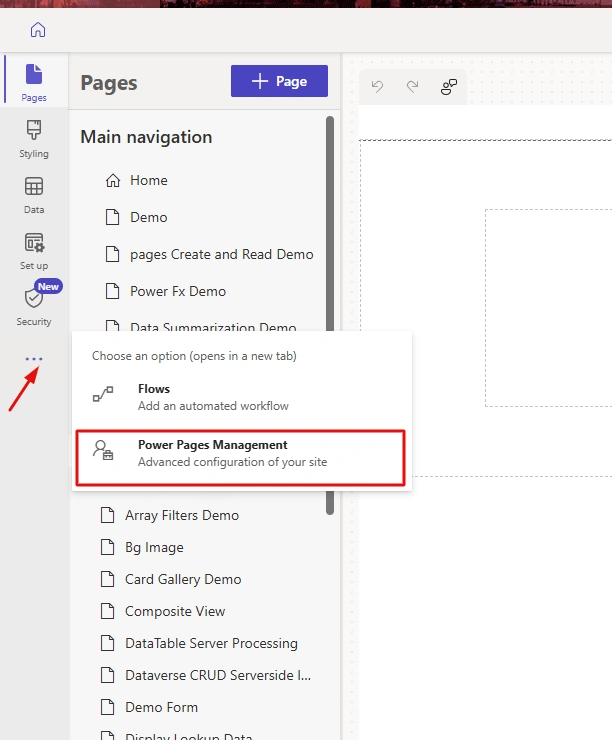
Open Power Pages Management page.
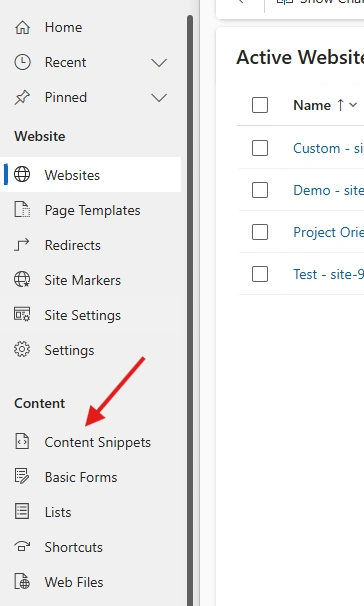
Open Content snippets from Content section
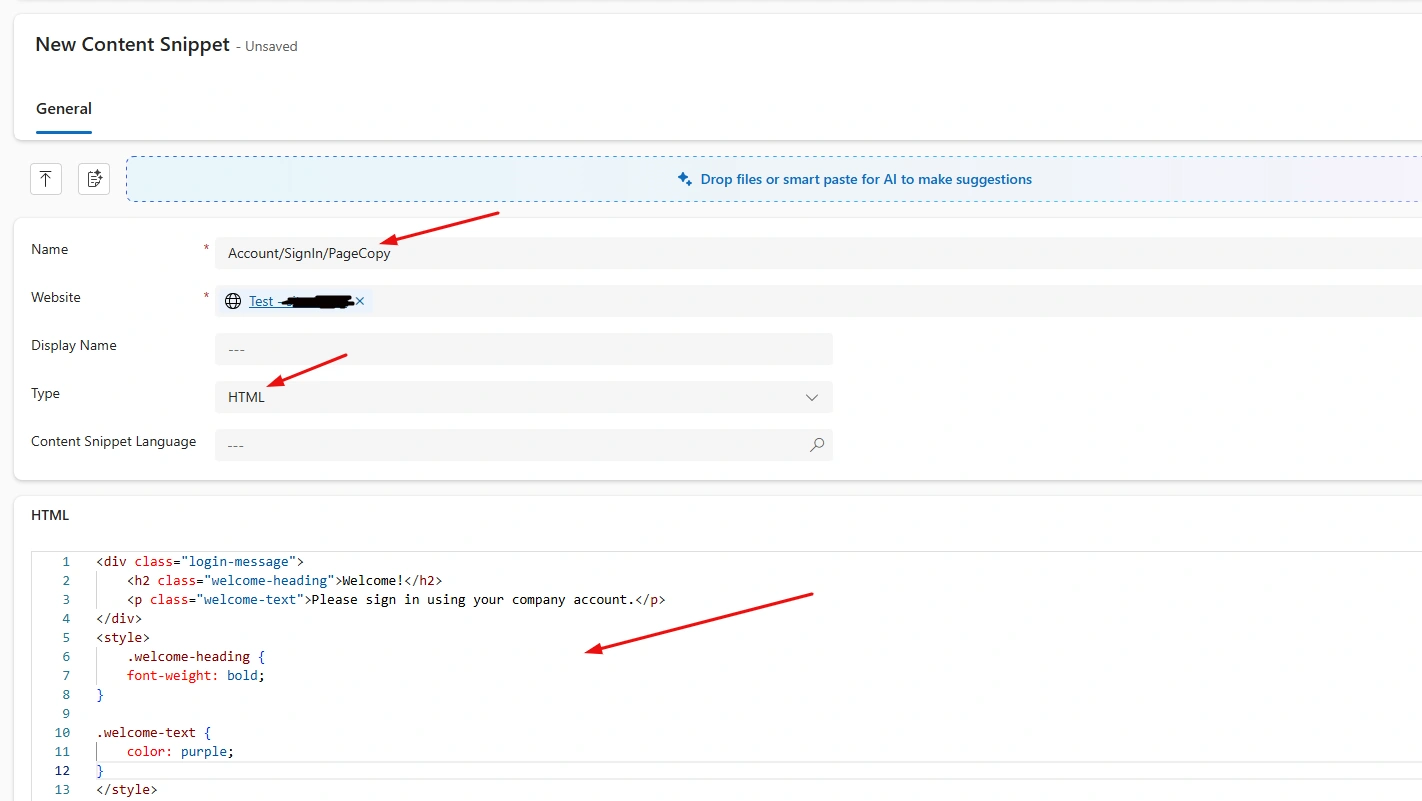
Enter these require details in Content Snippets section
You can add css in separate file
You can also add Javascript code by put in <script> just same as for Css.
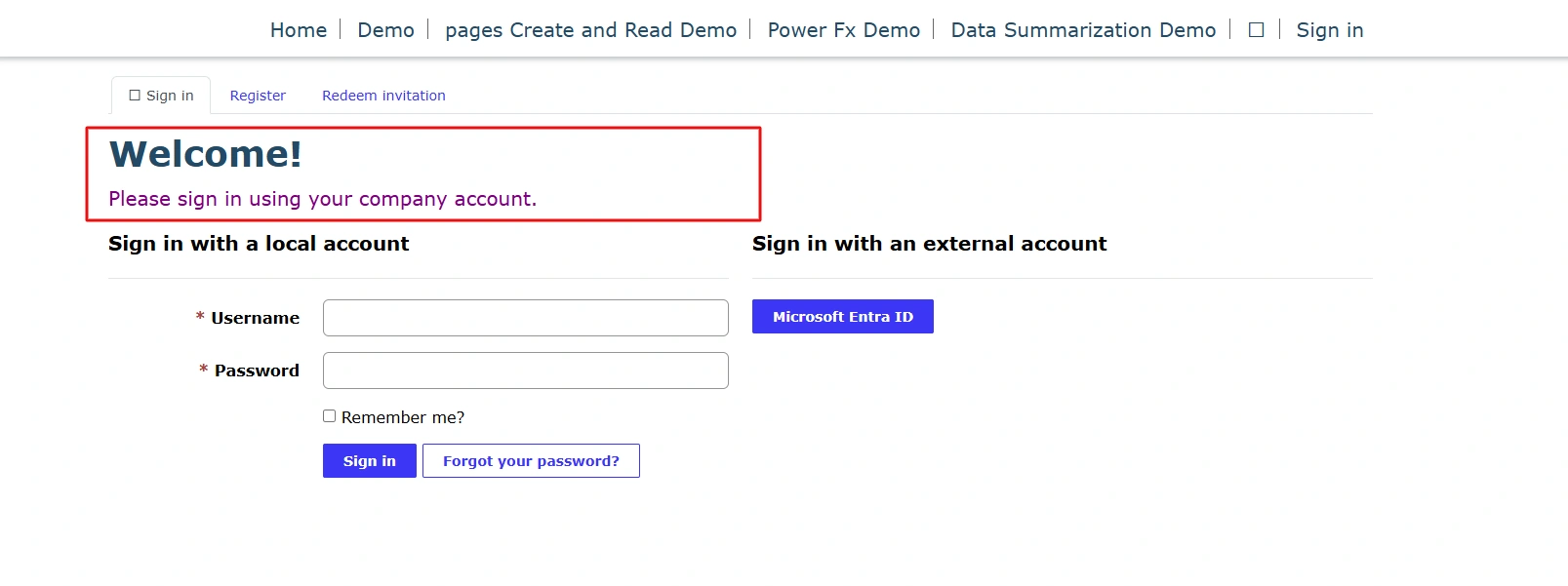
After adding, sync changes then open site in preview mode.
Navigate to Sign in page (from nav link in header)
Conclusion
Content Snippets provide a simple and supported way to customize the default sign-in page in Power Pages. You can add branded messages, HTML content, and helpful instructions without modifying the built-in authentication page.

Join the conversation! Your thoughts help the community grow.