
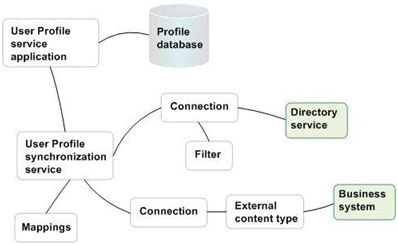
The User Profile Synchronization service is the core of the synchronization architecture in SharePoint Server 2013. When you start the User Profile Synchronization service on the synchronization server, SharePoint Server 2013 provisions a version of Microsoft Forefront Identity Manager (FIM) to participate in synchronization. A User Profile service application can only have one User Profile Synchronization service. A User Profile Synchronization service is associated with connections and mappings.
So that being said we are going to talk about an issue with the missing manager field in the SharePoint user profiles. This is something new which we observed in our environment and we happened to work with our PFE to fix this.
In our environment all was well with pushing the user profiles from FIM to SharePoint except the “manager” field wasn't getting populated, even though FIM was synching it correctly. After working with our PFE and the FIM engineer, we solved this one.
So in a nutshell the issue which we are trying to fix here is the missing manager field which doesn’t get populated in the SharePoint user profiles when you’re using FIM to push the profiles.
You can take a look at how this is set up by going to Central Admin, User Profile service application, then Configure Synchronization settings.

Fix:
Open your ULS log, and look for an entry that looks like this as in the following screenshot:

What this means is that we're getting a null reference exception, when the FIM management agent/connector for SharePoint finishes up. It calls a finalize method that's part of the web service.
This finalize method is checking for a running instance of the “User Profile AD Import Timer Job “. The problem is that this timer job only gets created if your UPSA configuration settings is set to use the "Active Directory Import" option. Please check the screenshot below.

If you never use/set that setting, which you probably don't because you're trying to use your External FIM deployment, the Timer Job will never exist. To create the timer job, all you need to do is change the setting in your UPSA's "Configure Synchronization Settings" page to "Active Directory Import" and then to back “External FIM”. This won't break anything.
Also in addition to that make sure you’re disabling the “User Profile Active Directory Import Job “

You will notice this timer job the moment you change the synchronization settings from “External FIM” to “Active Directory Import”.
You can also use PowerShell for this:
- $upsa = Get-SPServiceApplication -name "YOUR_UPSA_NAME"
- $upsa.NoILMUsed = $true
- $upsa.Update()
- $upsa.NoILMUsed = $false
- $upsa.Update()


Prashant VermaPosted Mar 11, 2016, 11:30 PM EST
nice
Vignesh ManiTOP 100Posted Mar 1, 2016, 12:35 AM EST
Nice one
Sr KarthigaPosted Feb 26, 2016, 1:49 AM EST
good one
Sr KarthigaPosted Feb 26, 2016, 1:49 AM EST
Nice explanation
Rupali ShindePosted Feb 23, 2016, 12:13 AM EST
thanks for sharing
Humayun Kabir MamunPosted Feb 10, 2016, 6:09 PM EST
Nice...
Santhakumar MunuswamyPosted Feb 10, 2016, 9:27 AM EST
Welcome
Santhakumar MunuswamyPosted Feb 10, 2016, 9:27 AM EST
Good Start
Shubham KumarPosted Feb 9, 2016, 11:52 PM EST
nice
Sibeesh VenuTOP 100Posted Feb 9, 2016, 8:52 PM EST
Nice Share
Prasham SabadraPosted Feb 9, 2016, 10:43 AM EST
Thanks Vignesh for sharing this.
Amit Kumar SinghPosted Feb 9, 2016, 9:41 AM EST
Nice one Sir