
Introduction
Power Automate provides several Data Operations actions for working with arrays. Among them, Filter array, Select, and Join are commonly used to filter records, select required fields, and combine values.
Although all three actions work with arrays, each has a different purpose:
Filter Array → Selects the required records
Select → Selects or reshapes the required fields
Join → Combines array values into a single text string
This article explains these three actions using a simple employee example with Demo Person 1, Demo Person 2, Demo Person 3, and Demo Person 4.
1. Filter Array
What is Filter Array?
The Filter Array action is used to return only records that match a specific condition.
Key Question
Which records do I need?
Demo Employee Data
Assume we have the following employee records:
ID | Person Name | Department | |
|---|---|---|---|
1 | Demo Person 1 | IT | |
2 | Demo Person 2 | HR | |
3 | Demo Person 3 | IT | |
4 | Demo Person 4 | Finance |
Suppose we only need employees from the IT department.
Power Automate Action
Add:
Data Operation → Filter array
From:
valuefrom the Get items action.
Condition
item()?['Department'] is equal to ITOutput
ID | Person Name | Department | |
|---|---|---|---|
1 | Demo Person 1 | IT | |
3 | Demo Person 3 | IT |
When to use Filter Array
Use Filter array when you need to:
Find records matching a condition.
Filter SharePoint items.
Filter employees by department.
Filter invoices by status.
Filter approval records.
Remove unwanted records before the next step.
2. Select
What is Select?
The Select action is used to select specific properties from an array and create a new structure.
Key Question
Which fields do I need?
After filtering the employees, suppose we only need the Person Name and Email.
Power Automate Action
Add:
Data Operation → Select
From:
Use the output of Filter array.
Mapping
Property | Value |
|---|---|
PersonName |
|
|
Output
[
  {
    "PersonName": "Demo Person 1",
    "Email": "[email protected]"
  },
  {
    "PersonName": "Demo Person 3",
    "Email": "[email protected]"
  }
]
The Select action has removed the unnecessary ID and Department fields.
When to use Select
Use Select when you need to:
Keep only required fields.
Rename fields.
Create a new array structure.
Prepare data for another Power Automate action.
Reduce unnecessary information from an array.
3. Join
What is Join?
The Join action combines values from an array into a single text string using a delimiter.
Key Question
How do I combine values into text?
For example, after filtering the IT employees, we may want their names in one text string.
Example Input
Demo Person 1
Demo Person 3
Power Automate Action
Add:
Data Operation → Join
From:
The required array values.
Join with:
,Output
Demo Person 1, Demo Person 3You can also use other delimiters, such as:
;Output:
Demo Person 1; Demo Person 3When to use Join
Use Join when you need to:
Create a comma-separated list.
Create a semicolon-separated list.
Combine email addresses.
Create readable text from an array.
Prepare a value for an email or notification.
Real-World Example
Suppose we want to send an email notification to all IT employees.
The flow can be designed as:
Get Items
     ↓
Filter Array
Department = IT
     ↓
Select
Person Name / Email
     ↓
Join
Combine Email Addresses
     ↓
Send Email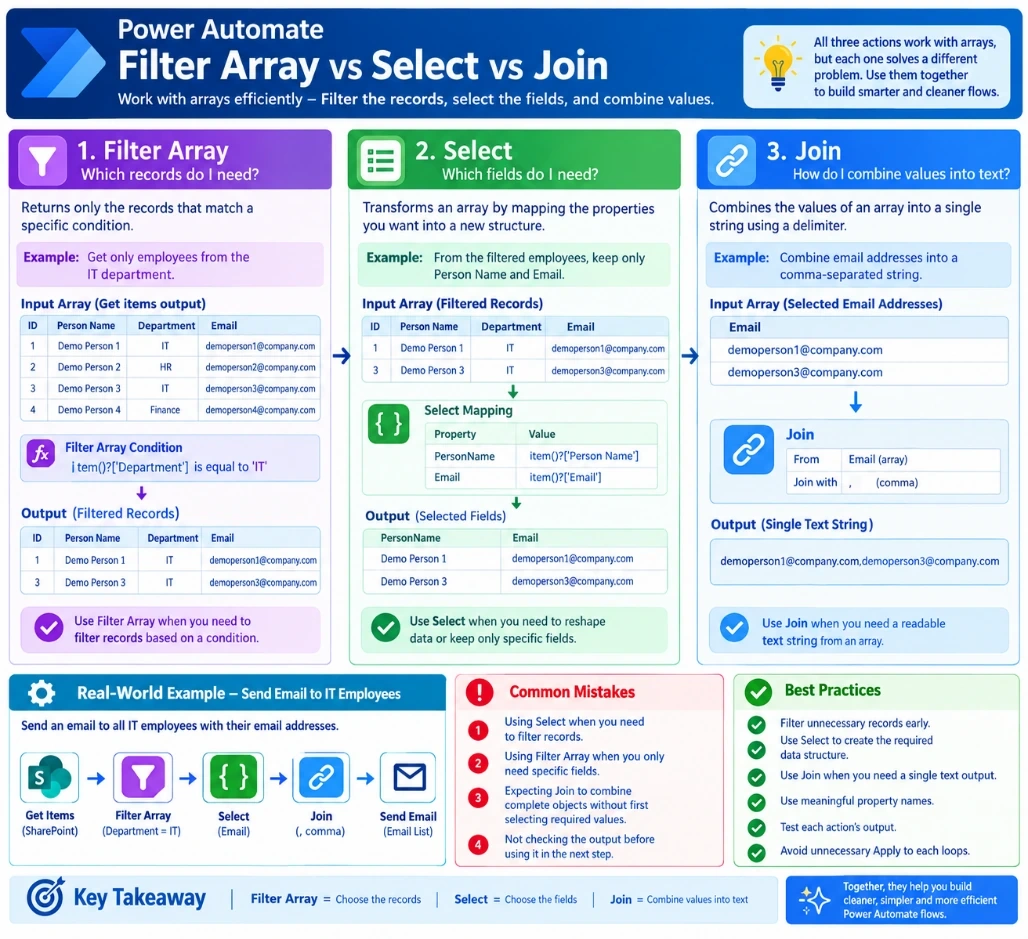
Step 1 – Get Items
Use the SharePoint Get items action to retrieve employee records.
Step 2 – Filter Array
Filter employees where:
Department = ITResult:
Demo Person 1
Demo Person 3
Step 3 – Select
Select only the Email field:
item()?['Email']Result:
Step 4 – Join
Use a comma as the delimiter.
Result:
Step 5 – Send Email
Use the resulting email list in the appropriate recipient field of the email action.
Filter Array vs Select vs Join
Action | Purpose | Key Question | Demo Result |
|---|---|---|---|
Filter Array | Filter records | Which records do I need? | Demo Person 1, Demo Person 3 |
Select | Select/reshape fields | Which fields do I need? | Person Name + Email |
Join | Combine values | How do I combine them? | Demo Person 1, Demo Person 3 |
Easy Way to Remember
Filter Array → Choose Records
Select → Choose Fields
Join → Combine Values
Common Mistakes
1. Using Select to filter records
If you need to find only IT employees, use Filter Array, not Select.
Filter Array → Department = IT2. Using Filter Array when you only need specific fields
If you already have the correct records and only need Person Name and Email, use Select.
3. Using Join directly on complex objects
Join is intended to combine values into text. If your array contains complete objects, first use Select to extract the required value.
4. Not checking the output
Always check the output of each action in Run history before configuring the next action.
For example:
Get Items
    ↓
Check Output
    ↓
Filter Array
    ↓
Check Output
    ↓
Select
    ↓
Check Output
    ↓
Join
This helps identify incorrect property names and array-format issues.
Example in an Invoice Approval Process
The same approach can be applied to an Invoice Approval solution.
For example, suppose you retrieve multiple approval records and need to notify pending approvers:
Get Approval Items
        ↓
Filter Array
Approval Status = Pending
        ↓
Select
Approver Email
        ↓
Join
Combine Email Addresses
        ↓
Send Notification Email
For example, the result could be:
This allows the flow to process the required records without unnecessarily looping through every item.
Key Takeaway
Filter Array, Select, and Join have different responsibilities:
Filter Array = Choose the records
Select       = Choose the fields
Join         = Combine values into text
They can also be used together:
Get Data
   ↓
Filter Array
   ↓
Select
   ↓
Join
   ↓
Use Final Output
Understanding these three Data Operations makes Power Automate flows cleaner, easier to maintain, and more efficient.
Conclusion
Filter Array is useful when you need specific records, Select is useful when you need specific fields or a different data structure, and Join is useful when you need to convert multiple array values into a single text string.
Using Filter Array → Select → Join together is a practical pattern for many Powers Automate scenarios, including SharePoint data processing, employee notifications, invoice approvals, and email recipient generation.

Join the conversation! Your thoughts help the community grow.