Loading
Ketan Sathavara's contributions
- Article · SharePoint
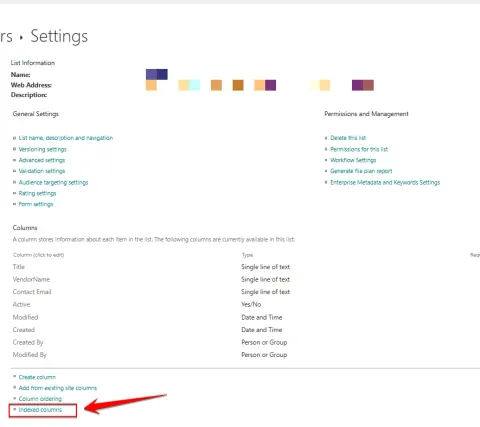
How to Improve SharePoint List Performance Using Column Indexing
Introduction Microsoft SharePoint is widely used to store and manage business data using lists and document libraries. As an application grows, SharePoint lists can contain thousands of records. When a list contains more than 5,000 items, users may experience performance issues or encounter the List
- Article · Power Automate
How to Handle Power Automate Limits When Building Large-Scale Business Workflows
Introduction Microsoft Power Automate is a powerful platform for automating business processes, integrating applications, and reducing manual work. We can create simple approval flows, notifications, data migration processes, and complex enterprise-level automation. However, while developing cloud f
- Article · Copilot
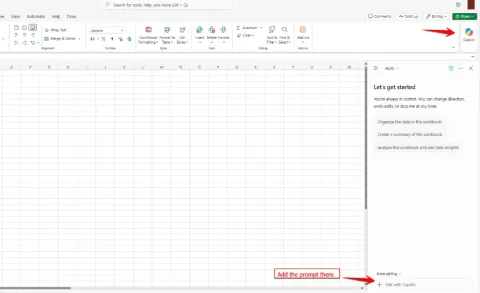
How to Automate Excel Tasks with Copilot: Formulas, Pivots, Charts, and Reports
Introduction Much of Excel work is repetitive: writing formulas, cleaning inconsistent entries, building pivot tables, and preparing the same report every month. Copilot in Excel lets you do these tasks by describing what you want in plain English. This article walks through 10 practical use cases.
- Article · Power Apps
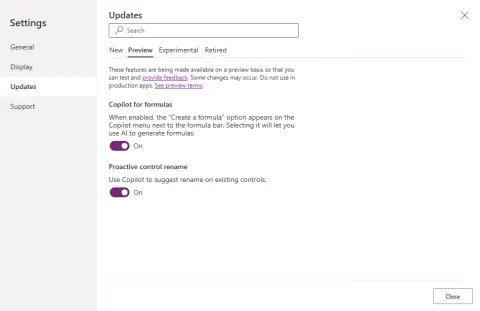
How to Use Copilot for Formulas and Proactive Control Rename in Power Apps
Introduction Two Copilot features in Power Apps Studio can save a lot of time: Copilot for formulas and Proactive control rename . Both are in preview and are found under Settings → Updates → Preview . This article shows how to enable them and walks through a realistic example. Note: Microsoft says
- Article · Power Apps
How to Use New Features in Power Apps Canvas Apps
Introduction Microsoft Power Apps provides several new features to improve Canvas app development, performance, and user experience. These features are available under Settings > Updates > New in Power Apps Studio, although the available options may vary by environment and app. Some features help de
- Article · Power Apps
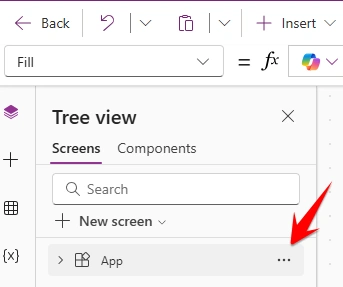
How to Use App-Level Formulas and Properties in Power Apps Canvas Apps
Introduction In Microsoft Power Apps Canvas Apps, app-level formulas and properties help developers control application startup, navigation, error handling, screen sizing, themes, and other global behaviors. These properties are available by selecting the App object in the Tree view and choosing a p
- Article · Power Automate
How to Use the Respond to a Power App or Flow Action in Power Automate
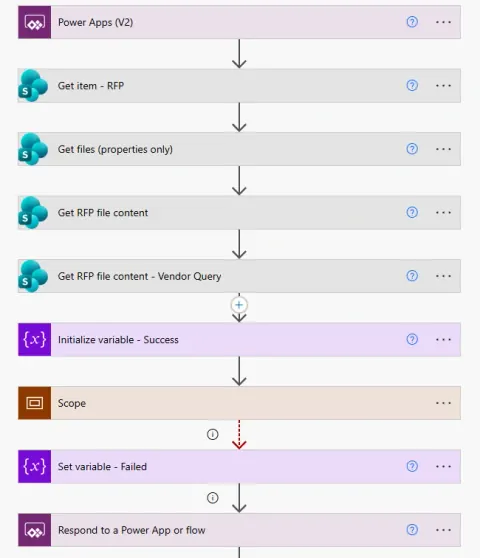
Introduction The Respond to a PowerApp or flow action returns a value from Power Automate to Power Apps. It can be used to send a success or failure status after a flow completes its processing. Example: Return Success or Failed Status Suppose you have a flow that creates an item in a SharePoint lis
- Article · Power Automate
How to Use the Approval Action in Power Automate
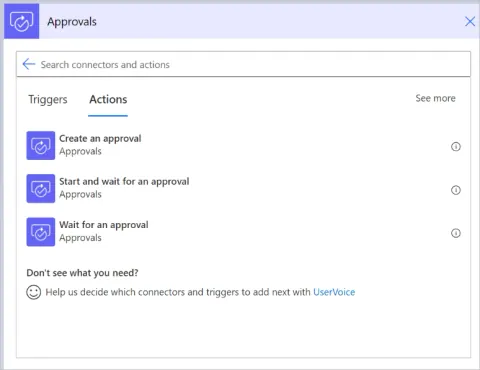
Introduction Microsoft Power Automate allows you to automate approval processes for business activities such as invoice approvals, leave requests, document reviews, and purchase requests. The Approval action helps you send approval requests to specific users and process their responses automatically
- Article · Power Automate
How to Manage Repetitive Tasks Using Apply to Each and Do Until
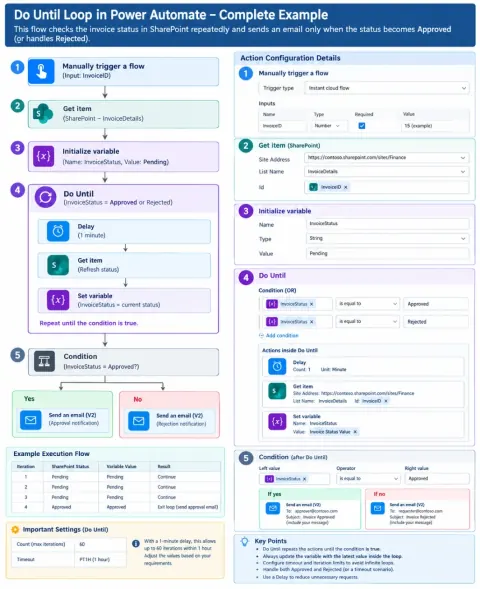
Introduction Microsoft Power Automate provides different loop actions to automate repetitive tasks. Two commonly used actions are Apply to Each and Do Until . Both actions repeat a set of steps, but they work differently. Apply to Each processes every item in a collection, while Do Until repeats act
- Article · Power Apps
How to Choose the Right General Settings for Your Power Apps Canvas App
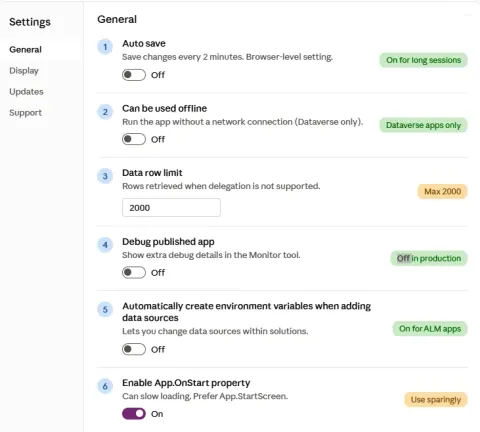
Introduction The General tab in the Power Apps Settings pane controls how your app saves, retrieves data, starts up, and moves between environments. This guide explains its six settings, covering what each does, its default, and when to change it, so you can avoid slow apps, missing records, and deb
- Article · Power Automate
How to Manage SharePoint List Item and File Permissions Using Power Automate
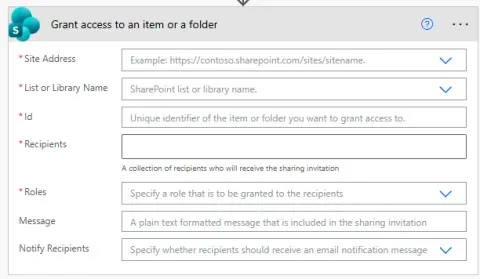
Introduction Microsoft Power Automate provides several SharePoint connector actions that help automate permissions for individual list items, folders, and files. These actions allow you to control who can access specific SharePoint content and whether they can view or edit it. In this article, we wi
- Article · Power Automate
How to Implement Pagination in Power Automate for Large SharePoint Lists
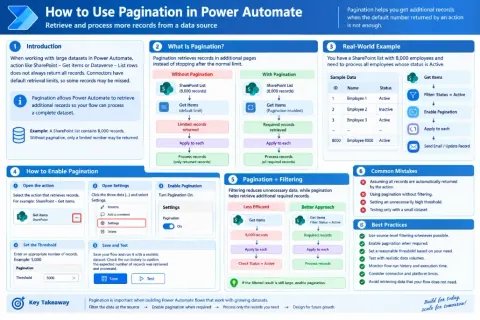
Introduction When working with large datasets in Power Automate , you may notice that an action such as SharePoint – Get items or Dataverse – List rows does not return all available records. This happens because connectors can have default retrieval limits. Pagination helps Power Automate retrieve a
- Article · Power Automate
How to Hide Sensitive Data in Power Automate Run History Using Secure Inputs and Outputs
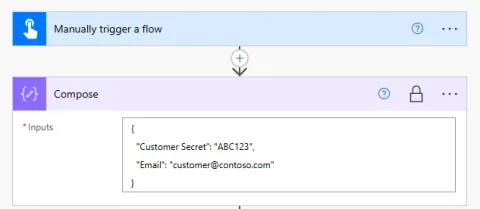
Introduction Microsoft Power Automate provides run history to help developers monitor workflow execution, troubleshoot errors, and validate the data passed between actions. However, this run history can also expose sensitive information, such as customer email addresses, confidential business detail
- Article · Power Automate
How to Use the Parse JSON Action in Microsoft Power Automate
Introduction Microsoft Power Automate is a workflow automation platform that helps users automate repetitive tasks and integrate different applications and services. During workflow execution, data is frequently exchanged between systems in JSON (JavaScript Object Notation) format. The Parse JSON ac
- Article · Power Automate
How to Deploy Power Automate Flows Across Environments Using Connection References
Introduction When building Power Automate solutions across DEV, TEST/UAT, and PROD , connection management is an important part of a successful ALM strategy. Two concepts that are often confused are Connections and Connection References . Although both are related to connecting Power Automate to ser
- Article · Power Automate
How to Efficiently Work with Arrays Using Filter Array, Select, and Join in Power Automate
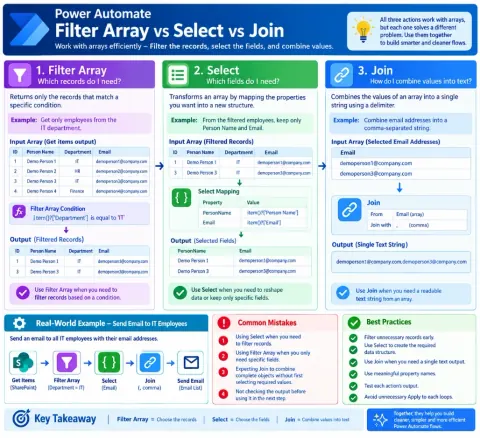
Learn how to use Filter array, Select, and Join in Power Automate to filter records, reshape fields, and combine array values into text.
- Article · Power Apps
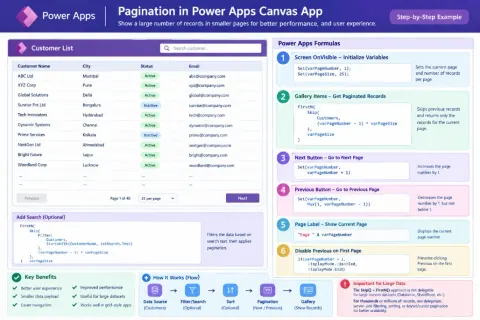
How to Implement Pagination in Power Apps for Large Data
When a Power Apps Canvas App works with a large number of records, displaying everything at once can make the application difficult to use and may affect performance. Pagination provides a simple solution by dividing records into smaller pages, such as 25 records per page , and allowing users to nav
- Article · Power Automate
How to Use the Select Action in Power Automate to Reshape and Transform Data
Introduction When working with Power Automate , actions such as Get items , Get rows , or API calls often return more data than you actually need. Processing all those properties can make a flow harder to understand and maintain. The Select action, available under Data Operations , helps solve this
- Article · SharePoint
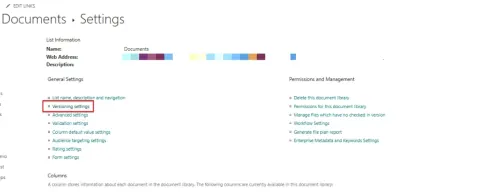
How to Manage Version History and Restore Versions in SharePoint
Learn how to enable, view, configure, and restore version history for SharePoint files and list items, including major and minor versions, recycle bin recovery, and best practices.
- Article · Power Automate
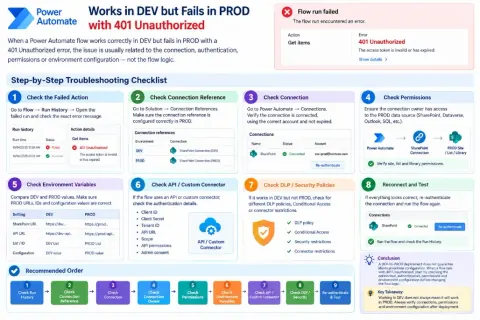
How to Fix Power Automate Flows That Work in DEV but Fail in PROD with 401 Unauthorized
Troubleshoot Power Automate 401 Unauthorized errors after DEV-to-PROD deployment by checking connection references, authentication, permissions, APIs, and DLP policies.
- Article · Power Automate
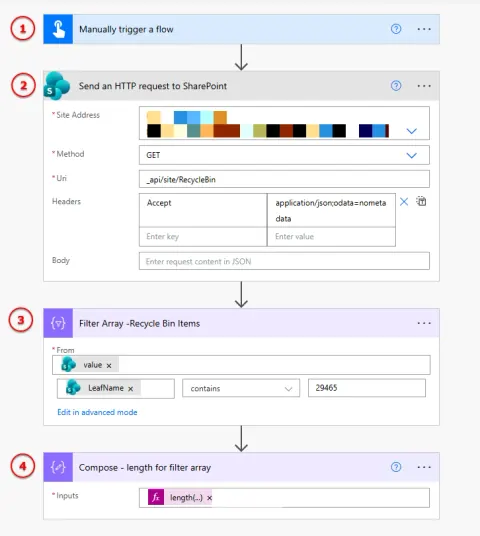
How to Retrieve Deleted Invoice Records from the SharePoint Recycle Bin
Learn how to use Power Automate to retrieve, filter, and count SharePoint Recycle Bin items with HTTP requests, Filter array, and length().
- Article · Power Automate
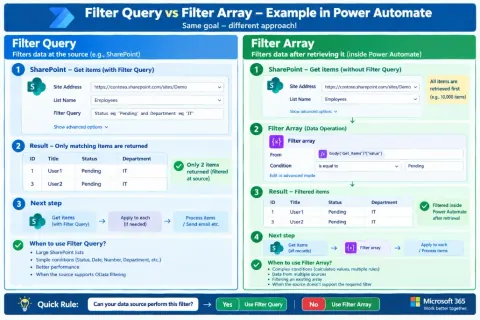
How to Use Filter Query and Filter Array for Better Power Automate Flows
Learn the difference between Filter Query and Filter Array in Power Automate, including performance, SharePoint filtering, OData queries, and best practices.
- Article · Power Automate
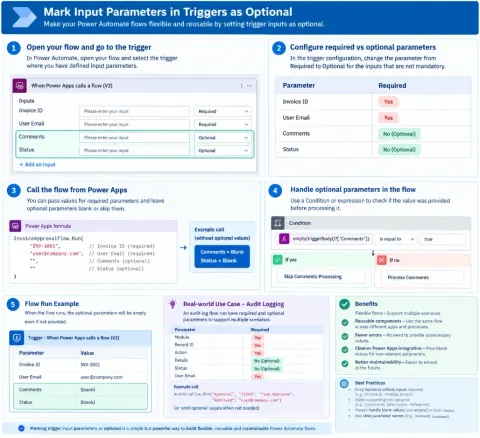
How to Mark Input Parameters in Power Automate Triggers as Optional
Learn how to make Power Automate trigger input parameters optional and handle blank values using conditions and expressions for flexible, reusable flows.
- Article · SharePoint
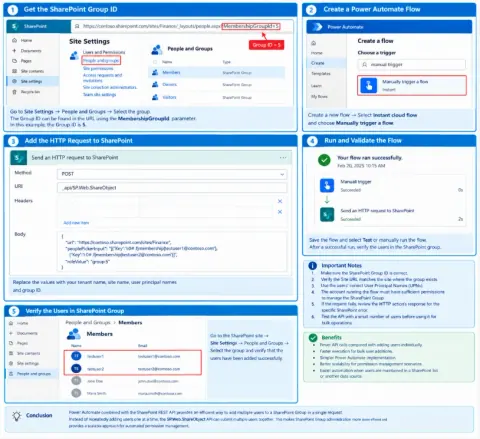
How to Add Multiple Users to a SharePoint Group Together in One API Call
Learn how to add multiple users to a SharePoint Group in one Power Automate HTTP request using the SharePoint REST API, reducing API calls and simplifying permissions.
- Article · Power Automate
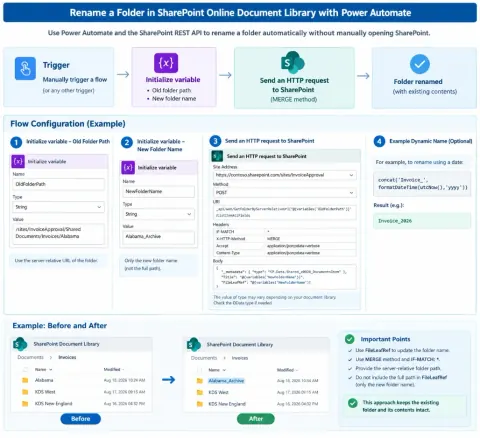
How to Rename a Folder in SharePoint Online Document Library Using Power Automate
Learn how to rename SharePoint Online folders with Power Automate using the SharePoint REST API, FileLeafRef, MERGE requests, dynamic names, and folder IDs.